
Managed Google Play: Private Android App Deployment
Publishing a private Android app does not install it on devices. Managed Google Play limits access to approved organizations; an MDM controls which managed devices receive it. Deployment has 4 separate steps: publish, grant access, sync, and assign.
The process covers:
- Prepare: Choose a permanent package name, sign the release build, and set its version code.
- Publish: Use the MDM’s embedded publishing tool, Google Play Console, or Google Admin Console, where supported.
- Deploy: Confirm the organization ID, sync the MDM catalog, and set required or optional installation.
- Verify and update: Test installation, launch, and upgrades on managed devices. Keep the package name and compatible signing, and increase
versionCodewith each release.
Keep release details, test results, and ownership records together so the next release follows the same checked process.
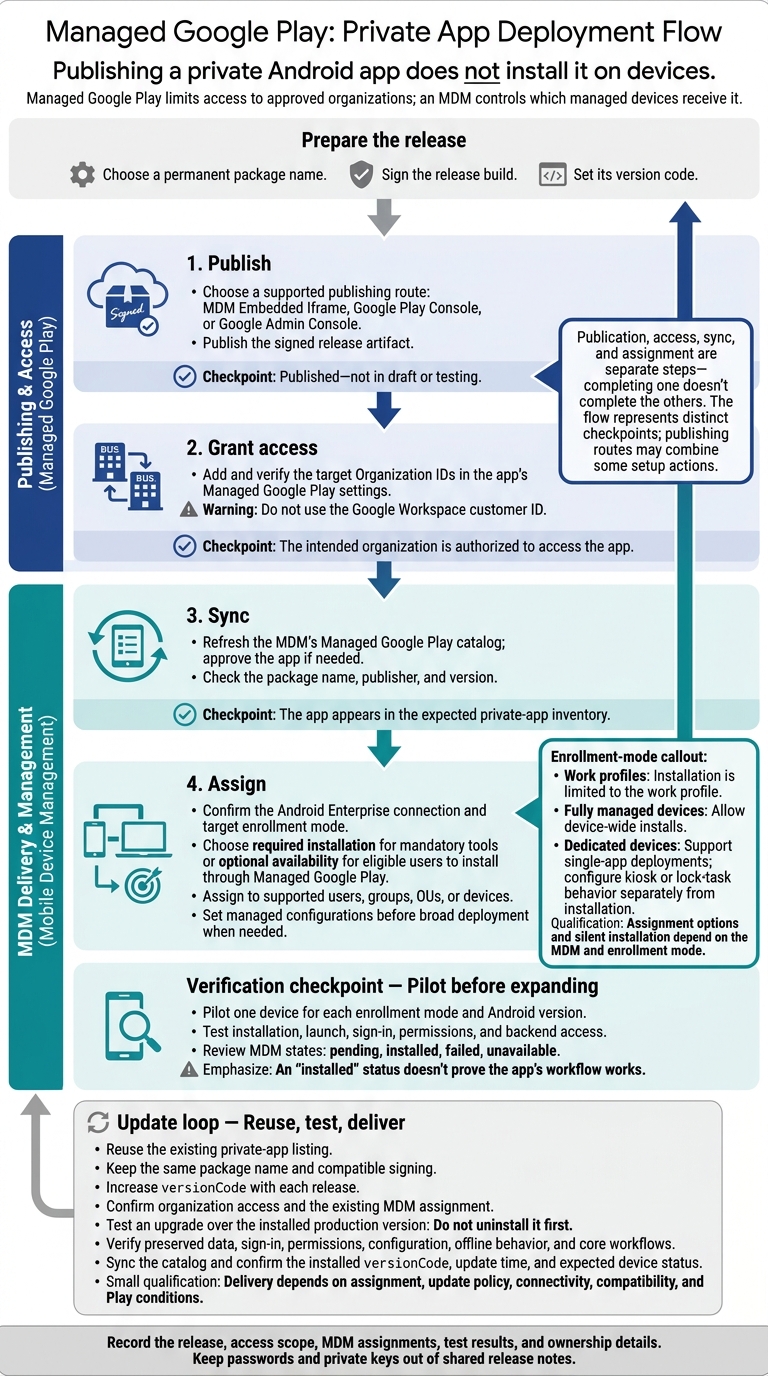
Managed Google Play: Private App Deployment Flow
Publish the App for Authorized Organizations
Choose a Publishing Route
After signing the release, choose the publishing channel that fits your app ownership and release process. This makes the app visible only to approved organizations.
| Feature | MDM Embedded Iframe | Google Play Console | Google Admin Console |
|---|---|---|---|
| Best for | Fast publication to one enterprise MDM catalog | Structured releases across organizations | Internal publishing by an organization admin |
| Release tools | Basic upload and publish | Testing and release management | Publishing and access settings |
| Ownership | Bound to the MDM enterprise connection | Managed in Google Play Console | Managed by Google Workspace admins |
For embedded publishing, open the MDM’s Managed Google Play page, select private app upload, enter the app title, and upload the release artifact. Before publishing, check that the MDM is bound to the correct Google Workspace, Cloud Identity, or managed enterprise account. Confirm which organization is tied to that connection.
For the Google Admin Console route, go to Apps > Web and mobile apps > Add app > Add private Android app, where supported.
In Google Play Console, create the app and choose its default language and title. Then open the app’s advanced settings and select the Managed Google Play tab. Depending on the interface, you may find it under Release > Setup > Advanced settings or Test and release > Advanced settings.
Add the target organizations, save your settings, and complete the release submission. Confirm that the release is published - not in draft or testing. Once it’s published, map the app to the target organizations before deploying it through MDM.
Set and Verify Organization Access
Publishing makes the app available. Organization access controls where it appears.
Ask each organization admin to copy the Organization ID from Managed Google Play > Admin Settings. In Play Console, add that ID to the app’s Managed Google Play settings, enter a descriptive name for the organization, and save your changes. Do not use the Google Workspace customer ID. You can share a private app with up to 1,000 organizations.
After publishing, sync the MDM’s Managed Google Play catalog. Check that the app appears in the expected private-app inventory. Where supported, search by package name:
pname:com.company.inventory
Private availability makes the app visible to the organization; it does not install it on devices.
sbb-itb-c68f633
Deploy the Private App Through MDM
Once publication and organization access are in place, assign the app through MDM. First, confirm that Android Enterprise is connected to the MDM and check each target’s enrollment mode. Work profiles limit installation to the work profile on personally owned or mixed-use devices. Fully managed devices allow device-wide installs, while dedicated devices support single-app deployments. Assignment options and silent installation depend on the MDM and enrollment mode.
Sync the App and Set Installation Policies
Open the MDM’s Android Enterprise or Managed Google Play integration, refresh the catalog, and approve the app if needed. Check its package name, publisher, and version. Publication, access, sync, and assignment are separate steps - completing one doesn’t complete the others.
Choose required installation for mandatory tools or optional availability so eligible users can install the app from Managed Google Play. Assign it only to supported users, groups, OUs, or devices. On mixed-use devices, target the work profile. For dedicated devices, set up kiosk or lock-task behavior separately from installation.
If the app needs managed configurations, set the required environment URL, tenant ID, or authentication settings before assigning it broadly. Pilot one device for each enrollment mode and Android version. Test launch, sign-in, permissions, and backend access. Then check the MDM’s pending, installed, failed, and unavailable states before expanding deployment.
Fix Catalog and Installation Issues
Start with the checkpoint that failed to narrow your search. An “installed” status doesn’t prove the app’s workflow works. Test the app on the device, too.
| Symptom | Checks and next action |
|---|---|
| App missing from MDM catalog or search | Search by exact package name. Confirm that publication is complete, organization access is set, and the catalog has synced. |
| Catalog sync failure | Check the Managed Google Play connection, enterprise account, administrator permissions, and sync error details. Fix the connection or access issue, then retry. |
| App appears but will not install | Check enrollment mode, assignment scope, supported Android version, storage, network access, Google Play services, and policy restrictions. |
| App installs but does not launch | Test the signed release build. Check managed configuration values, permissions, required services, and Android/device compatibility. |
| Update does not apply | Check that the update uses the same package name, a compatible signing identity, and a higher version code. Confirm that the release is available to the organization and that the existing MDM assignment is in place. |
| Dedicated device exits the app | Confirm required installation and kiosk or lock-task configuration. Optional availability does not pin the app to the device. |
For the next release, keep the same package name and signing identity once installation is stable.
Update the Existing Private App
For each new release, reuse the existing private-app entry and repeat the managed-release flow. Keep the same package name, increase versionCode, and use compatible signing. versionCode controls updates. Changing the package name creates a new app, and deleting the private app does not make its package name available for reuse.
Upload and Test the Next Release
Upload the next APK or AAB to the existing private-app entry. If you’re switching from APK to AAB, first confirm that Play App Signing is enabled. The Custom App Publishing API does not support AAB uploads.
Before publishing, check the package name, versionCode, signing, compatibility, and any validation errors. Confirm that the same organization IDs still appear on the app’s access list.
Then publish or assign the test release to a tightly controlled test organization or group. Use a device enrolled through the same MDM path as production, with the current production version already installed. Do not uninstall it first. Check that the upgrade preserves on-device data, sign-in, permissions, configuration, offline behavior, and core workflows.
Verify Updates on Managed Devices
After publishing the test build, confirm that MDM delivery reaches managed devices. Publishing does not install the app. Delivery depends on assignment, update policy, connectivity, compatibility, and Play conditions such as charging and app activity.
Sync the MDM catalog before checking rollout status. On a managed test device, check the installed versionCode and update time. Then confirm that deployment reports show the expected installation state, and watch for pending, failed, blocked, or incompatible devices.
Minimum-version enforcement can force the app closed. Test that policy before applying it broadly.
Release checklist:
- Unchanged package name
- Higher
versionCode - Compatible signing
- Existing private-app listing
- Correct organization access
- Successful upgrade test with preserved data
- Expected device status
Assign follow-up actions for pending, offline, and failed devices.
Conclusion: Confirm Publication, Access, and Installation
Close each deployment with three checks: Google has published the signed build as a private app; the authorized organization can find it in the Managed Google Play catalog; and an assigned test device can install, launch, and update it. Save evidence for every check - a published status alone isn’t enough.
Keep version, access scope, and handoff details together in one release record:
- Release: Package name, version code, artifact hash, publishing account, authorized Organization IDs listed separately for testing and production, and MDM assignment groups.
- Verification: Device ID, installed version, verification time, test results, and escalation path.
- Ownership: Who controls the signing keys, where they’re stored, the backup and recovery contact, and who has publishing authority.
Give the next release owner a clear audit trail, but keep passwords and private keys out of shared release notes.
FAQs
Can I roll back a faulty private app update?
Yes. If you publish private apps in Managed Google Play, keep a documented rollback plan. If initial troubleshooting doesn’t resolve the issue, follow that plan: disable assignments, revoke access, remove the app, and restore the previous settings.
Test your rollback procedures on a small group of devices before expanding any rollout. Only approved administrators should have permission to carry out a rollback.
What happens if I lose my app’s signing key?
Losing your app’s signing key can leave you unable to publish updates on the Google Play Store. Android requires updates to use the same signing certificate as the original app to confirm they come from the same source. Without the original signing key, Google Play will reject new versions.
Store your signing key securely and keep a backup so you can continue updating your app.
Can I move my private app to another MDM?
Yes. Private apps published in Managed Google Play are tied to your organization’s enterprise account, not to a specific mobile device management (MDM) or unified endpoint management (UEM) provider.
To migrate, check that your new MDM environment supports Managed Google Play and Android Enterprise. Then use the new platform to distribute your existing private apps, keeping the same package names and internal distribution rules.