
Force Install vs. Allow Install: Chromebook Android Apps
I recommend force install for required Chromebook Android apps and allow install for optional tools. If students need a required app within easy reach, use force install and pin.
The trade-off: automatic installation uses storage even when apps go unused. Student-led installation saves space when apps are skipped, but requires instructions and follow-up. Neither policy guarantees an app is ready for class.
Quick Comparison
| Policy | Who installs it? | Class readiness | Student choice | Storage and network use | Admin work |
|---|---|---|---|---|---|
| Force install | Managed automatically | Check installation and launch | Required installation | Uses storage; rollout downloads can overlap | Target users and check failures |
| Force install and pin | Managed automatically; adds a shelf shortcut | Check installation, launch, and shortcut | Required installation and shelf placement | Same app footprint as force install | Check rollout and shelf placement |
| Allow install | Students | Depends on students finishing setup | Students choose approved apps | Skipped apps use no space; download timing varies | Give instructions and follow up |
Before deployment, I’d check Android support, licensing, app approval, storage, and device requirements. Then I’d set the policy for the right users in Google Admin console and test with a small group.
My final check: <u>confirm installation, first launch, and sign-in</u> before the lesson. Inventory exports can help track devices, but students also need a clear way to report missing apps or errors.
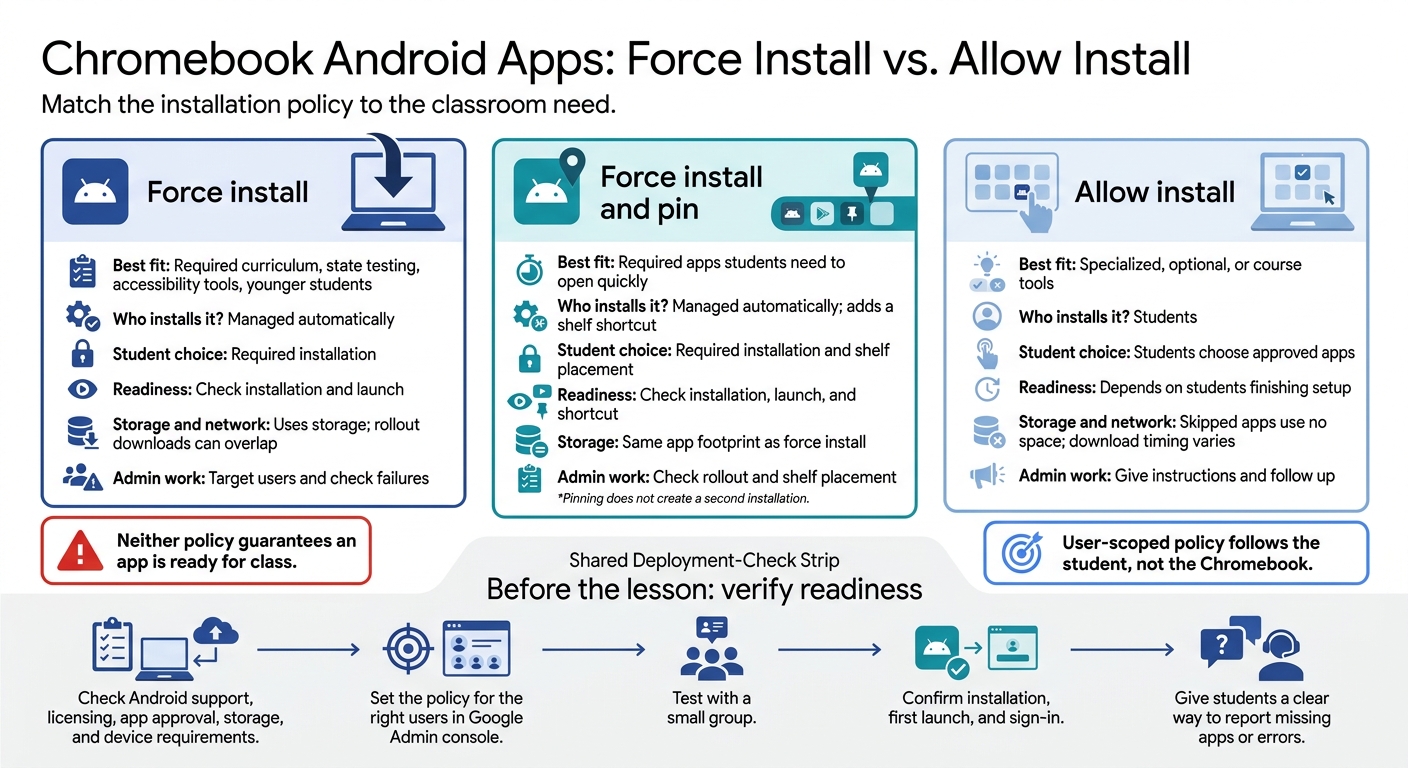
Chromebook Android Apps: Force Install vs. Allow Install
Force Install vs. Allow Install: Readiness and Student Choice
The difference comes down to who controls installation and how much risk you accept during class. Here’s how the policies compare on readiness, student choice, and storage.
| Policy | Installation behavior | Classroom readiness | Student choice | Storage impact | Best-fit use |
|---|---|---|---|---|---|
| Force install | Deploys after policy sync and sign-in | Requires a successful install | Installation is managed | Uses space even when unused | Required curriculum, state testing, accessibility tools, younger students |
| Force install and pin | Installs apps and pins them to the ChromeOS shelf | Makes required apps easier to find | Installation and placement are managed | Same footprint as force install | Required apps students need to open quickly |
| Allow install | Requires student action before class | Depends on students installing apps on time | Students choose approved apps | Saves space when apps are skipped | Specialized, optional, or course tools |
Match each policy to how students will use the apps in class.
Force Install: Install Required Apps Automatically
Force install sends approved apps to targeted users without student action. Apps arrive at sign-in only when the device is online, synced, compatible, and installation succeeds. Signing in doesn’t guarantee the app is ready for class.
For younger students or anyone who needs fewer navigation steps, force install plus pinning to the ChromeOS shelf makes required apps easier to find. Pin selectively - too many pinned apps can clutter the interface. Use this approach for required curriculum or state testing after checking that the app meets those requirements.
Allow Install: Let Students Choose Approved Apps
Allow install limits managed Google Play to apps approved by policy. Students choose and install only the tools they need, saving storage when they skip apps.
If an app is needed for class, give students time to install it before the lesson starts. Readiness depends on their action, so clear instructions and support matter.
Plan Installation Instructions and Support
Force install puts installation support in IT’s hands; allow install puts installation steps in students’ hands.
For Allow install, provide the exact app name, where to find it, and how to check that it opens. For Force install, plan support for missing apps, failed installations, and sync issues.
With either policy, tell students where to report problems and ask them to include the app name and error message in support requests.
sbb-itb-c68f633
Compare Storage, Network Use, and Admin Work
Force install puts deployment work upfront. Allow install leaves more coordination to students and teachers.
| Policy | Storage | Network demand | Consistency | Admin work |
|---|---|---|---|---|
| Force install | Uses space across the targeted group, even for unused apps | Broad rollouts can cause download spikes | Apps are more consistently available, but installation completion still needs checking | Targeting, compatibility checks, and rollout monitoring |
| Allow install | Saves space when students skip apps | Downloads spread out as students install | Installation timing is less predictable | Approved app list, instructions, and deadline follow-up |
Check Storage and App Requirements
Once you decide who installs the app, check whether their devices can support it.
Before deployment, check available storage, download size, and installed app size. Leave room for app data and updates, too. Compare the app’s minimum hardware and OS requirements with the Chromebooks students use.
Android apps also consume bandwidth and device resources. Require an app only when it meets a clear classroom need. Target the users who need it rather than a broader OU.
Test Apps Before Broad Deployment
Test the app on a small group of compatible devices before rolling it out to more users. Include representative users and devices with less free space to spot storage problems. Record whether installation completes, how much storage remains, whether launch and sign-in succeed, and how downloads affect the network.
For Allow install, check whether students can finish installation by following your instructions. Verify installation and first launch before expanding the rollout.
Set App Installation Policies in Google Admin Console
After choosing an install policy, apply it in Google Admin console. Go to Devices > Chrome > Apps & extensions > Users & browsers. Select the target OU or group, add the approved Android app, choose its installation policy, and save.
Match the policy to the app’s role: allow install, force install, force install + pin, or block.
Confirm Android Support and App Approval
Before saving, check that the device has a valid Google license and the app is approved.
Target Users and Check Effective Policy
Use user OUs or groups to separate grades, courses, and other populations. Before deployment, review inherited settings, local overrides, and the effective policy.
User-scoped policy follows the student, not the Chromebook. Test with a user in the target OU or group. Confirm that settings sync so the app is ready for classroom use, and check that it works as intended.
Coordinate Inventory and Support With AdminRemix
AdminRemix’s Chromebook Getter can export serial numbers, OS versions, and AUE data to Google Sheets. Use these exports to track inventory and rollouts during deployment.
Conclusion: Choose the Policy That Fits Classroom Needs
After testing the app and identifying who needs it, use Force install for apps every targeted student must use. Use Allow install for approved optional apps that students install themselves. Target required apps only to users who need them.
Test with a pilot group before rolling the app out to everyone.
FAQs
What happens if I switch a force-installed app to allow install?
Switching an app from force install to allow install stops it from being automatically pushed to and maintained on student devices. Students can still install it themselves from the managed environment when they need it.
The app becomes optional rather than required, helping save device storage by letting students install only the apps they need.
Can students use installed Android apps offline?
Yes - if the app supports offline use. To check, disconnect from Wi-Fi, save your work in the app, then reconnect to confirm that it syncs correctly.
Educators can also check AdminRemix resources for help managing Chromebooks with limited or no internet access. For audits of off-campus device use, Chromebook Getter can help track last-known IP addresses.
How do I troubleshoot a force-installed app that’s missing?
Check that the device is in the correct Organizational Unit (OU) and that its force-install policy is applied correctly in the Google Admin console. Then check its network connection and enrollment status for sync issues.
Make sure ChromeOS is up to date. Devices past their Auto Update Expiration (AUE) date may not install or launch updated apps. If the problem continues, try resetting the user profile before moving to a full device reset.