
How to Set Google Meet Recording Retention in Vault
To set Google Meet recording retention, enable Meet-specific retention in Vault, then create a rule with the approved scope, duration, start date, and deletion action. Retention keeps supported data under a policy - it does not create recordings or replace a backup.
Before saving a rule:
- Confirm coverage: Check Vault licenses, admin permissions, supported meeting data, and existing Drive rules.
- Set the policy: Choose indefinite retention or 1 to 36,500 days, then check applicable legal holds.
- Test safely: Saving activates the rule. Use disposable recordings in a limited scope, since older files may become eligible for deletion immediately.
- Review after rollout: Verify results, document approvals, and check rules when legal requirements, licensing, or organizational needs change.
Enabling Meet-specific retention changes coverage across the organization. Reuploaded copies and meeting notes still need separate checks under Drive rules.
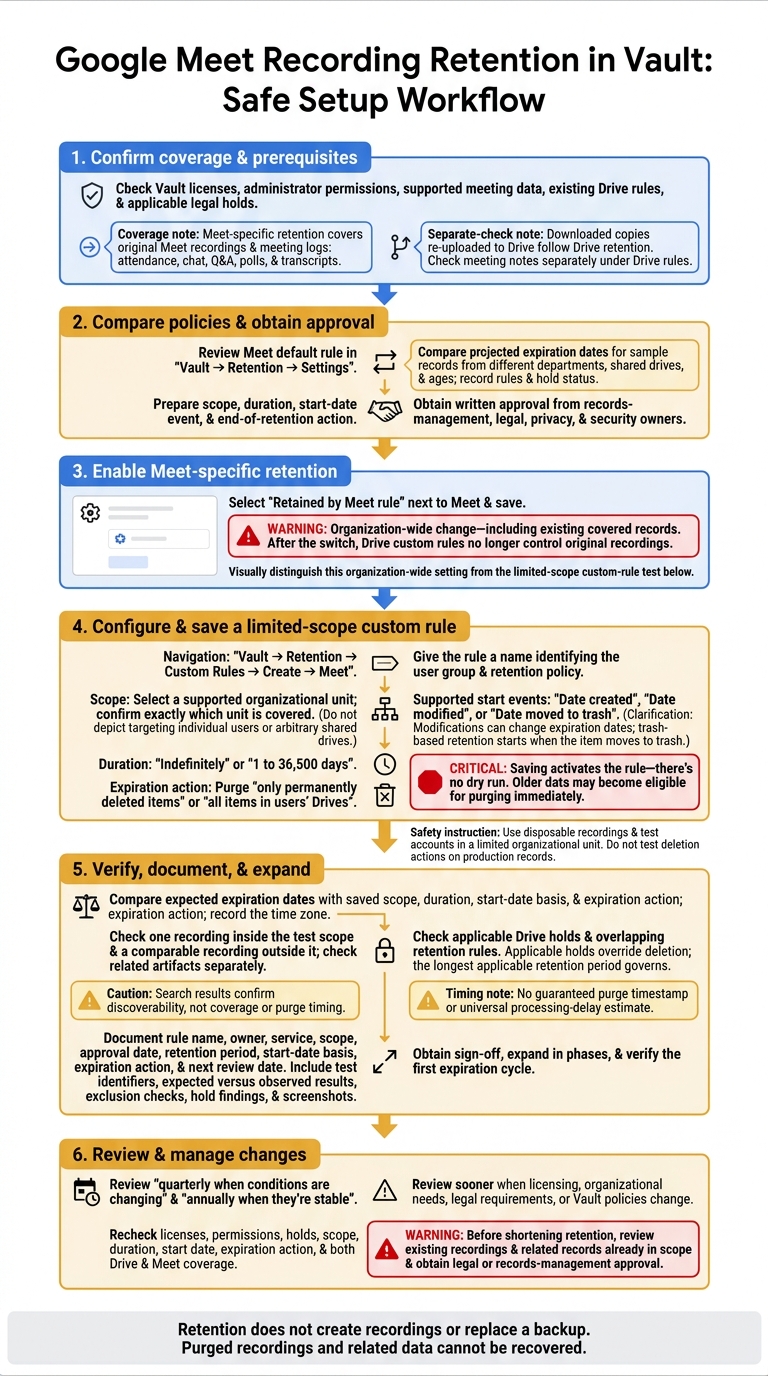
Google Meet Recording Retention in Vault: Safe Setup Workflow
Step 1: Review and Enable Meet-Specific Retention
Compare Drive and Meet Retention Rules
Use Meet-specific retention when original Meet recordings and meeting data need a separate lifecycle. Compare the rules below to establish which records the new rule covers, how long it retains them, and when they can expire.
| Area | Drive-based retention | Meet-specific retention |
|---|---|---|
| Covered data | Meet recordings covered by Drive retention. | Original Meet recordings and meeting logs: attendance, chat, Q&A, polls, and transcripts. |
| Default and custom rules | Uses the Drive default rule and applicable Drive custom rules. | Uses the Meet default rule and applicable Meet custom rules, which can target organizational units or shared drives. |
| Holds | Applicable Drive holds override deletion. | Applicable Drive holds still override deletion. |
| Deletion risk | Recordings can expire under the broader Drive policy. | Covered data can expire unless another rule or hold preserves it. The longest applicable retention period governs. |
Downloaded copies re-uploaded to Drive follow Drive retention, so inventory them separately. Use this comparison to set the scope and expiration behavior for the rule you create next.
Review Rules Before Enabling Meet Retention
Before enabling Meet-specific retention, open Vault → Retention → Settings and review the Meet default rule. Prepare the custom rule settings for scope, duration, start-date event, and end-of-retention action. After the switch, Drive custom rules no longer control original recordings.
For sample records from different departments, shared drives, and ages, compare the projected expiration dates under the current and proposed rules. Record each rule, hold status, and expiration date. Get written approval from records-management, legal, privacy, and security owners, and save the comparison in the change record.
After approval, select Retained by Meet rule next to Meet and save. This setting applies across the organization, including existing covered records.
Next, use the approved comparison to create the custom rule. Verify its expiration behavior on a limited sample before expanding its scope.
sbb-itb-c68f633
Google Workspace: Google Vault
Step 2: Create a Meet Retention Rule
Go to Vault → Retention → Custom Rules → Create, select Meet, and give the rule a name that identifies the user group and retention policy. Set the scope, retention duration, start-date event, and expiration action. Then review the summary and create the rule.
Choose the Retention Scope
Select a supported organizational unit, and confirm exactly which unit the rule covers. Don’t target individual users or arbitrary shared drives.
Set the Retention Period and Start Date
Choose Indefinitely or enter a period of 1 to 36,500 days. For a set retention period, choose a supported start event: Date created, Date modified, or Date moved to trash.
Match the event to your policy. Modifications can change the expiration date, while a trash-based retention period starts only when the item moves to trash.
Choose What Happens When Retention Ends
For rules that expire, choose whether Vault purges only permanently deleted items or all items in users’ Drives. Check the summary carefully before saving: older data may become eligible for purging immediately.
Then test the rule on a limited scope before expanding it.
Step 3: Test the Rule Before Expanding Its Scope
Test the saved rule with disposable recordings and test accounts in a limited organizational unit before broadening its scope. Saving activates the rule - there’s no dry run. Don’t test expiration actions that delete data on production records.
Check Scope, Dates, and Holds
Before saving, confirm the Meet service, Meet retention setting, recording owners, organizational unit, retention period, start-date basis, and expiration action. Use known file dates to calculate expected expiration dates, and record the time zone used for your review. Check applicable Drive holds and overlapping retention rules that could preserve data longer.
Search for representative recordings in Vault using the meeting title, owner, meeting ID, start time, or file name. For Drive searches, type:video can narrow the results. Check associated artifacts separately, where present: transcripts, attendance, chat, Q&A, polls, and Gemini notes. Search results confirm discoverability, not coverage or purge timing. Compare each record’s owner and dates with the saved configuration.
Record Test Results and Expand the Scope
Check both inclusion and exclusion by reviewing a recording inside the test scope and a comparable one outside it. Confirm that related artifacts receive the intended treatment. If records remain after their expected expiration date, check holds and overlapping rules before assuming the rule failed. Document any delays you observe; Google provides neither a guaranteed purge timestamp nor a universal processing-delay estimate.
Before expanding the scope, record the rule name, owner, service, scope, approval date, retention period, start-date basis, expiration action, and next review date. Include test-record identifiers, expected versus observed results, excluded-record checks, hold findings, and test screenshots. Get sign-off from the appropriate records-management, legal, privacy, or security owner. Then expand the rule in phases and verify the first expiration cycle.
Conclusion: Review Meet Retention Regularly
After rollout, review the rule quarterly when conditions are changing and annually when they’re stable. Review sooner if licensing, your organization, legal requirements, or Vault policies change.
At each review, check Vault licensing, administrator permissions, active legal holds, and the rule’s current scope, duration, start date, and expiration action. Confirm coverage for both Drive and Meet, including reuploaded copies covered by Drive rules.
Before shortening retention, review existing recordings and related records already in scope - not just future records. Older recordings may become eligible for deletion under the shorter period. Check investigation, audit, and contractual requirements, then get approval from legal or records management. Purged recordings and related data cannot be recovered.
FAQs
What happens to retention when a recording’s owner changes departments?
Retention doesn’t automatically change when a recording’s owner moves to another department. Google Meet recordings are stored in the organizer’s Google Drive (“Meet Recordings”), so Vault retention follows the Drive retention rules that apply to the stored file and its scope - not simply the user’s current department.
If your rules are scoped to organizational units (OUs) or groups, check that the recording file’s OU or scope association still matches what you expect after organizational changes.
How should I choose a legally compliant retention period?
Map each data type to the U.S. laws and regulations that apply. Use the strictest requirement when more than one applies. Confirm when the retention period starts for Meet recordings and chat logs stored in Drive by default.
Set Vault retention rules, then test them on a smaller organizational unit (OU). Expired data may be purged immediately, although rule propagation can take up to 24 hours. Legal holds override retention rules and preserve data indefinitely.
How can I investigate a recording deleted earlier than expected?
Check Vault retention settings and Drive/Vault purge timing. Recordings follow Drive retention rules unless Meet-specific retention is enabled.
Use the Audit and Investigation tool to match recording activity in Meet Log Events with deletions or label changes in Drive Log Events. Logs may take hours to appear. Check whether a legal hold was in place - it overrides retention - and whether the retention clock or rule precedence led to an earlier purge.