How Third-Party Backup Protects Google Workspace
Google Workspace can stay online and you can still lose data. If a file is deleted, an account is removed, or ransomware syncs bad changes into Drive, Google’s built-in recovery may not be enough.
Here’s the short version: third-party backup keeps separate, point-in-time copies of Gmail, Drive, Shared Drives, Calendar, Contacts, and user data outside your live Google tenant. That gives me a way to restore data after Google’s native windows end, after admin mistakes, or after an account takeover.
At a glance, this article shows me that:
- Google handles service uptime, but I still handle my own data recovery
- Deleted Gmail and Drive items may be gone after 30 days, with about 25 more days for admin recovery
- Deleted user accounts may have only a 20-day grace period
- Google Vault is for hold and search, not clean day-to-day restore
- Third-party backup can keep long-term copies, multiple restore points, and isolated storage
- I can restore single emails, files, folders, mailboxes, or larger data sets
- A backup plan should cover scope, retention, restore testing, and current user records
Commvault Cloud Backup & Recovery for Google Workspace | Demo
sbb-itb-c68f633
Quick Comparison
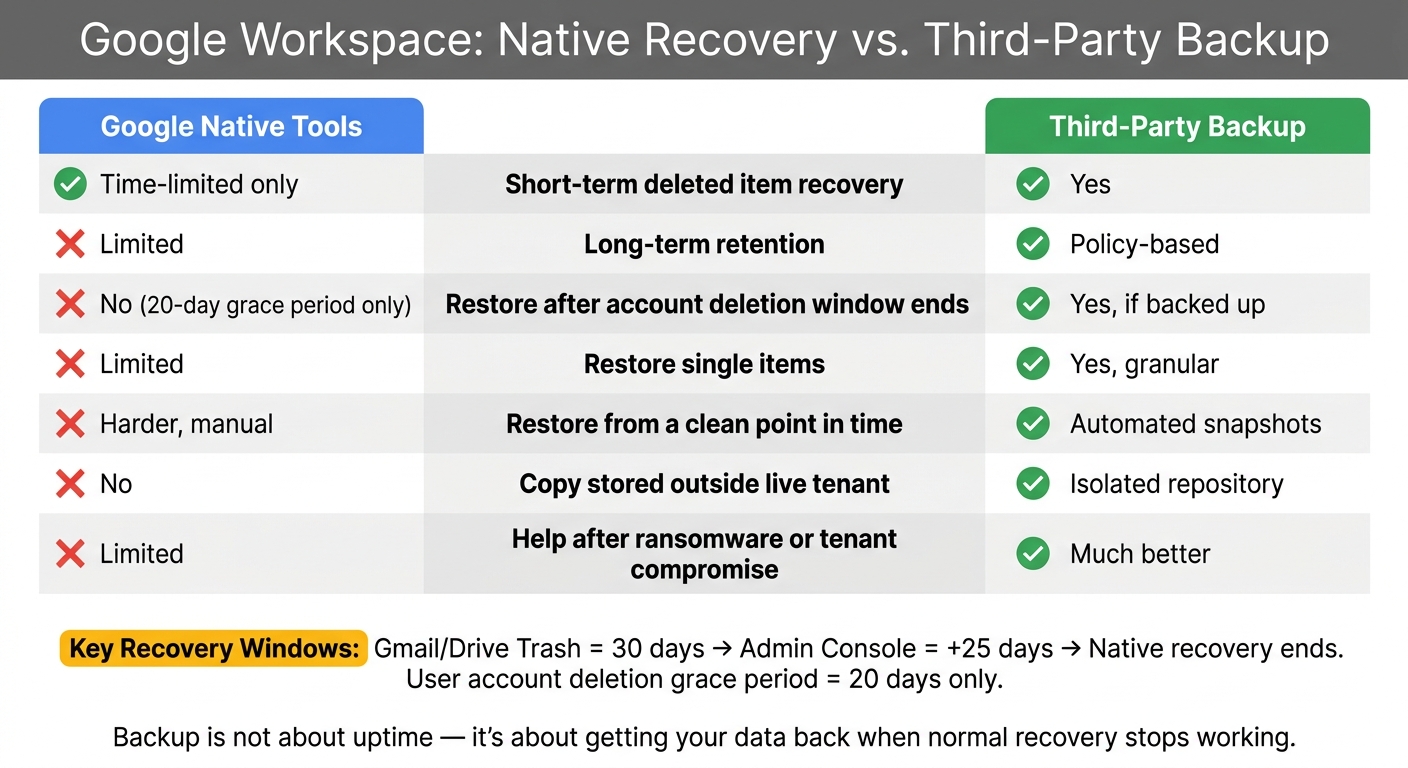
Google Native Recovery vs. Third-Party Backup for Google Workspace
| Recovery Need | Google Native Tools | Third-Party Backup |
|---|---|---|
| Short-term deleted item recovery | Yes, but time-limited | Yes |
| Long-term retention | Limited | Yes, based on backup policy |
| Restore after account deletion window ends | No | Yes, if backed up |
| Restore single items | Limited | Yes |
| Restore from a clean point in time | Harder and manual | Yes |
| Copy stored outside live tenant | No | Yes |
| Help after ransomware or tenant compromise | Limited | Much better |
The main point is simple: backup is not about uptime. It’s about getting your data back when normal recovery stops working.
Where Native Google Recovery Falls Short
These limits show up fast in day-to-day incidents. Google Workspace has recovery features, but they only help in a small set of cases.
Deletion and Retention Limits for Gmail, Drive, and User Accounts
Deleted Gmail messages and Drive files stay in Trash for 30 days. After that, Google removes them. Admins then get a 25-day recovery window in the Admin Console. Once that window closes, native recovery is over.
Deleted user accounts are even more time-sensitive. When an admin removes a user account, the related data gets only a 20-day grace period before Google wipes it from its systems, even if Vault settings exist.
Those retention windows help with short-term recovery. They do not give you long-term preservation.
Why Vault and Admin Controls Do Not Replace Backup
Google Vault is built for legal holds, legal discovery, and archiving, not everyday recovery. It does not restore items in place with their original folder structure and permissions. To recover data, you have to export it and upload it again. That process is slow and manual.
Policy errors can make things worse. If a retention rule is set up the wrong way, or a Vault license is removed from a user, data that should have been kept may disappear. Vault also sits inside the same Google environment as your production data, so it is not separate from the rest of your tenant.
That’s why isolated backup copies matter when data changes are malicious, not accidental.
Why Ransomware and Account Compromise Require Independent Copies
Drive for desktop syncs changes right away. If ransomware encrypts local files, those encrypted versions can sync to Drive and replace clean copies. Version history is there, but using it for large-scale recovery isn’t practical.
A compromised admin account creates the same problem. Native recovery exists inside the same tenant, so an attacker may be able to turn it off or delete it. An independent backup gives you a separate copy when the live tenant has been compromised.
How Third-Party Backup Protects Google Workspace Data
Third-party backup makes separate copies of Google Workspace data outside the live Google Workspace setup. That matters most when Google’s built-in recovery window has already passed.
Backup Flow: From Workspace Data to an Isolated Repository
Backup runs on a set schedule and creates frequent restore points. Each one saves data at a specific moment in time, which gives admins a way to roll things back to a version from before a deletion, admin error, account takeover, or ransomware incident put the main environment at risk.
Those backups live in an isolated repository outside Google. So if the live Google Workspace environment gets locked down or compromised, the backup copies are still there.
Protection Against User Error and Admin Mistakes
Restoring a known-good version makes accidental deletion and bad admin changes much easier to undo. Because backup tools keep multiple versions of data, admins can restore the exact item or data set they need instead of trying to rebuild everything from scratch.
That cuts recovery time and makes the process far less painful.
Immutable Storage and Retention Controls
It also helps to protect backups with immutable storage. Once data is written, it can’t be changed or deleted - even by ransomware that reaches the backup environment.
Longer retention matters too. A third-party backup lets you keep recovery copies well beyond Google’s native retention windows. And at that point, recovery comes down to how accurately the backup can restore what was lost.
Restore Paths After Deletion or Ransomware
Once backups are in place, the next thing to figure out is simple: how fast can you get data back, and how cleanly can you do it? Recovery isn't just about restoring files. It's about finding a clean restore point and bringing back only what changed. Audit logs can help narrow down when the incident started, so you can restore from the last clean snapshot before it happened.
Granular Restores for Single Items, Folders, and Mailboxes
Most recovery jobs are small and routine. Maybe someone deleted an email thread, a Drive file, or a calendar event. That's where third-party backup stands out. It gives admins item-level recovery, so they can search for and restore a single email, file, or folder without rolling back the whole account.
Just as important, the restore should bring back permissions and metadata, not only the file itself. If a recovered file loses its access controls, the job is only half finished. Restoring those details means people can use the data right away.
Larger Restores for Shared Drives and Widespread Incidents
When ransomware or mass deletion hits a bigger part of Google Workspace, item-level recovery won't do the job. In those cases, it's smart to verify data before overwriting production. A safer path is to restore data to a separate recovery location first, like a temporary folder or staging account, so IT can check that the data is clean before moving it back into production.
That extra step helps prevent a bad loop: restoring encrypted or damaged files right back into the live setup. From there, IT can restore a shared drive or user account to the last clean snapshot with more confidence.
Native Controls vs. Third-Party Backup: A Side-by-Side Comparison
The difference shows up fast when you compare the two side by side:
| Scenario | Native Google Controls | Third-Party Backup |
|---|---|---|
| Deletion recovery window | About 25 days in Admin Console | Policy-based retention beyond native windows |
| Point-in-time restore | Manual, per-file version history | Automated snapshots across the entire tenant |
| Immutability | No - admins can purge Vault or Trash | Yes - object lock, isolated storage |
| Isolation from tenant credentials | No - same credentials as the live tenant | Yes - isolated storage with independent credentials |
| Restore granularity | Limited - bulk date ranges only | High - single email, folder, or contact |
| Ransomware rollback | Extremely difficult, largely manual | Rapid rollback to a pre-encryption snapshot |
An air-gapped repository with independent authentication can still be reached when the tenant has been compromised.
Those restore capabilities rely on clear scope, retention, and access policies.
Building a Backup Plan for Google Workspace
Defining Backup Scope and Policy
After you map out your restore options, the next job is simple: decide exactly what needs protection.
That means backing up Gmail, Drive, Shared Drives, Calendar, Contacts, and user accounts. It also means applying backup policies by user and organizational unit, not using the same rule for everyone. On top of that, retention should last longer than Google’s native recovery windows.
Why does that matter? Because data loss rarely shows up at the perfect time. Sometimes a file goes missing weeks later. Sometimes an employee leaves, and the need for old mail or Drive data comes up long after the account changed.
How AdminRemix Supports Backup Oversight
Backup policies fall apart when account inventories are out of date. A backup scope only works if user and device records stay current.
AdminRemix User Getter helps IT teams audit users in bulk, so every active account and organizational unit stays inside backup scope. That kind of visibility matters most during offboarding. If a user account is deleted before retention is confirmed, the data may be hard to recover later.
Conclusion: Independent Backup Reduces Recovery Risk
When scope is set and inventories stay current, recovery becomes a controlled process instead of a fire drill. A defined scope, a current inventory, and tested restores make recovery more predictable.
Independent backup keeps recoverable copies available and cuts downtime after deletion, ransomware, or admin error.
FAQs
Do I still need backup if Google Workspace is always available?
Yes. Google Workspace may be highly available, but that’s not the same as being backed up.
It doesn’t natively protect your data from human mistakes, malicious deletion, or ransomware. If someone deletes a file, wipes an account, or makes a mess on purpose, availability alone won’t save that data.
Google Vault also isn’t a backup tool. It’s built for archiving and retention, not full restore. And if retention rules aren’t set, deleted data can be permanently purged after a short buffer period.
That’s why a third-party backup matters. It gives you an independent, restorable copy of your data outside Google’s purge cycles.
What Google Workspace data should I back up?
Back up all critical business data in Google Workspace, including:
- Gmail messages, attachments, and labels
- Drive files, folders, and Shared Drives
- Contacts, Calendar events and notes, Tasks, Chat history, and metadata
Google’s native tools don’t offer deep, granular recovery for user-driven data loss. That’s why third-party backup matters. It helps protect your business from human error, malicious deletions, ransomware, and sync malfunctions.
How often should Google Workspace backups run?
Backups should run on a schedule that lines up with your deletion, retention, and purge timelines.
In Google Workspace, deleted data usually moves into a 30-day purge window. Google Drive can also add up to 15 days before permanent deletion. That means your backup schedule needs to account for that full span.
If backups run too rarely, you can miss the chance to recover data in time. Run them often enough so you can restore files and other data after deletion, ransomware, user error, or admin mistakes - instead of leaning only on native controls.