Security Gap Analysis for Google Workspace
Most Google Workspace risk comes from setup gaps, not software flaws. If I were reviewing a tenant today, I’d start with MFA, admin access, device controls, file sharing, and audit alerts - because those five areas drive most account takeover, data loss, and audit trouble.
Here’s the short version:
- I compare current settings against a set baseline, such as Google guidance, CIS controls, or internal policy.
- I log each gap with the setting path, risk level, owner, affected users or devices, and target fix date like 08/09/2026.
- I fix the top-risk items first:
- Admins without MFA
- Too many super admins
- Shared admin accounts
- Unmanaged device access
- Loose external Drive sharing
- Missing alerts for admin, login, Drive, OAuth, and device events
- I use audit logs to confirm the fix worked and to watch for the same issue later.
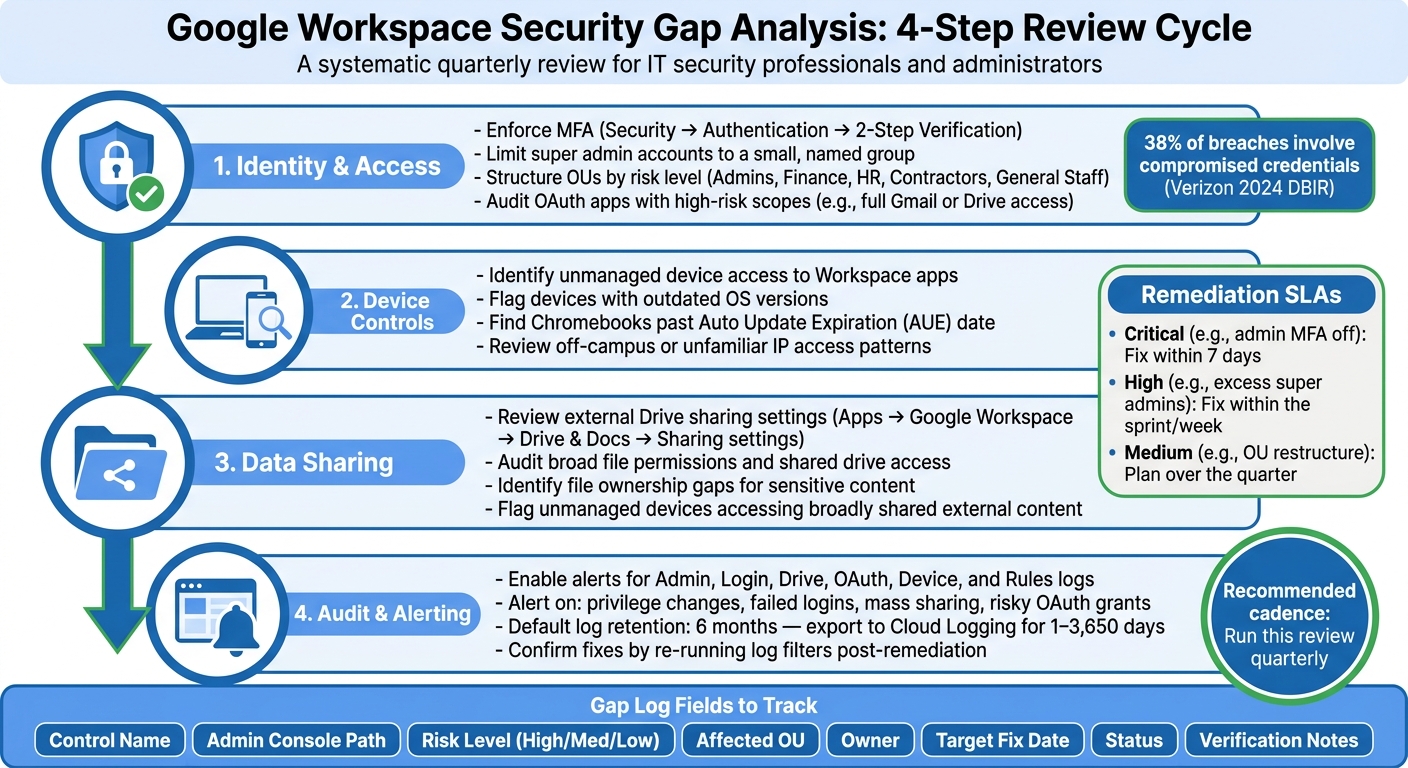
A few numbers stand out. The article notes that compromised credentials were tied to about 38% of breaches in Verizon’s 2024 DBIR. It also points out that many Google Workspace logs are kept for only 6 months by default, so teams that need a longer lookback should export them elsewhere.
If you want a simple way to think about the review, use this order:
-
Check identity first
Make sure MFA is enforced, admin roles are limited, OUs match risk, and risky OAuth apps are blocked or reviewed. -
Check devices next
Look for unmanaged access, old OS versions, and Chromebooks past AUE. -
Check sharing after that
Review external sharing, broad file permissions, and who owns sensitive files. -
Check logs and alerts last
Make sure role changes, failed logins, mass sharing, and risky app grants trigger alerts.
| Review Area | What I’d look for first | Why it matters |
|---|---|---|
| User access | MFA off, weak OU design, risky OAuth scopes | Cuts down account compromise risk |
| Admin roles | Excess super admins, shared admin accounts | Limits domain-wide damage |
| Devices | Unmanaged endpoints, outdated OS, past AUE | Lowers device-based data exposure |
| Data sharing | Broad external sharing, weak file visibility | Reduces file overexposure |
| Audit events | Missing alerts, short retention, weak review process | Helps teams spot issues in time |
Bottom line: a Google Workspace gap analysis is just a structured way to find misconfigurations, rank them by risk, assign them to someone, and verify the fix. The article lays out that process in a clean review cycle that many teams can run quarterly.
Google Workspace Security Gap Analysis: 4-Step Review Cycle
Google Workspace Security Audit: Security Checklist [Free Tool for Admins]
sbb-itb-c68f633
Build a Repeatable Google Workspace Gap Analysis Framework
Use the same review cycle every time: define the scope, map each control to its exact Admin console path, and log findings in one standard format. Simple idea, big payoff. When the process stays the same from review to review, it's much easier to spot gaps, hand work to the next reviewer, and fix issues without wasting time.
Define Scope Across Access, Devices, Sharing, and Logs
Before you review a single setting, write down exactly what's in scope. At a minimum, that should include Gmail, Drive & Docs, Meet, admin settings, endpoint controls, and audit reports.
Then get specific. List the organizational units, groups, privileged accounts, managed devices, BYOD devices, and sharing rules that touch regulated or sensitive data. This is where a lot of teams trip up. They say they're reviewing "Google Workspace", but they don't spell out which users, devices, or sharing cases matter most.
A tight scope statement should also make clear who is included. Are you reviewing every user, or only regulated business units like finance, HR, or legal? Do external collaborators count? What about third-party OAuth apps? If you answer those questions before you begin, you're less likely to miss a high-risk setting that only applies to one OU or one device group.
Use a Gap Log That Supports Ranking and Remediation
Use one gap log for all findings. Include fields for the control name, Admin console path, expected policy, actual setting, business impact, likelihood, severity, affected OU, affected users or devices, control owner, target fix date, status, and verification notes after testing the change.
The Admin console path matters because it makes fixes repeatable. If someone finds the same issue six months later, they shouldn't have to hunt through menus again. For example, MFA enforcement lives at Security → Authentication → 2-Step Verification. Drive sharing rules live at Apps → Google Workspace → Drive & Docs → Sharing settings. Write down the exact path so the next reviewer can move fast.
For severity, keep it simple: use High, Medium, or Low based on business impact and likelihood. There's no need to bury the team in fancy scoring models if a plain ranking gets the job done.
It also helps to label each finding by type:
- Exception: a one-off case that may need a documented waiver
- Recurring misconfiguration: the same setup problem showing up more than once
- Policy gap: a missing or weak rule that usually calls for a policy update and process change
Those labels matter because each one points to a different fix.
Connect Findings to Asset and User Records
A gap log entry that says MFA isn't enforced only tells part of the story. The better version names the affected OU, lists the user accounts involved, and notes whether those users are on managed Chromebooks, BYOD devices, or unmanaged endpoints. That's the kind of detail that speeds up ownership and cleanup.
Use User Getter, Chromebook Getter, and AssetRemix to connect gap log entries to user, device, and asset records in Google Sheets. Once scope, ownership, and inventory links are in place, move next to user access and admin roles.
Find and Fix Gaps in User Access and Admin Roles
With scope and logging in place, start with identity controls. That’s usually where the biggest risks show up first. Weak authentication, too many admin privileges, and unchecked third-party app access all open the door to attack. According to Verizon's 2024 Data Breach Investigations Report, compromised credentials were involved in around 38% of breaches that year - more than double the rate of phishing as an initial vector. Put these gaps at the top of your list.
Common User Access Gaps: MFA, OU Design, and OAuth Permissions
The most common authentication issue is MFA that’s not enforced. If 2-Step Verification is optional, high-risk accounts - admins, finance, HR, and executives - may be left exposed. Check enforcement at Security → Authentication → 2-Step Verification. Make sure sensitive OUs have mandatory policies, and require hardware security keys or other phishing-resistant authentication for super admins and other privileged accounts.
Another common problem is broad OUs. When everyone sits in the same OU, users with very different risk levels can end up under the same MFA rules, session controls, and app access settings. A general employee should not have the same setup as someone in finance or an admin role. Build OUs around risk level and business function. That usually means separate OUs for admins, executives, finance, HR, contractors, and general staff, each with only the policies that role needs.
Third-party app access is another weak spot. Users often approve apps with full Gmail or Drive access without any IT review. In the Admin console under Security → API controls, review connected apps, the scopes they hold, and how many users have approved them. Apps requesting scopes like https://mail.google.com/ or https://www.googleapis.com/auth/drive should be treated as high risk until verified. Google’s guidance says to keep a trusted allowlist and block unknown apps from requesting those scopes.
Common Admin Role Gaps: Excess Super Admins and Weak Separation of Duties
Super admin accounts are the top target in any Google Workspace setup. Security guidance recommends keeping super admins limited to a small, named group of accounts, with break-glass access stored securely and watched through audit logs. But in many environments, privilege creep leaves full-access accounts in place long after the business need is gone.
Shared admin accounts are another problem. If multiple people use the same account, you can’t tell who made a change or when it happened. Replace shared accounts with named accounts. Then give each person only the delegated role they need - Help Desk Admin, Groups Admin, or User Management Admin - instead of full super admin access. Separation of duties matters too. One role should not be able to both provision new users and change security policies without oversight.
After identity, move to device rules and sharing controls. Unmanaged endpoints and broad sharing links are usually the next layer of risk.
How to Rank and Fix Identity Risks
Treat admin MFA gaps and super-admin sprawl as Critical. Then review OAuth, OU design, and missing alerts as High or Medium. Identity issues affect every other control, so fix them before you move on to device and sharing problems.
The table below maps the most common identity gaps to their usual risk level and the fix to make:
| Access Gap | Typical Impact | Risk Level | Recommended Fix |
|---|---|---|---|
| MFA not enforced for admins | Full account takeover, domain-wide access | Critical | Enforce hardware security keys for all super admins immediately |
| MFA optional for all users | Credential-based account compromise | High | Enforce 2-Step Verification domain-wide; start with sensitive OUs |
| Excess super admins | Broad privilege abuse, hard to audit | High | Reduce to a small, named set of accounts; move others to delegated roles |
| Shared admin accounts | Untraceable changes, no accountability | High | Replace with named individual accounts; offboard promptly |
| Single OU for all users | Inconsistent policy coverage | Medium | Restructure OUs by risk level and business function |
| Unreviewed OAuth apps with high-risk scopes | Data exfiltration via third-party app | High | Audit API controls regularly; block unapproved high-risk scopes |
| No alerts on admin role changes | Delayed detection of privilege abuse | Medium | Configure alerts for new super admin assignments and role changes |
Work through Critical and High items first.
- Enforce MFA for admins before rolling it out more broadly.
- Cut down the super admin list.
- Remove shared accounts and replace them with narrower delegated roles.
- Export the connected apps list, classify each app, and block or restrict anything that can’t be justified.
Then configure alerts in the Admin audit log (Reports → Audit → Admin) for new super admin assignments, role changes, and security setting changes, so future changes don’t slip by unnoticed.
Review Device Rules, Data Sharing, and Data Protection Controls
Device and sharing controls are the next risk layer. This matters even more when unmanaged endpoints can get into broadly shared content.
Device Management Gaps: Unmanaged Access, Outdated OS Versions, and Limited Location Visibility
One of the most common device gaps is unmanaged access to Workspace apps. If a device connects without a compliance check, IT loses sight of two big things: whether the device is in good shape and whether it’s being used from a risky location. Devices running outdated OS versions, or devices that are past their Auto Update Expiration (AUE) date, no longer get security patches. On top of that, weak visibility into off-campus or unfamiliar IP addresses adds more exposure.
Review device metadata, including IP history, to spot access patterns that don’t fit normal use. If managed devices suddenly start showing up from unfamiliar locations, that’s a signal worth checking right away.
Sharing Gaps: Broad Drive Permissions and Limited Visibility
Drive visibility gaps show up all the time when teams can’t clearly see file ownership, shared drive permissions, and external sharing across the domain. When broad Drive permissions stay in place, files can spread to more users than intended, and shared content gets harder to control.
The highest-risk setup is simple: an unmanaged or off-campus device accessing broadly shared external content. That combination creates a clear path for data to leave the environment with very little control. Fix that first before moving on to lower-risk items.
The table below maps common device and sharing gaps to business impact and where to focus first:
| Gap | Business Impact | Remediation Priority |
|---|---|---|
| Devices past AUE date / outdated OS | Vulnerability to known exploits; no security patches available | High |
| Unmanaged device access to Workspace apps | Data exposure via uncontrolled endpoints | High |
| Off-campus or unfamiliar IP usage | Harder to detect risky access patterns | Medium |
| Broad Drive permissions | Unauthorized access to sensitive files | High |
| Limited visibility into file ownership and external sharing | Harder to identify overexposed content | Medium |
Start with the High items. OS version and AUE reports, along with access-location review, are fast ways to find risk. Drive permission cleanup also cuts the blast radius if a device is already exposed.
Log each gap with the affected device group, sharing scope, and owner before moving to audit-based validation.
Use Audit Events and a Remediation Plan to Close Gaps
Audit and Alerting Gaps That Slow Down Detection
After you fix access, device, and sharing gaps, the next step is simple: make sure your logs can spot new risk fast.
Start with Admin, Login/User, Drive, OAuth, Device, and Rules logs. These logs tell different parts of the story. Admin logs show changes to privileges and security settings. Login logs can point to account abuse. Drive logs help surface mass sharing and data moving outside the domain. Put together, they help you check whether access, sharing, and admin activity still match your baseline.
In many cases, the problem isn't missing logs. It's missing alerts.
If there are no alerts for privilege changes, failed logins, mass sharing, or high-risk OAuth grants, those events can sit in the logs for days without anyone noticing. And when that happens, incident review gets messier. It also weakens the evidence trail you may need for an audit or an internal review.
Retention is another common blind spot. Most Google Workspace log event data is kept for 6 months by default. If your team needs a longer lookback, export audit data to Cloud Logging or another central logging platform. Retention there can be set from 1 to 3,650 days.
Turn Findings Into Owned Tasks With Due Dates
Once you log the gaps, turn them into tickets.
Each finding should have a named owner, a due date based on severity, and clear closure criteria. Critical issues like unprotected super admin accounts or disabled MFA need a 7-day or shorter fix window. Medium-risk items, such as OU restructuring, can be planned over a quarter.
Closure criteria matter more than most teams think. A ticket that says “fix sharing settings” doesn't give anyone much to work with. A better approach is to test the fix. For example, try sharing a test document with sensitive data outside the domain and confirm that the rule blocks or warns the action as expected. After the change goes live, run the same log filters again to confirm the issue is closed. In practice, that could mean checking that Drive logs no longer show unexpected External visibility changes for the affected files.
AssetRemix can map affected Chromebooks to owners, and the help desk integration can assign MFA or OAuth tickets with user and device context. That connection gives teams an auditable trail showing that each identified issue was fixed for every affected user or device.
Conclusion: Core Steps in a Google Workspace Security Gap Analysis
A Google Workspace security gap analysis works best as a repeatable cycle: define the baseline, review access, devices, sharing, and logs, then log, rank, and remediate each gap.
A quarterly cadence fits how many U.S. organizations plan and report. It also helps make sure new apps, user groups, and OAuth integrations get added to the baseline before they turn into blind spots. Assign a dedicated Workspace security owner so the review becomes part of day-to-day governance, with metrics like open critical gaps and mean time to remediation tracked on a set schedule.
FAQs
How do I choose a Google Workspace security baseline?
Choose your baseline by lining up the audit scope with your edition. That means using the built-in Audit and Investigation Tool and, if your plan includes it, the Security Investigation Tool.
From there, decide which events you want to watch. Set Alert Center or reporting rules for your highest-priority risks, then map out how long to keep logs, where to send them, and who gets access.
A solid setup usually covers:
- The event types that matter most to your team
- Alerting rules for high-risk activity
- Log retention periods
- Forwarding logs to Cloud Logging, your SIEM, or BigQuery
- Least-privilege access to audit logs
The goal is simple: collect the right signals, send them to the right place, and keep access tight so the people who need the data can use it without giving everyone the keys to the kingdom.
Which gaps should a small IT team fix first?
Start with the basics that matter most: least privilege with RBAC, custom admin roles instead of handing out broad Super Admin access, and MFA for every admin account.
From there, tighten up day-to-day oversight. Review login logs, patch devices that are getting close to AUE, restrict external file sharing, and run DLP in monitoring mode so you can spot issues without making sudden changes.
It also helps to audit high-risk events on a regular basis, such as password changes or disabled 2SV. If you’re doing this at scale, AdminRemix can make bulk tracking and review work a lot less painful.
How can we prove a security fix actually worked?
Use Google Workspace audit logs and monitoring tools to check the result. After you make a change, review the Audit and Investigation Tool or Security Investigation Tool to confirm the events you targeted - such as unauthorized access attempts or noncompliant device syncs - no longer show up.
You can also use real-time alerts and regular audits to make sure your rules are flagging or blocking prohibited actions and that your setup is still doing its job.