
How Admins Control App Access to Google Workspace Data
I use Google Workspace API controls to decide which apps can access Gmail, Drive, and Calendar data - and for which users. Before saving a change, I check my admin permissions, match the app’s exact OAuth client ID, and select the narrowest access setting that supports the approved work.
My checklist is simple:
- Review the app: Check its owner, requested permissions, existing use, and pending requests.
- Set access: Choose Trusted, Limited, Specific Google data, or Blocked for the intended users.
- Test first: Run a pilot, check allowed and blocked actions, and keep rollback steps ready.
- Follow up: Check OAuth logs, record the decision, and schedule another review.
An app connection is not proof of approval. App details can take 24–48 hours to appear, so I don’t treat a missing record as proof that no access occurred. My rule: <u>verify the app, limit its access, and test before expanding the policy.</u>
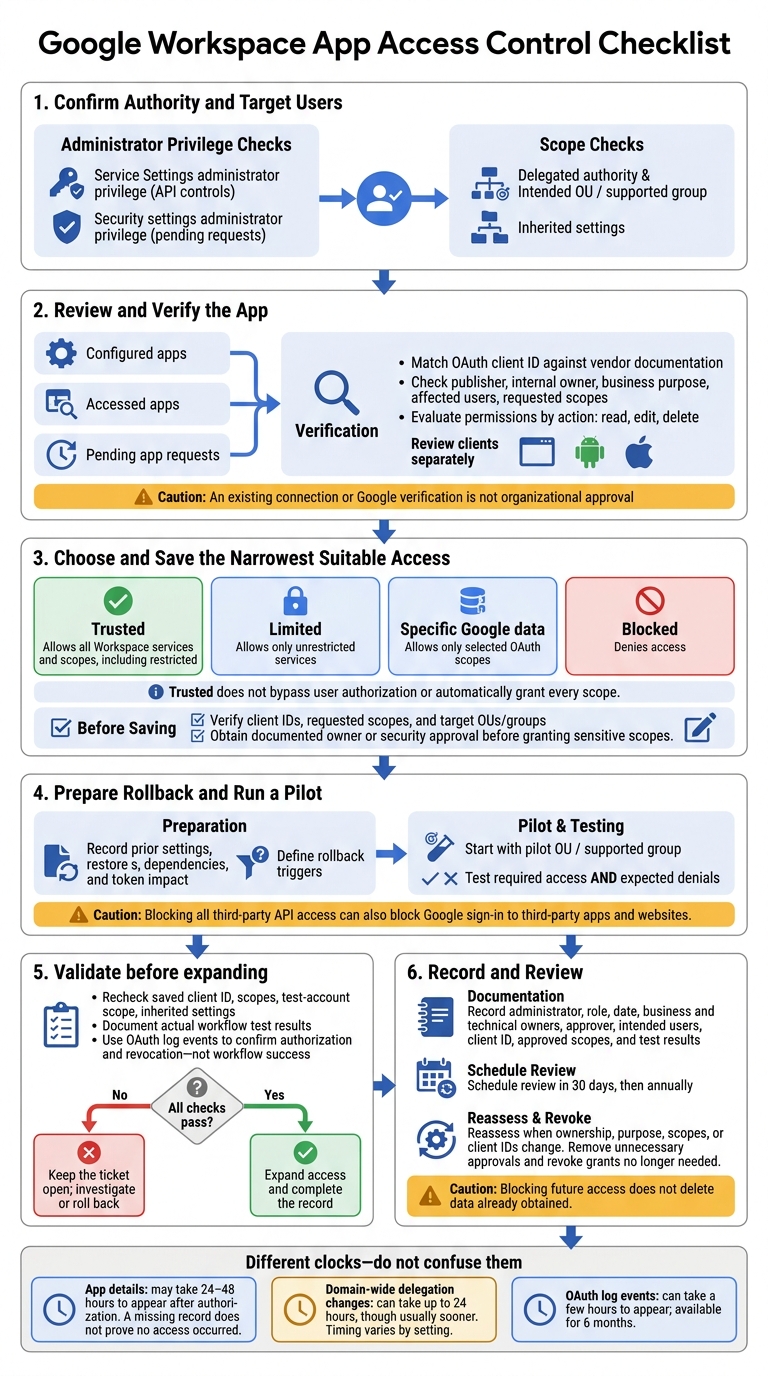
Google Workspace App Access Control Checklist
Change access from the app information page
sbb-itb-c68f633
Find API Controls and Connected Apps
Use app controls to review and manage access to Google Workspace data. Once you have the required privileges, open API controls and check app records before changing a policy.
In the Admin console, go to Menu → Security → Access and data control → API controls → App access control → Manage Third-Party App Access. Labels vary; some pages use Manage App Access.
Opening a record does not change access. You must save a policy change to apply it.
Compare Configured, Accessed, and Pending Apps
Each list supports a different task: reviewing policies, checking usage, or deciding on access requests.
| List | Purpose | Administrator action | Review priority |
|---|---|---|---|
| Configured apps | Apps with an admin-defined setting, such as Trusted, Limited, Specific Google data, or Blocked. | Check whether the setting still fits your organization’s needs. | Broad permissions, many users, or outdated ownership. |
| Accessed apps | Apps users have used to access Google data. | Check app identity, permissions, and business need. | Unknown publishers, sensitive scopes, or use across many users. |
| Pending app requests | Apps users have requested access to. | Review the request before deciding on access. | Sensitive scopes and high request counts. |
An existing connection does not mean your organization approved the app. Pending requests are sorted by the number of user requests, making apps with more demand easier to spot. Sensitive Gmail or Drive scopes need attention even when only a few users are involved.
App details may take 24–48 hours to appear after authorization. If an entry is missing right after a connection, that does not prove no access occurred.
Verify App Identity and Requested Permissions
Search Configured apps or Accessed apps by app name or OAuth client ID. When names match, compare the full client ID with the vendor’s official documentation. A vendor may use separate clients for web, desktop, mobile, or testing.
Open the app details to check the publisher, client IDs, privacy policy, support contacts, verification status, and affected-user count. Expand scope rows to view the requested Google service permissions.
Google verification is not your organization’s approval. Confirm the internal owner, business process, and user group. Check whether each requested scope is necessary and whether narrower access would work. Review scopes by action, not just service name: read-only access is not the same as edit or delete access.
Set App Access Policies and Handle Requests
Org-wide changes can interrupt sign-in, sync, and reporting. Check the recorded app details and owner approval before changing a policy. Confirm the target OU, your delegated authority, and inherited settings. Use the app name, client ID, and scopes from the previous review to apply the policy to the correct OU.
Add an App and Set Its Policy Scope
Once you’ve checked the app details, apply the policy to the target OU or group. Confirm that you have the Service Settings administrator privilege for API controls and the appropriate Security settings administrator privilege to review pending app requests.
- Open Security → Access and data control → API controls → App access control → Manage Third-Party App Access.
- Under Configured apps, select Add app.
- Search by app name or client ID. Use the Android or iOS path only for mobile clients.
- Select the matching app and relevant client IDs, then choose the organizational scope.
- Choose an access setting. Review the client IDs, requested scopes, and selected OUs, then save.
The wrong client ID can leave the intended integration unchanged. The wrong OU can disrupt unrelated users. Select web, Android, and iOS clients separately rather than assuming one policy covers every version. Start with a pilot OU before expanding access.
Choose the Narrowest App Access Setting
Choose the narrowest setting that supports the approved workflow.
| Setting | Data-access effect | Security trade-off | Workflow impact | Suitable use case |
|---|---|---|---|---|
| Trusted | Allows all Workspace services and scopes, including restricted ones. | Broadest exposure. | Supports broad functionality. | Reviewed app requiring restricted services. |
| Limited | Allows only unrestricted services. | Excludes restricted services. | Restricted-service features may fail. | App needing only unrestricted services. |
| Specific Google data | Allows only selected OAuth scopes. | Requires careful scope selection. | Features that need omitted scopes may fail. | Workflow with defined data needs. |
| Blocked | Denies access. | Strongest restriction. | Can stop sign-in, sync, and workflows. | Unacceptable risk or no approved purpose. |
Trusted access does not bypass user authorization or grant every scope. The app must still request scopes, and users may need to authorize that access.
Review Pending App Requests and Decide
For an app that isn’t configured yet, use pending review rather than the configured-app list. Before reviewing requests, confirm the Security settings administrator privilege and which OUs your role covers. Request behavior depends on how your domain handles unconfigured apps - not a universal default.
- Open Security → Access and data control → API controls → App access control → Apps pending review.
- Review the requester, business purpose, requested scopes, and affected users. Give sensitive scopes priority rather than relying on request volume alone.
- Get documented owner or security approval before granting sensitive scopes.
- Select the intended OUs and configure the narrowest suitable access setting. Review your choices, then save.
- Record the decision, reviewer, date, scope, and follow-up. Grant allows access, block denies it, and dismiss removes the request.
Test Access Changes Before Deployment
After saving a policy change, test it in a pilot before expanding access.
- Save a rollback record and define rollback triggers. Test domain-wide restrictions separately. Blocking all third-party API access can also block Google sign-in to third-party apps and websites.
- Run a pilot in an OU or group the policy supports. Test both required access and expected denials, and verify that blocked actions fail. Document the results and expand access only after the tests pass.
Check Client IDs, Scope, and Update Timing
Check that the saved policy matches the exact OAuth client ID, requested scopes, and test account’s OU or supported group scope. Include inherited settings in this check.
Record when you made the change and allow the documented propagation window. Domain-wide delegation changes can take up to 24 hours, though they usually apply sooner. Timing varies by setting.
Audit App Activity and Review Permissions
After pilot testing, check the logs to confirm that the change worked as expected.
Use OAuth log events to confirm authorization and revocation - not workflow success. Searching requires the Audit & Investigation administrator privilege. Events can take a few hours to appear and remain available for 6 months.
Schedule periodic reviews, and reassess access when the owner, purpose, scopes, or client IDs change. Remove unnecessary approvals and revoke grants that are no longer needed. Blocking future access does not delete data already obtained. Handle data retention and deletion separately.
Review Each Supporting Tool Separately
If you use AdminRemix’s User Getter or Chromebook Getter, review each tool’s client IDs, scopes, data flow, and business purpose separately. Run the same pilot and rollback checks for each integration.
Conclusion: Complete Your Access Change Checklist
Once the pilot passes, review authority, ownership, and ticket records before closing the change. Confirm that the administrator has the Service Settings administrator privilege.
In Security → Access and data control → API controls → App access control → Manage Third-Party App Access, check the publisher, exact OAuth client ID, and requested scopes against the approved record. Verify the correct Workspace customer and target OU or supported group, including the pilot group or pilot OU. If any check fails, keep the ticket open.
Close the ticket only when every item below is complete:
- Ownership recorded: Include the administrator, role, date, business owner, technical owner, approver, intended users or groups, client ID, and approved scopes in the approved ticket.
- Correct scope: Confirm that the policy targets the intended group or OU, and verify pilot and excluded accounts.
- Rollback ready: Record prior settings, restore steps, dependencies, and token impact if access is blocked or revoked.
- Validation complete: Document pilot tests and post-change checks. Use OAuth log events to confirm authorization and revocation - not workflow success.
- Next review scheduled: Schedule a review in 30 days, then annually, to reassess ownership, scopes, and business need.
FAQs
Why can’t I change an app’s access settings?
Your account may be missing the admin privileges needed to access these settings:
- Service Settings administrator privilege for standard app management.
- Super Administrator access for bulk updates or advanced security settings.
- Specific Data security and API group privileges for Context-Aware Access.
Check that your admin account has the correct role assigned to access the API controls menu.
What happens if an approved app requests new permissions?
An approved app may show a Partially granted status in your Marketplace apps list if it requests new permissions. This means the app has asked for more access since installation and needs another security review.
Check that the requested permissions match your business needs and follow the principle of least privilege: grant only the access the app needs. If the permissions aren’t needed or pose too much risk, consider limiting the app’s access or blocking it entirely.
How do I troubleshoot access after a policy change?
Check whether the issue affects one user, an organizational unit, or the entire domain. Then review OAuth grant events in the Security Investigation Tool to see which scopes are authorized.
A 400 admin_policy_enforced error means your policy blocks the app. Check the settings under Admin Console > Security > Access and data control > API controls. Allow up to 24 hours for changes to take effect, then test both outcomes: prohibited actions should be blocked, and authorized access should work.