OAuth Security Checklist for IT Admins
One bad OAuth approval can give an app access for months. If I manage Google Workspace, I need a simple review flow: list every app, check scopes, watch tokens and logs, audit access on a set schedule, revoke access during offboarding, and act fast when something looks off.
Here’s the article in plain terms:
- Start with control rules. I need an app register with the app name, owner, scopes, token details, and business reason.
- Rank risk by access. Apps that can touch Gmail settings, Drive ownership, users, or groups need tighter review.
- Review every app before approval. I check the publisher, support contact, redirect URLs, and whether the scopes fit the job.
- Keep tokens on a short leash. Short-lived access tokens, limited refresh tokens, rotation, revocation, and safe storage help cut risk.
- Watch logs all the time. I look for new consent grants, admin-level scopes, off-hours activity, strange IPs, and bulk API use.
- Run monthly and quarterly reviews. Monthly for scope drift and owner checks; quarterly for full inventory review and 90-day inactive app cleanup.
- Include OAuth in offboarding. Suspend the user, revoke tokens, and reassign any shared integrations before deprovisioning.
- Have an incident flow ready. Revoke grants, block the app, export logs, review what data was touched, and fix the root cause.
A few numbers stand out: the article calls for revoking unused refresh tokens after 30 days and removing apps or tokens inactive for 90 days. For teams working toward HIPAA, SOC 2, or ISO 27001, that kind of documented review process is not optional.
If I want fewer blind spots, I repeat the same cycle every time: inventory, verify, monitor, audit, offboard, respond.
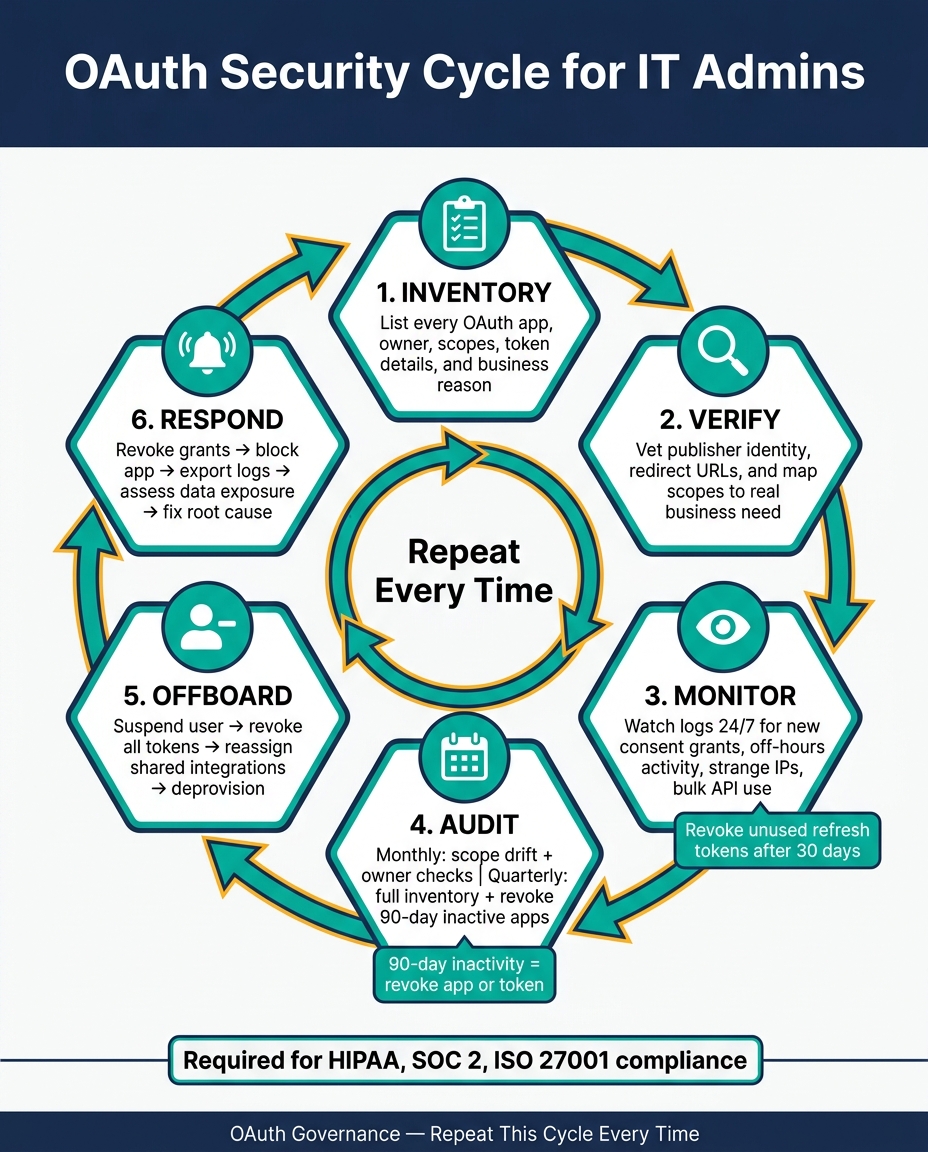
OAuth Security Checklist for IT Admins: 6-Step Repeat Cycle
How to go about OAuth for Google Workspace solutions
sbb-itb-c68f633
1. Define Scope and Set OAuth Governance Rules
With the checklist in place, the next step is to map every OAuth connection in your environment. Start with scope first. Before you approve access, list each OAuth app, its owner, its scopes, and its business purpose.
Inventory Apps, Tokens, Owners, and Business Purpose
Pull a full list of authorized apps from your admin console, then check it against your audit logs and user activity reports. For each integration, collect the same core details every time. That keeps your register clean and makes reviews a lot less messy later on.
| Inventory Category | Data Points to Collect |
|---|---|
| App Identity | App name, publisher, redirect URLs |
| Access Level | Scopes, data accessed, permissions, token lifetime/expiry |
| Ownership | Internal owner, requesting user, reason for access |
| Token Storage | Storage location, access controls, expiry date |
Use the Google Admin API to confirm file access, ownership transfers, and active permissions. Every entry in your register should include a named internal owner. That register does more than sit on a shelf. It becomes the basis for approvals, exceptions, and later audits.
Classify Risk by Scope, Data Access, and Token Lifetime
Once the inventory is done, rank each app by what it can access and how long that access lasts.
High-risk apps include scopes tied to user deletion, group membership changes, email forwarding or delegation, and Drive ownership transfers. Medium-risk apps include write actions like creating groups or updating device settings. Low-risk apps stay limited to read-only access, such as listing users or pulling activity metadata.
Long-lived or non-expiring tokens need extra attention. The longer a token stays active, the more damage it can do if something goes wrong.
Give domain-wide delegated integrations extra scrutiny too. They are meant for domain-wide operations, not normal user productivity, so the blast radius is much larger.
Document Approval and Exception Rules
After you rank risk, spell out who can approve access and what evidence they need to review. Put those approval rules in writing and apply them the same way every time.
Each request should include:
- The app name and publisher
- The scopes being requested
- The business justification
- The named internal owner accountable for it
For domain-wide delegated integrations, require explicit manual confirmation before any token is issued. If you allow an exception, document it clearly: the reason, the approving admin, and the scheduled review date. Every exception should also have an expiration date.
2. Vet Third-Party Apps and Review OAuth Scopes
Once your governance rules are set, every new OAuth integration should go through the same review process. And this isn't a one-time check. Review current apps again after any scope change, ownership transfer, or incident. Start by confirming who the app is. Then look at what it wants to do.
Verify App Identity, Publisher Details, and Redirect URLs
Check the app identity, publisher details, and support contact first. Then review the redirect URIs and make sure they point to domains tied to the publisher's official web presence. If the app branding says one thing but the domain says another, stop there. That's a red flag.
Unverified publisher status in the OAuth consent screen is another reason to pause. Well-run apps make ownership easy to confirm, and their OAuth client details should line up cleanly. If the publisher can't give you a support contact on its official domain, or if the redirect URI runs through a host you don't know, treat that as a blocker until it's cleared up.
Map Requested Scopes to Real Data and Actions
Before approving anything, translate each scope into plain English. Then ask a simple question: does this match the stated business need?
| Scope Category | What It Actually Grants | Risk Level | Action |
|---|---|---|---|
| Gmail Settings | Add delegates, set forwarding rules | Critical | Reject unless for specific migration or verified admin tools |
| Drive Operations | Transfer ownership, list all files, manage shared drives | High | Restrict to data governance or backup tools only |
| User/Group Management | Create or delete users, modify group memberships | High | Approve only for verified identity/IT management tools |
| Reporting & Audit Logs | Access admin audit logs, login reports, user activity | Medium | Approve for security monitoring |
| Device Management | Disable ChromeOS devices, update mobile settings | Medium | Approve for MDM solutions |
Use least privilege. If an app asks for broad Drive access but its stated function doesn't call for it, block the request until each permission is explained and justified.
Approved App Traits vs. Red Flags
How an app shows up during review matters just as much as the access it requests.
| Feature | Approved App Traits | Red Flags |
|---|---|---|
| Publisher Verification | Verified status; support contact matches official domain | Unverified; generic email; mismatched branding |
| Scope Breadth | Least privilege; scopes match stated functionality | Overprivileged; broad scopes unrelated to core function |
| Admin Visibility | Explicit confirmation required for every sensitive action | Background actions with no admin notification |
| Auditability | Detailed local audit logs with timestamp, action, target, and result | No logging or opaque activity records |
Approved traits on the left. Red flags on the right. If you spot the warning signs, act right away. If the app clears this review, the next step is token and access monitoring.
3. Review Tokens and Monitor Access Logs
After approval, keep a close eye on token health and app activity. Approval isn't the finish line. It's the point where monitoring starts to matter most.
Check Token Lifetime, Storage, Rotation, and Revocation
Use short-lived access tokens. Keep refresh tokens limited to long-running jobs, and revoke unused refresh tokens after 30 days.
Store access tokens in memory when you can. Store refresh tokens in HttpOnly, Secure cookies or OS secure storage. Never put them in browser storage or source files.
Use refresh token rotation. If a rotated token gets reused, revoke the entire token family right away. Log revocations, and invalidate both access and refresh tokens on logout.
Those controls help, but they only matter if you log the activity they produce and review it.
Watch Access Logs for Consent Changes and Abnormal Use
Use the token controls above to make risky activity easier to spot.
Centralize IdP, SaaS, and API logs in a SIEM with user ID, app ID, scopes, token timestamps, IP, region, user agent, status, consent, and refresh events.
Set up real-time alerts for high-risk patterns like new admin consent grants, new consent for high-privilege scopes, and off-hours token activity. Put apps with high-risk scopes at the top of the queue. Alert on activity outside local business hours, from unapproved IPs, or during bulk API calls.
Normal OAuth Activity vs. Suspicious Patterns
Use the matrix below to separate normal use from events that need escalation.
| Dimension | Normal Activity | Suspicious Pattern |
|---|---|---|
| User | Known employee using an approved integration | Non-IT user granting access to an unfamiliar app |
| App | Verified CRM or productivity tool with stable usage | New, unrecognized app with no change request on file |
| IP/Location | U.S. office IP or known VPN endpoint | IP geolocated to a country with no company presence |
| Time (local) | Token refreshes during local business hours on weekdays | Consent event or bulk API calls at 2:15 AM |
| Scope | Read-only calendar and contacts | Broad mailbox + file read-write scopes granted together |
| Activity Pattern | Regular token refreshes during business hours | Service account suddenly accessing hundreds of mailboxes with no corresponding change request |
Treat these as escalation triggers:
- Repeated redemptions from different IPs
- Post-logout refreshes
- Consent followed by bulk export
Escalate any right-column match immediately.
4. Run Periodic Audits and Offboarding Reviews
Periodic reviews help you catch scope drift, dormant tokens, and ownership gaps before they turn into security problems.
Audit Active Apps, Scope Changes, and Dormant Tokens
Scheduled audits catch access changes that day-to-day monitoring can miss. Think of them as the regular check-in that backs up the approval and token controls covered earlier.
Each month, review scope drift and confirm that every active integration still has an active, named business owner.
Each quarter, take inventory of all active OAuth integrations and revoke any app or token that has been inactive for 90 days.
| Review Cadence | Focus Area | Key Action |
|---|---|---|
| Monthly | Scope drift, ownership verification | Flag expanded permissions; confirm active owners |
| Quarterly | Dormant tokens, full inventory review | Revoke 90-day inactive apps; realign with business purpose |
Revoke OAuth Access During Employee and Contractor Offboarding
Offboarding needs to include OAuth revocation for every departing employee or contractor. First, suspend the account right away to stop active OAuth sessions. Then explicitly revoke all OAuth tokens tied to that user’s identity.
Before deprovisioning, reassign ownership of any organization-wide integrations that person controlled. Every revoked token should map back to a named user or service account in your ownership register. Move those to a service account or a new administrator so critical apps don’t end up without an owner.
If offboarding uncovers unexpected OAuth access, escalate it for containment and review.
Use AdminRemix to Support Ownership and Lifecycle Tracking
Clean user and asset data make ownership records far easier to maintain. AdminRemix supports this with User Getter, which helps IT teams bulk-update Google Workspace user metadata in Google Sheets. AssetRemix also helps keep asset and user records accurate.
5. Respond to Suspicious OAuth App Activity
When an app in your inventory triggers an alert, move straight into incident response. If suspicious OAuth activity shows up, go step by step: detect it, contain it, investigate it, recover, and document what happened.
Contain the App and Revoke Tokens Quickly
Move fast. First, find every user, service account, and group that granted consent to the suspicious app. Put privileged accounts at the top of the list. Revoke the app's grants and active sessions right away. In Google Workspace, you can use OAuth logs and the Admin console to revoke the app's grants and sessions.
After you cut off access, block the app in OAuth consent settings or add it to your app block list. Disable the app. Before remediation starts, export consent logs, token logs, and admin audit logs. If data exfiltration looks likely, temporarily restrict external sharing and other high-risk actions in core systems until you know the scope.
Investigate Scope Misuse, Data Access, and Root Cause
Once access is cut off, shift to impact analysis. Pull API call logs and audit logs from connected systems - email, file storage, CRM - to see what the app touched. That can include messages read, files accessed, or records modified. Then compare the scopes the app was granted with the API actions it actually took. If those don't line up, that's misuse.
Root cause tells you what to do next.
- If the app is malicious, treat it as a security incident, keep it blocked for good, and consider sharing threat intelligence.
- If an account was compromised before consent was granted, follow your full account-compromise playbook: reset passwords, re-enroll MFA, revoke tokens and sessions, and check for new inbox rules or other config changes.
- If the issue is misconfiguration - say, a permissive consent policy let users approve high-risk scopes without admin review - tighten governance and update the approval workflow before you turn normal operations back on.
- If the vendor is legitimate, contact it to rule out a vendor issue or breach.
Restore approved access, reset passwords or MFA where compromise occurred, and lift temporary restrictions only after review.
Document the timeline, affected accounts, scopes, containment actions, and control changes. Then close the incident and update controls.
Conclusion: Core OAuth Controls IT Admins Should Repeat
OAuth security isn't a one-time setup. It's a repeat process. The controls that matter most - maintaining an app and token inventory, verifying scopes before approval, monitoring logs continuously, auditing on a set schedule, revoking access during offboarding, and acting fast on suspicious activity - only work if your team does them again and again.
Repeat the checklist: inventory, verify, monitor, audit, offboard, and respond.
FAQs
Which OAuth scopes are highest risk?
The highest-risk OAuth scopes are Google restricted or sensitive scopes, especially the ones that open up broad access to services like Gmail or Google Drive. In plain English, these permissions can let third-party apps read, change, or delete private data.
To cut that risk, follow the principle of least privilege. Ask for the narrowest scope you need - for example, a read-only scope instead of full access - and check any app that asks for restricted service access with extra care.
How often should I audit OAuth apps and tokens?
Review API scopes and OAuth settings once a year. Then check OAuth token activity every month to keep an eye on third-party access, find apps that aren’t used much, and make sure access still matches your organization’s security posture.
If you want tighter oversight, use the Security Investigation Tool to track suspicious grant events. You can also set automated activity rules to alert your team when someone authorizes sensitive scopes.
What should I do first if a suspicious OAuth app is detected?
Review the app’s authorization right away in the Google Admin Security center.
Use the Investigation tool to find OAuth Grant events. Then set the app’s access to Blocked. That revokes its tokens and stops any new access.
Next, revoke access tokens for affected users as soon as you spot suspicious log entries.