Google Workspace Security Best Practices 2026
Most Google Workspace break-ins still start the same way: a stolen password, a weak second factor, or too much admin access. If I had to set a 2026 baseline fast, I’d do seven things first: cut Super Admin access, require phishing-resistant 2-Step Verification, lock access to managed devices and trusted locations, watch high-risk alerts, keep audit logs ready for reviews, tighten device rules, and make onboarding and offboarding consistent.
Google has reported a 50% drop in account hijackings in a group of more than 150 million auto-enrolled accounts after 2-Step Verification was turned on. That tells me the biggest wins still come from the basics done well. In plain terms: if you protect admin accounts, make logins harder to steal, and review sharing and device activity often, you remove many of the common paths attackers use.
Here’s the article in one quick scan:
- Admin access comes first: keep Super Admin to a very small group and use separate admin-only accounts.
- Use stronger sign-in methods: prefer security keys or passkeys, especially for admins and executives.
- Limit where access can happen: use context-aware rules for the Admin console, Gmail, and Drive.
- Watch for risky changes: track admin role changes, 2SV being turned off, odd sign-ins, and bulk file sharing.
- Keep logs and records clean: use audit logs for reviews and make user/device data current.
- Control devices: allow Workspace access from managed, compliant devices.
- Train users often: people still click bad links, so user habits still matter.
| Priority area | What I’d focus on |
|---|---|
| Admin security | Least-privilege roles, weekly role-change review, separate admin accounts |
| Sign-in security | 2SV by OU/group, passkeys or security keys for high-risk users |
| Access control | Managed devices, trusted IPs, location and session checks |
| Monitoring | High-priority alerts only, weekly review, noise cleanup |
| Investigation | Admin, Drive, Gmail, device, OAuth, and Groups logs |
| Lifecycle control | Repeatable onboarding and offboarding steps |
If you want a short version, it’s this: lock down admins, harden sign-ins, restrict access by context, and review alerts and logs on a set schedule. The rest of the guide builds on that baseline without adding fluff.
Google Workspace Security Audit: Security Checklist [Free Tool for Admins]
sbb-itb-c68f633
Lock Down Admin Roles and High-Privilege Accounts
Admin accounts are the biggest target in any Google Workspace setup. If someone breaks into a Super Admin account, they can control the entire tenant. That includes full access to the Admin console and Admin API, plus the power to assign other Super Admins.
Assign Admin Roles Based on Least Privilege
Give each admin only the access needed for that job. Super Admin should be limited to a very small group handling tenant-wide settings and emergency recovery. Everyone else should get a narrower role that fits what they actually do.
| Role Type | Typical Permissions | Recommended Use | Risk Level |
|---|---|---|---|
| Super Admin | Full access to the Admin console and Admin API | Tenant-wide configuration, emergency recovery only | Highest |
| Groups Admin | Create and manage groups and memberships | Access control via groups and mailing lists | Medium |
| User Management Admin | Manage users, passwords, and basic account settings | Account lifecycle and front-line support | Medium |
| Custom Help Desk Role | Password resets only, no policy changes | Narrow front-line support tasks | Lower |
Match each admin task to the smallest role that can do the work, and write it down in an Admin Role Matrix. Review that matrix at least once a quarter so you can spot accounts with too much access before they turn into a headache.
Once roles are tight, the next step is to protect the accounts behind them.
Apply Stronger Protections to Admin Accounts
Every admin account should have 2-step verification turned on. No exceptions. Super Admin and delegated admin accounts should use hardware security keys or passkeys as the main second factor. They do a much better job against phishing than SMS codes or app-based codes.
A simple way to enforce this is to place all admin and executive accounts in dedicated organizational units or groups. Then apply a 2SV policy that allows only security keys or passkeys and blocks weaker methods. It also helps to split admin identities from day-to-day accounts. An admin should use one standard account for email and collaboration, and a separate account used only for admin work. If the everyday account gets phished, that split can limit the damage. If you need to allow a temporary exception, log it and give it a clear end date.
With admin access tightened up, keep a close eye on every privilege change.
Review Admin Activity and Asset Ownership Records
Use admin audit logs to check role changes, and review them every week. Google Workspace admin audit logs record role-management events such as assignRole, createRole, deleteRole, and unassignRole. Check high-risk changes weekly, then run a broader monthly or quarterly access review to spot patterns over time.
Any privilege change, especially a promotion to Super Admin, should need a formal request, written manager and security owner approval, and a set review date. Treat those changes as high risk and check them against change tickets. During offboarding, remove privileged access at or before account deactivation, not later.
Device ownership also matters during access reviews. AssetRemix from AdminRemix can help by linking admin accounts to assigned devices, so your team can quickly spot orphaned admin accounts and unmanaged devices during reviews.
Strengthen Sign-In Security and Context-Aware Access
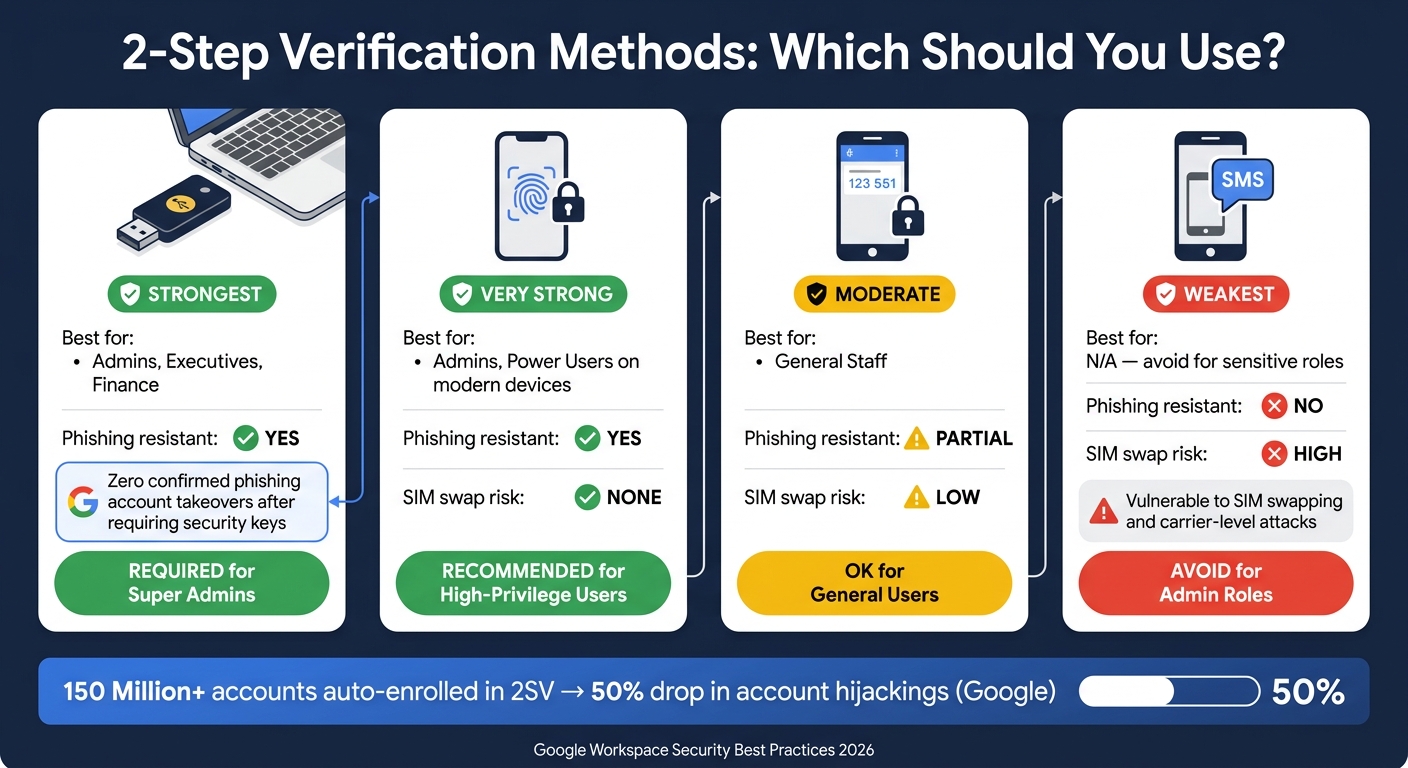
Google Workspace 2-Step Verification Methods: Security Comparison 2026
After admin roles, tighten sign-in controls and limit access by device and location. The next step is simple: make valid credentials less useful in the wrong hands.
Enforce 2-Step Verification Across Organizational Units
Google reports that after auto-enrolling over 150 million accounts into 2-step verification, account hijackings in that population dropped by 50%.
Roll this out in phases. Start with super admins and security/admin teams. Then move to finance, HR, and other sensitive groups before expanding across the tenant. In Admin console, you can enforce 2SV by OU or group and give users 14 to 30 days to enroll.
The second factor matters as much as the policy itself. Some methods are much safer than others:
| Method | Best Use |
|---|---|
| Hardware security key (FIDO2/WebAuthn) | Admins, executives, finance |
| Passkey (device-bound) | Admins, power users on modern devices |
| Authenticator app | General staff |
| SMS or voice code | Avoid for sensitive roles |
For admin and other high-privilege accounts, hardware security keys or passkeys should be the main method. Use app-based codes only as backup when needed. Google reports no confirmed password-phishing account takeovers for employees after requiring security keys.
SMS and voice codes are weaker. They can be hit by SIM swapping and carrier-level attacks. For admin groups, block text and voice codes and require security keys or passkeys.
Once sign-in is locked down, move to access rules that screen out risky devices and locations.
Apply Context-Aware Access to Sensitive Apps and Sessions
Context-Aware Access (CAA) lets you set conditions a user must meet before opening an app. CAA can check identity, group membership, device state, IP range, location, and session. Think of it as the enforcement layer for privileged accounts, building on the least-privilege rules already set for admin roles.
Start with the Admin console. Then extend CAA to Gmail and Drive, using managed devices and trusted IP ranges. Don’t flip the switch all at once. Run policies in monitor mode first, review denied-access logs, allow known VPN and office IPs, and then enforce.
Monitor Alerts, Audit Logs, and Security Health
Once access controls are set, monitoring helps you spot what still gets through. It won't block every attack. But it gives your team a way to catch trouble that slips past prevention. In Google Workspace, the Security center and Alert center give admins one place to watch for threats and dig into incidents. Use alerts for fast triage. Then use logs when you need proof.
Set Up Alert Rules and Cut Down on Noise
The Alert center shows system-generated alerts for suspicious logins, phishing, malware, data exfiltration, and sensitive admin changes. The main issue usually isn't how many alerts you get. It's whether the alerts are worth your attention. Start small with a short list of high-priority alert types, then review them each week before adding more.
Route ONLY urgent alerts to channels your team watches right away. Lower-severity events can go to a daily digest or dashboard instead.
| Alert Type | Likely Impact | First-Response Action |
|---|---|---|
| Suspicious login (unusual location or device) | Credential theft or account takeover | Verify the user and revoke the session |
| Unexpected admin role change | Privilege escalation | Confirm the actor, timing, and business justification |
| 2SV turned off on an admin account | Weakened account protection | Re-enable enforcement and review the change |
| Large external file sharing or bulk download | Possible data exposure | Review Drive activity and access logs |
| Phishing or malware detected in Gmail | Active threat in the environment | Quarantine the message and check for similar activity |
If you have known IT automation accounts or trusted migration tools, document where that activity comes from and exclude it from urgent alerts. Still keep it in the logs. The goal is better signal, not more volume.
Use Audit Logs for Investigations and Regular Reviews
Alerts tell you something happened. Audit logs tell you what happened, who did it, and where it came from. Admins can search across Admin, Drive, Gmail, device, OAuth, and Groups activity from one place. They can also take action, like suspending a user or revoking tokens, without leaving the tool.
Each log source helps answer a different kind of question. Admin logs show role grants and security setting changes. Drive logs show external sharing, bulk downloads, and ownership transfers. Gmail logs track phishing reports and quarantine actions. Device and sign-in logs help confirm managed access and point out repeated failures or new enrollments.
For longer retention and deeper analysis, export logs to BigQuery or a SIEM.
A simple review rhythm helps keep this under control:
- Review high-severity alerts weekly.
- Review alert noise monthly.
- Review log retention and response ownership quarterly.
Secure Devices and Build User Security Habits
After sign-in and access controls, the next job is keeping device and user records clean. If those records drift out of date, even strong controls start to lose value.
Use mobile device management and Chromebook policies in the Admin console so only compliant, managed devices can reach Workspace apps. Then make sure the records behind those policies stay current.
Keep Device and User Records Current with Bulk Admin Workflows
Keep user, device, and role records in sync so onboarding, offboarding, and access reviews stay accurate. User Getter can pull domain user metadata - organizational units, names, and primary emails - into Google Sheets, which makes provisioning and deprovisioning easier.
A simple rule helps here: use the same repeatable workflow every time for onboarding and offboarding.
| Workflow step | Onboarding | Offboarding |
|---|---|---|
| Account status | Create or provision users | Suspend or delete accounts |
| Directory visibility | Add users to the global address directory | Remove users from the global address directory |
| Security | Require a password change on next login | Bulk change passwords |
| Metadata | Assign Organizational Unit (OU) | Update or archive user metadata |
| Privileges | Assign necessary admin roles | Revoke admin and super admin roles |
Handled this way, admins can update many records at once instead of changing accounts one by one. That saves time and cuts down on small mistakes that can turn into security gaps.
Privilege grants should be treated as approval-required changes. If someone gets admin access, that move deserves a clear check before it goes live.
Clean records also make offboarding faster and access reviews much easier.
Conclusion: Google Workspace Security Checklist for 2026
Use bulk updates to keep account status, directory visibility, passwords, metadata, and privileges aligned.
FAQs
Which users should get security keys first?
Super administrator accounts should get hardware security keys first. They have access to the most sensitive data in the organization, so they need the strongest protection up front.
After that, move to other privileged accounts and high-risk roles, including finance, human resources, and executive teams.
Then roll out 2-step verification and hardware security keys to the rest of the organization, starting with the most sensitive organizational units.
How do I roll out context-aware access without disruptions?
Start by running your DLP and access policies in monitoring mode so you can see how they affect users before you turn on blocking.
To keep disruption low, test on one smaller OU first and let affected teams know ahead of time. Then use the Security Investigation Tool to check that your policies are flagging or blocking only the actions you meant to target.
What audit logs matter most after a security alert?
Prioritize Admin, Login, Drive, OAuth, and Device logs to piece together what happened.
Each log type tells part of the story:
- Admin logs show changes to privileges or security settings
- Login logs help spot unauthorized access
- Drive logs can show mass sharing or data movement
- OAuth logs show app authorizations that may be risky
- Device logs help you check device access and related activity
Use the Audit and Investigation Tool or Security Investigation Tool to filter by user, event name, or timestamp. That makes it easier to confirm whether the issue is still happening or has already been resolved.