Google Workspace Restore Drills: 6 Test Cases
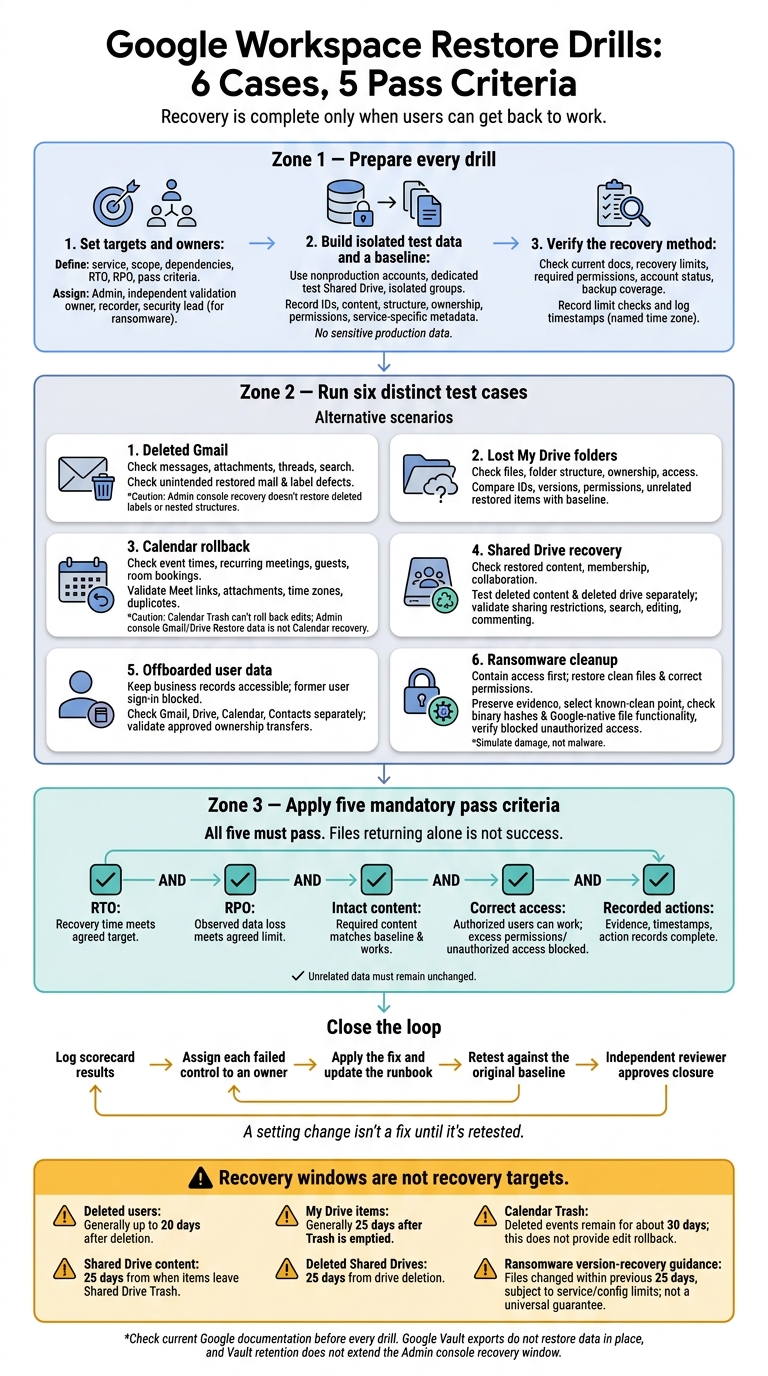
I count a restore as complete only when users can get back to work. Before testing, I set limits for recovery time and data loss, save baseline records, and use isolated test data.
I test six recovery cases:
- Deleted Gmail: Check messages, attachments, threads, and search.
- Lost My Drive folders: Check files, folder structure, ownership, and access.
- Calendar rollback: Check event times, recurring meetings, guests, and room bookings.
- Shared Drive recovery: Check restored content, membership, and collaboration.
- Offboarded user data: Keep business records accessible while former-user sign-in stays blocked.
- Ransomware cleanup: Contain access first, then restore clean files and correct permissions.
Recovery windows aren’t recovery targets. Deleted users generally have a 20-day restore window; Drive items generally have 25 days after Trash is emptied. I check current limits before each drill.
My pass rule is simple: <u>content, access, recovery time, data loss, and action records must all meet the agreed criteria</u>. I log results in a scorecard, assign each failed check to an owner, update the runbook, and retest the fix.
Google Workspace Restore Drills: 6 Cases, 5 Pass Criteria
Prepare for a Restore Drill
Set Recovery Targets and Pass Criteria
Use the same prep format for each drill so you can compare results. Create a one-page brief that covers the service, scope, dependencies, RTO (restore time), and RPO (acceptable data loss). Set both targets based on business impact. Match the brief to the scenario: mail, Drive, Calendar, Shared Drive, offboarding, or ransomware.
Define what passes for item completeness, access, and completion time. Fail any restore that leaves data inaccessible or grants excess permissions.
Assign an administrator to run the restore, an independent validation owner to check the results, and a recorder to log evidence. For ransomware tests, add a security lead to approve the clean recovery point and check compromised accounts, OAuth applications, and sharing settings.
Create Test Data and Baseline Records
Use nonproduction accounts, a dedicated test Shared Drive, and isolated groups. Label each item clearly. Keep customer, employee, and regulated information out of the test dataset.
Include attachments, nested folders, recurring events, and different sharing roles. Before making changes, have a second person verify the target account or drive.
Keep the baseline in a restricted spreadsheet or ticket. Record item IDs, content, folder paths, owners, permissions, message labels, attachment names, event attendees, and recurrence settings. Include creation and modification times. Then log deletion, restore start, restore finish, and validation finish using a named time zone. Use this baseline to check every restore case that follows.
Check Recovery Methods and Time Limits
Match the recovery method to the drill scenario before testing. Check current Google documentation and record the review date. Use Trash recovery for items still in Trash, admin restore for eligible Gmail or Drive deletions, and version rollback for changed or corrupted files.
Published recovery windows include up to 20 days for deleted users and 25 days for Drive items after Trash is emptied. Confirm the operator has the required permissions, check the destination account’s status, and verify backup coverage for the exact objects and metadata under test.
Google Vault can preserve supported data, but an export does not restore it in place.
sbb-itb-c68f633
Restore Drive data for users in your organization
1. Restore Deleted User Mail
Use the baseline record to check that Gmail restores only the intended mail. Before permanently deleting messages, confirm their message IDs, thread IDs, labels, and mailbox locations. Include unrelated control messages deleted during the same window to detect mail restored outside the intended set.
Move the test messages to Trash, empty Trash, and log the exact permanent-deletion time. Restore only within the eligible deletion window.
In the Admin console, open Directory > Users, select the test user, and choose More options > Restore data. Select the narrowest eligible date range, choose Gmail, and submit. Record the selected range, request time, and any confirmation details the console shows.
Once the restore finishes, compare the recovered mailbox with the baseline for content, access, and searchability. Check body text, recipients, and timestamps. Open each attachment, confirm thread membership, and search by subject, sender, attachment name, and a specific body phrase. Check labels and Inbox/Archive placement separately: this workflow does not restore deleted labels or nested label structure.
Record expected, recovered, and missing messages, along with intact attachments and threads, label defects, duplicates, and unrelated mail restored by the date-range operation. Log completion time, time to usable access, and validation time. Mark Pass only if recovery meets the RTO and data-loss limits. Missing attachments, broken threads, unreadable mail, or extra messages fail the drill.
2. Restore a Lost My Drive Folder
Use a dedicated test account to create a folder tree two or three levels deep. Add mixed file types, similar filenames, and a few versioned files. Include both user-owned and shared files, and track ownership separately. This drill tests folder recovery for an active Drive user.
Before deleting anything, build a manifest with the folder hierarchy, file and folder IDs, owners, permissions, and timestamps. Record unrelated My Drive files separately so you can spot any that return during recovery. Check the current deletion window before starting the drill. Then move the test folder to Trash, empty Trash, and log both the deletion and permanent-deletion timestamps.
Use the manifest as your reference when restoring the deleted folder set from the admin console. Go to Directory > Users, select the test user, and choose More options > Restore data. Set a date range that includes the deletion date, select Drive, and start the restore. Confirm that the administrator has Drive restore permission.
Once the restore finishes, compare the recovered files and folders with the manifest. Check hierarchy, counts, IDs, ownership, permissions, inheritance, parent-child links, timestamps, file links, and version history. Look for unrelated items that were restored unexpectedly, and note any cleanup needed. Record a pass or fail against the drill targets based on these checks.
Log the request time, completion time, time to usable access, missing or corrupted items, permission mismatches, and any unrelated items affected. Pass only if recovery meets the team’s RTO and restores the exact folder set with intact data and the correct structure, ownership, and permissions.
3. Restore Deleted or Changed Calendar Events
Calendar recovery must preserve more than the event. It also needs to restore timing, recurrence, and shared resources. On a test calendar, create a single event and a recurring series, each with guests, a room, a Meet link, and a Drive attachment. Include one moved occurrence and one series that crosses a U.S. daylight-saving time change.
Record the event ID, organizer, start and end times, time zone, recurrence rule, exceptions, guest responses, and notification settings. This baseline lets you check recurrence, conferencing, and room booking after recovery.
Delete the single event, then restore it from the correct calendar’s Trash. Calendar Trash keeps deleted events for about 30 days, and the operator needs edit access to the calendar. Test single-event, occurrence-only, and full-series recovery separately. Changes made with This and following events bypass Trash, so test that case through your approved calendar recovery process.
Next, test edited events. Change the meeting time, recurrence, guest list, room, Meet link, or attachment, then use your approved calendar recovery process to return the event to its baseline state. Calendar Trash cannot roll back edits, and the Admin console’s Gmail/Drive Restore data tool is not a Calendar recovery method. Check whether recovery overwrites the edited event or creates a duplicate.
Verify past and future occurrences, the moved instance, daylight-saving time shifts, and local times for guests in other U.S. time zones. Check the organizer, RSVP status, Meet access, attachment access, and room resource calendar separately. Flag duplicate invites, duplicate events, and conflicting room bookings.
Log every missing or changed field. Pass only when required fields and notification settings match the baseline, recurrence works, no duplicates appear, and recovery meets the RTO. Mark a partial pass only for noncritical manual fixes. Fail any restore that breaks timing, recurrence, conferencing, attachment access, or the room reservation. Use the same baseline to compare Shared Drive recovery next.
4. Restore Shared Drive Content and Drives
Shared Drives use shared membership and inherited permissions, so this drill tests both content recovery and access control. Run two separate drills: delete a test folder in an active Shared Drive, then delete a separate disposable Shared Drive. For the content drill, empty the relevant Trash to test administrative recovery. Keep an unrelated file intact as a control.
Before either deletion, record the Shared Drive name and ID, folder hierarchy, file counts by type, versions, membership roles, and sharing restrictions.
A restore fails if members lose access or the shared structure changes, even if the files return.
Use an administrator with the required Drive and Docs admin privilege. Go to Admin console > Apps > Google Workspace > Drive and Docs > Manage shared drives. Restore the deleted content from the active drive or restore the deleted drive itself. To recover all files that existed at deletion, select a date range from the deletion date to today. Check for unintended items restored within that range.
The 25-day recovery window starts at different points: for content, it begins when items leave Shared Drive Trash; for a drive, it begins when the drive is deleted. Google Vault retention does not extend the Admin console’s recovery window.
After the restore, check that people can still collaborate - not just that files reappear. Compare file and folder counts, placement, versions, and membership against your baseline. The recovered Shared Drive must open for the same members under the same sharing rules.
Verify member access, file opening, and exact-name and full-text search. Test root, nested, and restricted folders with users who have access and users who don’t. Confirm that roles and restrictions still apply, then complete an edit-and-comment test in a restored doc.
Run both drills well before the recovery windows close. Record exact deletion timestamps and the times for restore submission, completion, and validation. Log missing files, folders, or versions, along with permission changes, duplicates, and misplaced content. Pass only if all files, folders, versions, and permissions are restored, search and collaboration work, and recovery time meets the target.
5. Recover an Offboarded User's Data
Use a dedicated test account with synthetic Gmail, Drive, Calendar, and Contacts data. Create a baseline export that records the email, license, OU, groups, permissions, ownership, IDs, and event/contact details. The drill must show that offboarding preserves business data without restoring user access.
Suspend the account first and confirm that sign-in is blocked. Log every suspension, transfer, hold, and deletion with timestamps. This locks the account before any data moves or deletion starts.
Delete the account only if the approved test permits it. First, document Google Vault retention holds, legal holds, and retention rules. Account deletion can make data unavailable to Vault, and permanently purged data cannot be recovered. Restore the account within the eligible deleted-user recovery window.
Have a super admin restore the account from Recently deleted users and assign the intended OU before validation. Check the restored address, OU, and blocked sign-in state. Keep the account suspended during validation. Revoke sessions and credentials as needed so the former employee cannot regain access. Check containment before checking content.
After restoration, check ownership and content separately. Test both Drive scenarios: files transferred before deletion and files still owned by the deleted account. For transferred files, check the custodian’s access directly; restoring the account does not automatically reverse earlier transfers. Transfer recovered files still owned by the restored account to an approved active custodian in the same organization. Compare ownership with the transfer log. Then confirm that the custodian can open and edit the required files without accessing unrelated restricted content.
Validate each service separately:
- Gmail: Labels, attachments, sent mail, and search.
- Drive: Folders, comments, and versions.
- Calendar: Recurrence, attendees, organizer status, and time zones.
- Contacts: Records and labels.
Pass only when all critical baseline records return or are accounted for through approved transfers, the OU is correct, sign-in remains blocked, and unauthorized-access checks fail. Record missing categories as partial recovery - not success - and retain the recovery confirmations and action log.
6. Test Recovery After Ransomware
Simulate damage, not malware. Use a dedicated test user, My Drive folder, or isolated Shared Drive containing Docs, Sheets, Slides, PDFs, images, and ZIP files. Test deletion, overwrite, and permission rollback on one recovery timeline. Add clean hashes for binary files to the baseline prepared earlier. Use authorized bulk actions to overwrite, rename, delete, and change sharing. Keep untouched files as controls. Never connect an infected device or change production data. Preserve the state needed to show what changed.
Before cleanup, preserve Drive audit logs, alerts, session data, and endpoint records. Restrict access to exported evidence, avoid deleting or overwriting logs, and record who exported or modified them. Contain first: suspend the test identity, revoke sessions and tokens, rotate exposed credentials, isolate the endpoint, and block suspicious apps. Confirm that the simulated attacker can no longer change files. Record detection and containment times separately.
After containment, choose the earliest known-clean point from the baseline and audit timeline. Test both recovery speed and correctness. Google’s ransomware guidance covers files changed within the previous 25 days, subject to service and configuration limits. That window is a service limit - not the team’s RTO or RPO. Check whether Allow multiple file version recovery is enabled for the workflow. Admin Drive recovery restores deletions, but it does not roll back overwrites or permissions. Restore a small scope first, preferably into staging, before replacing working content. If the clean point falls outside Google’s scope, use the approved backup process and document its retention limits.
Compare restored binary hashes with clean references. Check Google-native text, formulas, and formatting against clean export copies. Have authorized users test opening, editing, commenting, downloading, and syncing representative files. Review Drive activity and permissions for users, groups, and link sharing. Verify paths, names, ownership, inherited and direct permissions, and that unauthorized access is blocked. File access alone does not prove recovery. Compare the restored state against the clean baseline using all these checks.
Record detection, containment, recovery-point, restore-start, and restore-duration times. Track files affected, restored, unavailable, or manually recreated. Also record wrong versions, permission and external-sharing defects, and data loss since the last valid change. Pass only when all binary hashes match, critical Google-native files pass functional checks, control files remain unchanged, unauthorized access is blocked, audit evidence is preserved, and RTO/RPO targets are met.
Compare Drill Results in a Recovery Scorecard
Use this scorecard after each drill to compare results against the same criteria, with one row per drill. Before testing, enter approved targets and name the validation owner. Leave actual RTO, recorded evidence, and pass/fail status blank until you have measured the results. Replace the planned recovery mechanism with the exact workflow used.
| Test case | Data type | Recovery mechanism | Restoration window | Target RTO | Actual RTO | Target RPO | Validation owner | Recorded evidence | Pass/fail status |
|---|---|---|---|---|---|---|---|---|---|
| Deleted user mail | Gmail messages, labels, attachments | Gmail Trash recovery or Admin console Restore data | Record the current Gmail recovery limit and the date and time checked | ___ | ___ | ___ | Messaging owner: ___ | ___ | ___ |
| Lost My Drive folder | Drive folder, files, permissions | Drive restore or approved backup | Admin restore is limited to items deleted within the previous 25 days after Trash is emptied | ___ | ___ | ___ | Drive owner: ___ | ___ | ___ |
| Calendar rollback | Calendar events, attendees, recurrence data | Calendar Trash recovery or approved calendar recovery process | Record the current Calendar limit and the date checked | ___ | ___ | ___ | Collaboration owner: ___ | ___ | ___ |
| Shared Drive recovery | Shared Drive, files, memberships | Admin console Shared Drive restoration | Deleted drives may be restored within 25 days | ___ | ___ | ___ | Shared Drive owner: ___ | ___ | ___ |
| Offboarded user data | Gmail, Drive, Calendar, ownership | Restore account and transfer data, or approved backup | Deleted users may generally be restored for up to 20 days | ___ | ___ | ___ | Identity or HRIS owner: ___ | ___ | ___ |
| Ransomware cleanup | Drive files, versions, shared content | Version recovery, backup restore, and containment | Verify backup and platform retention limits | ___ | ___ | ___ | Security and backup owners: ___ | ___ | ___ |
Keep restoration window, RTO, and RPO separate. In the evidence field, record the cutoff time, newest recovered time, data loss, and missing objects or versions. Record completeness gaps separately.
Attach object IDs, request and completion timestamps, restored-item counts, audit exports, and owner sign-off. Before each drill, record when you checked the limits, the operator’s administrator role, and the required permissions. Drive administrator recovery restores data by date range - not by folder - and can stop at the storage limit. Record both the recovery scope and storage headroom. Shared Drive restoration requires the relevant Drive and Docs administrator privilege.
Mark a drill Pass only when integrity, access, scope, and timing all meet the approved criteria. Check content against the baseline, confirm authorized users can work with it, and verify that unrelated data stayed unchanged. Actual RTO and observed loss must meet their targets, and the evidence must be complete.
A missing permission or any other mandatory failure means Fail, even if the data returns. Link each failed result to the failed criterion, corrective-action owner, due date, and retest date. Use those rows to assign corrective actions in the next section.
Assign Owners and Track Recovery Fixes
Turn each failed scorecard row into one remediation item per control gap. Assign a primary owner, a backup owner, and a validator for each failed control.
Give the fix to the control owner - not automatically to the drill operator. The Google Workspace administrator owns Admin console configuration and restoration steps. Security owns ransomware containment and investigation. The service desk owns user communications and tickets.
In the same remediation ticket, record the failed drill, failed criterion, remediation owner, root cause, required change, support team, and approver. Link the ticket to the original drill record, and separate symptoms from causes.
Missing access may stem from ownership remaining with a deleted account, incorrect Shared Drive membership, insufficient administrator privileges, or an incomplete transfer step.
Track ticket progress as Open → Assigned → In progress → Ready for retest → Closed. Reserve Passed for the drill result, not the ticket state.
Set deadlines based on business impact:
- Critical: Assign an owner and document a plan within one business day.
- High priority: Complete correction and retesting within 5 business days.
- Moderate: Address documentation or training gaps within 10 business days.
- Low priority: Complete improvements within 30 days.
If a deadline slips, require a documented reason, an interim safeguard, a revised date, and an approving manager.
AdminRemix User Getter supports bulk Workspace user-metadata updates in Google Sheets. Use it for remediation records, not recovery. Neither tool performs recovery. Run recovery through supported Google Workspace controls and configured recovery systems. Keep sensitive message and file contents out of task records.
A setting change isn't a fix until it's retested. After applying the fix, retest the same control with comparable data against the original baseline. If the change affects multiple teams, run a broader end-to-end drill.
Require an independent reviewer to approve closure. If the retest fails, update the existing finding rather than creating a duplicate ticket. If the risk is accepted, label the ticket Closed with accepted risk.
Conclusion: Update Runbooks and Repeat Failed Drills
Turn failures from the scorecard into runbook updates. Apply the same five pass criteria to all six drills: RTO, RPO, intact content, correct access, and recorded actions. A drill passes only when the restored data opens, works, and is documented.
Update each drill runbook with the tested procedure, prerequisites, admin roles, validation checks, and applicable recovery window. Assign each failure to a named owner who remains responsible until it’s fixed. Track each runbook’s owner, version, review dates, and change trigger.
Once a fix is in place, test the same failure path again. Repeat affected drills when permissions, offboarding, retention, backup tools, or admin roles change. Review every runbook at least once a year and after any material Workspace change.
FAQs
How often should we run restore drills?
Run restore drills quarterly or semiannually so your team can practice recovery procedures under pressure. For mission-critical systems, test more often: typically, hold quarterly tabletop exercises and run functional tests twice a year.
Add drills after major infrastructure changes, such as cloud migrations or large updates to your environment.
How do we set realistic RTO and RPO targets?
Start with a business impact analysis alongside leadership. RTO is the maximum acceptable downtime; RPO is the maximum tolerable data loss. Rank systems as Critical, High, Medium, or Low based on their impact on revenue, service, or safety.
Choose the shortest recovery targets you can afford and maintain. Account for staffing, working hours, and coverage gaps. Test those targets and your runbooks with restore drills every quarter or every six months.
Which restore drill should we prioritize first?
Plan drills around your organization’s Business Impact Analysis, which sets the recovery order for critical services. Restore the services that others depend on first.
Start with routine single-item recoveries in Gmail, Drive, or Calendar. These are the most frequent requests. Once your team can handle them well, move to larger incident simulations, such as ransomware cleanup or full Shared Drive restores, to prepare for high-pressure events.