Google Workspace Integration with MDM
If your fleet is mostly Chromebooks, Google Workspace may be enough. If you run a mixed fleet, you’ll likely need an MDM or UEM too.
That’s the short answer. From what I see in this article, the split is simple:
- Google Workspace alone works best for ChromeOS-first setups
- Google Workspace + MDM/UEM fits Windows, macOS, iOS, and Android fleets better
- AdminRemix helps with bulk Google admin work, but it is not device policy software
- The main tradeoff is control vs. admin workload
A few points stand out right away:
- Google Workspace supports Android, iOS, ChromeOS, Windows, and macOS from one Admin console
- But Windows and macOS get less device control than ChromeOS and mobile devices
- AdminRemix can save 30–40 minutes per upload cycle for bulk Chromebook work
- Native Google Workspace lacks some bulk actions, like large-scale OU moves and mass metadata edits
- A third-party UEM adds controls like BitLocker, FileVault, patching, app rules, and compliance checks
If I boil the full article down, the buying logic looks like this:
- Pick native Google Workspace if you want one main console and your devices are mostly Chromebooks
- Pick Google Workspace + UEM if you need OS-level controls and audit support across a mixed fleet
- Pick AdminRemix with Workspace if your pain point is bulk cleanup, reporting, OU changes, and inventory work inside Google
The key idea: Google Workspace is often the identity layer and ChromeOS control plane. In mixed fleets, an MDM or UEM becomes the device enforcement layer.
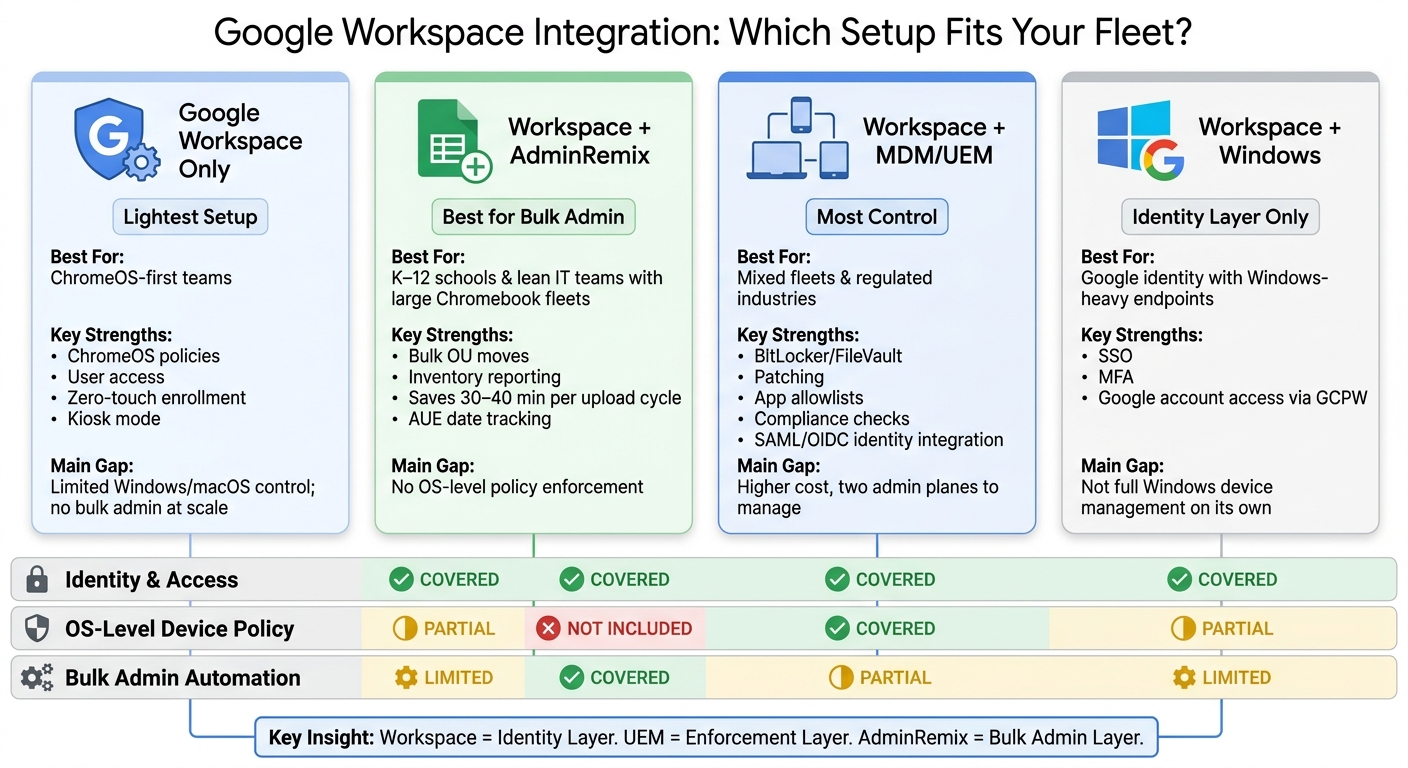
Google Workspace + MDM vs. AdminRemix: Which Setup Fits Your Fleet?
Google Workspace: Mobile & Endpoints
sbb-itb-c68f633
Quick Comparison
| Option | Best for | What it does well | Main gap |
|---|---|---|---|
| Google Workspace only | ChromeOS-first teams | ChromeOS policies, user access, simple endpoint controls | Less control for Windows and macOS; weak bulk admin at scale |
| Google Workspace + AdminRemix | Schools and lean IT teams with many Chromebooks | Bulk OU work, inventory reporting, user and Chromebook admin in Sheets | No OS-level device policy enforcement |
| Google Workspace + MDM/UEM | Mixed fleets and regulated teams | Windows/macOS/iOS/Android control, encryption, patching, compliance | More cost, more setup, two admin layers |
| Workspace for Windows-centric use | Teams using Google identity with many Windows PCs | SSO, MFA, Google account access | Not full Windows management on its own |
So if you’re deciding where Google Workspace ends and MDM begins, the line is pretty clear: Workspace handles identity well, ChromeOS well, and mixed-device control only up to a point. After that, you add a UEM for policy depth, or AdminRemix for bulk Google admin work.
1. AdminRemix for Google Workspace bulk administration workflows
AdminRemix is not an MDM. Instead, it adds a Google Sheets-based layer for bulk administration across Chromebook and user management, while User Getter handles bulk OU, attribute, and status updates for Google Workspace users. So if you're looking for policy control, this isn't the tool for that. If you're dealing with cleanup, reporting, and large batches of admin work, that's where it fits.
Device coverage
AdminRemix focuses on ChromeOS fleets through Chromebook Getter, and on other IT assets through AssetRemix. Chromebook Getter pulls Chromebook inventory and metadata into a Google Sheet, including serial numbers, OU placement, assigned user, device location, and condition notes. Once the data is in the sheet, admins can sort, filter, and move devices in bulk between organizational units.
AssetRemix extends that view to other IT assets and keeps records tied to lifecycle details like purchase, funding, status, and location. In mixed fleets, that gives IT teams a cleaner record set before they apply device controls elsewhere.
Policy depth
AdminRemix doesn't apply policies the way an MDM does. Its role is simpler: it helps admins keep devices and users in the right place so existing policies apply the way they should. Chromebook Getter helps teams find devices sitting in the wrong OU, filter by OU, OS version, or AUE date, and move large groups at once when cleanup is needed.
That makes it a solid companion to Google Workspace and to any MDM or UEM platform already handling policy settings.
Enrollment and identity flow
To start the integration, users need to sign in with a Google account that has admin access. After that, Chromebook Getter can pull serial numbers and device metadata from the Admin console into a sheet, which cuts down on manual barcode scanning after device intake.
AssetRemix also connects with the organization's directory, which helps keep staff identities and device assignments current. Day to day, that can look pretty simple:
- Use the Google Admin console for enrollment
- Use Chromebook Getter for bulk OU assignment
- Use AssetRemix for ownership tracking
Admin automation
Chromebook Getter's upload and download service workers can save 30–40 minutes per upload cycle. It also supports automated reports for AUE dates, OS versions, and device health data across OUs, making it easier to spot stale devices and act on them in bulk.
AssetRemix adds webhooks and email notifications, so follow-up tasks can move without extra manual work. For example, if a device is marked lost or sent for repair, the help desk can be alerted right away. That kind of workflow support tends to matter most when Google Workspace is already doing the heavy lifting for core management.
2. Native Google Workspace device management
Native Google Workspace management works best for ChromeOS-first fleets. In that setup, the Admin console can handle basic device control and OU-based policy enforcement.
That’s fine for day-to-day ChromeOS needs. But once you’re dealing with a mixed fleet, things can get tight fast.
Device coverage
At small scale, this is manageable. At fleet scale, search becomes the bottleneck.
Native search supports only basic filters, and fleet-wide history search is not practical.
Policy depth
Native Google Workspace can’t bulk edit annotated fields like asset tags, locations, or assigned users. So if you need to update those details, you have to do it one device at a time.
That may not sound like a big deal at first. But across a large fleet, it turns into a slow, manual job.
Enrollment and identity flow
Devices can be pre-enrolled with zero-touch, and serial numbers can be pulled from the Admin console. That cuts down on manual barcode scanning.
But there’s a catch: bulk OU moves aren’t supported. So if you need to reorganize a large fleet, admins have to make those changes manually.
Admin automation
This is where the native console falls short the most.
It lacks fleet-wide reporting for OS versions and AUE dates across OUs. It also doesn’t support bulk deprovisioning, power washing, or profile wiping.
Once device management needs go past ChromeOS basics, many teams start looking for deeper MDM or UEM control.
3. Google Workspace with third-party MDM/UEM integration
Third-party MDM/UEM closes the OS-level gaps that Google Workspace leaves open in mixed fleets. Google Workspace handles the basics well enough, but once you need tighter device control across many platforms, it starts to hit a wall. That’s where a third-party MDM/UEM steps in. The first win is broader device support. The second is deeper policy control.
Device coverage
A UEM extends Google Workspace into Windows, macOS, iPadOS, Android, and ChromeOS, with deeper lifecycle control across the full mixed fleet.
Policy depth
A UEM can enforce BitLocker or FileVault, firewall rules, patch rings, app allowlists, and hardening baselines. For regulated U.S. organizations, those controls help produce the audit evidence compliance teams need.
Enrollment and identity flow
Google Workspace acts as the identity provider through SAML or OIDC, so device enrollment in the UEM ties directly to each user’s Workspace account. Admins can use Google groups or OUs to assign enrollment profiles and policies. At the same time, compliance status in the UEM can allow or block access to Workspace apps.
Google’s Admin console also includes a dedicated Security and MDM partners area for connecting supported MDM platforms and sharing compliance status.
Put simply, Google Workspace becomes the identity layer, and the UEM becomes the enforcement layer.
Admin automation
When a user is moved between OUs or suspended in Google Workspace, UEM workflows can push policy changes, revoke access, or wipe corporate data. When the UEM flags a device as jailbroken, non-compliant, or outdated, it can trigger Workspace actions like re-authentication or blocking sign-in. That back-and-forth keeps access rules and endpoint posture in sync.
For fleets that lean heavily toward ChromeOS or Windows, the next step is to decide whether this split-role setup is enough or whether platform-specific management is the simpler path.
4. Google Workspace for ChromeOS- and Windows-focused management
Google Workspace handles ChromeOS and Windows in very different ways, and that difference matters if you're thinking about Workspace as the main control layer for a mixed device fleet.
Device coverage
You see the gap most clearly in ChromeOS-heavy setups. Google Workspace manages ChromeOS natively, while Windows support is much narrower and centers mostly on identity and access.
Put simply: Workspace manages ChromeOS devices directly. For Windows, it manages who gets access far more than it manages the device itself.
Policy depth
On ChromeOS, the Admin console gives admins a lot to work with. You can set sign-in rules, network settings, URL filtering, app allowlists, and update channels.
Windows is a different story. In that case, Workspace stays focused on Google account access, Chrome browser settings, and context-aware access. If you need OS-level controls, you'll still need an MDM or UEM platform.
Enrollment and identity flow
ChromeOS has the smoother path. Devices can auto-enroll into the domain on first boot through Workspace, which keeps setup simple for admins and users.
Windows works differently. Admins usually rely on Google Credential Provider for Windows (GCPW), which lets users sign in with Workspace accounts and get SSO and MFA. That's useful because it extends Google-based sign-in to the Windows desktop. But there's an important limit: it does not turn Workspace into full Windows device management.
Admin automation
Automation is also stronger on the ChromeOS side. The Admin SDK and ChromeOS Management API handle a lot, but things can still get awkward at scale, especially for bulk metadata edits and fleet-wide AUE reporting.
That's where AdminRemix's Chromebook Getter comes in. It pulls Chromebook data into Google Sheets for bulk updates, which makes those jobs less painful.
For Windows, Workspace automation stays mostly tied to the user level. Device actions still sit inside the MDM or UEM. So if you're managing ChromeOS, Workspace gives you a lot of direct control. If you're managing Windows, it's better seen as an identity and access layer than as a full device management system.
Tradeoffs by Management Scenario
There isn't a one-size-fits-all setup here. The best mix comes down to three things: the devices you support, the compliance rules you have to meet, and how much day-to-day complexity your IT team can handle without getting buried.
Here’s how common management scenarios line up with the best-fit model.
| Scenario | Best-Fit Option(s) | Key Strengths | Main Limitations |
|---|---|---|---|
| ChromeOS-focused K–12 schools | Native Google Workspace + AdminRemix | Strong ChromeOS policy control through Google Admin console. AdminRemix helps with bulk Chromebook and user metadata updates, OU moves, and AUE date reporting through Google Sheets. That’s especially handy during back-to-school rollouts and device refresh cycles. | Limited OS-level control for Windows and macOS. Compliance reporting is lighter without a UEM. |
| Windows-heavy organizations using Google identity | Third-party MDM/UEM + Google Workspace | Full Windows management for patching, software distribution, BitLocker, and advanced compliance enforcement, while Google Workspace handles identity and access control. | Higher licensing and implementation complexity. ChromeOS management can also end up split between Google Admin console and the UEM. |
| Mixed-OS SMBs with browser-first work | Native Google Workspace + AdminRemix | Google-native policies cover most day-to-day risk, and AdminRemix makes bulk user and Chromebook admin much easier without scripting at a lower cost. | No granular OS-level compliance enforcement. It’s not a fit when endpoints store regulated data locally. |
| Compliance-driven mixed fleets | Third-party MDM/UEM + Google Workspace | Workspace manages data controls and access policies, while the UEM enforces device posture like encryption and patch levels across mixed-OS fleets. | You have to coordinate two management planes and keep device agents and endpoint workflows in good shape. |
| Higher education with mixed endpoints | Google Workspace + AdminRemix for student Chromebooks; UEM for staff Windows and macOS devices | Keeps student fleet management simple and lower-cost while giving faculty and research devices the stricter controls they often need. | Split management calls for clear ownership and handoff rules. |
The next section looks at the pros and cons of each path.
Pros and Cons
The table below boils the tradeoffs down into a quick decision guide.
| Subject | Pros | Cons | Best-Fit Environment |
|---|---|---|---|
| AdminRemix + Google Workspace (bulk admin workflows) | Bulk Chromebook and user admin in Google Sheets; handy for OU cleanup and inventory tracking | Not a full MDM - no OS-level policy enforcement or cross-platform compliance; its value drops outside Google Workspace and ChromeOS | U.S. K–12 districts and SMBs with large Chromebook fleets and lean IT teams |
| Native Google Workspace device management | One console for basic ChromeOS and identity management; fewer tools and lower licensing overhead | Limited search filters, no native bulk annotated field editing, and weaker OS-version and AUE reporting; thinner Windows and macOS policy depth; compliance reporting may not meet the bar for regulated industries | Google-first organizations where ChromeOS is the main endpoint |
| Google Workspace + third-party MDM/UEM | Deep mixed-OS policy coverage for Windows, macOS, iOS, and Android; supports stricter compliance needs; advanced app lifecycle management; ties into SIEM and ITSM tools | Higher per-device licensing costs; two management planes to maintain; longer rollout; risk of conflicting settings between Google Admin console and the UEM | U.S. enterprises and regulated industries with mixed OS fleets |
| Google Workspace for ChromeOS-centric fleets | Natural fit: zero-touch enrollment, kiosk mode, guest sessions, and browser/app controls | If you scale beyond ChromeOS later, you’ll often need to add a UEM; some Windows-only software won’t run on ChromeOS | K–12 schools, higher education labs, and frontline or kiosk deployments |
| Google Workspace for Windows-centric fleets | Google Workspace covers identity and collaboration; a UEM handles Windows compliance and app deployment | Native Google Workspace Windows management is basic and works best alongside Windows endpoint management for Group Policy depth or complex software distribution | Organizations where Windows is a core platform but Google Workspace is the collaboration backbone |
Conclusion
After comparing native management, UEM integration, and bulk admin tools, the choice comes down to depth of control versus day-to-day ease. The best move is usually the lightest setup that still fits your device fleet: Google Workspace alone for ChromeOS-heavy control, Google Workspace plus UEM for mixed-OS policy needs, and AdminRemix when bulk Chromebook admin work is what slows your team down.
Native Google Workspace device management makes the most sense for ChromeOS-first fleets. But it falls short when you need policy control across a mixed set of operating systems or need to make bulk changes at scale.
Adding a third-party MDM/UEM is the better fit when Windows, macOS, iOS, or Android devices make up a meaningful share of the fleet.
ChromeOS-first environments that want to stay close to the Google ecosystem can get more out of AdminRemix's Chromebook Getter, which supports faster bulk Chromebook administration, OS version reporting, and AUE planning. If your team keeps getting stuck with manual CSV uploads, one-at-a-time OU moves, or AUE tracking, a Google Sheets-based bulk workflow can cut a lot of that extra admin work.
FAQs
When is Google Workspace enough by itself?
Google Workspace is often enough when you need simple, agentless device management. Basic Management, which comes with all editions, can enforce screen locks and remotely wipe corporate accounts without extra software.
If you don’t need full device wipes, Android work profiles, or detailed iOS app management, the Google Admin Console can be a clean, streamlined fit.
Do I need an MDM for Windows and macOS devices?
Yes - if your organization needs central control over security and device management.
Google Workspace includes MDM support for Windows and macOS. That means IT admins can use the Google Admin Console to enforce policies like strong passwords, device encryption, and remote wipe.
In plain English: your team gets one place to manage rules across different operating systems instead of piecing things together device by device.
That setup helps teams:
- maintain compliance
- apply policies in a consistent way across mixed OS environments
- protect company data on both company-owned and personal devices
What does AdminRemix add to Google Workspace?
AdminRemix adds tools that make Google Workspace IT work easier, especially when you need to manage things in bulk or keep track of devices and other assets.
It includes Chromebook Getter for bulk updates, moving devices between organizational units, and pulling detailed inventory reports. You also get User Getter for user metadata, plus AssetRemix for IT asset management and help desk support.