Google Workspace Backup Guide: Cost Planning 2026
Backup cost in 2026 is not just $2–$4 per user per month. If I were building a Google Workspace backup budget today, I’d base it on six cost lines: user licenses, storage growth, retention length, restore charges, security add-ons, and admin time.
Here’s the short version:
- Start with data, not headcount. A 500-user company with 80 GB per user already sits near 40,000 GB before versioning and growth.
- Convert units first. 100 TiB is about 110 TB. At $20/TB/month, that gap can add about $2,400 per year.
- Retention can change the budget more than licenses. Long hold periods, deleted-item retention, and file versions can push storage costs past the base subscription.
- Vault is not backup. It helps with retention, search, and exports, but it does not put data back into Drive for you.
- Renewals need proof, not guesswork. Restore tests, seat cleanup, overage review, and export rights should all be checked 60–90 days before renewal.
If I had to sum up the article in one line, it would be this: plan Google Workspace backup like a risk control, not a simple SaaS line item. That means I’d tie budget decisions to recovery needs, legal hold rules, storage math, and contract terms from the start.
A few numbers make that clear:
- 30 GB, 2 TB, and 5 TB per user are common Workspace storage baselines by edition
- Cloud backup storage often lands near $0.020–$0.023 per GB per month
- Archive storage can drop near $0.0012 per GB per month
- In the article’s example, 56.1 TB of backup storage at $0.020/GB/month adds about $13,464 per year
For a fast view, here’s the main budgeting lens:
| Budget Area | What I’d check first | Why it changes cost |
|---|---|---|
| Data footprint | User storage + Shared Drives + Gmail + versions | More stored data means a higher bill |
| Backup scope | Gmail, Drive, Shared Drives, Chat, Calendar, Contacts, Meet | Missing services can force extra tools later |
| Retention | 30 days vs. 7 years vs. 10 years | Longer retention keeps storage bills high |
| Pricing model | Per-user, storage-based, or hybrid | Each shifts cost risk in a different way |
| Restore terms | Per-restore fees, retrieval fees, SLA limits | Incident costs can show up after purchase |
| Renewal review | Inactive seats, overages, price caps, export rights | Poor renewal control leads to waste |
So if you’re planning a 2026 budget, I’d keep the focus simple: measure current data, set retention by data type, model growth, test restores, and review contracts early. That gives you a backup budget you can explain to finance, legal, and security without hand-waving.
Define Your 2026 Backup Cost Drivers
Before you ask vendors for quotes, lock down three inputs: data volume, protection scope, and cost lines.
Measure Your Google Workspace Data Footprint
Pull current storage by user and Shared Drive from Admin console reports. Then total up Gmail, My Drive, Shared Drives, Chat, Calendar, Contacts, and Meet recordings stored in Drive. Don’t base this on headcount alone. Two teams with the same number of users can have wildly different storage use, and that volume affects both your licensing tier and your backup storage bill.
Your Workspace edition also sets the storage baseline you need to budget around. Business Starter includes 30 GB per user, Business Standard includes 2 TB per user, and Business Plus includes 5 TB per user.
One budgeting mistake shows up all the time: mixing TiB and TB. Convert everything to TB before you build the budget. If you mix the two, your annual estimate can drift by thousands of dollars. For example, 100 TiB is about 110 TB. At $20/TB/month, that extra 10 TB means about $2,400 per year.
Once you know how much data you have, the next step is simple: decide what needs protection and how fast you need it back.
Map Business and Compliance Requirements to Backup Scope
Treat compliance retention and backup recovery as two separate needs. Sit down with legal, finance, HR, and security and answer two questions for each data type: What’s the recovery time objective (RTO)? and what’s the minimum retention period? Financial records often need 7 years of retention. Day-to-day collaboration files may need much less.
Google Vault supports retention, search, holds, and exports, but it does not restore data back into Drive. Export windows and admin recovery windows are also limited. That gap needs to show up in your cost model from day one.
What you decide to protect will shape both retention length and restore cost.
List the Core Cost Components Before You Price Anything
These are the six numbers that drive the budget.
TCO has six cost lines.
| Cost Component | What Drives It |
|---|---|
| Per-user licensing | Number of protected accounts |
| Storage consumption | Total backup volume after growth, versioning, and deduplication |
| Long-term retention | Archive tier pricing for compliance data held 7+ years |
| Restore and retrieval | Per-restore fees or API call charges in some pricing models |
| Security and compliance add-ons | Immutability, data residency, audit logs, advanced reporting |
| Internal admin labor | Hours spent managing policies, running restores, and handling audits |
Internal admin time is a real cost. It belongs in the TCO model right next to the vendor invoice, not off to the side as an afterthought.
Use all six cost lines before you speak with vendors. That gives you a clean way to compare pricing models against actual storage growth, instead of guessing.
Calculate Pricing Models and Storage Costs
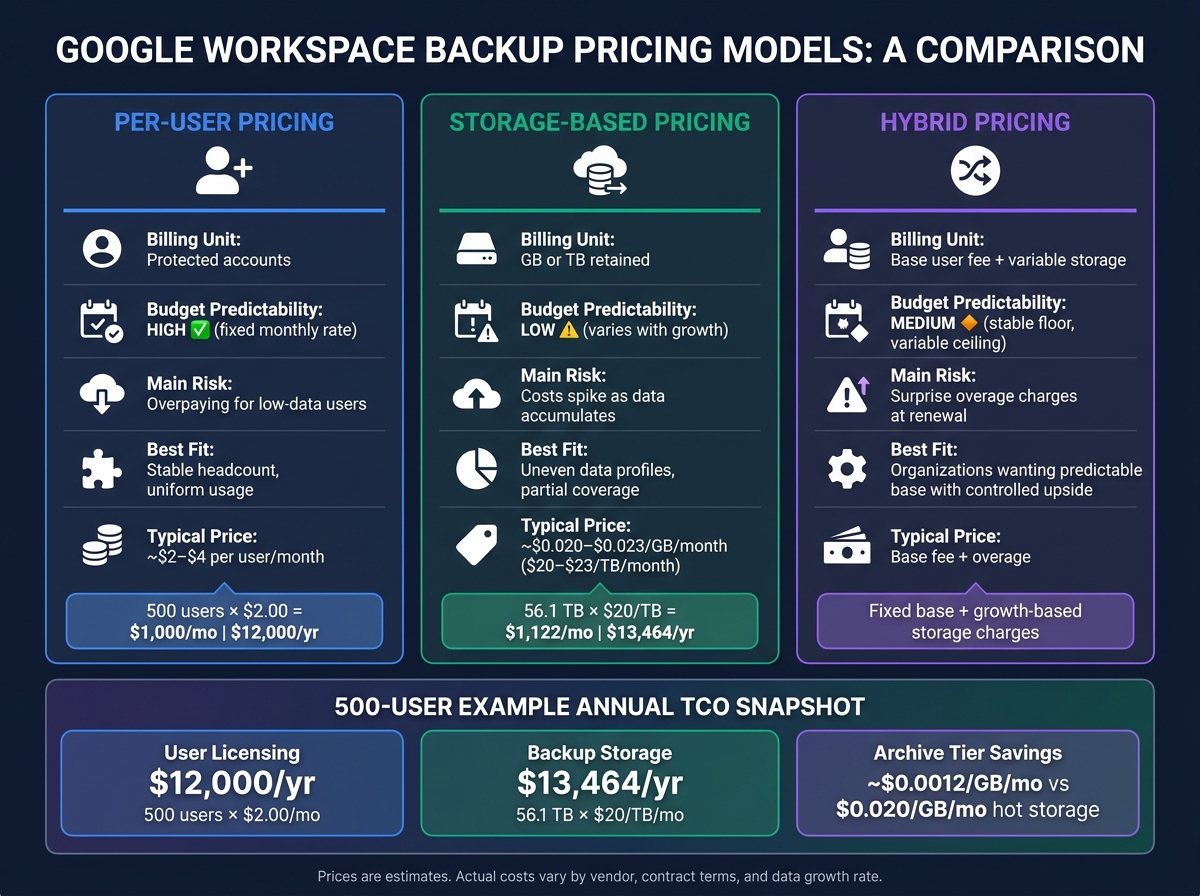
Google Workspace Backup Pricing Models Compared: Per-User vs Storage-Based vs Hybrid
Compare Per-User, Storage-Based, and Hybrid Pricing
Once you’ve mapped out your cost drivers, the next step is to line them up with the pricing model that affects them most. This choice has a big effect on how steady your budget feels month to month. In simple terms, pick the model that matches what drives your costs most: headcount, storage, or retention.
| Pricing Model | Billing Unit | Budget Predictability | Main Risk | Best Fit |
|---|---|---|---|---|
| Per-user | Protected accounts | High - fixed monthly rate | Overpaying for low-data users | Stable headcount, uniform usage |
| Storage-based | GB or TB retained | Low - varies with growth | Costs spike as data accumulates | Uneven data profiles, partial coverage |
| Hybrid | Base user fee + variable storage/features | Medium - stable floor, variable ceiling | Surprise overage charges at renewal | Organizations wanting a predictable base with controlled upside |
Per-user pricing is often the easiest to forecast. Many vendors price Google Workspace backup at around $2–$4 per user per month. Some plans include storage, while others bill extra when you go past a set amount. Standard cloud object storage usually lands around $0.020–$0.023/GB/month, or about $20–$23/TB/month. Archive tiers can drop as low as $0.0012/GB/month.
Estimate Backup Storage with Growth, Versioning, and Retention
After you choose a pricing model, you need to size storage based on your current volume, versioning, and expected growth. Start with the amount of protected data you have today. Then add overhead before projecting it forward.
A simple formula works well here:
Required backup storage = Current protected data × (1 + versioning overhead) × (1 + growth during the retention window)
Here’s how that plays out. For a 500-user organization averaging 80 GB of protected data per user, the current footprint is about 40,000 GB, or roughly 39.1 TB. Add 25% versioning overhead, and that climbs to about 48.8 TB. Then apply 15% expected growth over the planning window, and the budget model should reserve about 56.1 TB.
This is where costs can sneak up on you. A multi-year plan doesn’t grow in a straight line. At 10% annual growth, a 36-month plan compounds year after year. And if you keep deleted items or email snapshots for long periods, those retained copies can become the biggest cost driver even if your employee count doesn’t change.
Build a Simple Annual Backup Budget Formula
Now turn those license and storage assumptions into one annual figure. Use this formula for annual TCO:
Annual TCO = (Monthly license + Monthly storage + Monthly support/SLA fees) × 12 + Restore charges + Internal admin labor
For a 500-user setup at $2.00/user/month, licensing alone comes to $1,000/month or $12,000/year. If backup storage is billed on top of that at $0.020/GB/month for a 56.1 TB footprint, storage adds about $1,122/month or $13,464/year before restore fees or support charges.
| TCO Line Item | Monthly (USD) | Annual (USD) |
|---|---|---|
| User licensing (500 users × $2.00) | $1,000 | $12,000 |
| Storage (56.1 TB × $20/TB) | $1,122 | $13,464 |
| Restore / recovery fees | Variable | Variable |
| Support/SLA fees | Variable | Variable |
| Internal admin labor | Estimate by hours | Estimate by hours |
It helps to split fixed fees from growth-based charges. That makes midyear budget updates and renewal talks much easier. It also keeps storage growth from quietly pushing up a budget that looked neat at the start of the year.
sbb-itb-c68f633
Set Retention Policy and Control Long-Term Costs
Once you've sized storage, retention policy becomes the main cost lever.
Choose Retention Periods by Data Type and Risk
After you know your storage footprint, set retention by data class. Using one blanket retention window for all Google Workspace data is one of the fastest ways to burn money on backup storage. Gmail, Drive, Shared Drives, and regulated records do not carry the same legal risk, recovery urgency, or business value. Your rules should match that reality.
A practical baseline for many U.S. organizations in 2026 looks like this:
- Deleted items - Keep deleted items - Gmail Trash and Drive deletions - for 30 to 90 days.
- Standard mailboxes and Drive files - Keep them for 3 to 7 years to cover common contract and financial record windows.
- Executive mailboxes - Keep these longer, usually 7 to 10 years, because they tend to matter more in litigation.
- Regulated records - Follow the longest required retention period, often 6 to 10 years of immutable retention.
- Shared Drive project files - Keep them for the life of the project plus 2 to 3 years, then archive or prune.
The gap between a 3-year and a 7-year retention window can get expensive fast. Start with a 10 TB baseline, add 20% annual growth, and price hot storage at $20/TB/month. A 3-year retention period stores about 36.4 TB, or roughly $728/month. That spread is exactly why data-specific retention rules matter.
Use Version Limits, Tiering, and Archive Rules Carefully
Version history can quietly drive up costs. Files that change all the time - project trackers, engineering specs, shared finance workbooks - can pile up hundreds of versions if your backup platform keeps every edit forever. A sane approach is to cap versions by data class. For fast-changing team content, keep versions from the last 12 months. For key records like quarter-end financial workbooks, keep the snapshots that matter - month-end and quarter-end versions - while older in-between edits roll off.
Hot storage costs more, but it's built for fast recovery. It makes the most sense for the last 12 to 24 months of mailbox and Drive data. Archive storage is cheaper, but restores take longer and may come with retrieval fees. That makes archive a better fit for older data kept mostly for compliance or historical reference. If a slow restore would be a problem, don't archive it.
Immutable retention and legal holds matter for regulated records, but scope them tightly. If you apply immutability too broadly - say, across all mailboxes - you block deletion of data you don't need and lock in storage costs for the full retention period, even when that data has little compliance value.
These rules only help if the policy is plain enough for IT to run without guesswork.
Write a Policy That IT Can Actually Operate
Write the policy so IT can apply it without having to interpret vague language. At a minimum, define the covered services: Gmail, Drive, Shared Drives, Calendar, Contacts, Chat, and any integrated third-party apps. Spell out exclusions too, such as test domains, sandbox accounts, and test Shared Drives, with documented justification.
The policy should also state restore authority - who can request a restore, what approval is needed, and what the SLA is. Add a testing cadence as well: quarterly or semiannual restore drills that cover single mailbox recovery, full Shared Drive restores, and large-scale incident scenarios. Security controls belong in the policy itself, not buried in vendor docs, because they shape restore governance and audit work.
The table below shows how each data category ties to the policy choices that most affect storage cost and recovery speed:
| Data Category | Retention Period | Storage Tier | Restore Speed | Cost Impact |
|---|---|---|---|---|
| Deleted Items (Mail/Drive) | 30–90 days | Hot | Minutes to 1 hour | Low; limits clutter accumulation |
| Standard Mailboxes & Drive | 3–7 years | Hot (2 yrs) → Archive | Hot: <4 hrs; Archive: 24–48 hrs | Moderate; controlled via tiering |
| Shared Drive Project Files | Project duration + 2–3 years | Hot during project → Archive | Hot: <4 hrs; Archive: 24–72 hrs | Moderate; scales with project count |
| Executive Mailboxes | 7–10 years | Hot (3 yrs) → Archive | Hot: <4 hrs; Archive: 24–72 hrs | High; justified by litigation risk |
| Regulated Records | 6–10 years (immutable) | Archive (immutable) | 48–72 hours | High but mandatory; compliance-driven |
Exception handling needs its own section in the policy. Legal holds and ad hoc retention exceptions should have clear rules for when they begin, who owns them, and when they must be reviewed or lifted. If not, a hold created during a dispute can quietly push storage costs up for years after the issue is over.
With retention rules in place, the next step is to check whether a provider can enforce them without driving up restore costs.
Evaluate Providers, Review Renewals, and Keep Costs Under Control
Once your retention rules are set, the next job is simpler to say than to do: make sure your backup vendor can enforce those rules, and make sure the renewal price still fits the budget.
This is where the conversation changes. Earlier, you were designing policy. At renewal, you need proof. Can the vendor do what you need, and can they do it at the price you planned for?
Evaluate Coverage, Restore Quality, Security, and Contract Terms
When you compare providers, focus on four pillars: coverage, restore quality, security and compliance, and contract terms. Each one affects cost and risk in a very direct way.
Start with coverage. Confirm the vendor protects Gmail, Drive, Shared Drives, Calendar, Contacts, Meet, and Chat. Also check metadata like labels and sharing settings. If one service is missing, you may end up buying a separate point product later, which drives costs up fast.
Restore quality is where the gaps usually show up. You want item-level restore, folder-level restore, account-level restore, and bulk restore with date, label, and owner filters. You also need point-in-time recovery that does not overwrite current data.
Don’t just take the sales demo at face value. Test restores in a pilot environment. Run a single-item restore, a folder-level restore, and a mass-deletion restore. Time each step. Count how many clicks it takes. If a routine restore needs a senior engineer every time, that labor cost adds up year after year.
Here’s a simple way to frame vendor proof and the money at stake:
| Requirement | Evidence to Request | Cost Impact |
|---|---|---|
| All core Workspace services covered | Feature matrix + demo across Gmail, Drive, Shared Drives, Calendar, Contacts, Meet, and Chat | Avoids separate point solutions for unsupported services |
| Item-level, account-level, and point-in-time restore | Sandbox test across mailbox, Drive, and Shared Drive scenarios with date, label, and owner filters | Shorter RTO = less downtime cost; fewer engineer hours per restore |
| Encryption at rest and in transit | Security whitepaper + key management documentation | Reduces breach risk and compensating-control spend |
| MFA/SSO, RBAC, detailed audit logs | SOC 2 Type II report + attestation letter | Lowers compliance audit cost; reduces insider risk |
| Clear overage schedule, price-increase cap, and RTO/RPO SLA | MSA, SLA, and order form reviewed by legal/finance | Prevents budget surprises when data or headcount grows |
| Data export rights at termination | Contract clause specifying format and fees | Reduces switching cost if you change vendors |
Pay close attention to storage overage rates, auto-renew notice windows, minimum commits, and price-increase caps. If the contract allows market-rate increases instead of a fixed cap, push back. That kind of clause can turn a normal renewal into a budget problem.
It also helps to track the auto-renew date in a shared calendar and start the review 60 to 90 days ahead. The week before renewal is too late.
Use AdminRemix Data to Improve Backup Scoping and Budget Accuracy
Before renewal, reconcile active users so you’re not paying to protect seats that no longer matter.
A common source of wasted backup spend is inactive seats. That usually means suspended users, former employees, or service accounts that hold little data but still count on the invoice. This is where AdminRemix can help before renewal talks begin.
User Getter pulls bulk Google Workspace user metadata into Google Sheets, including OU, last login date, license assignment, and account status. If you run that export 60 to 90 days before renewal, you can compare your backup vendor’s billable seat count against your actual active user list.
Say you have 1,500 Google Workspace licenses, but only 1,250 belong to active users. That gap gives you room to remove inactive backup seats or move lower-risk accounts to archive-only coverage.
When you combine AdminRemix exports with your provider’s storage and user reports, you get a cleaner picture of what’s being protected versus what’s being billed. In a renewal discussion, that kind of data carries more weight than rough estimates.
2026 Backup Budget Review Checklist
Use this checklist 60 to 90 days before renewal to spot coverage gaps, restore risk, and contract drift. Assign one named owner, usually the Google Workspace service owner, and log the results in your ITSM system so you can compare this year’s review with the next one.
-
Coverage and inventory
- Audit newly adopted Workspace services or data types that may not be in backup scope
- Run User Getter exports and reconcile active accounts against backed-up seats
- Flag coverage drift since the last renewal cycle
-
Restore and operations
- Complete 3 to 5 restore drills for single-item, full-mailbox, and Shared Drive cases
- Verify restore times against RTO/RPO targets
- Confirm runbooks and restore documentation are current
-
Security and compliance
- Verify encryption, MFA/SSO, RBAC, and audit logging are set correctly
- Review the vendor’s latest SOC 2 Type II report for any scope changes
- Check whether new state privacy laws or regulatory duties affect retention or legal hold rules
-
Financial and contract review
- Reconcile current users and storage against contract limits, then forecast next-term growth
- Review overage rates, annual price-increase clauses, and auto-renew notice deadlines
- Confirm data export rights and termination terms before renewal
FAQs
How do I estimate my real backup storage needs?
Start with a quarterly audit of total storage usage. Then calculate your utilization rate with this formula:
(actual usage ÷ total capacity) × 100
For cloud resources, 40% to 60% is the sweet spot. If usage goes above 80%, you may need to scale. If it falls below 40%, you could be paying for more than you need.
Next, check Admin console storage settings to confirm current use and spot users who are getting close to their limits. After that, make sure comprehensive message storage is enabled. Then review your retention policies, including Google Vault settings, so you can estimate how much historical data must be kept.
What retention periods should I set for different Workspace data?
Set retention periods by service based on your legal, industry, and regulatory requirements, such as HIPAA or SOX. If more than one rule applies, use the strictest requirement.
In Google Workspace, Vault can retain data for up to 36,500 days. Audit logs are kept for 180 days by default. If you export those logs to Google Cloud Logging, you can set your own retention policy from 1 to 3,650 days.
What should I verify before renewing a backup contract?
Before renewing, review your current usage data and line up your subscription tier with what your team actually needs. The best time to do this is 90 to 120 days before renewal. That window gives you enough time to spot waste, make changes, and avoid paying for seats or features you’re not using.
It also helps to check your license counts, remove inactive or low-usage accounts, and make sure your retention policies and configuration settings still match both company needs and regulatory rules. A tool like AdminRemix can make this easier by pulling license data into Google Sheets, which makes trend spotting a lot simpler.