Device Inventory Sync in Google Workspace
I start Google Workspace device sync with one organizational unit - and require zero duplicate assets when I import the same data twice. Before importing, I set the device scope, match records by deviceId, check serial numbers, and decide which system owns each field.
Here’s the approach I use:
- Retrieve the right records: Start with a CSV export, then use read-only API access for scheduled updates. CSV exports are limited to 100,000 devices; API jobs must retrieve every page.
- Protect asset data: Standardize formats, prevent blanks from erasing populated fields, and keep reported user activity separate from verified custody.
- Check before importing: Preview changes, reject invalid rows, and confirm how AssetRemix and Chromebook Getter handle fields and updates.
- Keep sync in check: Track retrieval and successful-sync times, resolve access and matching errors, and review missing devices before changing lifecycle status.
My rule: <u>test before expanding</u>. A missing record is a reason to investigate - not proof that an asset should be deleted.
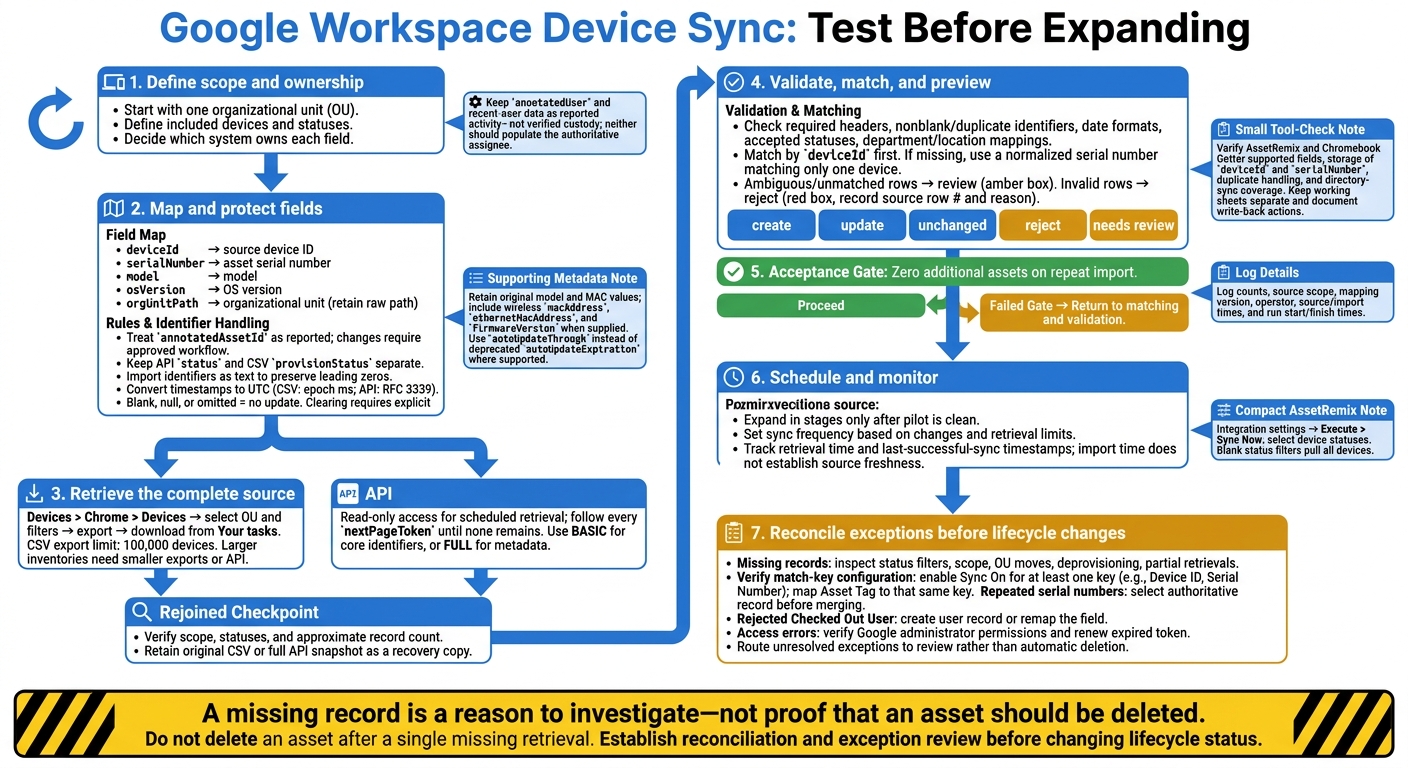
Google Workspace Device Sync: Test Before Expanding
Map and Format Device Fields
Map Google Fields to Asset Fields
Use the scope and record keys defined above to build a field map from the CSV headers or API schema. Record each source field, destination field, data type, conversion rule, and owner. This map guides every import, match, and update decision.
Map deviceId to the source device ID, serialNumber to the asset serial number, model to the model field, and osVersion to the operating-system version. Map orgUnitPath to an organizational-unit field, keeping the raw path for audit. Treat annotatedAssetId as a reported asset tag until it’s validated.
Include wireless macAddress, ethernetMacAddress, and firmwareVersion when supplied. For auto-update support, use autoUpdateThrough instead of the deprecated autoUpdateExpiration where supported. Keep the original source field names so each mapping can be traced back to the schema.
Keep API status and CSV provisionStatus separate before normalization. Convert CSV lastPolicySyncMs and API lastSync before mapping them to the policy-sync timestamp. Store annotatedUser and recent-user data as reported activity - not verified custody. Neither field should populate the authoritative assignee.
Once the field names are mapped, define the formats and overwrite rules.
Set Data Formats and Overwrite Rules
Import identifiers as text to preserve leading zeros. Trim surrounding whitespace, but keep meaningful hyphens and punctuation. Store original model and MAC-address values alongside any normalized values used for comparison.
Parse lastPolicySyncMs as epoch milliseconds and lastSync as an RFC 3339 date-time string. Store timestamps in UTC. Display dates in U.S. format with the time zone shown.
Treat blank, null, and omitted fields as no update, not an instruction to clear a populated field. Clearing requires explicit approval, as do identifier corrections. For each change, log the mapping version, source time, and import time.
In the table, Discovery means Google discovery; ** - ** means no automatic clearing.
| Destination field | May create | May update | May clear |
|---|---|---|---|
| Model | Discovery or reviewed entry | Discovery or asset system; preserve source | - |
| OS version | Discovery | Discovery or trusted asset source | - |
| Organizational unit | Discovery | Discovery or asset workflow if it owns location | - |
| Policy-sync timestamp | Discovery | Discovery | - |
| Firmware version | Discovery | Discovery or trusted asset source | - |
| Auto-update support cutoff | Discovery | Discovery using supported source field | - |
Reported asset tag (annotatedAssetId) |
Discovery or reviewed entry | Approved workflow only | Approved workflow only |
Use this mapping as the import template for record matching and previewing changes.
sbb-itb-c68f633
Import and Match Device Records
Export CSV Files or Retrieve All API Pages
Use the approved field map to export only the devices you plan to import.
In the Google Admin console, go to Devices > Chrome > Devices, select the target org unit and filters, and export. Download the CSV from Your tasks. Check its scope, included statuses, and approximate record count. Google sets a CSV export limit of 100,000 devices, so larger inventories may require smaller exports or API retrieval.
For API retrieval, follow every nextPageToken until none remains. Choose BASIC for core identifiers and status, or FULL if your field map requires more metadata. Save the full response - not just the first page. Compare normalized snapshots keyed by deviceId to track additions, removals, and field changes.
Validate Records and Preview Import Changes
Check the export or API snapshot before importing any rows.
Apply the approved field map. Verify required headers, nonblank identifiers, duplicate identifiers, date formats, accepted statuses, and department and location mappings. Match records by deviceId first. If that key is missing, use a normalized serial number that matches only one device. Flag any row without an exact match for review, and record each rejected row’s source row number and rejection reason.
Run a dry run or staged review using create, update, unchanged, reject, and needs review statuses. For updates, show the old and new values for key fields. Keep the original CSV or full API snapshot as your recovery copy. Reject invalid rows and approve reviewed changes before importing.
Test a small organizational unit first. Then reimport the same source and check that it creates zero additional assets. Log counts, source scope, mapping version, operator, and start and finish timestamps.
Use AdminRemix for Imports and Metadata Review
Use the same import dataset for manual review and metadata cleanup.
Use AdminRemix AssetRemix for supported imports and exports, and Chromebook Getter in Google Sheets to review Chromebook metadata. Before automating, check supported fields, storage of both deviceId and serialNumber, duplicate handling, and directory-sync coverage.
Keep the working sheet separate from production updates. Document which actions write back to Google and which only prepare import data.
Schedule Updates and Fix Sync Errors
Set Sync Frequency and Track Timestamps
Once you’ve validated the initial import, set a sync schedule based on how often records change and the retrieval limits. In AssetRemix, go to the integration settings, run Execute > Sync Now, and select the device statuses to include. Leave the status filters blank to pull all devices.
Track retrieval time and last-successful-sync timestamps for both manual and automated runs. Import time alone doesn’t tell you whether the source data is current. These timestamps help you spot stale or failed runs before records drift out of sync.
Fix Missing, Duplicate, and Rejected Records
Start with missing and duplicate records when a sync falls out of alignment. For missing records, check the status filter and sync scope first. Enable Sync On for at least one match key, such as Device ID or Serial Number, then map Asset Tag to that same key.
Treat repeated serial numbers as conflicts. Select the authoritative record before merging duplicates. If Checked Out User is rejected, create the user record first or remap the field.
Handle Access Errors, Retries, and Stale Records
Access errors usually point to missing Google permissions or an expired authorization token. Verify administrator access, then renew the token to reauthorize the connection.
Don’t delete an asset after a single missing retrieval. Flag it for review and check whether filters changed, the device moved org units, or it was deprovisioned. A partial run doesn’t prove the device is gone.
Conclusion: Test Before Expanding Device Sync
Once the initial sync is stable, pilot one organizational unit (OU). Filter the source set to that OU and compare matched records with the asset list. Check identifier matches, data formats, and proposed import changes against that device list.
Lock the field map before the pilot and confirm the match keys are set to Sync On. Run the same import again to verify that it updates existing records only.
When the pilot is clean, expand in stages. Set a reconciliation schedule and an exception-review process before applying lifecycle status changes based on sync results.
FAQs
How should I resolve conflicting device data?
Map your ITAM asset tag to Google’s Device ID or Serial Number, depending on which is required or available. This helps prevent duplicate or orphaned records.
If conflicts persist, export the Google Workspace device data. Compare identifiers, organizational unit, assigned user, and status. Then update the “source of truth” fields in your asset system and rerun the sync.
If results are stale, check the Admin console reporting settings and run a manual sync to confirm the last-sync timestamps.
How often should I sync my device inventory?
Sync on a schedule, not in real time. AssetRemix/Chromebook inventory syncs once a day around midnight. With Google Sheets automation, update records daily or weekly, depending on inventory changes and discrepancy reviews.
For two-way syncing or larger environments, schedule syncs to keep records current. You can also use delta syncing and a sync token to avoid fetching all records each time.
How do I roll back an incorrect import?
For Google Sheets-based tools like Chromebook Getter, use built-in version history to undo unintended edits. Go to File > Version history > See version history, then find and restore a version saved before those edits.
For inventory management across your records, label key versions with names like “End of Q1 2026 Inventory” to create checkpoints. These labels help you track changes and restore an accurate version if reconciliation reveals an error.