
Best Practices for Mixed Device App Deployment
Mixed device app rollouts fail for three simple reasons: teams package apps differently, send them to the wrong users or devices, and trust dashboard status instead of checking the device itself.
If I had to boil this article down into one plan, it would be this:
- Standardize one app delivery method per platform
- Use the right assignment model for each device type
- Audit groups, tags, and device data before every large rollout
- Test in rings: pilot, early group, then full release
- Verify installs with device-level checks, not just “deployed” status
- Track four numbers after launch: install success rate, version drift, time to 95% deployment, and license use
- Review fleet health every quarter and hardware support dates every year
In short, mixed fleets break when the process changes from one platform to another. A Chromebook, shared iPad cart, Windows lab PC, and staff Mac may all need the same app, but they do not need the same packaging, targeting, or validation steps.
A few points stand out:
- Device type matters as much as OS
- Stale metadata causes over-deployment
- Version drift grows fast if no one checks it
- A rollout is not done when the console says “success”
- Support gets easier when device history and ticket data sit in one place
Here’s the article in one glance:
| Area | What to do | What goes wrong if you skip it |
|---|---|---|
| Packaging | Pick one package type and update path per platform | Mixed versions, install errors, more support work |
| Targeting | Match user-based or device-based assignment to the use case | Wrong apps on wrong devices, wasted licenses |
| Metadata | Clean groups, tags, OUs, and device records before rollout | Bad scoping and missed devices |
| Validation | Use detection rules and device checks | False success reports |
| Monitoring | Track drift, success rate, and license use after launch | Silent failures and ticket spikes |
| Review cycle | Do quarterly and annual reviews | Old devices, expired support, and policy gaps |
The main idea is simple: use the same rollout workflow every time - audit, package, target, pilot, verify, maintain. That is how I’d keep mixed device deployment from turning into a ticket storm.
Click less, manage more: simplify app deployment with Intune
sbb-itb-c68f633
Challenge 1: Standardizing app packages, versions, and rollout timing
Mixed fleets rely on different package formats and update paths. If you don’t set a clear standard, version control can get messy fast.
Pick one package format and update path per platform
Choose one deployment method for each platform and stick with it. Every exception means more support work.
For Windows, standardize on Win32 app packaging instead of mixing it with Line-of-Business apps. That gives you better control over detection rules and install behavior. For ChromeOS, manage extensions and web apps through the Google Admin console. For macOS, use a .pkg-based workflow with DDM-based update enforcement.
Use pilot groups and deployment rings before a full rollout
A staged rollout helps you catch issues before they spread across the whole fleet. Start with a small pilot group, move to early adopters, and then finish with the full rollout.
"Deployment rings let a small test group receive changes first before broader rollout, giving you confidence that a configuration works as expected before it reaches your entire fleet." - Dan Gordon, Fleet
Run each ring during off-hours so you can test every stage before it reaches everyone else.
Maintain a single software source of truth
Without one central record, IT teams often end up with different versions of the same installer sitting in shared drives. Then the confusion starts: which file is current, which command should be used, and what changed last time?
A software source of truth is one maintained library that stores:
- The approved installer file
- The target version number
- The silent install command
- Rollback notes for each app on each platform
AssetRemix links software records, device history, and help desk tickets, so IT can trace version issues faster. That clean record also makes it easier to target the right users and devices next.
Challenge 2: Targeting the right users and devices without over-deploying
Once app versions are standardized, the next step is deciding who should get each app and which devices should carry it. Get that part wrong, and the damage adds up fast: wasted licenses, slower login times, crowded storage, and apps landing on devices that never needed them in the first place.
Match user-based and device-based assignment to the use case
Use user-based assignments for apps that should follow a person. Use device-based assignments for apps that belong to the hardware.
A staff member’s productivity suite should be there no matter which device they sign into. That makes user-based assignment the right fit. On the other hand, a testing lab, shared cart, kiosk, or front-desk terminal needs the same controlled app set every time. In that case, the assignment should stay with the device itself, not with whoever happens to log in that day.
This sounds simple, but it trips teams up all the time. In mixed fleets, using the wrong assignment model is one of the biggest reasons apps get pushed too broadly.
Clean up group membership, tags, and org structure
Old groups and messy tags are a quiet source of bad targeting. Stale organizational units (OUs), mismatched device tags, and leftover group memberships from last year’s roster often send apps to the wrong users and devices.
You’ll see this most often during:
- school-year rollovers
- employee transfers
- hardware reassignments
The fix is pretty direct: run regular metadata audits, and do one before every major rollout. At scale, this can’t be a hand-edited job. Manual cleanup sounds fine at first, then turns into a slog once you’re dealing with hundreds or thousands of records.
Use bulk metadata tools to keep targeting accurate
Manual cleanup becomes the bottleneck fast. The native Google Admin console offers only limited search and bulk editing for metadata fields, so retagging hundreds of devices before a rollout can be painfully slow.
Chromebook Getter and User Getter from AdminRemix tackle that problem head-on. Both tools work through Google Sheets, which makes it much easier for administrators to bulk-edit metadata fields, move devices across OUs in bulk, and run advanced OS version and Auto Update Expiration (AUE) reports.
That matters because assignments only work when your roster and device data are current. Before a large deployment, run an AUE report across your OUs to flag devices that can’t support the app.
Challenge 3: Verifying compliance and support readiness after deployment
Once targeting is set, the next step is simple in theory but messy in practice: make sure each app installs, opens, and stays up to date. In mixed fleets, a rollout can look finished in the dashboard while the app is missing, broken, or stuck on the wrong version. That gap between "deployed" and "installed and usable" is often much bigger than teams think.
Validate installs with detection rules and device-level checks
Each platform reports install status in its own way. So a single success status can hide failures across macOS, iOS, Windows, ChromeOS, and Android.
A safer approach is to check devices directly with detection rules. That means using bundle identifiers on macOS and iOS, registry key checks on Windows, and version checks on ChromeOS and Android. These checks confirm the app was not only pushed, but is also present and usable before users start relying on it.
"A device can pass a point-in-time compliance check and fail the same check a week later with no record of what changed or when." - Fleet
Standard MDM sync cycles can leave blind spots. Near-real-time agents help fill those gaps by reporting device state between syncs. That makes it easier to catch configuration drift - for example, when a user removes an app by hand or an OS update breaks a dependency.
Track deployment success, version drift, and license usage
After rollout, keep a close eye on success rates, version drift, and license use. If you don't, small failures can sit there quietly until users start filing tickets.
| Metric | What It Reveals | Recommended Review Cadence | Typical Follow-Up Action |
|---|---|---|---|
| Install Success Rate | Percentage of targeted devices that successfully completed the installation | Daily during active rollout | Investigate failed devices for specific error codes or network blocks |
| Version Distribution | Presence of version drift where some devices remain on outdated versions | Weekly | Trigger a re-push or manual update for devices lagging behind the baseline |
| Time to 95% Deployment | Efficiency of the deployment pipeline and potential bandwidth or scheduling issues | Per major release | Adjust deployment windows or optimize package delivery methods |
| License Usage | Discrepancies between deployed app instances and purchased license seats | Monthly/Quarterly | Reclaim unused licenses from inactive devices or purchase additional seats |
Version drift is usually the biggest problem. A device can miss one update cycle and quietly fall behind. Then another update ships, and now you're dealing with a bigger gap. In regulated settings like healthcare or finance, that kind of miss can turn into a compliance issue.
Centralize asset history and support signals
Troubleshooting after deployment gets a lot harder when device records, ticket history, OS versions, and warranty dates all live in different systems. When someone reports a broken app, the technician needs one clear view of the device's OS version, last sync date, warranty status, and related support history.
AssetRemix from AdminRemix can bring together device records, warranty dates, and ticket history so technicians can troubleshoot faster and plan refreshes using actual device data. Those support signals also help speed up triage and feed the deployment workflow that comes next.
A repeatable workflow and conclusion for mixed device app deployment
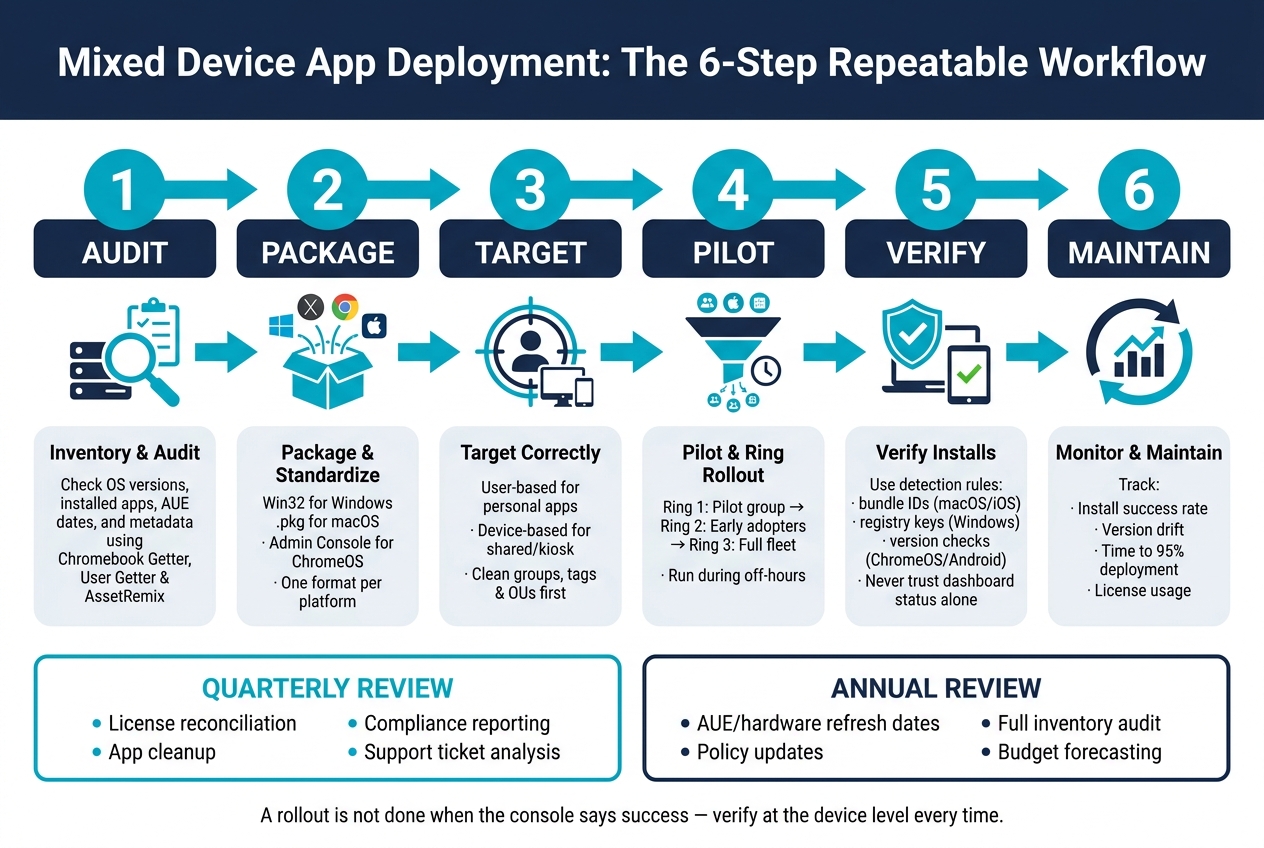
Mixed Device App Deployment: The 6-Step Repeatable Workflow
A step-by-step deployment workflow for IT teams
Once the three core problems are fixed, this workflow helps teams keep deployments steady from one rollout to the next.
Stick to the same sequence every time: audit, package, target, pilot, verify, maintain.
- Inventory and audit Audit devices, OS versions, and installed apps before changing anything. Use Chromebook Getter, User Getter, and AssetRemix to update metadata and asset history in bulk.
- Package and target Build platform-specific packages and assign them to the right user or device groups.
- Pilot, roll out, verify Start with a pilot group, then expand in rings. Check each wave with device-level validation, then track version drift.
- Maintain After rollout, move from deployment into monitoring. Set a regular review cadence so deployment stays current instead of turning into a one-time project.
What to review each quarter and at each annual refresh
Scheduled reviews help catch drift before the next rollout.
Each quarter, review license use, version drift, compliance, and platform-level ticket patterns. If one OS is generating more tickets than the others, that usually points to a packaging, update, or targeting problem.
Annual reviews should look at the bigger picture. Check Chromebook Auto Update Expiration (AUE) dates so you can plan hardware refreshes before devices fall out of support. Reconcile software license spend against actual usage, and audit security policies across platforms so rules like encryption and OS version floors stay aligned.
| Review Period | Key Focus Areas |
|---|---|
| Quarterly | License reconciliation, app cleanup, compliance reporting, support ticket analysis |
| Annual | AUE dates, hardware refresh planning, policy updates, full inventory audit, budget forecasting |
Conclusion: Core rules for managing mixed device deployment
Mixed device environments tend to break down when the process changes from one team, platform, or rollout to the next. The fix is simple in theory, even if it takes discipline in practice: standardize app types by platform, assign apps based on actual usage instead of guesswork, keep metadata clean, and validate installs with measurable checks rather than deployment status alone.
It also helps to centralize reporting. Without that, you're piecing together half the story from different tools and different operating systems. With one clear view across every OS, it's much easier to spot drift, missed installs, and targeting mistakes before they turn into support tickets.
A disciplined workflow cuts failed installs, lowers support load, and makes each rollout move with less friction. The goal isn't one lucky deployment. It's a process you can run again and again with the same result.
FAQs
How do I choose between user-based and device-based app assignments?
Device-based assignments install the app on the device itself, no matter who signs in. That makes them a good fit for shared, dedicated, or kiosk devices.
User-based assignments are tied to the user, so the app follows them across devices. They work best for personal devices or one-person use.
If you use both, the device context wins. To avoid conflicts, keep user and device group assignments separate.
What should I check if the dashboard says an app was deployed but users cannot use it?
Check whether the app is installed on the user’s device. If it isn’t, look at the install error details for failed installs, app conflicts, or targeting problems.
Also make sure the app assignment was set up correctly, the needed permissions or trust settings are in place, and the device or deployment logs don’t show network, account, or policy issues.
How often should I audit groups, tags, and device records?
Review audit groups, tags, and device records on a regular schedule - say, every quarter or once a year - to spot mismatches, keep data clean, and help maintain security.