
Troubleshooting EdTech Tools in Google Workspace
Managing EdTech tools in Google Workspace can be challenging for IT teams in schools. From fixing login issues to resolving grade sync errors, these problems often disrupt classroom instruction and overwhelm IT workflows. Here's what you need to know:
- Common Issues: Problems often involve authentication errors, data sync failures, or device/browser conflicts.
- Key Causes: Misconfigured settings, expired tokens, mismatched emails, or licensing gaps are frequent culprits.
- Impact: Even minor issues can halt lessons and create compliance risks (e.g., COPPA, FERPA).
- Solutions: A structured troubleshooting process - checking error codes, licenses, and policies - helps resolve problems faster.
How To Fix Google Workspace Not Working (How To Troubleshoot Google Workspace That Won't Work)
sbb-itb-c68f633
Common Issues with EdTech Tools in Google Workspace
When using EdTech tools within Google Workspace, common problems tend to fall into three main categories: access/authentication failures, roster/data sync errors, and device/browser conflicts. Let’s break these down to better understand the challenges and how to address them.
Access and Authentication Problems
Authentication errors are one of the most frequent complaints. For instance, "Error 400: access_not_configured" usually means the app hasn’t been set up in the Admin console. Meanwhile, "Error 400: admin_policy_enforced" indicates that an admin has explicitly blocked the app. Students under 18 often encounter messages like "Access blocked: Your institution's administrator needs to review [app name]" when trying to use unapproved third-party apps.
Another common issue arises from service account misconfigurations, particularly with Student Information System (SIS) connectors. A 401 Unauthorized error often points to missing OAuth scopes or a failure to add the service account to Domain Wide Delegation in the Admin console.
"A common issue is that districts will only have scopes for one service account and not another. Errors involving 401 access denied, or invalid token are usually related to this." - Genesis SIS Support
Even minor mismatches in email addresses can cause silent authentication failures. For example, if a teacher’s email in an EdTech tool doesn’t match their Google Workspace primary email exactly - down to the last character - it can break authentication.
Next, we’ll dive into how email mismatches and licensing requirements can lead to roster and data sync issues.
Roster and Data Sync Failures
Syncing data between Google Classroom and an SIS can be a headache, especially when issues go unnoticed until grades or rosters look incorrect. A common culprit is email mismatches between the SIS and Google Workspace, resulting in silent failures.
Licensing is another key factor. Features like roster imports and grade exports require either a Google Workspace for Education Plus or Teaching and Learning Upgrade license. Starting July 9, 2024, this licensing requirement will be mandatory.
Classroom state can also cause problems. For example, if a class remains in "Provisioned" status, it won’t sync with the SIS until the primary teacher accepts and activates it. On a larger scale, API rate limits can complicate matters - Google imposes a cap of 600 requests per minute per service account, which can lead to delays or dropped data during busy times like the start of a school year.
Device and Browser-Level Conflicts
Device and browser issues can be particularly frustrating, as apps may work fine on one Chromebook but fail on another. Conflicting extensions are a frequent cause. In June 2026, IT admins troubleshooting Securly Classroom discovered that student thumbnails often failed to load ("Waiting on Device") when extensions like GoGuardian or LanSchool were also active. The solution? Moving test users to a "clean" Organizational Unit (OU) with all other extensions disabled to isolate the problem.
Stale cache and corrupted authentication tokens can also trigger issues. For example, in early 2026, users reported Gemini’s side panel disappearing, which was traced back to privacy-focused extensions blocking network requests. Clearing site-specific data at chrome://settings/siteData or adding *.google.com to the extension’s allowlist usually resolved the problem.
"Extensions that block scripts, cookies, or tracking protections can stop Meet from completing its authentication and loading sequence." - Reality Pathing
Even admin-enforced Chrome policies can unintentionally disrupt tools. For instance, a policy set for one OU might block camera access, disable screenshots, or restrict extensions, causing widespread issues with EdTech tools.
| Symptom | Likely Cause | Fix |
|---|---|---|
| "Stuck on Syncing" | Corrupted local auth token or cache | Clear site data for the specific URL and restart |
| Add-on or sidebar missing | Extension conflict or Admin policy | Test in Incognito; check Admin Console API permissions |
| "Waiting on Device" | Competing classroom management extensions | Disable conflicting extensions and test in a clean OU |
| Camera or mic errors | Chrome management policy restrictions | Review "Settings for users & browsers" in Admin Console |
| 401 Unauthorized (SIS sync) | Missing OAuth scopes or Domain Wide Delegation | Verify all required scopes are added to the service account |
A Step-by-Step Troubleshooting Process
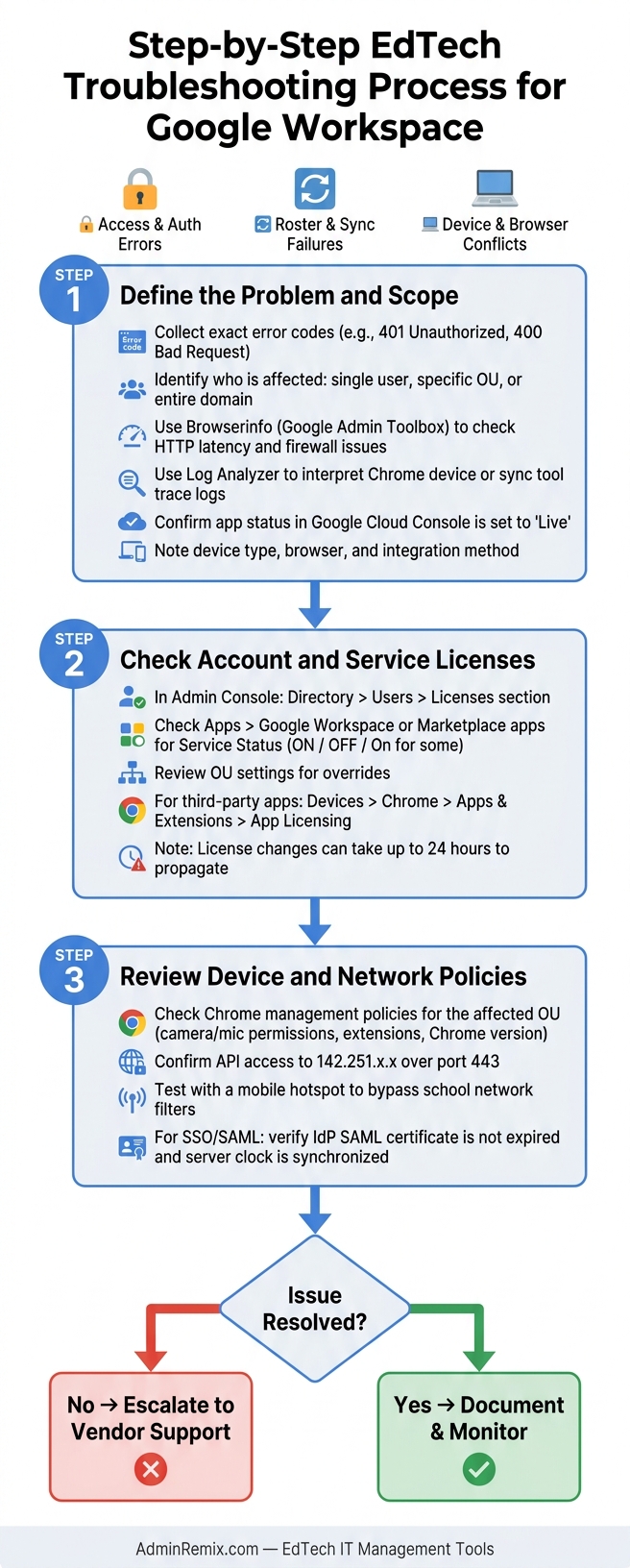
Step-by-Step EdTech Troubleshooting Process for Google Workspace
When an EdTech tool stops working, diving straight into fixes can be a waste of time. A structured process - starting with what you already know and expanding outward - helps you address issues more efficiently. This approach can save valuable classroom time and reduce the number of support tickets.
Step 1: Define the Problem and Scope
Start by gathering specific details about the error before making any changes. Look for exact error messages. For instance, codes like 401 Unauthorized or 400 Bad Request point to specific issues, while generic messages like "App is not responding" require broader investigation. Determine who is affected - is it a single student, a specific Organizational Unit (OU), or the entire domain? Single-user issues often stem from account or device settings, while domain-wide problems may indicate policy or service-level changes.
Two tools to use early in the process are:
- Browserinfo (from the Google Admin Toolbox): This checks for HTTP latency issues and potential firewall interference.
- Log Analyzer: This tool interprets trace logs from Chrome devices or Google Workspace sync tools to pinpoint where the problem occurred.
If the issue involves an API-connected app, confirm the app's status in the Google Cloud Console. Make sure it's set to "Live" and that interactive features are enabled. Also, note the type of device, browser, and integration method involved to narrow down the cause.
Once the problem is clearly defined, the next step is to verify user credentials and licenses.
Step 2: Check Account and Service Licenses
After narrowing the scope of the issue, confirm that the affected users have the correct licenses and access permissions. In the Google Admin console, navigate to Directory > Users, select the user, and check the Licenses section. For service-level access, go to Apps > Google Workspace or Apps > Google Workspace Marketplace apps. The Service Status column will indicate if a service is "ON", "OFF", or "On for some." Additionally, review Organizational Unit settings to see if they override default configurations.
For third-party EdTech apps, check Devices > Chrome > Apps & Extensions > Users & Browsers > App Licensing. Some apps don’t automatically assign licenses - users may need to sign in with their Google Account to claim one from the organization’s pool. Keep in mind that license changes can take up to 24 hours to fully propagate across the domain, so a fix might not take effect immediately.
If licenses and account settings appear correct, move on to investigating device and network policies.
Step 3: Review Device and Network Policies
When account and license settings don’t reveal the issue, the problem may lie in device or network policies. Start by checking Chrome management policies for the affected Organizational Unit. Pay special attention to settings related to camera and microphone permissions, forced extension lists, and Chrome version enforcement.
On the network side, ensure that the settings allow API calls to Google Classroom. Specifically, confirm access to 142.251.x.x over port 443. If you suspect that a network filter or proxy is causing the issue, test the tool using a mobile hotspot to bypass the school network. Google provides clear guidance on this:
"If possible, don't use an inline/active CASB on network traffic between users and Google... The Google Support team can't provide assistance with troubleshooting and resolution of potential Google Workspace issues involving inline/active CASB solutions." - Google Workspace Help
For issues related to SSO or SAML, check whether the Identity Provider’s SAML certificate has expired, and ensure the IdP server clock is synchronized. Even minor timestamp mismatches can lead to login failures.
Fixes for Common Classroom Scenarios
After following the diagnostic steps outlined earlier, many classroom issues tend to fit into a few recurring patterns. Below are targeted solutions for some of the most common challenges educators face.
Scenario 1: Students Can't Access Classroom Add-ons
When students can't access Classroom add-ons, start by checking API access and browser cookie settings. Ensure that OAuth Client IDs are marked as Trusted (refer to the Access and Authentication Problems section). If the Workspace Marketplace is restricted, update permissions to allow the add-on.
For blank screens or sign-in loops, disable pop-up blockers and enable third-party cookies. The error idpiframe_initialization_failed signals that cookies or local storage are blocked. Another thing to note: Classroom add-ons don't support multi-login. If students are signed into both personal and school Google accounts, they may encounter access issues. Logging out of all accounts and signing back in with just the school account typically resolves this.
For minors, an "Access blocked: Review required" message indicates admin approval is pending. This requires action in the Admin console.
"The School Administrator might have disables add-ons on the school domain. Contact your teacher or the School Admin." - NinCoT, Product Expert
Scenario 2: Classroom Rosters or Grades Not Syncing
When rosters or grades fail to sync, the root cause is often one of three issues: mismatched email addresses, unreturned grades, or disabled class codes.
If students are missing from a synced roster, ensure they are logged into the EdTech tool with their school-issued Google account. Email addresses must match exactly between Google Classroom and the integrated system. For grades, verify that assignments have been returned - not left as drafts - before syncing.
If a class isn't detected, check that class codes are enabled. Teachers can do this by enabling "Manage invite codes" in their Classroom settings. For duplicate grades appearing in the SIS, delete the original assignment entry in the SIS gradebook before re-syncing. Additionally, grade category syncing requires that the SIS supports OneRoster 1.2 or newer; older versions cannot process this data.
| Issue | Root Cause | Fix |
|---|---|---|
| Grades missing in SIS | Assignments still in "Draft" | Teacher must "Return" assignments in Classroom |
| Students missing from roster | Email mismatch or wrong account | Confirm school Google account is used in the EdTech tool |
| Class not detected by tool | Class code disabled | Enable "Manage invite codes" in Classroom settings |
| Grade categories not syncing | Outdated SIS protocol | Upgrade SIS to OneRoster 1.2+ |
For challenges beyond syncing, device-specific fixes may be needed.
Scenario 3: Chromebook Users Can't Use Required EdTech Apps
If a required app or extension isn't appearing on student devices, the issue often lies in Admin console settings. Check that the app's ID is included in the Allow/Block settings for the affected Organizational Unit (OU). Required tools should be force-installed on student OUs to ensure they're available on all devices without requiring manual installation.
When an extension appears but won't load, confirm that students aren't using Incognito mode. Blocking Incognito mode for the student OU in the Admin console can prevent this issue entirely. If apps are stuck in a "syncing" state, clearing site-specific data or removing and re-adding the student profile on the Chromebook usually resolves the problem. Lastly, ensure both the user account and the device belong to the correct OU. A mismatch between the two is a surprisingly common reason policies and apps fail to apply as expected.
Using AdminRemix Tools to Manage EdTech Issues at Scale
Solving everyday classroom tech problems is just the beginning - scaling those solutions across an entire school or district requires efficient management tools. For IT teams handling hundreds or even thousands of devices, AdminRemix tools simplify large-scale EdTech troubleshooting by addressing gaps in the Google Admin Console. These tools are designed to save time by automating repetitive tasks that can't be efficiently managed one device at a time.
Managing IT Assets with AssetRemix
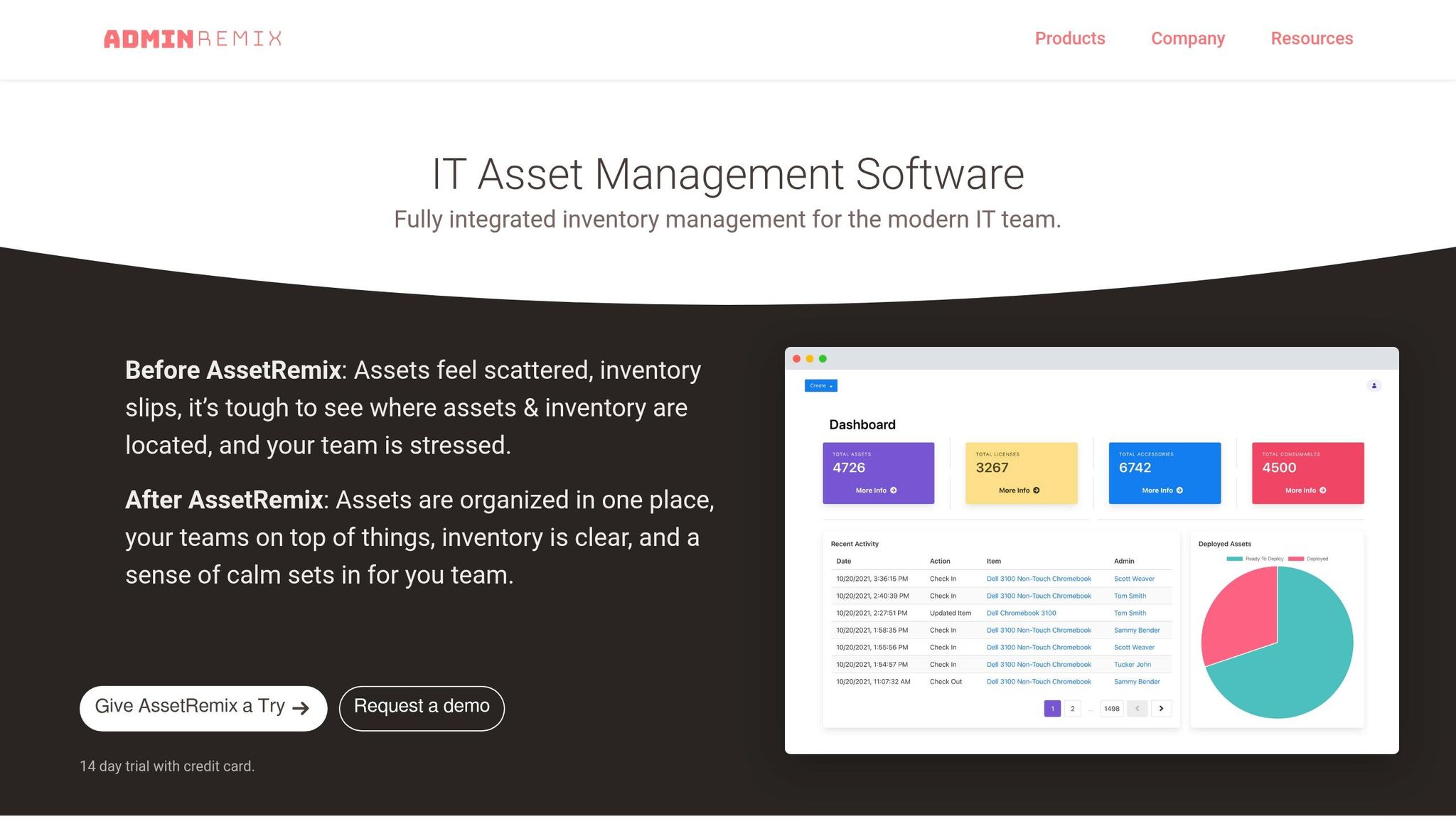
When a student reports an issue with an EdTech app, pinpointing the device and its condition is a top priority. AssetRemix integrates seamlessly with Google Admin, connecting Asset Tags to Device IDs or Serial Numbers, making it easy to match hardware with users. No more digging through spreadsheets - this tool keeps everything organized. By enabling "Sync On", your asset database stays up-to-date with Google Workspace in real time.
With accurate device mapping in place, IT teams can take advantage of bulk management tools to speed up administrative processes.
Bulk Device and User Management with Chromebook Getter and User Getter
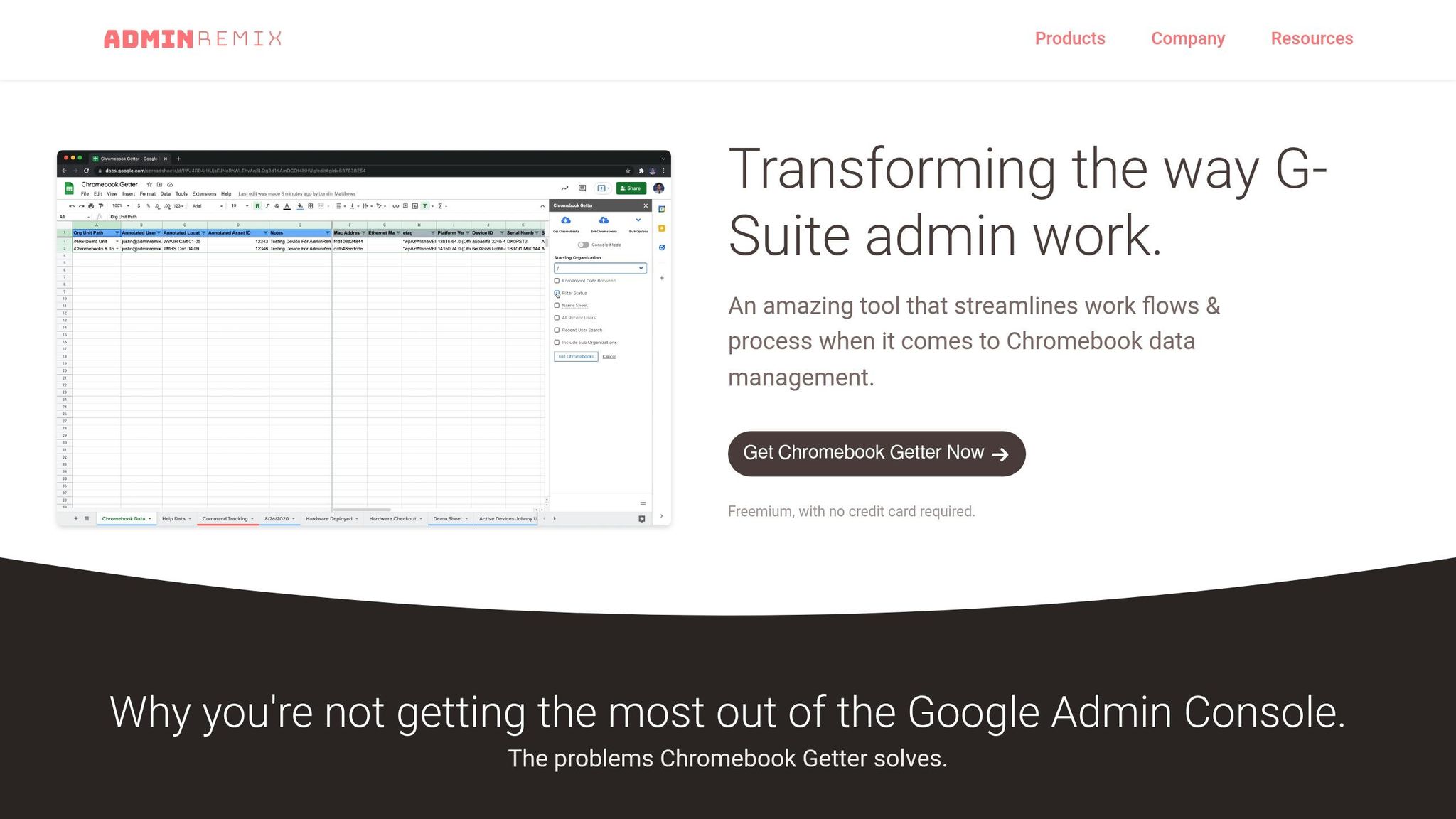
Chromebook Getter eliminates the limitations of the Google Admin Console's search and bulk-editing features by offering a user-friendly Google Sheets interface. IT teams can handle tasks like bulk OU transfers to fix misassigned devices, apply metadata updates for entire grade levels in one step, and generate OS version and Auto Update Expiration (AUE) reports to identify outdated ChromeOS versions that might cause tech issues.
User Getter brings the same bulk management capabilities to G-Suite accounts. This tool makes it easy to perform quick audits and updates, addressing roster or authentication issues when account-level mismatches arise.
Improving Google Meet for Live Instruction
Managing devices and accounts is one thing, but enhancing live instruction tools is another critical piece of the puzzle. Live teaching sessions come with their own set of challenges, and the Meet Enhancement Suite steps in to help. It adds over 40 features to Google Meet, such as Mute All, Remove All, and Auto Record, all accessible with a single click. The Auto Record feature is especially helpful, ensuring lessons are captured even if a teacher forgets to start recording. Best of all, these features integrate directly into the Google Meet interface, so teachers can use them without any complicated setup.
Conclusion: Building a Reliable EdTech Troubleshooting Process
Creating a dependable troubleshooting process is key to maintaining consistent performance in EdTech systems. When it comes to Google Workspace, issues are rarely tied to a single cause. Problems can arise at different levels - whether client, account, or domain. Pinpointing the affected layer is critical to reducing downtime.
Start by narrowing down the scope of the issue. Does it impact just one user, or is it affecting an entire Organizational Unit (OU)? Next, check licenses, verify authentication, and review device policies. As the California Learning Resource Network emphasizes:
"A systematic troubleshooting approach is crucial for rapid issue resolution and minimizing pedagogical impact."
Document existing settings and always have a rollback plan ready. Before implementing changes across an entire district, test them on a smaller OU to ensure stability. Following a structured approach like this, combined with tools such as AdminRemix, shifts your team from reactive problem-solving to proactive management.
For larger IT setups, solutions like AdminRemix simplify bulk updates, audits, and asset management - helping reduce disruptions in the classroom and saving valuable time.
The goal isn’t perfection but predictability. A well-defined process equips your team to handle even the most complex EdTech challenges efficiently.
FAQs
What should we check first when an EdTech tool stops working in Google Workspace?
If an EdTech tool in Google Workspace suddenly stops working, start by checking the Google Workspace Status Dashboard to see if there’s a service outage. If all services appear to be running normally, narrow down the problem: is it affecting just one user, an entire class, or a specific group?
Next, clear your browser’s cache and cookies to rule out any local issues. Also, verify that the tool hasn’t been restricted by your domain administrator. They manage permissions for add-ons, features, and security policies through the Admin Console, so their settings might be the reason the tool isn’t functioning.
How can we quickly tell if a sync issue is caused by licensing, email mismatches, or SIS settings?
To tackle sync problems, start by reviewing system logs and error codes for clues.
- Licensing issues: These often result in errors like failed user creations or API limitations. Double-check that all necessary licenses are correctly assigned.
- Email mismatches: These occur when email discrepancies exist between your SIS and Google Workspace. Verify that the SIS email configuration is accurate, and inspect the source data for inconsistencies.
- SIS setting problems: Errors like "Precondition check" or missing courses may point to issues with SIS settings. Ensure teachers are properly assigned and that courses are marked as active.
By addressing these common culprits, you can often resolve sync issues efficiently.
What’s the fastest way to determine if a Chromebook issue is caused by an extension, policy, or network filter?
To pinpoint the issue, try connecting the Chromebook to an unrestricted network, such as a personal hotspot. This helps rule out any local network filters as the cause. If the problem continues, go to chrome://extensions and disable extensions one at a time, restarting the app after each change to see if it resolves the issue. Should the issue persist, it may be related to a Google Workspace policy. In that case, test with a different account or device to verify.