
Top Tools for Real-Time Collaboration in Google Workspace
Google Workspace simplifies teamwork with tools like Docs, Sheets, Slides, Meet, and Drive - all designed for real-time collaboration. These tools help teams work on shared files, communicate effectively, and manage tasks without version control issues or endless email threads. Key features include:
- Google Docs: Live editing, suggestion mode, version history, and smart chips for seamless document collaboration.
- Google Sheets: Real-time updates, version tracking, conditional formatting, and integration with BigQuery for data management.
- Google Slides: Shared presentation building with live pointers, granular sharing controls, and Meet integration for live edits during calls.
- Google Meet: Video conferencing with breakout rooms, live captions, meeting recordings, and noise cancellation.
- Google Drive: Centralized file storage with flexible sharing permissions and advanced search options.
These tools save time, improve productivity, and reduce complexity for remote and hybrid teams, delivering up to a 336% ROI over three years, according to a Forrester study. Whether drafting documents, analyzing data, or hosting virtual meetings, Google Workspace keeps your team connected and efficient.
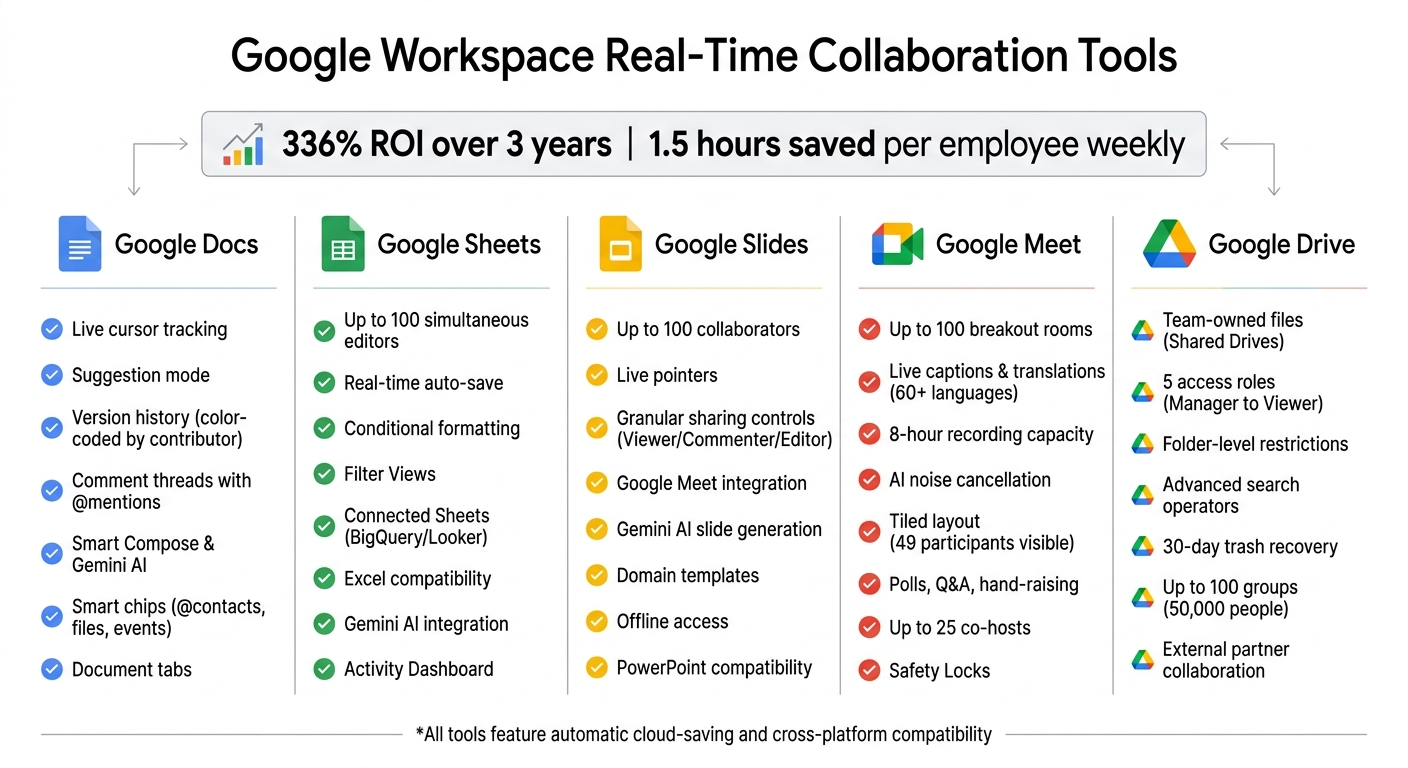
Google Workspace Tools Feature Comparison for Real-Time Collaboration
How To Master Team Collaboration with Google Workspace
sbb-itb-c68f633
Google Docs: Simultaneous Document Editing
Google Docs simplifies collaborative work by removing the hassle of managing multiple file versions. With automatic cloud-saving for every keystroke, it ensures everyone works on the most up-to-date version.
Live cursor tracking lets you see exactly where collaborators are working in real time, with their names displayed alongside their cursors. This feature reduces the chances of overlapping edits and makes it easy to follow who’s working on what.
Suggestion mode allows edits to be made without altering the original text, highlighting changes for easy review. As JK Krug, Vice President of Digital Employee Experience at Equifax, put it:
"We've eliminated concerns over version control and document sharing because we're more certain about who has access to share what and when, all while still being productive".
Document owners can then decide whether to accept, reject, or revisit each suggestion.
Comment threads make it easy to have focused discussions on specific parts of a document. Using "@" followed by a name assigns tasks and sends email notifications automatically. Olha Baburina, External International Communications Manager at Nova Post, highlighted:
"The ability to track their edits, accept, reject, or reopen their comments gives me the flexibility I need".
Key Features
Several tools within Google Docs enhance teamwork and productivity:
- Version history keeps a detailed record of every edit, color-coded by contributor, so you can see who made changes and when. Accidentally delete something important? You can restore earlier versions in seconds.
-
Smart Compose speeds up writing by suggesting full sentences, while built-in grammar tools catch errors before they’re shared. For more advanced help, Gemini AI can refine tone, adjust phrasing, or summarize long sections. Jessie Xia, Global Chief Information Officer at Thoughtworks, shared her experience:
"I create drafts in Docs and prompt Gemini to improve the grammar and phrasing, then make adjustments to shorten the text and customize the tone".
- Smart chips let you insert contacts, files, or events simply by typing "@". Additionally, document tabs organize multiple sections within a single file, keeping everything in one place for easier navigation.
Use Cases
Google Docs is a go-to tool for many teams. For example:
- Marketing teams draft blog posts and campaign briefs together, using Suggestion mode for real-time edits and feedback.
- Project managers rely on shared meeting notes that can pull event details directly from Google Calendar. During meetings, team members can add action items in real time, with version history providing a clear record of updates and decisions.
These features make Google Docs an essential tool for seamless, real-time collaboration across Google Workspace applications.
Google Sheets: Shared Data Management
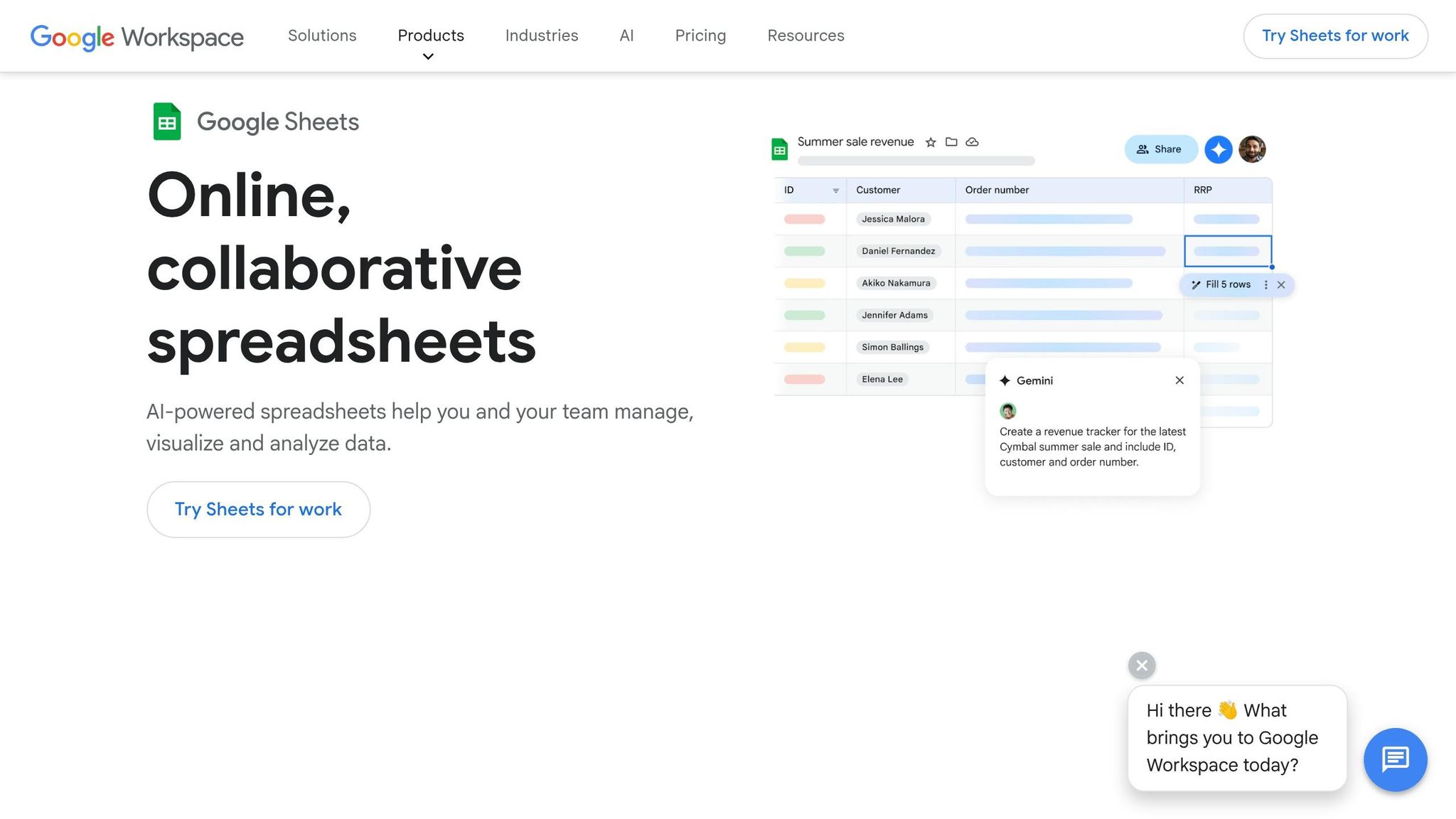
Google Sheets takes collaboration to the next level by allowing multiple users to work on the same spreadsheet in real time. With the capacity for up to 100 editors to collaborate simultaneously, it’s a game-changer for teams relying on shared data. The instant updates and cloud-based saving make it an essential tool for businesses focused on data-driven decision-making.
Every edit is saved automatically, ensuring no work is lost. Chris Montfot, Head of Strategic Operations for Corporate Engineering at Robinhood, summed it up perfectly:
"Google Sheets is our preferred spreadsheet application, giving us a real-time solution for collaboration to activate data-driven decisions".
The version history feature is another standout - it tracks every change, color-codes edits, and identifies who made them and when. For added control, protected ranges can block unauthorized changes to critical formulas or finalized data.
Collaboration goes beyond editing. Integrated tools like comments and task assignments make communication seamless. Tim Tochette, Owner & President at Attache, highlighted this advantage:
"Now, we have a unified place to build and organize plans, trackers, and timelines, and keep them up to date in real time".
Other handy features include Filter Views, which let users sort data individually without affecting the master view. Plus, you can set up email notifications for specific changes, like when a new row is added or a value is updated.
Key Features
Google Sheets offers more than just collaborative editing. Here are some tools that make teamwork and data management even more effective:
- Conditional formatting: Automatically highlights cells based on custom rules, like flagging overdue tasks or budget overages.
- Smart chips: Add contacts, files, or dates by typing "@" directly into the spreadsheet, keeping everything connected.
- Connected Sheets: Work with massive datasets from BigQuery or Looker right within Google Sheets.
- Microsoft Excel compatibility: Edit Excel files directly in Sheets without converting them, preserving the original format while enabling real-time collaboration.
- Gemini AI integration: Simplifies analysis by generating formulas and spotting data patterns.
- Activity Dashboard: Tracks who has viewed the spreadsheet and provides viewer trends.
Use Cases
Google Sheets adapts to a range of professional scenarios:
- Finance teams can collaboratively manage budgets, with department heads updating their sections while leadership monitors spending live. Access expirations ensure that external contractors lose access once projects are complete.
- Project managers use conditional formatting to track timelines and flag delays automatically. Integration with Google Forms allows survey responses or event registrations to flow directly into spreadsheets for instant analysis.
- Sales teams monitor performance metrics across regions. Filter Views let managers focus on their specific territories without altering the master data. Camilo Eid, Co-founder at Ultra, described the benefits:
"Sharing Sheets in the cloud brings many advantages... this solution allows us to work simultaneously on the same document, and we can track all changes made with robust version history features, which is necessary due to backup and business continuity issues".
Google Sheets continues to prove itself as a versatile tool for managing shared data and fostering collaboration across industries.
Google Slides: Shared Presentation Building
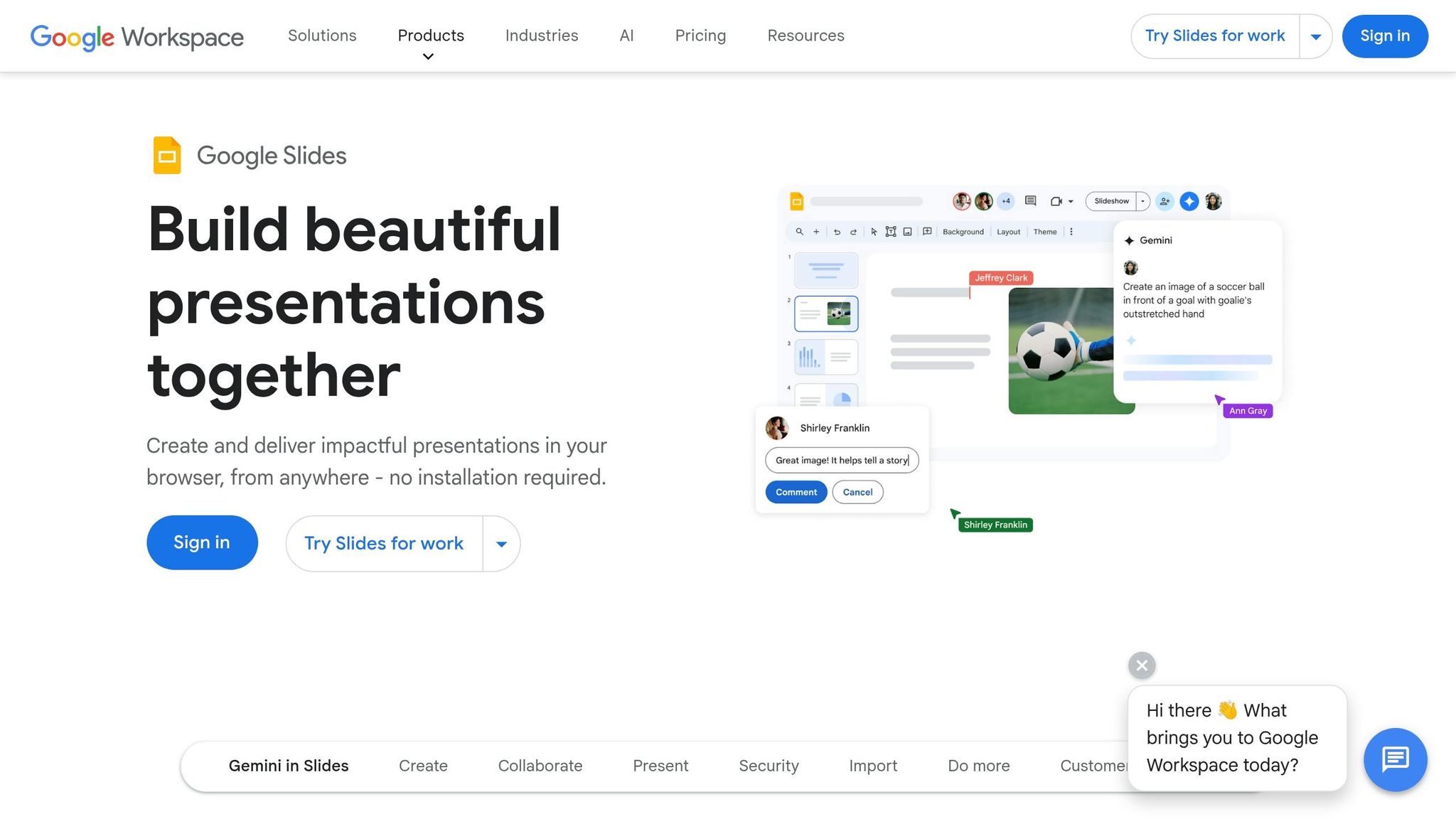
Building on the collaborative ease of Google Sheets, Google Slides takes teamwork to the next level by transforming how presentations are created and shared.
With Google Slides, up to 100 people can work on the same presentation at the same time - whether they're viewing, editing, or commenting. Leonhard Kerscher, Head of IT at Kärcher Group, perfectly captures the impact of this shift:
"Before Google Workspace, slides were sent around as email attachments. We literally had file names like 'Version 12 Final Final Pre-Final.' That's completely gone".
Real-time collaboration is made even smoother with live pointers that show each person's position on the slide. This feature ensures tasks don’t overlap and allows teams to work efficiently. As Andrés Vizcarrondo, Chief Digital Officer at Forus, explains:
"Now, I can work on the text in Google Slides while someone else creates the charts".
Granular sharing controls allow you to assign roles like Viewer, Commenter, or Editor, ensuring everyone has the right level of access. For short-term collaborators, you can set expiration dates to automatically revoke access after a project is completed. Plus, storing presentations in Shared Drives keeps team ownership intact, even if someone leaves the organization.
The integration with Google Meet takes collaboration even further. Veronica Millan, former Chief Information Officer at MullenLowe Group, shares:
"Being able to make changes in the moment, using Google Slides, helps us deliver more powerful pitches that are tailored to each client".
You can present directly in a Meet call, assign co-presenters, and view speaker notes while navigating slides during meetings. And if you need to revisit earlier drafts, the integrated revision history makes it easy to restore previous versions.
Key Features
Google Slides is packed with tools designed to streamline teamwork. Here are a few highlights:
- Comments and action items: Leave feedback directly on slides and assign tasks without switching tools.
- AI-powered assistance: The Gemini AI integration can create slides from prompts, summarize content, and even generate unique visuals.
- Brand consistency: Domain templates help teams maintain a unified look across all presentations. Chris Montfort from Robinhood notes, "With Google Slides, our organization has standardized presentations, using templates to maintain consistent branding".
- Offline access: Edit slides without an internet connection; changes sync automatically when you're back online.
- PowerPoint compatibility: Open and edit .pptx files without the hassle of conversion.
- Speaker spotlight: Embed your video feed into the slide layout for a more engaging presentation experience.
- Group sharing: Share presentations with entire teams via Google Groups, saving time compared to adding individual emails.
Use Cases
Google Slides supports a variety of team workflows, making it a versatile tool for different departments:
- Marketing teams: Designers handle visuals while copywriters refine messaging, creating polished pitch decks collaboratively.
- Training departments: Subject matter experts contribute content while instructional designers format slides and add interactive elements. Recordings ensure employees who miss live sessions can catch up later.
- Project managers: For status updates and stakeholder presentations, setting permissions to "Commenter" lets executives provide feedback without risking accidental edits. Sensitive information can be protected by restricting access to only approved users.
Whether you're creating a pitch deck, training material, or a project update, Google Slides offers the tools and flexibility to make teamwork seamless and efficient.
Google Meet: Video Conferencing for Teams
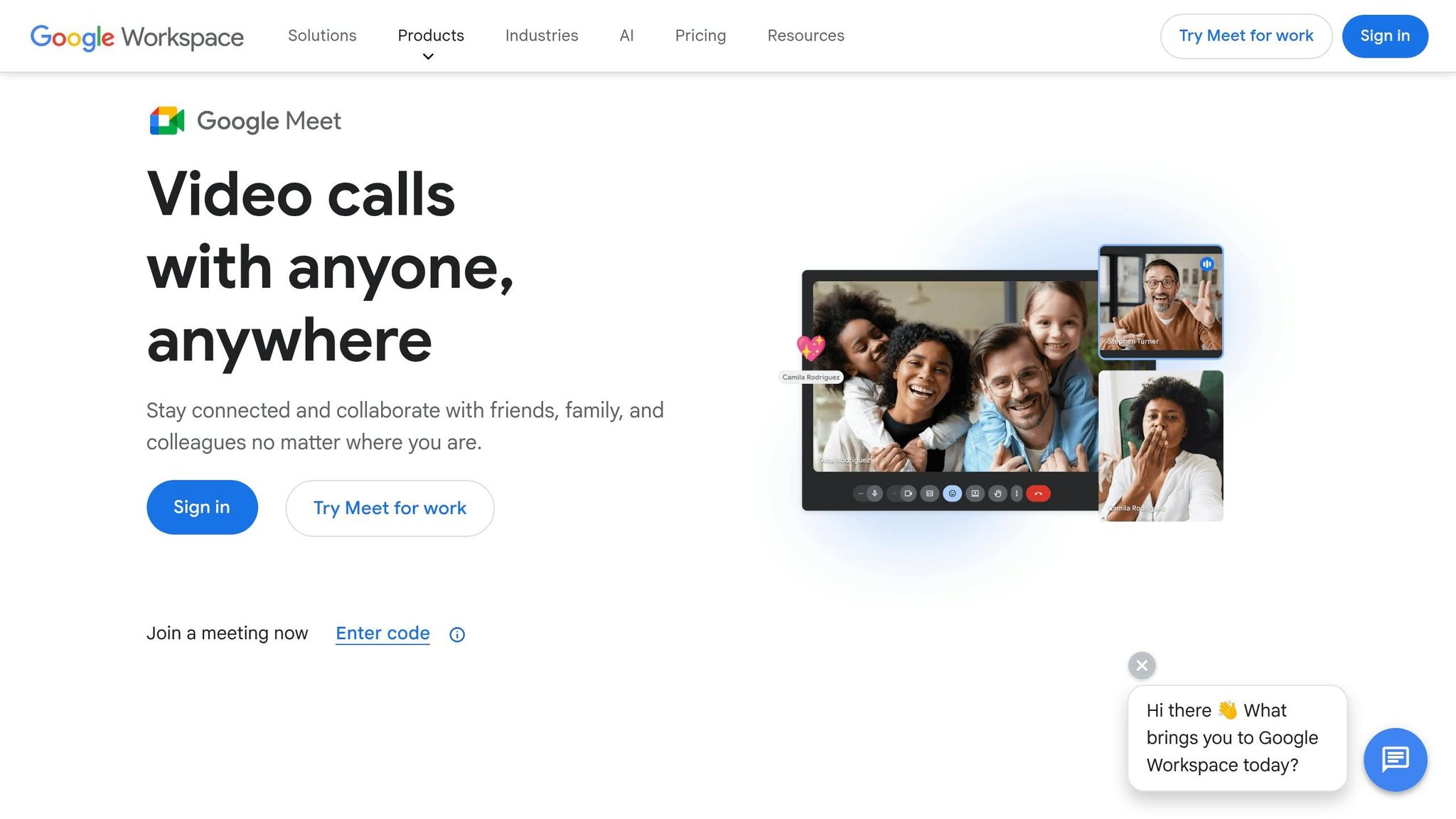
Google Meet brings a fresh approach to virtual collaboration, offering tools that make meetings more engaging and efficient.
Breakout rooms are perfect for workshops or training. Hosts can set up as many as 100 rooms, move participants between them, and even use a 30-second timer to wrap things up. An "Ask for help" button lets participants signal hosts, and rooms can be pre-assigned through Google Calendar. To top it off, real-time captions and translations improve communication during meetings.
Live captions and translations bridge language gaps for global teams. Captions make meetings more accessible for those with hearing impairments, while AI-powered translations cover over 60 languages in real time.
Meeting recordings and transcripts ensure nothing important gets overlooked. Moderators can record sessions lasting up to 8 hours, and Google Docs, powered by Gemini AI, generates automatic transcripts and takes notes on key points.
Advanced features like AI-driven noise cancellation reduce background distractions, and Adaptive Audio prevents echoes when multiple devices are in use. Watermarking adds an extra layer of security by displaying viewer emails and meeting IDs to discourage unauthorized sharing.
Key Features
Google Meet offers a suite of tools to keep meetings organized and interactive. The tiled layout allows up to 49 participants to be visible at once, making large calls more manageable. Interactive elements like polls, Q&A sessions, hand-raising, and emoji reactions keep participants engaged.
Hosts can assign up to 25 co-hosts to help manage sessions. "Safety Locks" give hosts control to disable chat, screen sharing, and even participants' video or audio when necessary. Integration with Google Calendar simplifies scheduling, and presenters can control Google Slides directly from the Meet interface when using a Chrome tab.
| Feature | Business Starter | Business Standard | Business Plus | Enterprise Standard/Plus |
|---|---|---|---|---|
| Breakout Rooms | No | Yes | Yes | Yes |
| Meeting Recordings | No | Yes | Yes | Yes |
| Noise Cancellation | No | Yes | Yes | Yes |
| Polls & Q&A | No | Yes | Yes | Yes |
| Translated Captions | No | No | No | Yes |
AdminRemix's Meet Enhancement Suite
For IT teams, AdminRemix's Meet Enhancement Suite adds over 40 extra features to Google Meet. Tools like "Mute All", "Remove All", auto-recording, auto-admission, and advanced transcription with attendance tracking simplify managing large meetings. More than 200,000 users rely on this extension to streamline remote work and virtual teaching.
The Pro version uses AI to automatically save, search, and summarize meeting transcripts. It also includes tools for taking attendance, exporting participant data to a CSV file, sorting names alphabetically, and setting meeting timers. Features like "Do Not Disturb" silence notifications and hide join popups, while "Auto-Unmute" ensures specific users can't be muted by others.
Pricing starts at $5/month per license, with discounts for larger teams - ten licenses cost $40/month, and fifty licenses are $200/month. Basic features like push-to-talk, auto-join, and auto-captions are available for free.
Google Drive and Shared Drives: Centralized File Storage
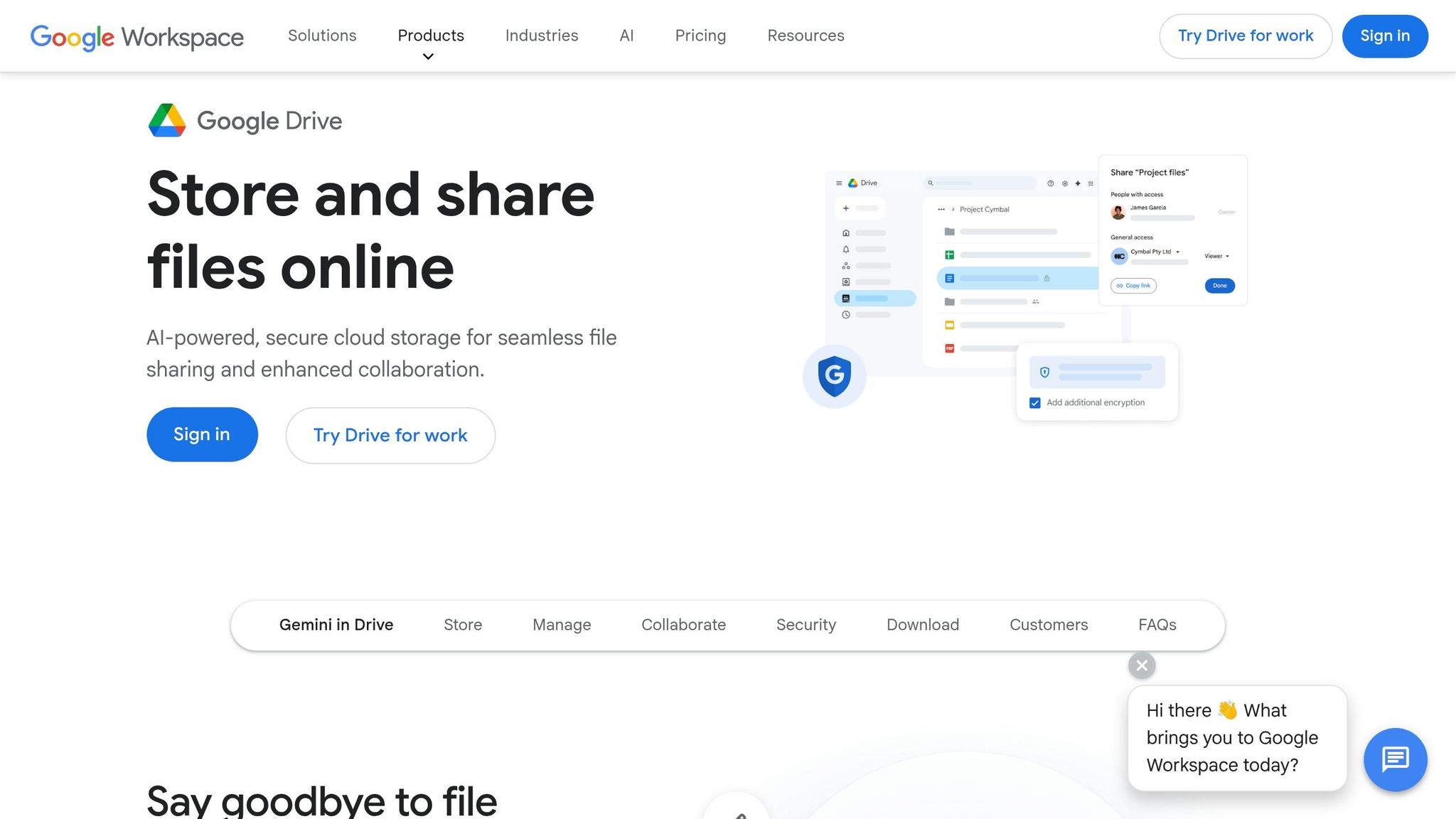
Alongside real-time editing and communication tools, file storage plays a crucial role in enabling smooth collaboration. Google Drive and Shared Drives provide a centralized way to store and manage files. The main difference lies in ownership: files in My Drive are owned by individuals, while files in Shared Drives are owned by the team or organization. This means that even if someone leaves the team, the files they contributed stay intact. This setup complements the real-time collaboration features of tools like Docs, Sheets, Slides, and Meet.
Key Features
Shared Drives offer five distinct access roles to manage permissions: Manager, Content manager, Contributor, Commenter, and Viewer. Managers have full control, from managing members to permanently deleting files. Contributors can create and edit files but don’t have access to membership controls. This flexibility allows teams to assign access levels tailored to each person’s role without overextending permissions.
To improve security, folder-level restrictions let Managers restrict access to specific folders within a shared drive. Even if someone is part of the drive, they may not have access to sensitive folders like financial reports or HR documents. Teams can also collaborate with external partners by adding them to a shared drive. Any files they upload are automatically owned by your organization.
Finding files in busy shared drives is simpler with advanced search operators. For example, searching creator:email@organization.com can quickly locate files. Additionally, files moved to Trash are permanently deleted after 30 days, offering a one-month recovery period.
| Permission | Manager | Content manager | Contributor | Commenter | Viewer |
|---|---|---|---|---|---|
| View files and folders | ✔ | ✔ | ✔ | ✔ | ✔ |
| Comment on files | ✔ | ✔ | ✔ | ✔ | |
| Edit files | ✔ | ✔ | ✔ | ||
| Create/add files and folders | ✔ | ✔ | ✔ | ||
| Move files/folders to Trash | ✔ | ✔ | |||
| Manage members/access levels | ✔ | ||||
| Permanently delete files | ✔ |
Use Cases
Shared Drives are ideal for team projects where multiple contributors need to collaborate. For instance, marketing teams can store campaign materials, product teams can organize roadmaps, and HR can maintain training manuals for easy access. Using Google Groups to manage memberships simplifies scaling. Instead of adding hundreds of individuals, you can add groups - up to 100 groups covering a total of 50,000 people. New group members automatically gain access to all related shared drives.
For completed projects, you can hide the shared drive rather than deleting it. This keeps your workspace organized while ensuring the files remain accessible for future reference. To make drives easier to navigate, use naming conventions like [Archive], [External], or [Project Name]. If your team uses Drive for desktop to edit PDFs or Office files, assign them the Content manager role so they can organize files without limitations.
Google Jamboard: Digital Whiteboarding
Important Note: Starting October 1, 2024, Google Jamboard has reached its end-of-life. Its hardware now functions in unlicensed mode, and its apps have been shut down. All active Jams were converted into PDFs and stored in Google Drive. While Jamboard is no longer a tool for new collaborations, understanding its features offers valuable context for digital whiteboarding within Google Workspace.
Jamboard’s features highlight how earlier digital whiteboarding tools shaped today’s collaborative solutions.
Key Features
Jamboard introduced cloud-based brainstorming through an impressive 55-inch 4K touchscreen display with 16-point touch recognition. It was also accessible via web and mobile apps for both iOS and Android platforms. The tool featured handwriting and shape recognition, which automatically refined sketches and notes, making brainstorming sessions more polished and organized. Additional tools like digital sticky notes, stencils, and a Lasso tool made it easy to manipulate objects on the canvas.
Seamlessly integrated with Google Workspace, Jamboard allowed users to pull content directly from Docs, Sheets, and Slides, as well as add photos and files stored in Drive. A built-in Google Search feature enabled teams to quickly find and insert web images into their brainstorming sessions. The stylus included advanced gestures such as striking through text to delete it, using a caret symbol to insert letters, and merging text objects by dragging them together. Everything was automatically saved to Google Drive, ensuring that brainstorming sessions were preserved beyond the immediate meeting.
"Your brainstorm doesn't have to end when the meeting does." - TJ Varghese, Product Manager, G Suite
Use Cases
Jamboard was a popular choice for ideation workshops, enabling multiple participants to sketch ideas simultaneously, whether on the 55-inch hardware or remotely through smartphone apps. It also excelled in collaborative planning sessions, where users could integrate live data from Sheets or pull project timelines from Docs, providing real-time context to discussions. Design teams used Jamboard for early-stage mockups, taking advantage of its shape recognition tools to create clean designs. They could also organize complex projects by moving objects between jam frames.
Legacy Jamboard data can still be found in Drive by filtering for type:Jam. Additionally, physical Jamboard devices can still serve as offline whiteboards or act as touchscreen displays when connected via HDMI.
Although Jamboard has been retired, its influence continues to shape modern digital whiteboarding tools and enriches the collaborative capabilities of Google Workspace.
Conclusion
Google Workspace brings together a suite of tools designed to simplify collaboration and boost productivity. The numbers speak for themselves: a 336% ROI over three years and an average of 1.5 hours saved per employee each week. That’s a lot of time and value added to your team’s workflow.
"The best tool is the one your team actually uses." – aiproductivity.ai
For teams using Google Meet, AdminRemix's Meet Enhancement Suite offers additional features to take your meetings to the next level. It’s also a good practice to periodically review your tools, cutting out anything redundant to keep things running smoothly.
Ultimately, a well-optimized Google Workspace setup empowers modern teams to work smarter, not harder.
FAQs
How can I prevent accidental edits in shared Docs, Sheets, or Slides?
To keep shared Google Docs, Sheets, or Slides safe from accidental edits, here are some tips:
- Adjust access permissions: Set files to "view-only" or "comment-only" mode for collaborators who don’t need editing access.
- Enable 'Suggesting' mode: This allows others to propose changes without altering the original content, giving you the chance to review before approving.
- Restrict editing rights: Fine-tune sharing settings or explore add-ons that offer extra control over who can edit.
- Regularly check permissions: Periodically review collaborators' access levels to ensure only the right people have editing privileges.
These steps can help you maintain better control over your shared files.
When should our team use Shared Drives instead of My Drive?
Shared Drives are perfect for storing content that your team or organization needs access to, such as project plans, research documents, or meeting notes. Unlike files in individual accounts, everything in a Shared Drive belongs to the organization. This means files remain accessible to the team - even if someone leaves the group.
For personal or private files, it’s best to keep those in My Drive to maintain privacy and control.
Which Google Meet features depend on our Workspace plan?
Google Meet features vary depending on your Workspace plan. These include meeting duration, participant limits, recording capabilities, and security settings. If you're on a higher-tier plan, you'll benefit from longer meeting times, the ability to host more participants, and extra tools designed to improve your overall experience.