
Top Benefits of Google Drive Templates for IT Teams
If your IT team keeps rebuilding the same docs, fixing missing fields, and hunting for the latest file, Google Drive templates can solve a lot of that fast.
I’d sum it up like this: templates give IT teams one standard starting point for incident reports, asset tracking, onboarding, change logs, compliance records, and request forms. That means less rework, cleaner files, easier audits, and smoother handoffs across the team.
Here’s the full picture in plain English:
- Standardized documentation keeps records in the same format
- Less manual work cuts time spent rebuilding files
- Better collaboration keeps teams on the same page
- Cleaner Drive organization improves file control
- More accurate asset tracking keeps data in line
- Smoother onboarding helps new hires get set up faster
- Lower compliance risk reduces missing or outdated records
- Easier automation works better with fixed fields and file names
- Central template control helps IT leads manage source files
- Better scaling keeps work consistent as teams grow
A few stats stand out: strong IT documentation can cut downtime by 40% and improve onboarding speed by 60%. And because templates keep one source file untouched, your team can create new copies without messing up the original.
Quick comparison:
| Area | Without templates | With Google Drive templates |
|---|---|---|
| Incident docs | Different formats, missing details | Same structure every time |
| Onboarding | Files scattered, steps missed | One repeatable setup process |
| Asset tracking | Uneven entries, manual errors | Fixed fields and cleaner records |
| Compliance | Outdated forms, audit gaps | Current files with version history |
| Team growth | Process drift between staff | Shared starting point for everyone |
If I were setting this up, I’d start with the files your team uses most: hardware requests, incident reports, onboarding checklists, and access request forms.
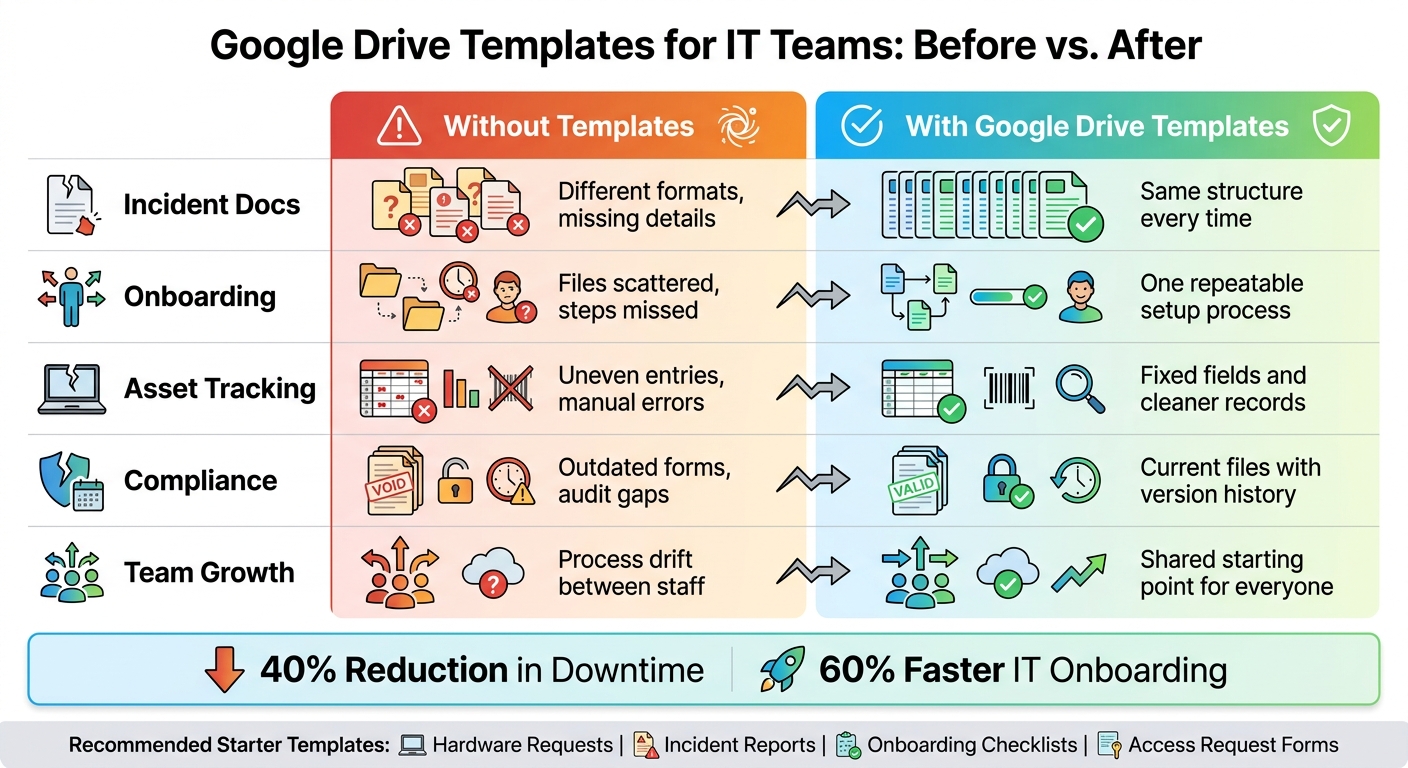
IT Teams: Without Templates vs. With Google Drive Templates
How to Make Google Workspace Templates
sbb-itb-c68f633
Why Google Drive Templates Matter for IT Teams
IT teams handle the same kinds of work over and over: logging incidents, sending change requests, running onboarding checklists, planning maintenance, and keeping asset lists up to date. When there isn't a shared template, everyone documents that work in their own way. One engineer might write a full incident report. Another might leave a short note in a different Doc. The result? Records don't match, and they're harder to review later.
That's the core issue. It isn't just untidy. It slows the team down. In the middle of an outage, an on-call engineer shouldn't have to stop and figure out someone else's one-off format before they can even start writing up the issue.
"A well-designed template completely removes that guesswork. It gives your team a reliable framework that forces them to include all the necessary details in a predictable spot, every single time." - DocuWriter.ai
Templates also help teams keep work moving when people change roles or leave. If senior staff move on, the next person can still read the records and use them without piecing things together from scratch.
"By using Google Drive templates, you can easily create one point of access for all users and in doing this, reduce time spent searching for documentation and confusion around the locations (or versions) of these frequently used documents." - Noelle Kerr, Professional Trainer, Damson Cloud
There's another upside too. Structured templates lead to cleaner data, which makes a big difference for IT asset management tools like AdminRemix. When records follow the same format, those workflows run with fewer gaps and fewer surprises.
That consistency starts with standardized IT documentation.
1. Standardized IT Documentation
When every team uses a different format, IT records get messy fast. One incident report has the root cause at the top. Another buries it at the bottom. A change request might include approvals, while the next one leaves them out.
Templates fix that.
They give each record the same layout every time. So every incident report, change request, and asset checklist follows one shared structure. Key fields like root cause analysis, impact assessment, approval signatures, and version history stay in the same place across every document.
Use the right Google Workspace tool for the type of record:
- Google Docs for text-heavy records like SOPs, incident reports, and security policies
- Google Sheets for data-focused work like asset inventories and change logs
- Google Forms when you need consistency at the moment someone submits a hardware request or support ticket
That kind of consistency doesn't just make records easier to read. It also makes the next step - faster execution - a lot easier.
ToolkitCafe reports that comprehensive IT documentation can cut downtime by 40% and speed IT onboarding by 60%. And it doesn't stop there. Standardized documentation also helps reduce mistakes across repeatable IT workflows.
2. Faster IT Processes and Less Manual Work
Once IT teams standardize documents, the next win is speed. A lot of teams still rebuild the same docs, sheets, and forms for repeat tasks. That means time goes into layout and formatting instead of fixing the actual problem.
With the Google Drive Template Gallery, teams can create a new copy in one click while keeping the master file protected.
That small shift cuts out a lot of busywork. Templates remove formatting choices, so teams can spend less time setting things up and more time getting the job done. Use Docs for incident reports, Sheets for asset audits, and Forms for hardware requests and incident intake.
Add brackets like [Incident Date] and [Asset ID] to make fill-in fields obvious. It’s simple, but it works. Everyone knows what to enter, and the same templates are easier for the whole team to reuse.
3. Better Team Collaboration and Knowledge Sharing
Templates do more than save time. They make teamwork smoother and help IT teams share what they know without the usual version mess.
The bigger win is cleaner handoffs and shared ownership. When people build docs in their own way, knowledge gets scattered fast. One person adds extra steps, another skips key details, and before long the team is working from three different versions of the same process. Shared Google Drive templates fix that by giving everyone the same starting point.
A Google Docs template for SOPs can include sections for purpose, roles and responsibilities, step-by-step instructions, and troubleshooting tips. That structure keeps documentation more consistent from one team member to the next. And because people can comment and suggest edits, the team can work together without overwriting each other.
The same idea applies to incident intake and asset tracking. A Google Forms template can standardize incident intake so every ticket collects the same key details, like user ID, device type, and impact level. A Google Sheets template can keep asset tracking columns aligned across teams. Put together, Docs, Forms, and Sheets work like connected parts of one shared process, not random tools sitting side by side.
One more thing: use Google Drive shortcuts instead of duplicate copies. That way, one master SOP can show up in multiple team folders and still stay current everywhere. It also makes Drive easier to keep in order as more templates get used across the team.
4. Cleaner File Organization and Governance in Google Drive
Once you standardize what goes inside a document, the next job is just as important: controlling where those files live and who gets to manage them.
If Google Drive is messy, things fall apart fast. You get duplicate files, inconsistent names, and folders nobody seems to own. Templates help fix that by setting rules around metadata, naming, and storage from the start.
When IT teams build templates with standard headers, every file begins with the same key details. That can include:
- Document Title
- Version Number
- Last Updated Date
- Owner
Pair that with a naming format like [TEMPLATE] Incident Report | IT Ops, and files become much easier to spot, sort, and search.
The biggest governance win comes from keeping master templates in a Shared Drive. That setup protects templates when people switch roles or leave the company. The files stay with the organization instead of sitting under one person's account. As Google Workspace Help notes: "Files in shared drives are owned by your organization, rather than an individual. They persist even if the person who created the file leaves your organization, helping you avoid potential data loss."
For day-to-day control, keep template management in the hands of IT leads. Most staff can still edit files, but they shouldn't have permission to move folders around. It's a simple guardrail, and it saves a lot of cleanup later.
You can tighten things even more by setting Template Gallery submissions to Moderated. That way, admins approve each new template before it appears in the library. No random uploads. No off-format versions slipping through. Just a cleaner system that people can trust for IT work.
That same control makes the next step - tracking IT assets - cleaner and more reliable.
5. More Accurate IT Asset Management and Tracking
File control matters, but asset tracking lives or dies on clean data.
A solid Google Sheets template gives every asset record the same layout: Asset ID, Item Name, Category, Cost Price, Warranty Expiration, Condition, and Assignee. That may sound simple, but it solves a common mess fast. When every row follows the same format, teams can sort, filter, audit, and trace assets without digging through half-filled fields or random notes.
Google Forms templates push this a step further. They turn a phone into a mobile intake tool, so technicians can scan QR codes or barcodes on a smartphone and submit asset data right from the field. That cuts down on manual typing mistakes and keeps records cleaner from the start. It also makes audits, returns, and handoffs much easier to follow.
Templates can also map to the full IT asset lifecycle. Instead of stuffing everything into one form, use separate templates for intake, check-out, and check-in. Each one should collect only the fields needed for that step. That keeps the process tighter and avoids clutter.
For teams using AdminRemix, AssetRemix adds help desk integration and lifecycle tracking.
With consistent templates in place, asset history is much easier to trace from intake to return.
6. Smoother IT Onboarding and Training
Once your asset records are sorted out, onboarding becomes the next repeatable IT task that templates can clean up. Instead of building a new setup packet for every hire from scratch, IT can start with one standard template and keep every step lined up across the team.
A Shared Drive folder can store the main onboarding files a new hire needs before day one: an employee handbook, contact list, equipment setup guide, and a Google Sheets checklist that tracks each setup step. If access is part of the process, add the new hire to the right Google Groups so they get Drive, Calendar, and folder access automatically.
Use the right Google Workspace file for each part of onboarding:
- Google Docs for handbooks
- Google Sheets for progress tracking
- Google Forms for employee details and policy acknowledgments
- Google Slides for orientation and security training
Publish the approved onboarding packet in the Template Gallery and use bracketed placeholders like [New Hire Name] and [Department] so each copy is fast to fill out. That same setup also makes policy acknowledgments and training records easier to document.
7. Lower Risk and Simpler Compliance Documentation
As IT records pile up, compliance can get messy fast. This is where consistency does a lot of heavy lifting. If an incident report is missing a field or an access review form is out of date, audits can stall and gaps can show up where you don't want them. Templates help standardize those records before final submission, which cuts down on missing fields and half-finished records that auditors tend to flag.
Uncontrolled sharing and uneven permissions can also open security and compliance gaps. A safer setup is to store compliance templates in a Shared Drive, track edits with version history, and require moderated approval for new templates.
Different compliance jobs fit different Google Workspace files:
- Google Sheets for access reviews and change logs
- Google Docs for incident reports and policy manuals
- Google Forms for policy acknowledgments
Use placeholders like [Date], [Reviewer Name], and [System Affected] to keep required fields the same across every record.
That same consistency makes approvals and automation easier to manage.
8. Easier Automation and Integration Workflows
Consistent templates make automation in Google Workspace much easier to trust. When fields, file names, and folder layouts stay the same, workflows become machine-readable. Put simply: once the format and storage are locked in, automation gets a whole lot easier.
Say a hardware request or IT support ticket comes in through a standard form. Google Apps Script can check the response, send it to a master Google Sheet, and trigger a Slack alert or email confirmation with no manual work in the middle. That same Sheet can then power status reports, asset logs, and dashboards down the line.
Google Docs templates help with document generation too. Bracketed placeholders give Apps Script clear targets to swap out, so scripts can build documents from approved data in under a minute. It’s a simple setup, but it saves time fast.
Automation can also take care of folder provisioning. When a new project kicks off, a script can create the same folder structure, apply the right permissions, and drop in the right template files on its own. That naturally points to a bigger issue: keeping template control in one place.
For no-code tools like Zapier or Make.com, consistency isn’t just nice to have. It’s the thing that keeps the workflow from breaking. These tools depend on predictable field names and file locations to map data between Workspace and outside systems like Jira, Salesforce, or HR platforms. Keeping official templates in a Shared Drive with limited edit access helps protect the source of truth and keeps those integrations running cleanly.
9. Central Template Control for IT Leaders
Once file structure and storage are set, the next step is simple: control who can change the source templates.
That matters because centralized template control keeps one approved version in use. It also helps stop version drift, which happens all the time when templates live across personal drives and shared folders.
IT leaders handle this in the Google Admin console under Apps > Google Workspace > Drive and Docs > Templates. In that area, they can manage templates and themes from one place and decide who can submit templates.
For most IT teams, Moderated is the right choice. It keeps control with the right people without making day-to-day use a hassle. Restricted makes more sense for admin-only setups where strict compliance rules apply.
Another plus: central control lets IT shape templates by department without building separate systems. Templates can be scoped by Organizational Unit (OU) or configuration group, so each department sees only the templates that fit its workflow.
When a master template or theme needs a change, admins can update the source document one time and use Sync in the Admin console to push that update to the published version.
A good rule here: store master files in a restricted Shared Drive, and limit Manager access to IT admins only.
10. Scaling IT Processes as Teams Grow
Once template control is set up, the next job is keeping work the same as the team gets bigger. That’s where things often start to slip. People pull old files, use their own naming style, and small process changes pile up fast. Before long, the same task gets done three different ways. Templates stop that drift at the source.
With Google Drive's Template Gallery, every technician starts with the same approved file - whether that's a Google Docs SOP, a Google Sheets asset tracker, or a Google Forms support request. The "+ New > From template" option makes a new copy right away, and the original stays untouched.
As more people join, IT admins can sort the gallery by process, like Onboarding, Asset Management, and Security Audits, so staff can find the right doc fast. And when someone leaves, the team doesn’t lose a file, a workflow, or some odd little system that only one person understood.
The biggest win shows up when processes change. Instead of fixing the same file again and again, admins update one source file and sync it to the published template. That matters even more when multiple teams need to follow the same process at the same time.
How IT Teams Can Put These Benefits into Practice
Once the upside is clear, the next move is simple: turn it into a repeatable template system. Start with a quick audit of the workflows that break most often. Those breakdowns usually point to documentation debt, and they show you where templates can make the biggest difference.
Look through Drive for files people keep copying by hand. Focus first on recurring, high-risk work like onboarding, incident response, asset intake, and software renewals. Those are usually the best places to start.
Use Docs for SOPs, Sheets for trackers, and Forms for intake. In each template, label variable fields with clean placeholders like [Employee Name], [Asset Tag #], and [Date: MM/DD/YYYY] so people know exactly what to enter and mistakes stay low. For date fields, use MM/DD/YYYY, such as 06/17/2026, to keep formatting consistent across U.S.-based teams.
Storage and permissions matter just as much as the template itself. Keep master templates in a clearly labeled Shared Drive, such as "IT Ops Templates," and restrict edit access to template owners. Once that setup is in place, the next job is making template use part of day-to-day work.
Train staff to begin from the Template Gallery or File > New > From template. Review high-priority templates every quarter, and add a Last Updated date to each file. That helps keep templates current and in regular use.
IT Work Without Templates vs. With Google Drive Templates
It’s easier to judge the upside when you put both ways of working next to each other. And in IT, that gap shows up FAST during an outage.
Here’s what that looks like in four common tasks:
| Workflow | Without Templates | With Google Drive Templates |
|---|---|---|
| Incident Documentation | Conflicting recovery steps; "quick notes" lead to troubleshooting delays | Predictable framework with required root cause and resolution steps |
| New-User Onboarding | New hires struggle to find setup info; knowledge lives with one person | Shared templates keep onboarding materials in one place |
| Asset Updates | Manual tracking prone to error; uneven access and scattered records | Standardized naming conventions and role-based access control |
| Change Tracking | Version confusion; teams risk following outdated procedures | Version headers keep one current copy easy to find |
Two gaps stand out most: setup time and master-file control.
Without templates, staff often have to dig through old files, make a copy, and strip out stale data before they can even start. With Google Drive Templates, a ready-to-use copy is just one click away in the Template Gallery.
There’s also the master-file issue. Templates keep one untouched source copy in place, which means an accidental edit won’t overwrite the original.
That side-by-side view makes it much easier to pick the right template examples and put them to work.
Google Drive Template Examples for IT Operations and Asset Tracking
Use each Google Drive template for the job it fits best: Docs for procedures, Sheets for records, and Forms for intake.
| Template Type | IT Use Case | Key Structural Elements |
|---|---|---|
| Google Docs | Runbooks, SOPs, security policy drafts, disaster recovery plans | Version history, bracketed placeholders such as [Asset ID], inline screenshots |
| Google Sheets | Asset inventories, license renewal logs, hardware refresh trackers, permission audits | Standardized headers, data validation, owner and priority fields |
| Google Forms | Service intake, hardware requests, access approvals, incident reporting | Required fields, standardized input, automated logging to Sheets for triage and processing |
Google Docs works best for text-heavy IT documentation. Runbooks and policy drafts fit well here because Docs combines version history with inline screenshots. That makes step-by-step instructions easier to follow and easier to update over time.
Google Sheets is the place for structured data. Standardized headers help keep inventory records clean, and they also help tools like AssetRemix, Chromebook Getter, and User Getter handle bulk updates without a mess.
Google Forms is built for intake requests. A standard Form collects requests in one format, then logs them into a spreadsheet for triage and processing.
Conclusion
The main point is pretty simple: Google Drive templates help cut rework, keep IT records in line, and give every team member the same starting point for asset tracking, onboarding, and compliance. That’s where the payoff comes from - consistency. When the same repeatable IT task starts from the same file every time, work gets easier to manage and a lot less messy.
To make that work in practice, begin with the templates your team uses most, like hardware requests, incident reports, and access requests. Store them in a restricted Shared Drive, then publish them through a moderated Template Gallery. From there, review them on a regular basis, sync updates when source files change, and retire old versions. A small, well-governed template library can do more for a team than a big, messy one.
FAQs
How do we choose which templates to build first?
Start with the files your team uses all the time, especially the ones that need the same look every time, like letterheads, presentations, newsletters, and budget spreadsheets.
It also helps to look through your current files and spot messy workflows, like uneven naming rules or documents spread across too many folders. Those areas are usually the best place to standardize first.
Who should be allowed to edit master templates?
Only a small, approved group of administrators should have edit access to master templates.
If templates live in a dedicated Shared drive or are managed in the domain template gallery, keep edit, submission, and change permissions limited to assigned admin roles. That helps protect standards and prevents unwanted changes.
Can Google Drive templates support IT automation?
Google Drive templates don’t automate tasks on their own. What they do is give IT teams a standard setup they can build automation around.
That matters because standardized files are much easier to manage at scale. IT admins can pair templates with add-ons, Google Apps Script, or the Admin SDK to automate template deployment, inventory management, and sharing policy enforcement.
AdminRemix can also help here, with tools for IT asset management and bulk metadata administration.