
Patch Management for Chrome OS Devices: Guide
Patch management for Chrome OS devices is essential to maintain security, performance, and compliance. Unlike traditional systems, Chrome OS updates run quietly in the background, but IT teams still need a structured plan to ensure smooth operations across fleets. Here's what you need to know:
- Update Frequency: Chrome OS releases security patches every 2–3 weeks and full updates every 4 weeks. Devices released after 2021 receive updates for 10 years.
- Release Channels: Use Stable (default), Long-Term Support (LTS), Beta, or Dev channels based on your needs. Beta and Dev channels are great for early testing.
- A/B Updates: Updates apply to an inactive partition, requiring only a quick reboot to complete.
- Device Management: Build an inventory using tools like Google Admin Console, AssetRemix, or Chromebook Getter. Group devices by Organizational Units (OUs) for tailored update policies.
- Bandwidth Control: Enable "Scatter updates" or peer-to-peer (P2P) distribution to prevent network congestion.
Steps for Effective Management:
- Inventory devices and track Auto Update Expiration (AUE) dates.
- Group devices by OUs or hardware models for targeted updates.
- Configure update policies (e.g., allow updates, enforce re-enrollment, set blackout windows).
- Test updates on a small percentage of devices (5%) using Beta or Dev channels.
- Deploy updates in stages (e.g., 10% on day 1, 50% on day 2, 40% on day 3).
- Monitor compliance and adjust strategies using Google Admin Console.
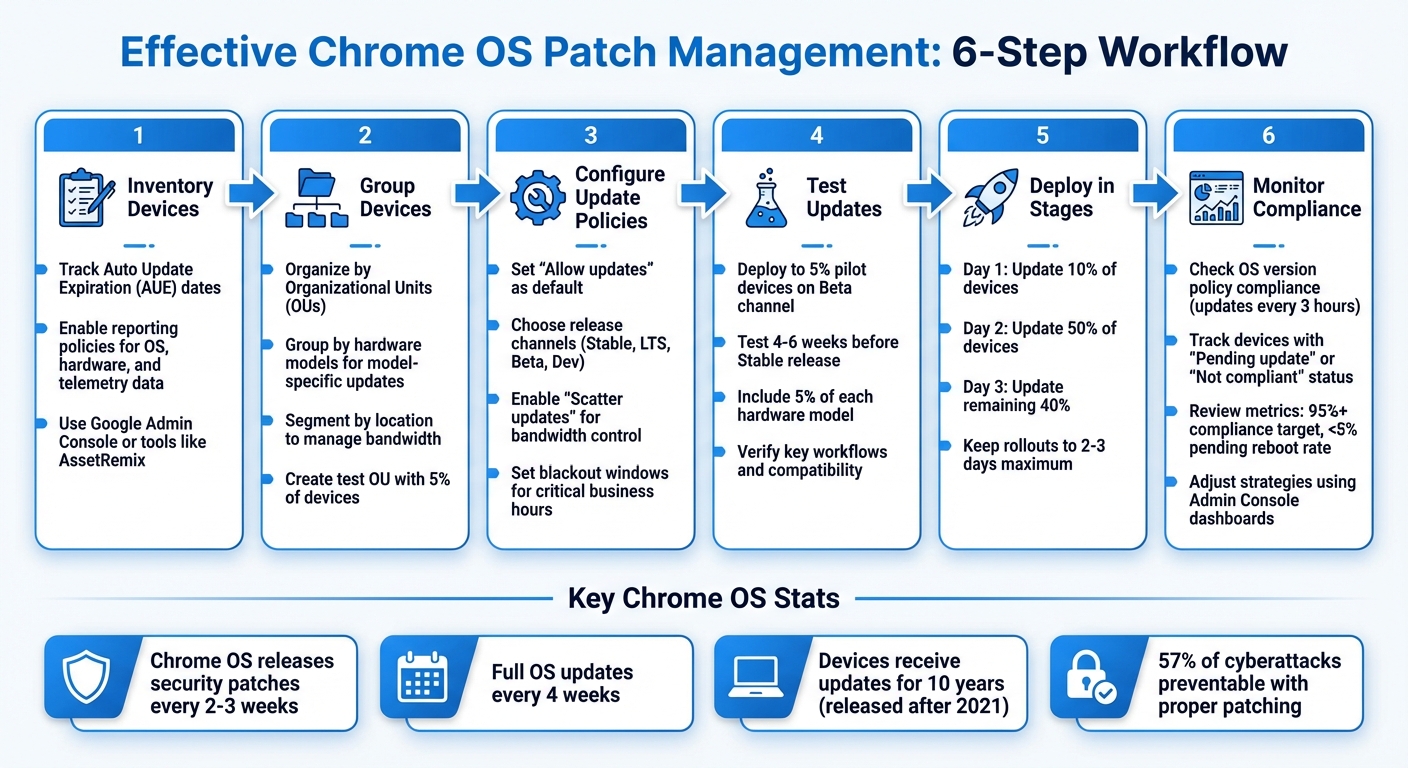
6-Step Chrome OS Patch Management Workflow for IT Teams
Preparing Your Chrome OS Environment for Patching
Before diving into updates, it's crucial to understand the location, configuration, and management status of each device in your fleet. Without this groundwork, creating targeted policies or identifying devices needing updates can become a challenge. Here's how to inventory, group, and configure your devices for smooth patching.
Building a Device Inventory
Head to Devices > Chrome > Devices in the Google Admin console to get a full view of your device fleet. But don’t stop at a basic list - make sure your inventory includes detailed patch data. To do this, enable reporting policies like "Report device OS information", "Report device hardware information", and "Report device telemetry." This ensures your inventory has the depth needed for effective patching.
The Admin console now offers Natural Language Processing (NLP) search, making it easier to filter devices with plain English queries like "devices enrolled last month." No need to memorize complex syntax. You can even export up to 100,000 device records in CSV format for offline analysis. For manual verification, press Alt+V on the sign-in screen to display a device's Serial Number and Asset ID.
If you’re using AssetRemix, syncing your Google Admin data is a smart move. Map the "Asset Tag" field to the "Device ID" or "Serial Number" to keep patch status up to date automatically. Just turn "Sync On" for these fields, and you’ll avoid the hassle of manual updates.
Grouping Devices for Patch Management
Once your inventory is ready, the next step is organizing devices for tailored update policies. Use Organizational Units (OUs) in the Google Admin console to segment your fleet. This structure lets you apply specific update policies to different groups. Set up a test OU with about 5% of your devices on the Beta or Dev channel. This way, you can catch compatibility issues before rolling updates out to everyone.
It’s also a good idea to group devices by hardware model, as updates are often model-specific. If you pin an update version not available for a certain model, those devices could stop receiving updates entirely. Use the "Auto-update until" filter to find devices nearing their Auto Update Expiration (AUE) date. Devices close to their AUE date will soon lose access to security patches, potentially leading to compliance risks.
For more customized grouping, use the "Annotated Asset ID" and "Location" fields. This is especially handy for managing bandwidth. If thousands of devices share a single network, grouping by location allows you to apply the "Scatter updates" policy. This spreads out downloads over 2–3 days, preventing network congestion.
Setting Up Required Policies
Before patching, ensure essential policies are in place. Set "Auto-update settings" to "Allow updates" so devices automatically receive updates from the Stable channel. Enable "Forced Re-enrollment" to ensure that devices re-enroll automatically after a reset, keeping them under management control.
These policy settings work hand-in-hand with your device groups, ensuring each follows its designated patch schedule. For example, setting "Action on lid close" to "Logout" forces a restart when users close their devices, applying pending updates that require a reboot. Additionally, configure "Verified mode" to "Require verified boot mode for verified access" to ensure devices run unmodified, compliant versions of Chrome OS.
To support peer-to-peer (P2P) updates and reduce external bandwidth usage, make sure Multicast DNS (mDNS) isn’t blocked on your local network.
Lastly, enable "OS update status reporting" and "Device system log upload" to monitor update progress. This will notify you of failed updates directly on the device details page. The "OS version policy compliance" value refreshes every 3 hours, giving you timely insights into which devices are up-to-date and which need attention.
Configuring Chrome OS Update Policies
Once you've grouped your devices, head to the Google Admin console (Menu > Devices > Chrome > Settings > Device settings) to set up update policies. These policies control when and how updates are applied, ensuring devices stay secure while minimizing disruptions for users.
Setting Update Channels and Auto-Update Preferences
Start by enabling "Allow updates" to ensure devices get the latest security patches and features. Then, assign the right release channel for each organizational unit:
- Stable channel: Fully tested and ideal for everyday use in production environments.
- Long-term support (LTS) channel: Designed for environments needing stability, with feature updates every 6 months and security fixes every 2 weeks.
For testing and previews, consider these options:
- Assign about 5% of devices to the Beta channel for early feature previews.
- Use the Dev channel for IT teams to test compatibility 9–12 weeks ahead of general release.
- Leverage the LTS candidate (LTC) channel to preview LTS features 3 months before they roll out to the LTS channel.
"Chrome releases a full OS update about every 4 weeks. Minor updates, such as security fixes and software updates, happen every 2–3 weeks." - Google Support
Avoid pinning devices to a specific version, as this can lead to missed security updates and disrupt auto-updates.
To ease network load, enable "Scatter updates", which spreads downloads over 2–3 days. Additionally, set blackout windows to pause automatic updates during critical business hours, such as Monday 6:00 AM to Friday 8:30 PM.
Finally, use staged rollouts to gradually deploy updates while monitoring for potential issues.
Using Staged Rollouts for Updates
Staged rollouts allow you to update a small percentage of devices first, gradually increasing the rollout while keeping an eye on performance. In the Google Admin console, under the "Rollout plan" setting, you can define the wait time and percentage of devices for each stage.
"With a staged rollout, only a percentage of devices initially get the update. You can increase the percentage over time to gradually roll out updates to all devices in your organization." - Google Support
Keep rollouts brief - around 2–3 days - to ensure devices don’t fall too far behind. For example:
- Day 1: Update 10% of devices.
- Day 2: Update 50%.
- Day 3: Update the remaining 40%.
Apply this strategy to your production organizational unit, while keeping your pilot group (the 5% on Beta) in a separate unit with immediate updates enabled.
Chrome OS updates are typically small, often just a few hundred MB. If you've enabled peer-to-peer (P2P) updates, devices can share updates locally, reducing external bandwidth usage. These strategies help ensure updates roll out efficiently and with minimal disruptions.
Coordinating Chrome OS Updates with Other Policies
To maintain consistency, align Chrome OS updates with policies for Chrome browser and Android apps. You can manage all three through the Google Admin console, though each follows its own update schedule. This synchronization is key to ensuring compliance with IT asset management (ITAM) policies.
Chrome's policy hierarchy ensures that device-level settings override conflicting user-level settings. This prevents users from bypassing organizational controls. For example, platform policies (like Chrome OS device settings) take precedence over machine cloud policies, which override OS-user policies, and finally, cloud-user (Chrome profile) policies.
To streamline the user experience, coordinate notification periods for Chrome OS restarts and Chrome browser relaunches. If devices are set to log out when the lid is closed for updates, make sure browser policies also prompt restarts at suitable times. For organizations using the LTS channel, the LTC channel provides a 3-month preview window, giving you time to adjust related browser and app policies.
If you're managing Chrome apps or extensions, consider pinning specific versions to maintain compatibility with your current OS version. For Android apps, staged rollouts are handled separately through the Google Play Console, where you can control update percentages and target specific regions.
Creating a Repeatable Patch Workflow
To keep your Chrome OS environment secure and up-to-date, it’s essential to integrate a consistent patch workflow into your IT asset management practices. This approach ensures your devices stay protected without unnecessary interruptions. Building on earlier steps like inventory management, policy creation, and update configurations, this workflow helps maintain a seamless process.
Identifying and Prioritizing Updates
Stay informed about critical patches and feature updates by monitoring Chrome Enterprise release notes.
When prioritizing updates, rely on the Common Vulnerability Scoring System (CVSS) and assess the potential business impact. Focus on critical device groups first - like those used by finance teams or devices handling sensitive customer data. These high-priority patches should be addressed promptly, as 1 in 5 data breaches stem from exploiting known vulnerabilities.
For devices at higher risk, such as those running specialized Chrome extensions or Android apps, prioritize updates to catch compatibility issues early. This risk-based strategy ensures the most vulnerable parts of your infrastructure are protected while minimizing delays for the rest of your fleet.
Testing and Validating Updates
Before rolling out updates broadly, test them on pilot devices enrolled in the Beta channel. Google recommends keeping at least 5% of your devices on Beta to preview features 4–6 weeks before they are released to the Stable channel. Make sure to include at least 5% of each hardware model in this testing phase to uncover any model-specific issues.
For an even earlier preview, use the Dev channel, which offers a 9–12 week lead time. This extended window allows your team to test internal apps, browser extensions, and authentication systems to ensure everything functions smoothly before updates are deployed to end users.
During testing, verify that key workflows - like web application loading, printer and network drive access, and single sign-on (SSO) functionality - are working as expected. If you’re using the Long-Term Support (LTS) channel for stability, enroll devices in the LTC channel to preview LTS features three months in advance. This gives your team enough time to adjust browser and app settings before the updates are officially rolled out.
Deploying Updates and Verifying Compliance
Once updates pass testing, roll them out in stages to ensure compliance and minimize disruptions.
Start with a small percentage of devices - typically 10% - and gradually increase the rollout over 2–3 days. For example, you might update 10% of devices on day one, 50% on day two, and the remaining 40% on day three. This phased approach allows you to identify and address any issues before the updates reach your entire fleet.
"By default, ChromeOS devices update to the latest version of Chrome when it's available. We recommend that you keep the default auto-update settings." - Google Support
Since updates require a restart, adjust settings to ensure users comply. For instance, set "Action on lid close" to "Logout" so devices restart when users close their laptops. Alternatively, use the "Notify users to restart" policy to prompt users at convenient times.
After deployment, verify compliance through the Google Admin console. Identify devices that are running outdated versions or have unsynced policies. For large fleets, tools like Chromebook Getter can pull bulk metadata into Google Sheets, making it easier to track non-compliant devices. Additionally, AssetRemix integrates patch management data with IT asset management (ITAM), giving you a comprehensive view of device health, update statuses, and compliance across your organization.
sbb-itb-c68f633
Monitoring and Improving Patch Processes
Tracking Update Compliance
To monitor Chrome OS update compliance, head to the Google Admin console and navigate to Devices > Chrome > Devices. Here, you’ll find detailed device lists and aggregated dashboards offering a clear overview of compliance data. Make sure the following reporting policies are enabled: "Report device OS information", "Report device hardware information", and "Report device telemetry." These settings ensure you can access complete compliance details.
The OS version policy compliance field updates every three hours, categorizing devices as Compliant, Pending update, Not compliant, or Unknown. The Notifications module helps you quickly pinpoint devices with outdated OS versions or pending updates. You can also use the Natural Language Processing (NLP) feature for intuitive searches - try typing something like "devices enrolled last month" for fast results.
For long-term planning, the Automatic updates until dashboard is a key resource. It displays the Auto Update Expiration (AUE) date for each device, which marks the end of security patch support. Chrome OS devices now receive updates for up to 10 years from their platform’s initial release. To stay ahead of potential gaps, identify devices nearing their AUE date (ideally six months in advance) and schedule hardware refreshes as needed.
Connecting Patch Management with ITAM
Once you’ve confirmed update compliance, tie this information into your IT asset management (ITAM) system for a complete view of device health. This integration doesn’t just highlight compliance gaps - it also informs decisions about whether to repair or replace devices. The Admin console allows you to assign Asset IDs to Chrome OS devices during enrollment, linking the physical hardware to its digital management profile.
Tools like AdminRemix make this process even smoother by combining patch compliance data with asset details such as device age, warranty status, and incident history. For instance, if a device is flagged as "Not compliant" in the Admin console, AdminRemix can reveal additional issues like poor battery health, an expired warranty, or frequent help desk incidents - helping you decide whether to update or replace the device.
For teams that prefer working in spreadsheets, Chromebook Getter is a handy tool. It pulls bulk metadata - like OS versions, AUE dates, and hardware models - into Google Sheets. This makes it easy to cross-reference patch status with custom fields like location, department, or user assignment.
Key Metrics for Patch Management
With compliance tracking and IT asset integration in place, focus on key metrics that measure how well your patch process is working.
| Metric | Target | Purpose |
|---|---|---|
| OS Version Compliance | 95%+ Compliant | Ensures devices meet security standards |
| Pending Reboot Rate | Less than 5% of the fleet | Highlights update delays requiring user action |
| AUE Tracking | Zero devices under 6 months from expiration | Prevents risks tied to unsupported hardware |
| Last Policy Sync | 100% within 24 hours | Confirms devices are receiving update instructions on time |
A study by the Ponemon Institute found that 57% of cyberattacks could have been avoided with proper patching. Automated patch management can speed up deployments by 75% and reduce security vulnerabilities by 90%. For Chrome OS, keeping at least 5% of each hardware type on the Beta channel offers a 4–6 week preview window to identify potential issues before they affect your entire fleet.
After deploying updates, monitor metrics like Last OS Crash Date and Boot Performance to confirm that patches haven’t introduced new problems. If you notice an increase in crashes or slower boot times on specific hardware models, pause the rollout and investigate further.
Conclusion
Establishing a reliable patch workflow that prioritizes both security and stability is essential. Enable auto-updates by default to ensure devices receive critical security patches every 2–3 weeks. For organizations that need a more predictable update schedule, the Long-term Support (LTS) channel offers feature updates every six months while maintaining regular security updates. Start by creating a complete and accurate device inventory to build a solid foundation.
AdminRemix took this step further by integrating Lansweeper's IT asset discovery into its AssetRemix platform, automating inventory management for 7,000 customers globally. This integration eliminated the need for manual CSV imports and outdated paper-based tracking methods. The automated inventory system supports the IT asset management (ITAM) processes discussed earlier. For instance, Chromebook Getter helped administrators save 30–40 minutes per upload while providing detailed device insights. Lundin Matthews, Founder of AdminRemix, highlighted this benefit:
"With the ability to automatically populate and enrich IT asset inventory data... our customers can reallocate those IT resources to other business-critical tasks".
To minimize risks, use staged rollouts and multi-channel strategies. Keep at least 5% of your devices on the Beta channel to identify environment-specific bugs 4–6 weeks before they could affect production. Implement blackout windows and enforce a "logout on lid close" policy to ensure pending updates are applied immediately.
Maintain this streamlined process by continuously monitoring and refining your approach. Regularly review policies and check sync statuses in the Admin console to identify devices that have missed updates. With the right tools and a well-structured workflow, you can ensure your Chrome OS fleet remains secure, compliant, and efficient.
FAQs
How can I optimize bandwidth usage during Chrome OS updates?
To keep Chrome OS updates from bogging down your network, you can rely on several built-in tools and strategies. Features like differential updates help reduce download sizes, making the process less demanding on bandwidth. You can also schedule updates during off-peak hours - think late nights or weekends - to avoid network congestion.
If you're managing a larger network, setting up a local caching server is a smart move. This allows devices to pull updates from a shared local source rather than downloading them individually from the internet, cutting down on external bandwidth usage. Additionally, bandwidth throttling gives you control over download speeds, ensuring updates don’t interfere with other critical network activities.
Regularly monitoring update traffic is another key step. It helps confirm that your settings are working as intended and flags any devices that might be downloading excessively. By combining these strategies, you can keep your network running efficiently while ensuring all devices stay current.
How can I keep my Chrome OS devices secure and compliant?
To keep your Chrome OS devices secure and aligned with organizational standards, here are some essential steps to follow:
- Enable automatic updates: Chrome OS typically releases updates every 4 weeks, with smaller updates coming every 2–3 weeks. Turning on automatic updates ensures devices stay protected with the latest security patches and features.
- Set update policies: Use the Admin console to enforce auto-update checks and configure the release channel. This helps maintain a consistent update strategy across all devices.
- Monitor Auto-Update Expiration (AUE) dates: Keep track of AUE dates for each device. This allows you to plan replacements in advance and avoid any gaps in support.
- Utilize reporting tools: Tools like AdminRemix’s Chromebook Getter can generate bulk reports showing OS versions and AUE dates. These reports help you quickly identify devices that may fall out of compliance.
- Keep detailed records: Document all update activities and compliance measures. This ensures transparency and makes audits or internal reviews more manageable.
By automating updates, setting clear policies, and using reporting tools, you can ensure your Chrome OS devices remain secure, current, and compliant.
How can I prioritize updates for different groups of Chrome OS devices?
To manage Chrome OS updates effectively, use organizational units (OUs) in the Google Admin console. Organize devices into logical groups, like "Finance" or "Classrooms", and assign tailored update policies to each OU. For instance, high-priority groups can stay on the Stable channel with updates applied immediately, while less critical groups can delay updates for a specific period.
You can also set up update rollout windows during off-peak hours, such as 2:00 AM to 4:00 AM, to minimize interruptions. Tools like Chromebook Getter can provide detailed reports on OS versions, update statuses, and Auto Update Expiration (AUE) dates. These reports help you pinpoint which groups require urgent updates and ensure critical devices remain secure. Stay proactive by regularly reviewing compliance and adjusting policies to meet your organization’s evolving needs.