
Manage Third-Party App Permissions in Google Workspace
Protect your Google Workspace data by controlling third-party app permissions.
When users sign in with Google, they may unknowingly grant apps access to sensitive data like emails, files, and calendars. Without proper oversight, these permissions can expose your organization to risks. Here's what you need to know:
- Access settings: Use the Admin Console's API controls to review and manage app permissions.
- App categories: Apps are grouped as configured, accessed, or pending review for easier management.
- Admin roles: Only certain admin privileges allow changes to app settings.
- Permission review: Regularly check apps' OAuth scopes and access levels to ensure they align with their function.
- Access levels: Assign apps as Trusted, Limited, Specific Google data, or Blocked based on their needs.
- Blocking apps: Remove risky or unnecessary apps and notify users of changes.
- Audits: Conduct periodic reviews to revoke unused permissions and maintain security.
Third party app access enhancements for Google Workspace for Education
sbb-itb-c68f633
Accessing App Permissions in the Google Admin Console
To manage third-party apps, you'll need to access API controls within the Admin Console.
Navigation Path in Admin Console
Start from the Admin Console home screen and follow this path: Menu → Security → Access and data control → API controls. Once you're on the API controls page, click Manage App Access to view all third-party apps linked to your domain.
You'll find apps grouped into three categories:
- Configured apps: These are apps you've already assigned specific access levels to.
- Accessed apps: Apps that have accessed data from your users' accounts.
- Apps pending review: Apps that users have requested but haven't been approved yet.
"In App access control, you can review the following apps: Configured apps... Accessed apps... Apps pending review." - Google Workspace Help
If you can't locate the menu, try searching for "API controls" in the Admin Console. Before making changes, ensure you have the necessary admin privileges.
Admin Privileges Required
Accessing and modifying these settings is restricted to specific admin roles. For instance, only accounts with the Service Settings administrator privilege can manage app access. More advanced tasks, like bulk updates or configuring security settings, require Super Administrator access. If you're implementing Context-Aware Access - which restricts app access based on device security - you'll need additional privileges, including Data security access level and rule management and Admin API groups and users read.
| Task | Required Privilege |
|---|---|
| Review and manage app access requests | Service Settings administrator |
| Configure individual third-party apps | Service Settings administrator |
| Bulk add/configure apps via CSV | Super Administrator |
| Manage Security advisor app protection | Super Administrator |
| Assign Context-Aware Access levels | Data security access level and rule management plus Admin API groups and users read |
Double-check your admin role in advance, as missing privileges can prevent you from seeing the API controls menu.
Reviewing Connected Third-Party Apps
To keep your workspace secure, it's important to carefully evaluate every third-party app connected to it. In the API controls section, you can see a list of all apps accessing your Workspace data. Pay close attention to the Accessed apps section - it highlights apps that have actively pulled data from user accounts, even if you didn’t manually configure them.
Key Details to Review
When reviewing apps, focus on details like the app's name, OAuth2 client ID, current access level, and the organizational units (OUs) associated with it. Since app names can sometimes be duplicated or misleading, always cross-check the full client ID to ensure you're dealing with the correct version.
Look for apps with the Google-verified badge. This badge indicates that Google has reviewed the app for compliance with its security and privacy policies. Additionally, check the number of users connected to the app. For instance, if you find an unfamiliar app used by 200 employees, it’s worth investigating further.
You can also export the full app list as a CSV from the top of the app lists page. The exported file provides extra details, such as API scopes and user counts. Keep in mind, though, that the list updates 48 hours after any token changes.
Once you've reviewed these details, dive deeper by examining each app's OAuth scopes to determine whether the level of access granted is appropriate.
Assessing App Permissions
After verifying the app's basic details, take a closer look at its OAuth scopes to ensure the permissions match its intended function. By selecting an app, you can see which Google service APIs it has access to. For example, an app that only requires "Sign in with Google" has a very different level of access compared to one requesting auth/drive or auth/gmail.modify.
Pay special attention to high-risk scopes within Gmail, Drive, and Chat:
| High-Risk Service | Sensitive Scopes |
|---|---|
| Gmail | auth/gmail.readonly, auth/gmail.send, auth/gmail.modify |
| Google Drive | auth/drive, auth/drive.readonly, auth/documents |
| Google Chat | auth/chat.messages, auth/chat.delete |
The main question to ask is whether the app truly needs the level of access it’s requesting. For instance, an app that integrates with Google Calendar to schedule meetings has a clear purpose. However, an app requesting permissions to delete Drive files or send emails on behalf of users demands a much closer look. In such cases, you should review the developer’s privacy policy and data retention practices before granting approval.
Managing App Access Levels
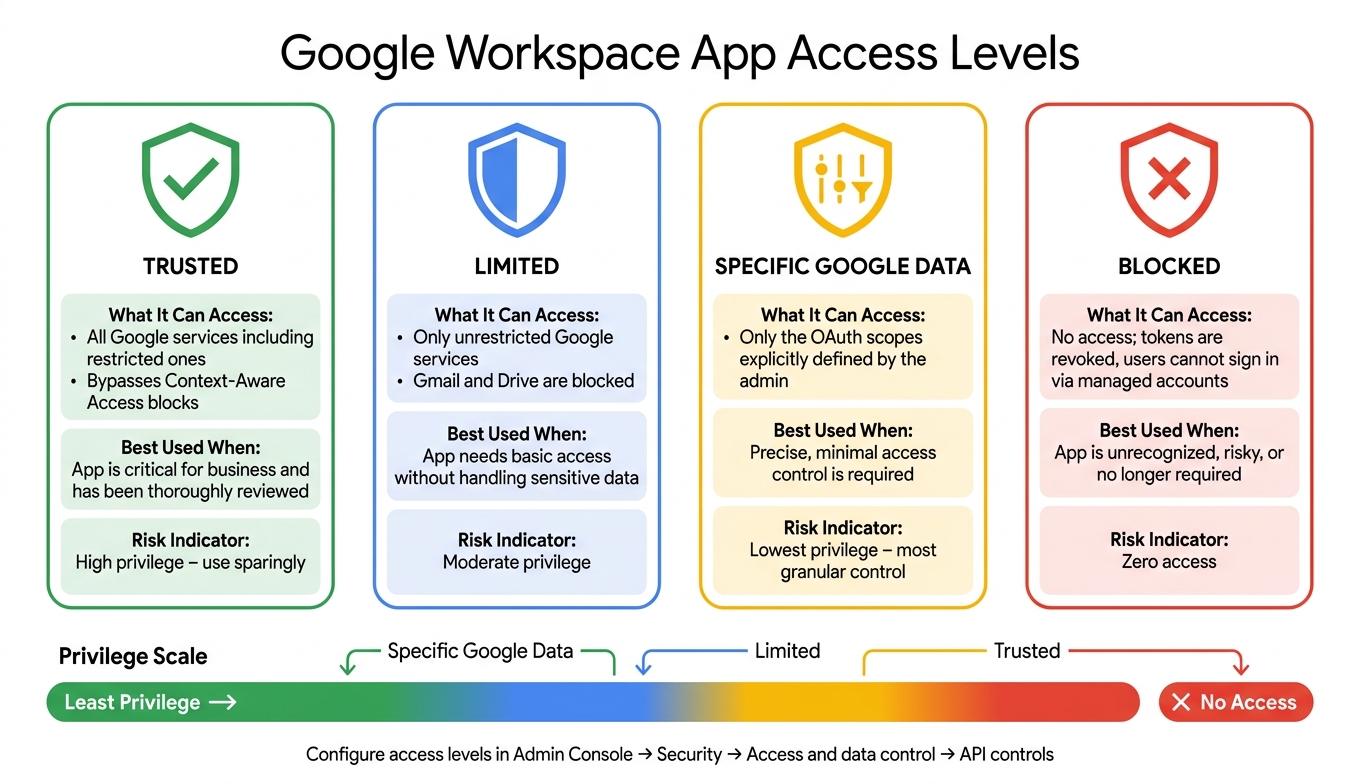
Google Workspace App Access Levels Explained
Configuring the right access levels for apps is a key step in strengthening your domain's security. It’s essential to determine the level of access each app should have. Google Workspace offers four access levels, each with a unique impact on your organization’s security.
Understanding Access Levels
Google Workspace categorizes app access into four levels: Trusted, Limited, Specific Google data, and Blocked. Each level defines clear boundaries for app permissions.
| Access Level | What It Can Access | Best Used When |
|---|---|---|
| Trusted | All Google services, including restricted ones; bypasses Context-Aware Access blocks. | The app is critical for business and has been thoroughly reviewed. |
| Limited | Only unrestricted Google services; restricted services like Gmail or Drive are blocked. | The app needs basic access without handling sensitive data. |
| Specific Google data | Only the OAuth scopes you define. | You require precise, minimal access control for the app. |
| Blocked | No access; tokens are revoked, and users can't log in via managed accounts. | The app is unrecognized, risky, or no longer required. |
The Specific Google data level is the most detailed option, allowing admins to define exactly which OAuth scopes an app can use. This is ideal for maintaining tight control. However, if users need to log in with Google accounts, you’ll need to manually include the Google Sign-in scope during setup.
On the other hand, the Trusted level provides unrestricted access to all Google Workspace services, including restricted ones. It even bypasses Context-Aware Access policies. Because of this, it should only be assigned to apps that are critical for business operations and have undergone rigorous vetting.
Changing Access Levels for Apps
To update an app’s access level, head to the Admin console and navigate to Security > Access and data control > API controls. From there, click Manage App Access, select the app, choose its organizational unit (OU), and assign the desired access level. If you choose Specific Google data, you’ll need to define the exact OAuth scopes.
For bulk changes, you can select multiple apps in the Manage App Access list and click Change access at the top. This allows you to apply the same access level across several apps simultaneously.
Access level changes can also be applied to specific OUs instead of the entire domain. You can select up to 10 OUs directly in the side panel. If more than 10 OUs need updating, use a bulk CSV upload. This flexibility is particularly helpful for organizations with varied team requirements.
"If you change access to Restricted, any previously installed apps that you haven't trusted stop working, and tokens are revoked." - Google Workspace Help
This is an important consideration when making changes. Downgrading an app’s access level can disrupt users who rely on it, so it’s a good idea to communicate any upcoming changes to affected teams in advance.
Blocking Unapproved Apps
Once you've set the right access levels, the next step is to block any apps that aren't approved. These apps can pose a risk by exposing sensitive data in Gmail, Drive, or Calendar. Even just one app with broad OAuth permissions that hasn't been reviewed can create vulnerabilities.
Using the Blocked Access Setting
Blocking a specific app is simple. In the Admin console, navigate to Security > Access and data control > API controls, then select Manage App Access. Find the app you want to block, click on it, and set its access level to Blocked.
When you block an app, its tokens are revoked, and users can no longer sign in to it. If you're blocking an app that a user has previously requested, you can check the "Notify users who requested access to this app" box to inform them. To make things smoother for users, enable a custom user message in API controls. This way, instead of a generic error, they'll see clear instructions - like a link to submit a help desk ticket. Keep in mind that it can take up to 24 hours for these changes to apply across your organization. For even tighter security, you might want to set up a default-deny policy.
Setting Up an Allowlist
A default-deny policy blocks all apps that aren't specifically configured. To enable this, go to Security > Access and data control > API controls and change the Unconfigured third-party apps setting to "Don't allow users to access any third-party apps." This ensures any app without a set access level is automatically blocked. You can also allow users to submit access requests by enabling the "User requests to access unconfigured apps" option. These requests will appear in the Apps pending review list for your review.
For apps in the Google Workspace Marketplace, you can manage a separate allowlist. Go to Apps > Google Workspace Marketplace apps > Apps list and set access to "Allow users to install and run allowlisted apps only". If you're managing a large number of apps, you can use a CSV file for bulk updates. Just make sure the file is under 10 MB, and note that you can configure up to 15,000 apps across your domain.
Keeping App Permissions Up to Date
Keeping app permissions current is essential as your organization’s needs change over time. To stay on top of things, aim to review app permissions either monthly or quarterly. Julien Monguillot, Co-Founder of ShiftControl, emphasizes the importance of regular audits:
"Monthly audits and firm policies reduce vulnerabilities."
To get started, head to the API controls page and examine both the Accessed apps and Configured apps lists. The Accessed apps section provides insights into how many users are connected to each app and which Google services those apps are accessing. For a quicker review, export the app list as a CSV file. This lets you sort and filter by verification status, user count, or API scopes, making it easier to spot issues. Don’t delay when it comes to reviewing pending apps.
Routine audits are a great way to catch permission changes or unauthorized access that might slip through after your initial setup.
Re-Evaluating High-Privilege Apps
Beyond regular reviews, apps with Trusted access demand extra attention. These apps have the most extensive permissions, including access to all Google Workspace services and even restricted OAuth scopes. Revisiting these apps regularly is crucial to minimize risks. As Rob Stevenson, Founder of BackupVault, points out:
"Even when users leave your organisation, apps they connected might retain access indefinitely unless explicitly revoked."
This is especially important when employees leave the company. To avoid lingering access, make sure to revoke OAuth grants tied to offboarded users.
Additionally, keep an eye on apps listed with a Partially granted status in the Marketplace apps list. This status means the app has requested new permissions since it was first installed, which may warrant a fresh evaluation. If an app no longer requires elevated access, consider downgrading it from Trusted to Limited or Specific Google data. This approach enforces the principle of least privilege, ensuring apps only have access to what they truly need.
Conclusion
Keeping third-party app permissions in check within Google Workspace demands constant attention. This guide walked through using the Admin Console, evaluating apps, setting access levels, blocking unapproved tools, and conducting regular audits to maintain secure permissions.
Unmanaged app permissions can put sensitive data - like emails, files, and calendar details - at risk by granting access to apps that don’t need it or never should have had it in the first place. Two key strategies to minimize this risk include restricting core services like Gmail, Drive, and Calendar to trusted apps only and setting unconfigured apps to Don't allow by default.
John R. Sowash, Founder of Google Admin Bootcamp, highlights the stakes:
"If your API Access Control isn't configured correctly, clicking that button might be handing over the keys to your domain's files, emails, and directory."
This serves as a strong reminder of the importance of ongoing app permission management. It’s not just about security - it's also about staying compliant with data protection regulations and gaining visibility into shadow IT, those unauthorized apps users might connect without IT approval. By maintaining a strong allowlist, conducting regular audits, and enforcing strict least-privilege policies, you can keep your Google Workspace both secure and compliant.
FAQs
How do I tell if an app is actually risky?
To keep your Google Workspace secure, head to Security > Access and data control > API controls in the Admin console. Here’s what to watch for:
- Apps with risky OAuth scopes: Look out for apps requesting broad permissions, like full mailbox access.
- Unverified apps: These can pose a security risk, so they deserve extra scrutiny.
- Shadow apps or orphaned access: Be cautious of apps still linked to accounts of former employees or disabled users.
- Scope and user analysis: Review the number of users and the permissions requested to ensure they align with your organization’s policies.
Regularly auditing these areas can help maintain control over third-party app access and reduce potential vulnerabilities.
What happens to users when I block an app?
When you block a third-party app in Google Workspace, it prevents users from signing in to that app with their managed Google account. Additionally, the app is restricted from accessing or requesting any Google data linked to those accounts. If notifications are turned on, users will receive an email informing them that their attempt to access the app has been denied.
How often should we audit third-party app access?
Regularly reviewing third-party app access is essential for keeping your Google Workspace secure and compliant, even though there’s no strict rule on how often to do it. To stay on top of this, use the API controls section in the Google Admin console to keep an eye on connected apps. Tools like AdminRemix can make this process easier by helping you set up a routine schedule, manage app permissions efficiently, and minimize potential security risks.