K-12 Device Incident Tools: Google Sheets vs ITAM
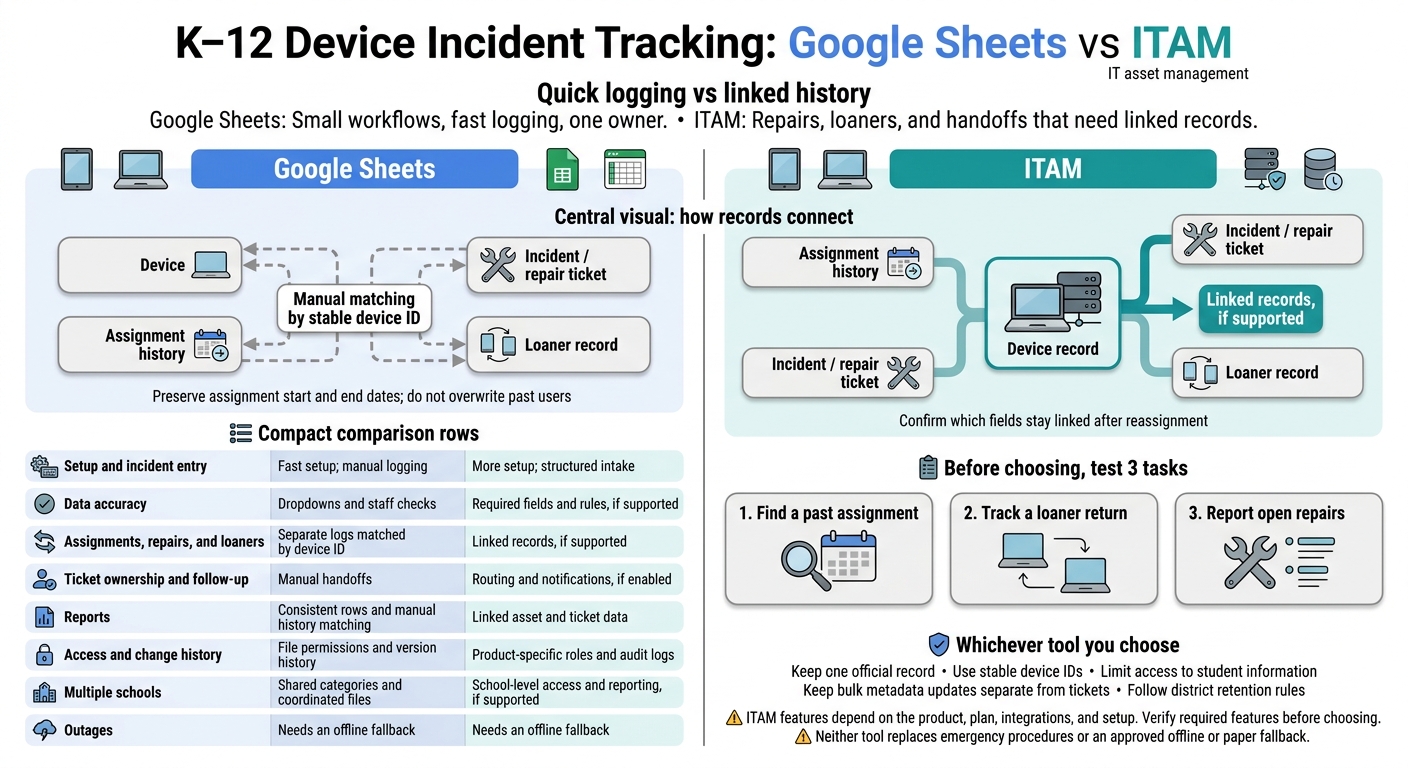
I’d use Google Sheets for a small device log with one owner - and ITAM when repairs, loaners, and handoffs need linked records. Before choosing, test 3 tasks: finding a past assignment, tracking a loaner return, and reporting open repairs.
Sheets is fast to set up, but staff must maintain history and follow-up. ITAM can connect assets, tickets, and assignments, though features depend on the product, plan, and setup.
Quick Comparison
| What I’d check | Google Sheets | ITAM |
|---|---|---|
| Setup and incident entry | Fast setup; manual logging | More setup; structured intake |
| Data accuracy | Dropdowns and staff checks | Required fields and rules, if supported |
| Assignments, repairs, and loaners | Separate logs matched by device ID | Linked records, if supported |
| Ticket ownership and follow-up | Manual handoffs | Routing and notifications, if enabled |
| Reports | Consistent rows and manual history matching | Linked asset and ticket data |
| Access and change history | File permissions and version history | Product-specific roles and audit logs |
| Multiple schools | Shared categories and coordinated files | School-level access and reporting, if supported |
| Outages | Needs an offline fallback | Needs an offline fallback |
My rule for either tool: <u>keep one official record</u>, use stable device IDs, and limit access to student information. Keep bulk metadata updates separate from tickets, verify AssetRemix’s features before choosing a plan, and follow district retention rules. Neither tool replaces emergency procedures or a paper fallback.
K–12 Device Incident Tracking: Google Sheets vs ITAM
Google Sheets: Fast Setup, Manual Tracking
For a small device program, a one-time rollout, or a repair spike, Google Sheets can give your team a shared incident log in minutes. Authorized staff can edit the same file at the same time. Compared with ITAM, Sheets is fast to launch, but history, follow-up, and reporting depend on staff discipline. That means the log needs a clear structure from day one.
Create a Shared Device Incident Log
Use one row per incident. Include an incident ID, device ID, serial number, assigned user, school, date, issue, status, owner, next action, due date, ticket link, and resolution.
Store IDs as text and format dates as MM/DD/YYYY. Add dropdowns for school, issue type, status, and owner. Freeze the header row and protect formula columns.
Check daily for missing device IDs, dates, statuses, and owners. Dropdowns help keep entries consistent, but they don't ensure every field gets filled in. Define each status in a Read Me tab, and keep the next-action and due-date fields visible.
The log also needs to preserve who had each device when an incident happened.
Prevent Errors and Keep Assignment History
Keep separate assignment and incident logs linked by the same device ID. Sheets doesn't automatically preserve assignment history through handoffs, repairs, and multiple incidents. Record assignment start and end dates instead of overwriting previous users. Also, retain the assigned user at the time of each incident.
Use the same device ID across inventory and repair records, and flag duplicate device IDs in inventory. A device can have multiple incidents, but each incident needs its own incident ID.
For repairs, put references and loaner details in structured fields - not scattered messages. A loaner log can link the loaner device ID to the recipient, checkout date, expected return date, and return condition.
Sorting and filtering help staff find records, but they don't replace ownership or follow-up. Limit edit access to staff who need it, and keep sensitive student details out of notes.
Use the incident log to track work. Keep bulk metadata updates in separate Sheets tools.
Keep Metadata Updates Separate From Tickets
AdminRemix’s Chromebook Getter and User Getter use Google Sheets for bulk Chromebook and Google Workspace metadata updates and reporting. Keep those updates separate from incident tracking.
sbb-itb-c68f633
ITAM: Connect Devices, Tickets, and Assignments
Spreadsheet logs require manual matching. ITAM links tickets to device users, locations, lifecycle status, warranties, repair history, and assignment records. Technicians can see the full record without searching separate logs. Confirm which fields stay linked after reassignment.
Track Device Assignments, Repairs, and Loaners
Keep one asset record from deployment through repair, reassignment, loaner checkout, return, and retirement. That keeps device details together instead of scattered across serial-number notes.
Technicians should see the assigned user, location, device type, serial number, purchase date, warranty, status, and related incidents. When a repair calls for a loaner, link the original device, loaner, and incident ticket. Before rollout, test reassignment and repair tickets to check that the correct asset record opens and past assignments remain visible.
With the asset linked, the ticket needs a clear owner.
Set Ticket Ownership and Follow-Up
Route tickets by school, device type, or support team, with one accountable owner per ticket. Use shared status definitions: New, Assigned, Waiting for User, In Repair, Resolved, and Closed. Base priorities on instructional impact, and define notification and escalation rules.
Import clean data, keep asset IDs stable, and sync directory records. Match identities to the correct student, staff member, technician, and school location. Review duplicate or unassigned assets weekly.
AssetRemix supports ticket assignment, status tracking, comments, email-generated tickets, assignment rules, CSV import/export, directory sync, and Google, Microsoft Azure, Okta, and SCIM integrations.
For schools using AdminRemix, check whether the platform keeps those links intact during day-to-day support work.
Review AssetRemix for Asset and Help Desk Tracking
Before choosing a plan, verify that assignment-history retention, ticket-to-asset links, report fields, role permissions, escalation rules, and warranty and repair-history tracking fit your school’s workflow.
Google Sheets vs ITAM: Key Differences
Google Sheets is faster to launch and edit. ITAM offers more control over records and workflows. For Chromebook asset management, missing devices, and loaners, the trade-off is quick logging versus linked history you can rely on. ITAM features depend on product support, licensing, integrations, and setup.
| Criterion | Google Sheets | ITAM |
|---|---|---|
| Setup and incident entry | Fast launch; manual intake | More setup; standardized intake |
| Preventing bad incident entries | Dropdown validation | Required fields and status rules |
| Assignment history | Manual | Linked |
| Ticket-to-asset links | Manual | Linked |
| Repair history | Separate | Centralized |
| Technician ownership | Manual handoffs | Routed assignments |
| Incident reporting | Row-based summaries | Linked asset and incident reports |
| Access control and change history | File sharing and version history | Role permissions and audit history |
| Multi-campus use | Coordinated files and categories | School-level access and reporting |
| Outage usefulness | Temporary device lists, if accessible | Linked history, if accessible |
Check that your district’s required ITAM features are supported and enabled. The biggest differences show up when schools need accurate reports across multiple incidents, users, and devices.
Reporting and Data Accuracy
Reports are only as accurate as the data behind them. Both tools need standard categories and complete timestamps.
| Reporting outcome | Google Sheets | ITAM |
|---|---|---|
| Incident counts by school, model, issue, status, and date | Depend on consistent rows | Depend on consistent linked records |
| Assignment and repeat-repair trends | Require matching history tabs | Draw from linked histories |
| Technician workload | Open incidents by owner | Assigned and unresolved queues |
| Service-level performance | Calculated from timestamps | Requires supported targets and timestamps |
Check for duplicates, missing links, closed incidents without resolution dates, and conflicting device statuses. Decide whether to measure calendar or business days and whether waiting time counts. Apply those rules in either tool.
During an incident, staff also need to find and update the right device record quickly.
Emergency Coordination and Its Limits
During an outage, teams need to track device movement, communicate handoffs, and reconcile temporary records.
| Task | Google Sheets | ITAM |
|---|---|---|
| Identify affected devices | Shared, narrowly scoped list | Location or model filters |
| Record device movement | Manual entries and timestamps | Supported checkout or scanning workflows |
| Hand off work | Manual owner updates | Enabled routing and notifications |
| Reconcile after access returns | Match temporary rows to device IDs | Update linked asset and ticket records |
Don’t assume either tool will remain accessible during an outage. Use the approved offline or paper fallback, and assign one person to reconcile the records.
If staff use both tools, keep one record primary to avoid duplicates during reconciliation.
Keep One System as the Record of Truth
Use one system of record, then export or sync only limited fields to the other. Preserve device ID, assignment, loaner, and repair status across both tools. Document which fields can transfer and the direction of updates. Match changes by stable device ID, not student name.
Give each temporary sheet restricted access, one reconciliation owner, and a retirement date. Reconcile changes before closing incidents. Then archive the sheet under district policy and remove unnecessary personal information.
Conclusion: Choose by Workload and Record Needs
Use Google Sheets for small workflows that need fast logging and have one owner. Base the choice on how much history and coordination the workflow needs to retain. Use ITAM when device volume, repeated repairs, loaners, or technician queues call for linked assignment and ticket history.
Keep metadata updates separate from incident tracking. Bulk sheet updates don't replace repair records or ticket follow-up.
Before choosing, confirm who owns the records, who can edit them, how technicians will work, and what reports are needed. If Sheets stays in the workflow, define its role: the system of record, an import or export tool, a dashboard, or a temporary intake log.
Set retention periods according to district policy and records laws. Keep emergency response separate from device tracking. As workload grows, use the simplest tool that can maintain one reliable official record.
FAQs
How do we know when we’ve outgrown Google Sheets?
You’ve outgrown Google Sheets when manual record-keeping slows your team down or leads to repeated data errors. Scattered documentation, duplicate files, edit conflicts, and uncertainty about who owns a record or what changed are all signs it’s time to move on.
If tracking barcode data, managing budget records, or preparing for audits keeps getting harder, a dedicated ITAM solution can give you more control and room to scale.
How can we migrate to ITAM without losing device history?
Use AssetRemix as your single source of truth for ownership, reporting, and lifecycle logs. Match existing spreadsheet records to AssetRemix using identifiers such as serial numbers or device IDs. Bring historical audit trails into AssetRemix to keep time-stamped records of assignments, status changes, and maintenance.
Use Chromebook Getter to pull current metadata into your workflow, while keeping historical records in AssetRemix.
How should we reconcile offline records after an outage?
Use an ITAM solution like AssetRemix as your single source of truth to avoid spreadsheet errors and version conflicts. Update device status, location, and ownership with barcode scanning or bulk Google Admin sync. Link any discrepancies to maintenance tasks or tickets so they don’t slip through the cracks.
AdminRemix’s Chromebook Getter can pull live metadata into Sheets for bulk reconciliation. Check and correct the records there before pushing the updated data back into your system.