
How to Troubleshoot Google Workspace Integrations
When Google Workspace integrations break, it can disrupt your workflow. Common issues include permission errors, sync failures, and licensing problems. Here's how to fix them:
- Permissions: Check API access, OAuth scopes, and security settings. Ensure apps are allowlisted, and service accounts are active with domain-wide delegation.
- Sync Issues: Clear stale caches, verify Base Distinguished Names (DNs), and ensure time synchronization between systems.
- Licensing: Increase seat limits or resolve user conflicts when hitting license caps.
For bulk management, tools like AdminRemix simplify tasks like Chromebook and user management. By following structured troubleshooting steps and using the right tools, most problems can be resolved quickly.
Controlling Access to Third Party Apps in Google Workspace
sbb-itb-c68f633
Initial Checks Before You Start Troubleshooting
Before diving into troubleshooting, it's a good idea to double-check your integration's basic setup. Many issues stem from simple configuration errors. These quick checks can save you a lot of time and effort later on.
Verify API Access and Permissions
Start by ensuring that the required APIs are enabled. In the Google Cloud Console, navigate to APIs & Services > Library and confirm that the necessary Google Workspace APIs are marked as "Enabled". Common APIs include:
Authentication and authorization are key here. While authentication verifies the identity of the requester, authorization determines what they can access. Even with valid credentials, your app might be blocked if the Google Workspace admin hasn't added it to the whitelist under Security > API Controls. This is especially true for apps that need "trusted" OAuth client IDs.
Another critical aspect is scope sensitivity. Google classifies scopes as non-sensitive, sensitive, or restricted. If your app uses sensitive or restricted scopes, it might need verification from Google - though this isn't required for internal apps used within your organization.
| Google Workspace API | Service ID |
|---|---|
| Admin SDK API | admin.googleapis.com |
| Calendar API | calendar-json.googleapis.com |
| Drive API | drive.googleapis.com |
| Gmail API | gmail.googleapis.com |
| Sheets API | sheets.googleapis.com |
Check Service Accounts and Credentials
Next, confirm that your service account is active and properly configured. In the Cloud Console, go to Menu > Google Workspace > Credentials to view all service accounts and OAuth 2.0 client IDs. Make sure the service account hasn't been disabled, as this would immediately revoke its access.
For integrations that need access to domain user data, enable domain-wide delegation in the Cloud Console. Then, authorize the service account's Client ID in the Admin Console under Security > API Controls. Keep in mind that changes to domain-wide delegation can take a little time to propagate - usually 5–10 minutes, but it could take up to 24 hours.
If you encounter the error "Client is unauthorized to retrieve access tokens using this method", double-check that the Client ID and scopes match perfectly between the Cloud Console and Admin Console. Also, ensure the credentials.json file is in the correct location within your application's working directory. Missing or misplaced files often trigger "file not found" errors.
Validate OAuth Scopes and Security Settings
Finally, review your app's OAuth scopes and security settings. Check the scopes your integration is requesting by going to Security > Access and data control > API controls in the Admin Console. If your app requires access to restricted services like Gmail or Drive, it must be marked as "Trusted".
For better security, always request the narrowest scope possible (e.g., use .readonly instead of broader scopes). This minimizes risk and simplifies the consent process.
If your integration suddenly stops functioning, confirm that the access token is still active. Use the Investigation tool in the Security center to monitor OAuth activity. Look for "Grant" events under "OAuth log events" to ensure the expected scopes are being authorized.
Common Integration Errors and How to Fix Them
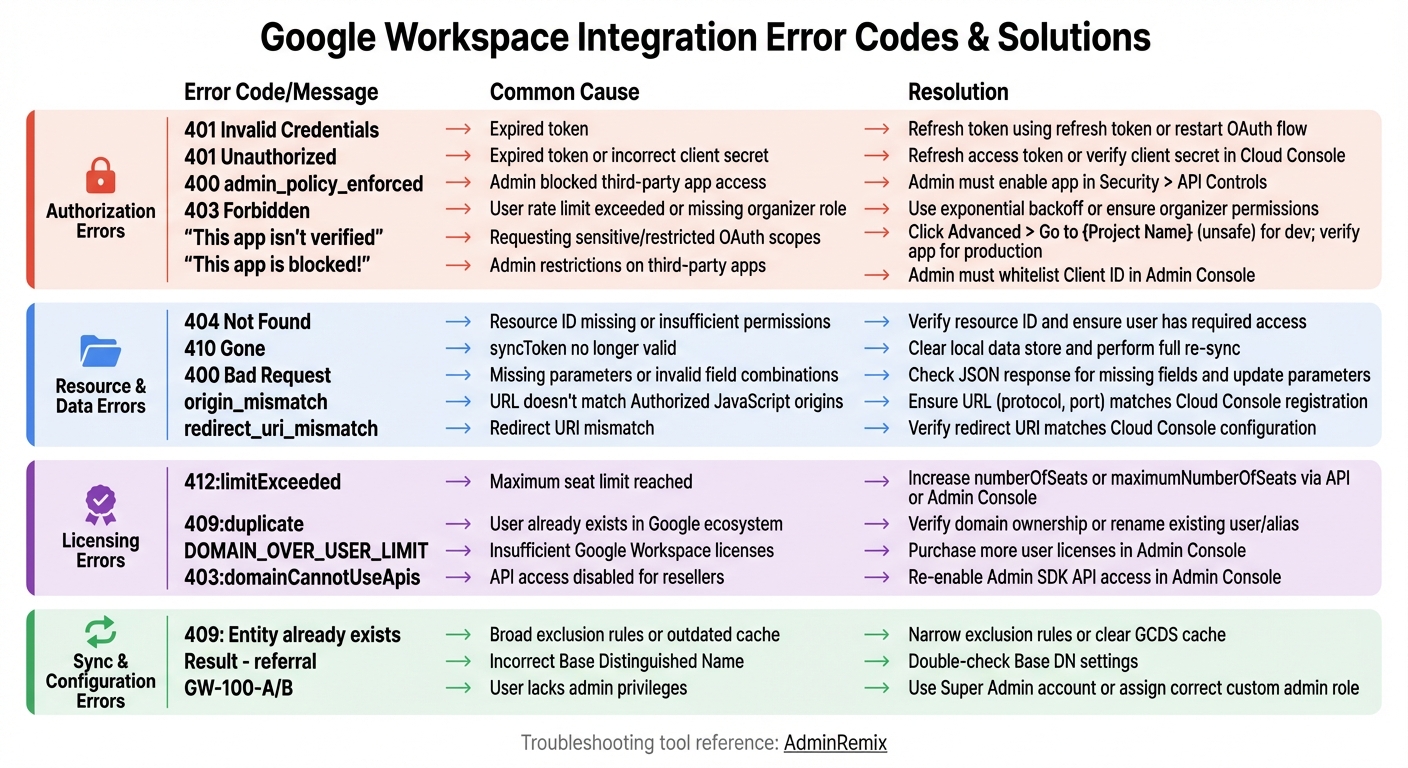
Google Workspace Integration Error Codes Quick Reference Guide
Once you've confirmed your initial setup, it's time to address some frequent integration errors. Tackling error messages systematically can help you resolve issues faster.
Fixing Authorization and Access Errors
Here’s how to handle common authorization-related problems:
- If you see the "This app isn't verified" warning, it means your app is requesting sensitive or restricted OAuth scopes. During development, users can temporarily bypass this by clicking Advanced > Go to {Project Name} (unsafe). However, production apps must go through Google's verification process to avoid this warning.
- Encountering a 401 Invalid Credentials error? This usually means the token has expired. Refresh the token using your refresh token or restart the OAuth flow.
- The 400 admin_policy_enforced error signals that a Google Workspace admin has blocked third-party app access. The admin must enable your app in the Admin console under Security > API Controls.
- For web integrations, origin_mismatch errors occur when the URL in your browser doesn’t match the "Authorized JavaScript origins" registered in the Google Cloud Console. Ensure the URL, including protocol (HTTPS) and port, aligns perfectly.
- Permissions errors (GW-100-A/B) indicate the user lacks necessary admin privileges. Use a Super Admin account or assign the correct custom admin role.
Here’s a quick reference table for additional errors:
| Error Code / Message | Common Cause | Recommended Resolution |
|---|---|---|
| 401 Unauthorized | Expired token or incorrect client secret | Refresh the access token or verify the client secret in the Cloud Console |
| 403 Forbidden | User rate limit exceeded or missing organizer role | Use exponential backoff or ensure the user has organizer permissions |
| 400 Bad Request | Missing parameters or invalid field combinations | Check the JSON response for missing fields and update parameters before retrying |
| 404 Not Found | Resource ID missing or insufficient user permissions | Verify the resource ID and ensure the user has the required access |
| "This app is blocked!" | Admin restrictions on third-party apps | Admin must whitelist the app's Client ID in the Admin Console under API Controls |
Now, let’s look at issues with missing data.
Fixing Missing Resource or Calendar Data
Missing resources or calendar data typically point to permissions or sync issues. Here’s how to address them:
- A 404 Not Found error often means the resource ID is invalid or the user lacks access permissions. Double-check the resource ID and permissions.
-
A 410 Gone error signals that the
syncTokenis no longer valid. In this case, clear your local data store and perform a full re-sync. - If only "busy" blocks show up instead of event details, it might be due to role accounts lacking access or outdated authentication setups. For Calendar Interop environments, "Calendar cannot be shown" errors may occur when a Google Workspace user has the Google Calendar service enabled. Disabling this service for the affected user can resolve the conflict.
- In Directory Sync scenarios, missing users or groups often occur because they fall outside your LDAP search scope or are listed as "contacts" instead of "user objects" in the external directory. Ensure users are located at or below the base DN (Distinguished Name) specified in your sync settings, and confirm the email domain in the external directory matches your Google Workspace domain.
Next, let’s tackle configuration-related errors.
Fixing Invalid Input or Configuration Issues
Configuration errors often arise from file misplacement or incorrect URL formatting. Here’s what to watch for:
-
For desktop apps, the credential file must be named
credentials.jsonand placed in the correct working directory. -
redirect_uri_mismatcherrors occur when the redirect URI in your browser doesn’t match the one configured in the Google Cloud Console. Double-check that these match exactly. - Ensure that EWS integrations use HTTPS. If you encounter "Value Too Long" errors, it’s likely due to fields like email IDs exceeding character limits. Shorten these inputs and ensure all required fields are filled.
-
For SAML or SSO configurations, avoid using forbidden prefixes like "google." or "googl." in your SSO sign-in URLs, as these can cause failures, especially on iOS devices. Also, ensure the
NameIDelement in SAML assertions matches the case of the Google Workspace username or email address. - Time synchronization is critical. If your Identity Provider (IdP) server clock is out of sync, you may encounter errors like "login credentials have expired" or "not yet valid." Synchronize the IdP server clock with a reliable internet time server to fix this.
- For errors after periods of inactivity, refreshing your browser page may resolve stale session issues.
Fixing Synchronization and Licensing Problems
Synchronization and licensing issues can bring your integration workflows to a halt. These problems often appear as error codes or prevent users from being created or updated in Google Workspace.
Fixing Sync Failures
If synchronization isn't working, troubleshooting these issues can help restore functionality.
Sync problems are often caused by stale cache, network issues, or misconfigured settings. For GWSMO, initiate a manual sync by right-clicking the taskbar icon and selecting "Sync Now." For GCDS, use the -f option to flush the cache and force a full re-sync.
Ensure your firewall allows LDAP over SSL (port 636) and Global Catalog queries (port 3269) for Directory Sync.
Configuration errors can also cause sync failures. For example, a "Result - referral" error usually points to an incorrect Base Distinguished Name (DN). Double-check your Base DN settings to ensure they're correctly aligned with your directory structure. If you encounter a "409: Entity already exists" error, it could mean your exclusion rules are too broad or your cache is outdated. Narrow your exclusion rules or clear the GCDS cache to fix this.
For Outlook users, avoid sync disruptions by setting mailbox size limits. Use 20 GB for Outlook 2007 and 50 GB for Outlook 2010–2019 instead of selecting "Unlimited".
For persistent issues, submit trace logs to the Google Admin Toolbox Log Analyzer for further analysis.
Once sync problems are resolved, check for licensing constraints that might still block user updates.
Handling Licensing Constraints
Licensing issues can prevent user creation or updates and are often accompanied by specific error codes. For instance, the 412:limitExceeded and DOMAIN_OVER_USER_LIMIT errors indicate that your domain has hit its maximum seat limit.
To fix this, go to Billing > Subscriptions in the Admin Console and increase your seat count. Flexible plans require adjusting the maximumNumberOfSeats parameter, while Annual plans need changes to the numberOfSeats parameter. If you prefer, you can use the subscriptions.changeSeats method via the Directory API to manage this programmatically.
Another common issue is username conflicts. The 409:duplicate error occurs when a user’s email already exists within your domain or another Google product. To resolve this, verify domain ownership or rename the existing user or alias.
If you're integrating with Google Classroom and see a "Failed Precondition: Joining User Not Eligible For Roster Import" error, it means the teacher or student lacks an active license, such as Education Plus or Standard Edition. Check Billing > License Settings in the Admin Console to assign the necessary licenses.
Sometimes, unassigning a license from a disabled account doesn't immediately free it up for reuse. In some cases, delays of over two days have been reported. If you're unable to create a user despite having available seats, contact Google Support to increase your Cloud Identity Free licenses. This allows you to create the account first and assign a paid license later.
| Error Code | Meaning | Resolution |
|---|---|---|
412:limitExceeded |
Maximum seat limit reached | Increase numberOfSeats or maximumNumberOfSeats via API or Admin Console |
409:duplicate |
User already exists in Google ecosystem | Verify domain ownership or rename the existing user/alias |
DOMAIN_OVER_USER_LIMIT |
Insufficient Google Workspace licenses | Purchase more user licenses in the Admin Console |
403:domainCannotUseApis |
API access disabled for resellers | Re-enable Admin SDK API access in the Admin Console |
Using AdminRemix to Simplify Troubleshooting
When dealing with integration issues that require managing devices or users in bulk, having the right tools can save time and reduce headaches. The standard Google Admin Console, while functional, doesn’t support bulk management out of the box. That’s where AdminRemix steps in with its Chromebook Getter and User Getter tools - Google Sheets add-ons designed for advanced bulk reporting.
Chromebook Getter is a game-changer for managing Chromebook fleets. It pulls detailed metadata into a spreadsheet, allowing you to filter, search, and even perform bulk edits. This is especially helpful when troubleshooting issues caused by outdated devices. For example, the tool generates OS Version Reports and Auto Update Expiration (AUE) Reports, which highlight Chromebooks that no longer receive security updates. These outdated devices are often the culprits behind sync failures and performance hiccups. With over 3,000,000 installs on the Google Workspace Marketplace, Chromebook Getter has become the go-to replacement for the discontinued chromebookInventory add-on.
"Chromebook Getter has been an amazing tool in my Chromebook management process. I've been able to ditch GAM when it comes to Chromebooks." - Curtis Doherty
User Getter, on the other hand, simplifies user management. It allows bulk password resets and seamless user transfers across organizational units - an essential feature when resolving permission errors that disrupt workflows. The Premium plan ($20.75 per user per month) includes an Event History Log, which tracks metadata changes to help identify when configuration errors occurred. For larger organizations, the Domain plan ($36.66 per month) eliminates per-user limits, offering even more flexibility.
Both tools work by importing metadata into a Google Sheet for bulk editing and then pushing updates back to Google Workspace. For large-scale updates, the Upload Service Worker (available in Core and Premium plans) ensures fast and reliable data transfers without timing out. However, free accounts are limited to 500 uploads per month, so larger environments may need to upgrade.
Conclusion
Troubleshooting Google Workspace integrations doesn't have to feel like an uphill battle if you take a structured approach. Start with the basics: make sure you're using a Super Admin account, check that API access is enabled, and confirm that third-party apps are allowlisted in your security settings. Many common errors - like admin_policy_enforced or 403: Administrator approval required - are tied to these settings and can often be fixed in just a few minutes once you know what to check.
For more stubborn issues, dig deeper into sync problems or licensing restrictions. For example, Outlook PST file size limits (20 GB for Outlook 2007, 50 GB for newer versions) can impact sync performance. Similarly, mismatched time zones between Google Calendar and Outlook might cause events to appear on the wrong dates. Reviewing your configuration and checking logs can help pinpoint and resolve these problems.
If you're dealing with bulk management tasks, tools like AdminRemix can streamline metadata management through Google Sheets. Efficient troubleshooting often boils down to knowing where to look. Tools such as the Google Admin Toolbox Log Analyzer can be invaluable for diagnosing sync issues, while reviewing API Controls can help address authorization errors. By combining methodical checks with the right tools, most integration challenges can be resolved without escalating to support.
FAQs
Which Google Workspace APIs should I enable for my integration?
To address issues with Google Workspace integrations, start by enabling the Admin SDK API. This API handles management of users, groups, and directory data. If you're working with Directory Sync or auto-provisioning, you'll also need to activate the Data Connectors API. These APIs are key to ensuring your integrations function correctly. Double-check your Google Cloud project settings to verify that both are enabled.
How do I know if my OAuth scopes are being blocked by admin policy?
If you're encountering the error "400 admin_policy_enforced" in Google Workspace, it indicates that an administrator has restricted access to specific third-party apps or data through OAuth scopes.
To verify this, use the Admin console's Investigation tool to track OAuth grant events. Additionally, review the security settings and API controls to identify and understand any restrictions in place.
What should I check first when a sync suddenly stops working?
The first thing you should do is review the logs. Logs are your best friend when it comes to pinpointing errors or issues in the sync process. Tools like the Google Admin Toolbox Log Analyzer can be incredibly helpful for digging into trace logs. In many cases, a thorough log analysis can reveal the root of the problem, saving you time before diving into other troubleshooting steps.