How to Automate Compliance Reports in Google Workspace
I automate Google Workspace compliance reports by scheduling API pulls, organizing records in Google Sheets, and assigning reviews. I start by matching each control to its data source and setting a reporting window - for example, 24 hours for login-failure monitoring.
My workflow covers four tasks:
- Prepare the report: Define fields, owners, access rules, and retention dates.
- Collect and check data: Set API permissions, schedule queries, remove duplicates, and log failed or incomplete runs. Keep Apps Script’s six-minute runtime limit in mind.
- Route findings: Assign review deadlines, document decisions, and confirm fixes against current account or device records.
- Maintain the workflow: Check permissions and data coverage, keep a runbook, and use BigQuery when Sheets no longer fits the workload.
My rule: <u>a completed data pull is not a completed review</u>. I keep findings open until follow-up records confirm the fix.
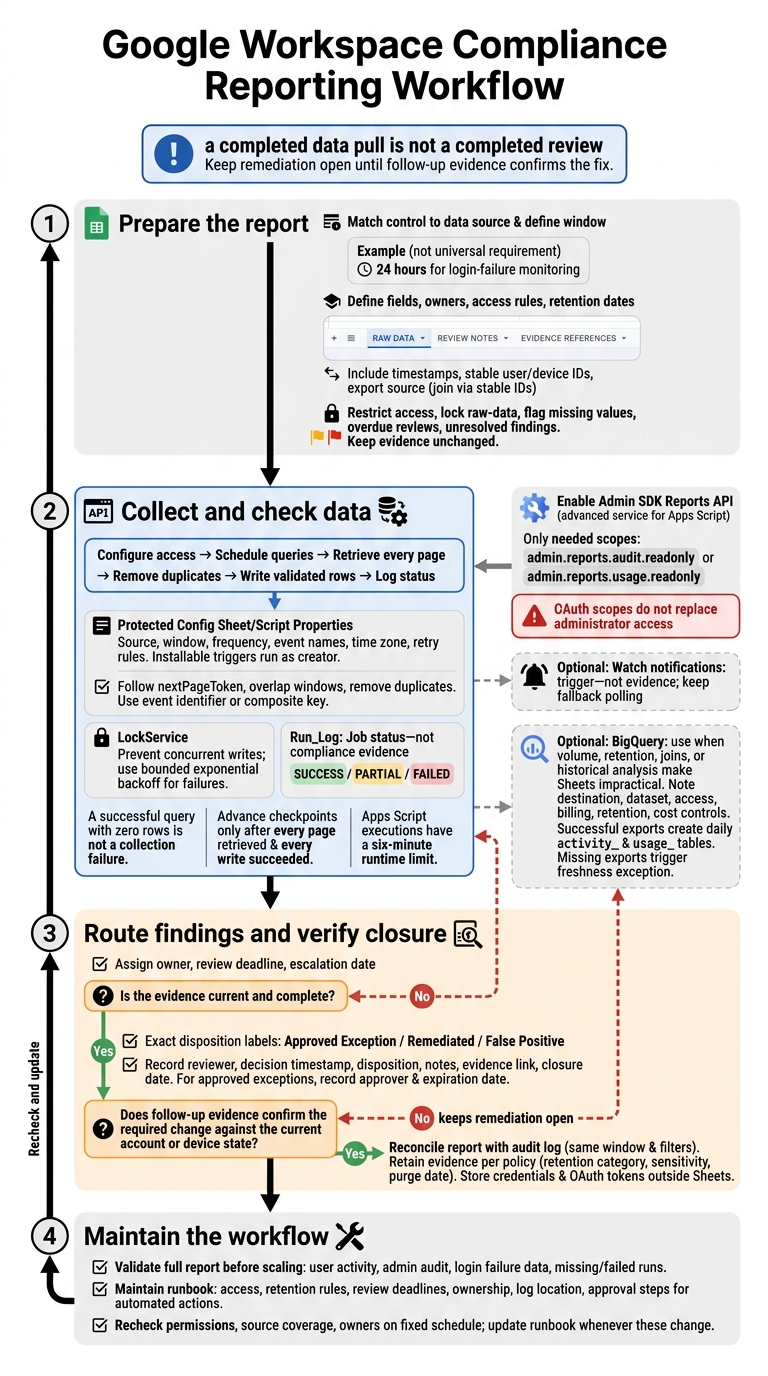
Google Workspace Compliance Reporting Workflow
Step 1: Set Up Your Google Sheets Report
With controls and reporting windows defined, build a sheet to hold raw exports, review notes, and evidence.
Create Tabs and Report Fields
Create separate tabs for raw data, review notes, and evidence references. Include timestamps, stable user or device IDs, and the export source in every row.
Then fill the tabs with exports and metadata.
Import Exports and User or Device Metadata
Import Google Workspace exports into Sheets. Use stable IDs to join those records to user and ChromeOS metadata, and filter each import to the reporting window defined in the introduction.
Once the data is loaded, restrict access and flag exceptions for review.
Restrict Access and Flag Exceptions
Limit sheet access to reviewers and owners, and lock the raw-data tabs. Use formulas or conditional formatting to flag missing values, overdue reviews, and unresolved findings. Keep the evidence values unchanged.
sbb-itb-c68f633
Step 2: Automate Data Collection
Set Up Reports API Access
Enable the Admin SDK Reports API in the associated Google Cloud project. If you use Apps Script, also enable the Reports API as an advanced Google service.
Request only the scope your report needs: admin.reports.audit.readonly for audit activity or admin.reports.usage.readonly for usage data. Grant the required Google Workspace admin privilege, too - OAuth scopes do not replace administrator access. Use domain-wide delegation only if the service-account workflow requires it.
Map each API response to the fields defined in your Sheets report.
Schedule Queries and Remove Duplicate Records
Send each automated pull to the raw-data tab from Step 1. Keep the source, start and end time, query frequency, source event names, time zone, and retry rules in a protected Config sheet or Script Properties. Don’t hard-code them.
Create a time-driven trigger with an account that has the required permissions. Installable triggers run as their creator.
For each run, read the configuration, calculate the reporting window, and call the appropriate Reports API method. Follow every nextPageToken and map each event to the report schema. Include a small overlap between reporting windows because API data can arrive late.
Remove duplicates before writing validated rows. Use the event identifier when one is available. Otherwise, use a documented composite event-level key that combines the timestamp, actor, application, event name, resource ID, and event parameters.
Use LockService to prevent concurrent writes and bounded exponential backoff for transient failures. Record each run’s status in Run_Log before alerting reviewers.
Log Collection Status and Failures
Use Run_Log to show job status - not to store compliance evidence. Record these fields: run_id, run_started_at, run_finished_at, source, query_start, query_end, rows_written, status, error_message_redacted, and checkpoint.
Keep SUCCESS, PARTIAL, and FAILED separate. A successful query with zero rows is not a collection failure. Advance checkpoints only after every page has been retrieved and every write has succeeded. Include only run details in failure or stale-data alerts.
Monitor API quotas, spreadsheet capacity, credentials, administrator access, and trigger ownership. Apps Script executions have a six-minute runtime limit, so check that the job can finish before choosing its schedule. Keep the last successful checkpoint so interrupted runs can retry without skipping records.
Set Up Watch Notifications or BigQuery Exports
Add notifications or exports only after the base pull, duplicate removal, and logging flow works.
For supported Reports API resources, configure watch notifications, verify that they come from the expected source, and renew channels before they expire. Treat notifications as a trigger - not evidence - and keep fallback polling in place.
Use BigQuery when log volume, retention, joins, or historical analysis make spreadsheets impractical. Before enabling exports, configure the destination project, a new dataset, access, billing, retention, and query-cost controls.
Successful exports create daily activity_ and usage_ tables. Missing exports should trigger a freshness exception. Route those exceptions into the alert workflow in the next step.
Step 3: Set Up Alerts and Reviews
Assign Alerts and Review Deadlines
After collection runs, check that the data is current before closing a finding. Use the matching alert or query result to confirm the trigger. Return stale or incomplete evidence to the collection owner.
Set a review deadline, then assign each finding an owner and escalation date. Classify it as Approved Exception, Remediated, or False Positive. An alert starts the review - it doesn’t close it.
Document Decisions and Retain Evidence
Record the reviewer, decision timestamp, disposition, notes, evidence link, and closure date. For approved exceptions, also record the approver and expiration date. Keep remediation open until follow-up evidence confirms the required change. When relevant, link the finding to its related AssetRemix record.
Use distinct user IDs rather than unnecessary personal details. Store credentials and OAuth tokens outside Sheets, with restricted access. Retain evidence according to policy, recording its retention category, sensitivity level, and purge date. Use these records to verify closure during the follow-up check.
Check Results and Fix Common Errors
Before closing a finding, check the recorded disposition against the current account or device state. Attach follow-up evidence that confirms remediation, and reconcile the report output with the audit log using the same time window and filters.
If a notification fails or a record is missing, check the audit log, authorization, quotas, schema changes, delivery records, and alert conditions. Require explicit confirmation for admin changes to prevent duplicate actions or incorrect remediation. Document the query, scopes, owners, and escalation rules so they’re available for reruns.
Conclusion: Maintain Your Reporting Workflow
After the first automated run, validate the full report before scaling the workflow. Confirm that it collected user activity, admin audit, and login failure data. Then check the run log for missing or failed runs.
Keep a short runbook to document workflow controls and support handoffs. Include report access, retention rules, review deadlines, ownership, log location, and approval steps for automated actions.
On a fixed schedule, recheck the live workflow’s permissions, source coverage, and owners. Update the runbook whenever any of these changes.
FAQs
How do I choose a compliance reporting schedule?
Match your compliance reporting schedule to your organization’s day-to-day needs and security priorities:
- Monthly: Check orphaned accounts, unassigned devices, and failed automation workflows.
- Quarterly: Review license usage, policy baselines, and mapping accuracy.
- Annually: Audit API scopes, OAuth configurations, and full processes.
For high-risk areas, set up real-time automated alerts for critical events. Record findings in a central log to keep a clear audit trail.
How can I make Sheets evidence audit-ready?
Export Google Workspace audit logs into Sheets. For each finding, include the control name, Admin console path, expected policy versus actual setting, business impact, and resolution owner. Link findings to the relevant user, device, or asset records so each issue can be traced back to its source.
Use the same filters across audit cycles to compare trends. Check for asterisks that flag potentially outdated information. Document all bulk actions, including multi-step approvals where required.
What happens if the trigger owner leaves?
When a trigger or automated workflow owner leaves the organization, unassigned triggers can leave gaps in compliance monitoring.
During offboarding, transfer all active triggers and reporting workflows to an active administrator account before revoking the original owner’s access. Remove their privileged access at or before account deactivation.