
How Google Workspace Supports IT Workflow Standardization
Google Workspace simplifies IT workflows by automating repetitive tasks, improving collaboration, and ensuring process consistency. It integrates tools like Sheets, Forms, and Workspace Studio to streamline operations such as data collection, approvals, and asset management. Key benefits include:
- Automation: Tools like Apps Script and Workspace Studio automate tasks like email notifications, approvals, and data updates.
- Data Accuracy: Google Sheets enables real-time collaboration, validation rules, and template creation for consistent data management.
- Approval Processes: Google Forms paired with Apps Script automates request approvals, reducing administrative delays.
- Asset Management: AdminRemix tools like AssetRemix and Chromebook Getter simplify IT asset tracking and bulk updates.
- Enhanced Meetings: Google Meet improves team communication with features like real-time captions, breakout rooms, and AI-driven tools.
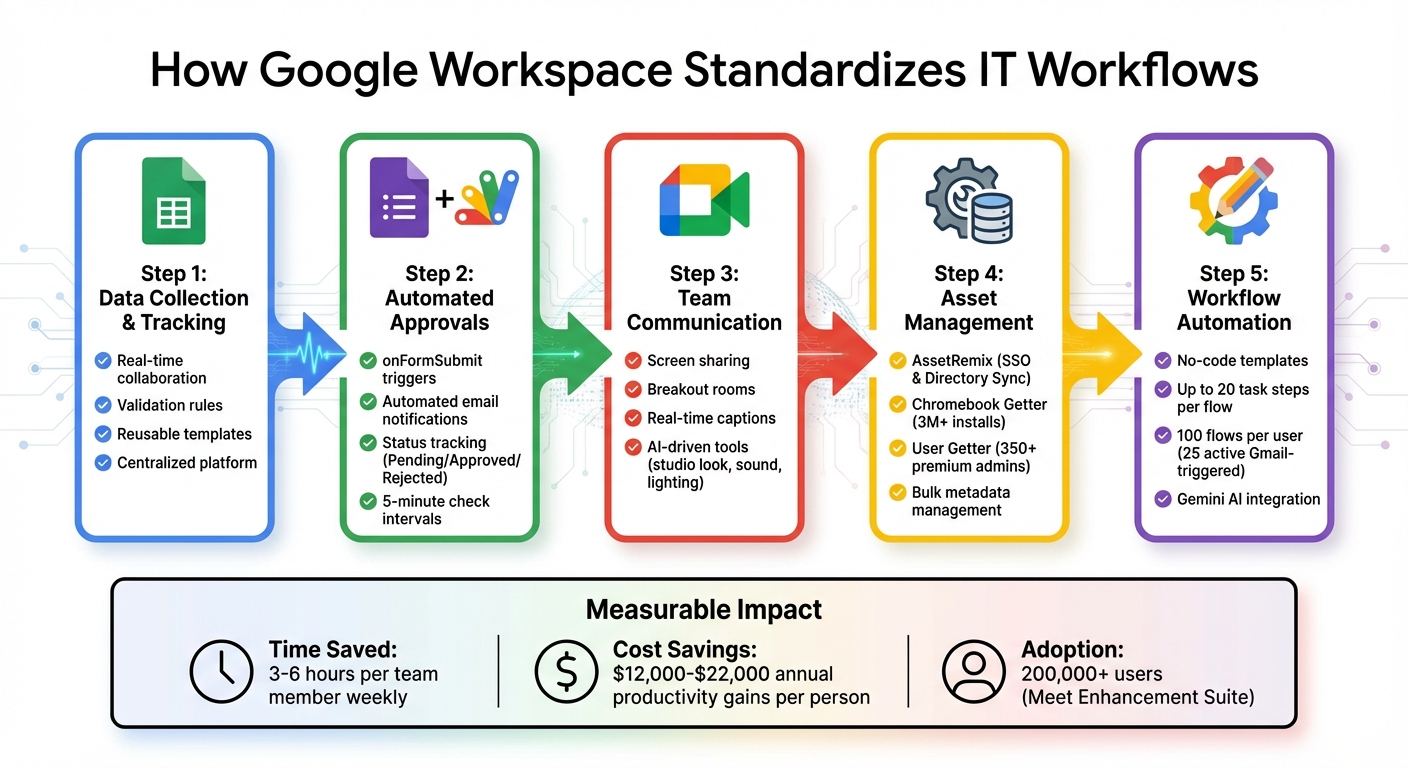
Google Workspace IT Workflow Automation Process
Automation FINALLY Launches in Google Workspace!
sbb-itb-c68f633
Using Google Sheets for Data Collection and Tracking
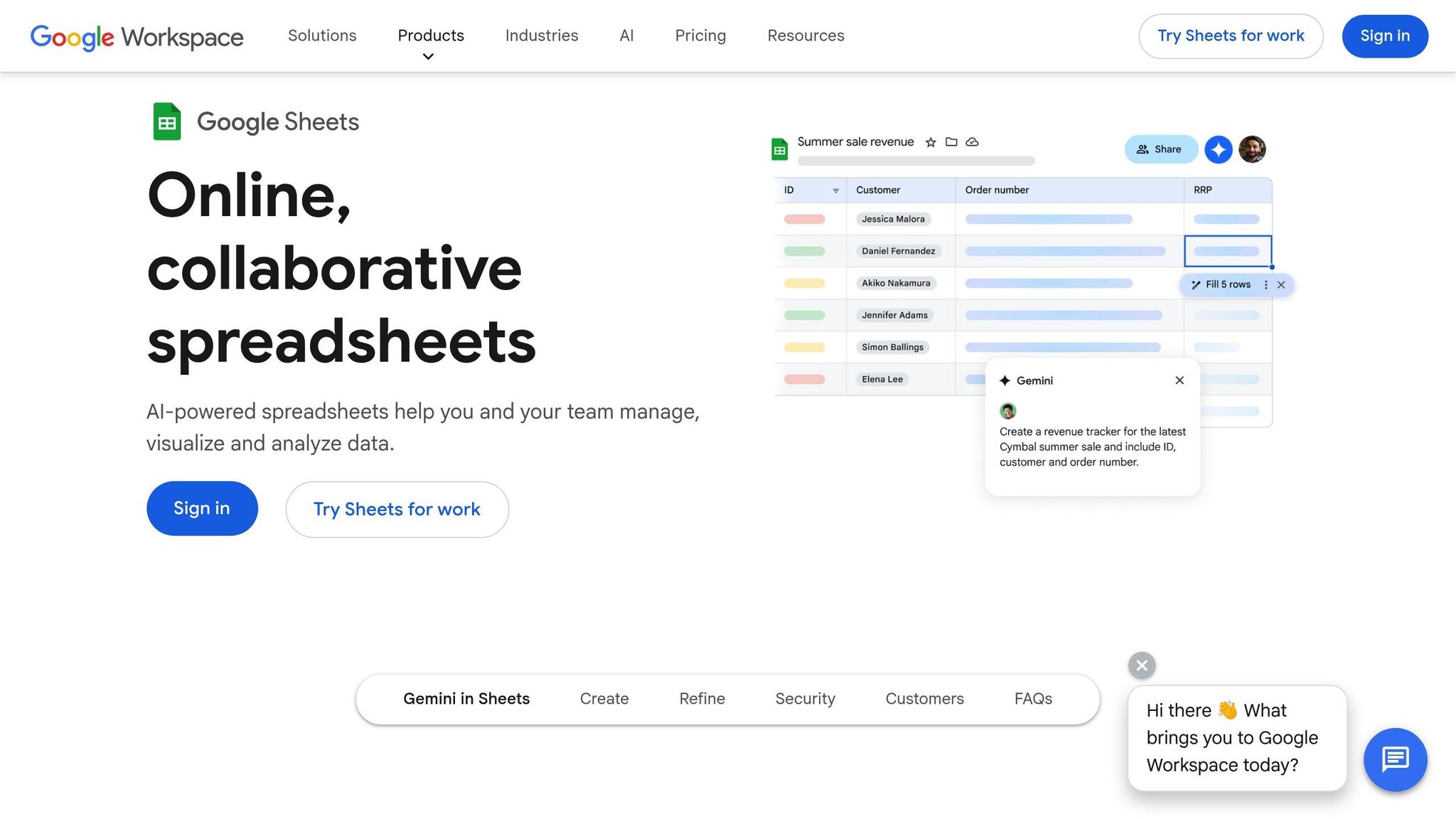
With standardized IT workflows, Google Sheets simplifies data management by centralizing everything on one accessible platform. Instead of juggling multiple spreadsheets, teams can use shared templates that everyone can update in real time, cutting down on versioning issues and ensuring everyone works from the same dataset.
The foundation of effective data collection lies in a well-structured sheet. Start with column headers in cell A1, avoid merged cells, and ensure each column has a unique name. This setup is crucial for integrating with automated workflows and filters. For instance, linking Google Forms to Google Sheets allows incoming data - like IT requests - to flow directly into a standardized sheet.
To maintain data accuracy, validation rules act as guardrails. You can restrict entries to dropdown options (e.g., "Open", "Pending", "Closed" for ticket statuses), set numeric ranges, or even use REGEX patterns to validate formats like asset IDs. For date fields, simply set the column type to "Date" in the Tables feature to avoid incorrect inputs. These measures ensure that inventory logs, issue trackers, and other critical sheets remain consistent and error-free. By adopting this centralized system, you can also create reusable templates that streamline recurring IT tasks.
Building Reusable Templates for IT Processes
Reusable templates take the headache out of repetitive tasks like expense reports, inventory logs, or issue trackers. Instead of starting from scratch every time, you can design templates with predefined structures, column names, and validation rules. These templates can then be added to your organization's Template Gallery for easy access by all team members. This ensures consistency across IT processes while saving time.
Interactive checkboxes are another powerful feature. Adding checkboxes for tasks like approvals or completions converts them into binary TRUE/FALSE values that integrate seamlessly with automation tools like Apps Script or Workspace Studio. For example, checking an "Approved" box could automatically trigger an email notification or update related rows, eliminating manual follow-ups.
Templates are great for efficiency, but real-time collaboration takes it a step further by improving data accuracy and responsiveness.
Improving Data Accuracy with Real-Time Collaboration
When multiple team members work on the same sheet simultaneously, version conflicts and outdated data become a thing of the past. This kind of visibility is especially critical during high-pressure scenarios like incident response or resource coordination.
"Google Sheets is our preferred spreadsheet application, giving us a real-time solution for collaboration to activate data-driven decisions." - Chris Montfot, Head of Strategic Operations for Corporate Engineering, Robinhood
Notification rules keep everyone in the loop without requiring constant monitoring. By configuring alerts through Tools > Notification rules, team members can receive updates whenever key sheets - like infrastructure logs or high-priority ticket queues - are modified. Additionally, comments and action items allow you to assign tasks directly within the sheet, keeping all discussions tied to relevant data. And with version history, every change is tracked, providing a full audit trail and the ability to revert to earlier versions if needed.
Automating Approval Processes with Google Forms and Apps Script
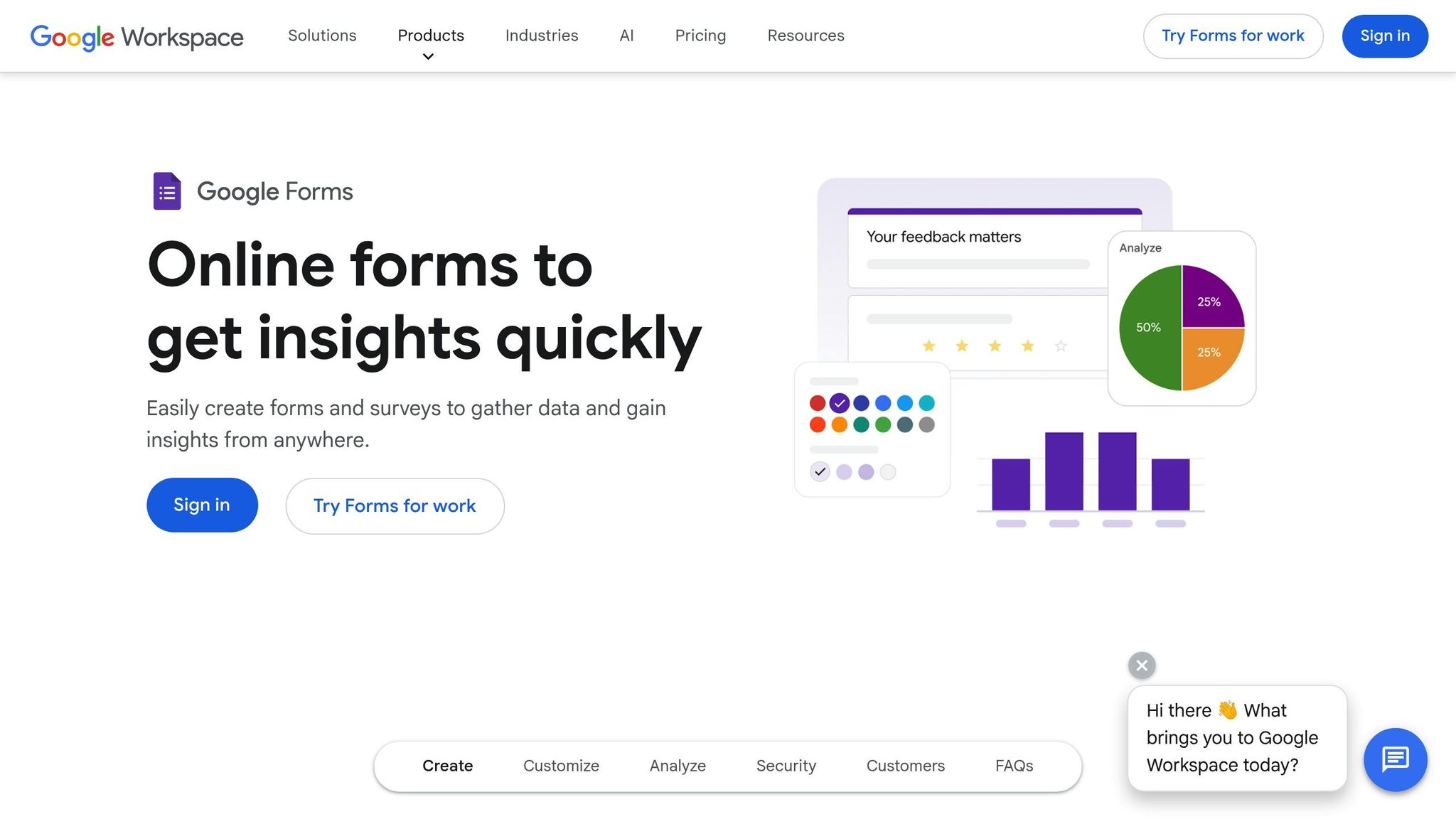
Streamlining IT workflows becomes much easier when you combine accurate data collection with automated approvals. The back-and-forth emails that bog down IT requests can waste a lot of time. By pairing Google Forms with Apps Script, you can automate the entire approval process - from the moment a request is submitted to the final notification - cutting out unnecessary administrative steps.
Here’s how it works: Set up a Google Form linked to a Google Sheet. Use Apps Script triggers like onFormSubmit to kick off the automation. When someone submits a request, the script immediately sends an automated email to the IT team. Admins can then review the request directly in the spreadsheet, updating the "Status" column to "Approved" or "Rejected." A time-driven trigger checks for status changes every five minutes and notifies the requester accordingly.
"We used to use emails, paper forms and PDFs for everything from basic forms to recruitment approvals. Many of these processes have moved to Google Forms. Everything is accessible anytime, anywhere; it's indispensable to how we work." - Alan Moynihan, Head of IT Customer Solutions, RSPCA
Creating Custom Approval Workflows
To build an effective approval workflow, start by identifying the key details you need, such as the requester’s email, department, device type, and justification. Enable the "Collect email addresses" option in your form settings so Apps Script can automatically pull the requester’s email without any manual input. Next, add "Status" and "Email Sent" columns to your linked Google Sheet. Use data validation to create dropdown menus with options like "Pending", "Approved", and "Rejected" to keep everything organized and consistent.
To avoid sending duplicate notifications, structure your script to check whether the "Email Sent" column is empty before firing off an update. Once an email is sent, mark the column with "Y" to ensure requesters only receive one notification per status update. For organizations handling a variety of approval types, you can take this further by using the Admin SDK Directory service in Apps Script. This allows you to automatically add approved users to Google Groups, granting them instant access to shared drives or communication tools.
Reducing Manual Work Through Automation
After setting up your workflows, automation takes over the repetitive tasks, freeing up time for more strategic work. Instead of manually tracking who submitted what and when, a single spreadsheet captures everything - timestamps, decisions, and admin notes - providing full transparency and a clear audit trail for compliance and reporting purposes. IT managers can even use custom menus to trigger notifications or archive old requests with a single click.
This approach isn’t limited to approvals. For example, Adrian Giacometti, Cloud NetDevOps Tech Lead at Paack, used Google Forms integrated with Google Chat to replace manual incident reporting via Slack. This change improved how warehouse shift incident reports were documented and processed, making it easier to identify recurring issues and resolve them efficiently. By combining event-driven triggers for immediate responses with time-driven triggers for periodic updates, you create a workflow that practically runs itself, requiring minimal manual effort.
Improving Team Communication with Google Meet
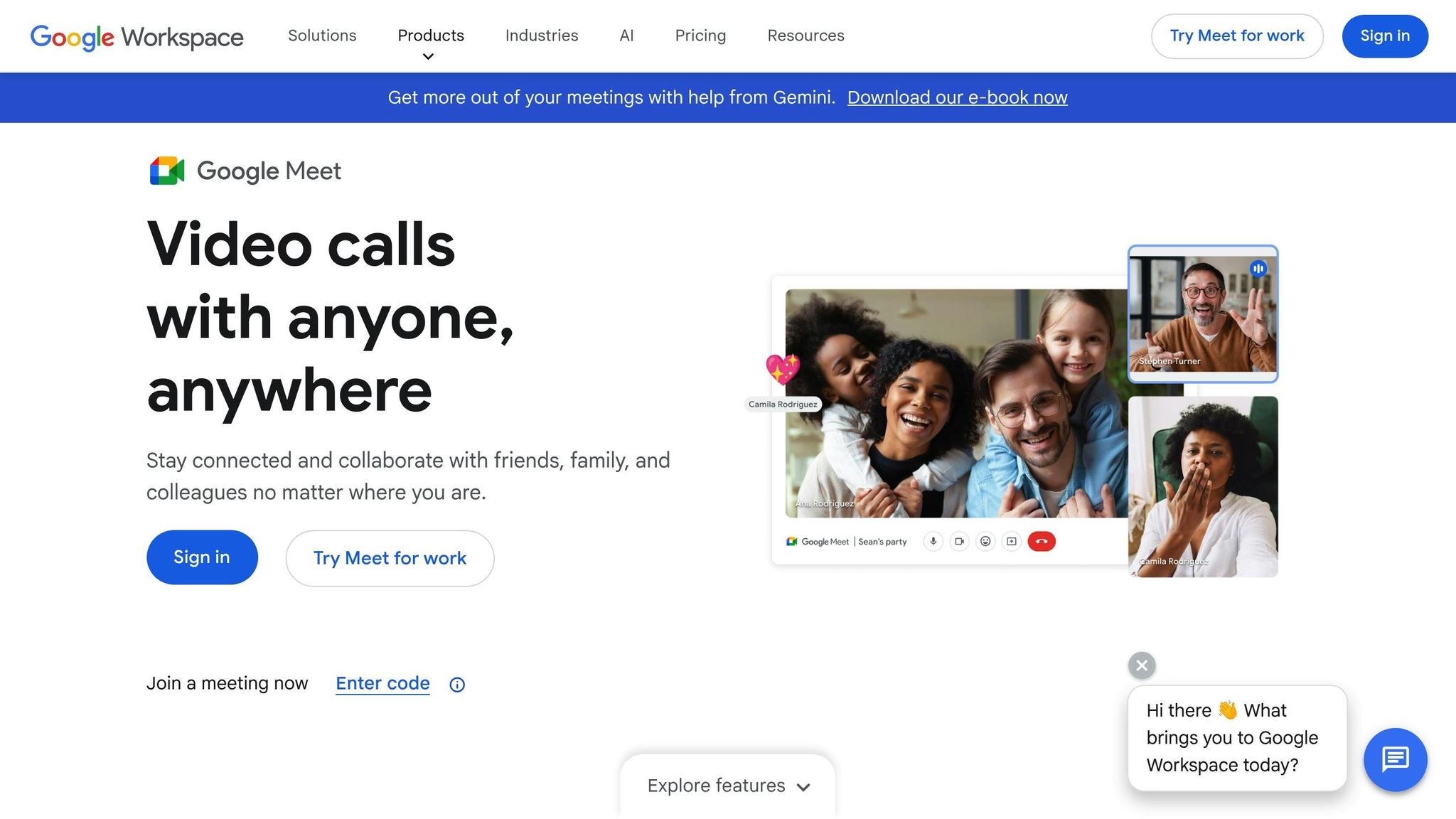
Once you've automated approvals and minimized manual tasks, the next step in streamlining IT workflows is making sure your team communicates effectively - whether they're working remotely or in a hybrid setup. Google Meet provides a reliable platform for virtual collaboration, helping IT teams troubleshoot issues, share technical insights, and stay on the same page, no matter where they are. This enhanced communication ties together earlier automation efforts, creating a more cohesive IT workflow.
Using Google Meet Features for Team Collaboration
Screen sharing is a game-changer for troubleshooting and demonstrating configurations. Pair this with breakout rooms, and you can turn large meetings into smaller, focused discussions. Need to brainstorm or map out a plan? Whiteboarding tools like FigJam, LucidSpark, or Miro can be integrated directly into the platform, so you don't have to jump between apps while working on network designs or incident response strategies.
For hybrid meetings, Google Meet's companion mode is a lifesaver. It allows in-room participants to use a second screen for chat, polls, and hand-raising without creating audio feedback issues. When dedicated conference room equipment isn’t available, adaptive audio synchronizes multiple laptops being used in the same space, cutting down on echoes and improving sound quality.
Google Meet also steps up its game with AI-driven features like "studio look", "studio lighting", and "studio sound", which significantly improve video and audio clarity - even for participants using basic headsets or dialing in from less-than-ideal setups. Real-time captions, including translations, make meetings accessible to global teams, while host controls ensure security and focus by allowing organizers to mute participants, limit screen sharing, and manage entry. These built-in tools lay the groundwork for even more advanced improvements.
Optimizing Meetings with AdminRemix's Meet Enhancement Suite
AdminRemix's Meet Enhancement Suite takes Google Meet's functionality to the next level, offering over 40 additional features specifically designed to refine IT team workflows. For example, the Auto Record feature ensures all troubleshooting sessions and technical discussions are recorded automatically. During large team meetings or emergencies, IT administrators can mute or remove participants with a single click, streamlining control.
The Take Attendance feature simplifies tracking by exporting participant lists as CSV files - perfect for training sessions or incident reviews. To improve knowledge sharing, the suite includes an AI transcription tool that generates meeting summaries and action items, which can be tagged and easily searched for future reference. This extension is already trusted by over 200,000 users.
"Adds the features that Google Meet should have had all along." - Trevor Harmon
Using AdminRemix Tools for IT Workflow Optimization
AdminRemix tools take IT process optimization to the next level by combining workflow automation with integrated asset management and metadata control. These tools seamlessly integrate with Google Workspace, allowing IT teams to manage assets and bulk tasks directly within Google Sheets and the admin console - no need for extra platforms or exporting data. By building on standardized workflows in Sheets and Forms, AdminRemix extends automation to IT asset and device management.
Managing IT Assets with AssetRemix
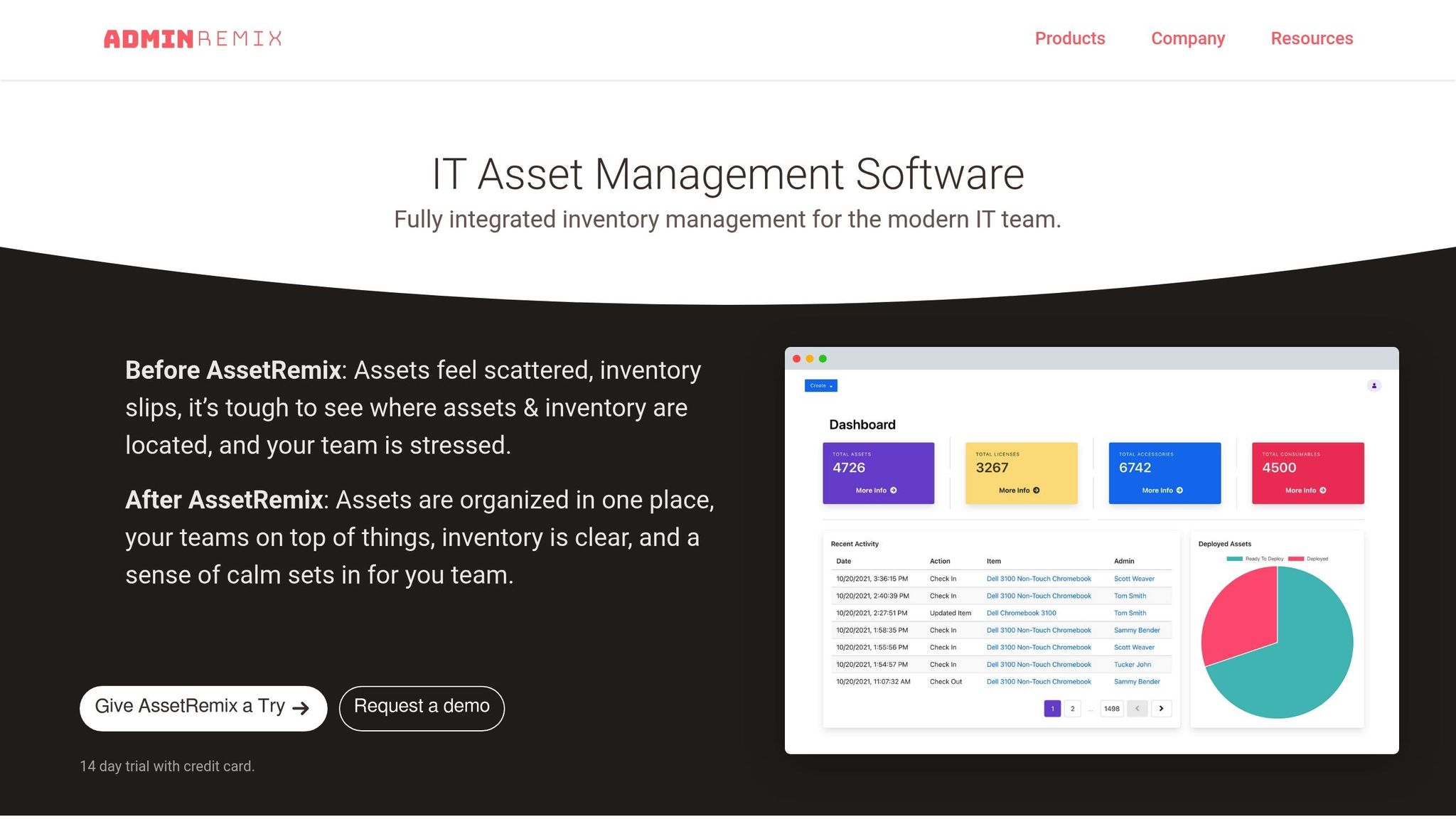
AssetRemix blends IT asset management with help desk capabilities by syncing directly with Google Workspace through directory sync and Single Sign-On (SSO). With SSO via Google, administrators can manage access through the familiar Google Admin console they use daily.
To enable SSO, simply configure the SAML application in your Google Admin console. Then, use the Directory Sync feature to automatically populate user metadata into the IT asset management (ITAM) system. Filters can be applied during the sync process, allowing you to include or exclude specific organizational units (OUs). This ensures that your asset database remains focused and free of unnecessary clutter, tracking only the assets and users relevant to your team.
Managing Chromebook and G-Suite Metadata with Chromebook Getter and User Getter
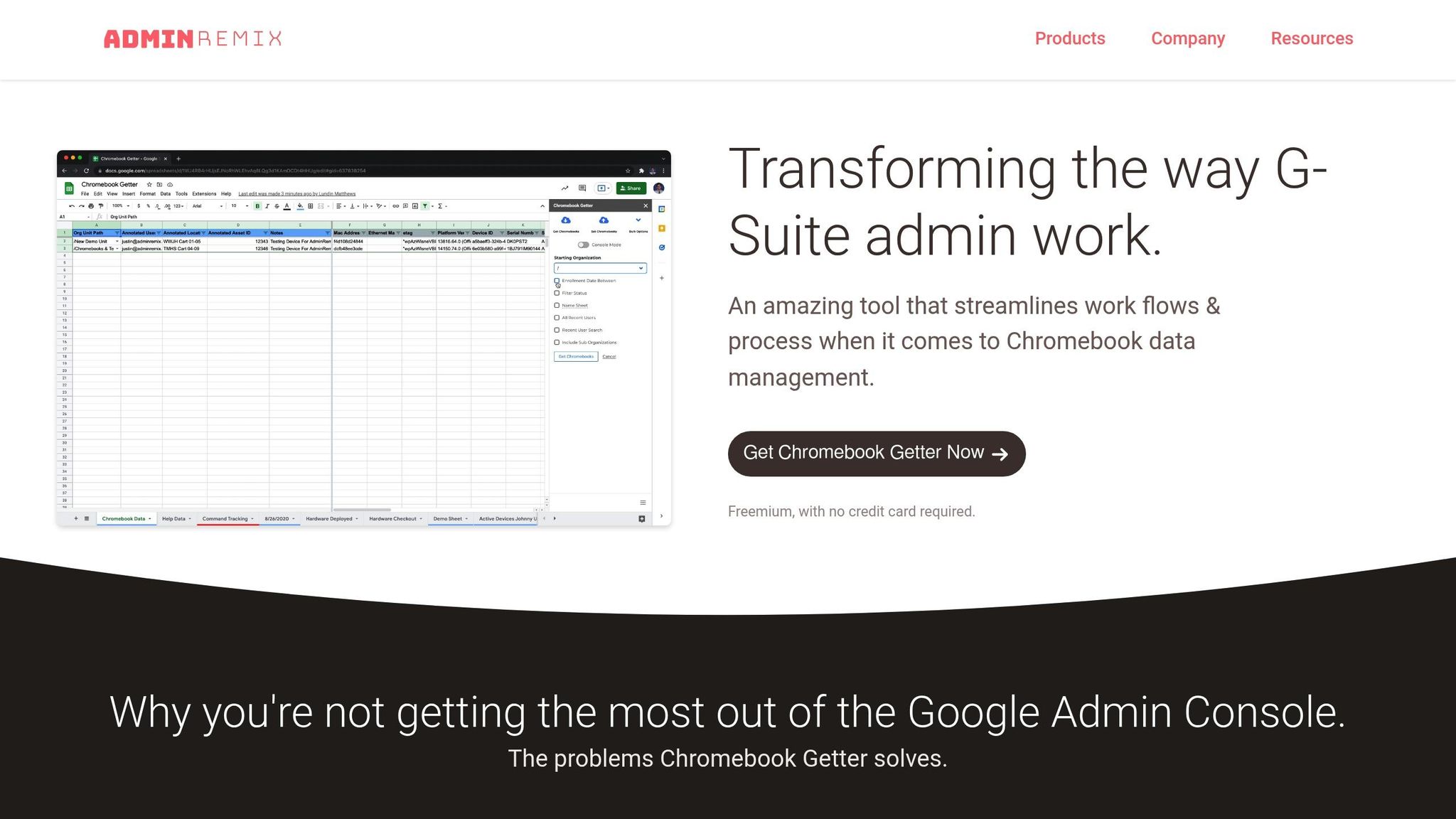
Chromebook Getter and User Getter simplify bulk management tasks within Google Sheets, eliminating the need for command-line tools. With over 3 million installs, Chromebook Getter has become a popular alternative to the now-deprecated "chromebookinventory" tool. These add-ons allow you to pull data for entire device fleets or specific OUs, edit metadata like asset tags and locations directly in Sheets, and then upload the changes back to the Google Admin Console.
"I signed up for Chromebook Getter because it's faster than getting what I need with GAM command lines." - Philip Helmers, SWBOCES LHRIC
Upgrading to the Premium tier ($20.75/month when billed annually) unlocks additional features like AUE (Auto Update Expiration) reports and bulk actions such as power washing or deprovisioning. These tools help maintain fleet performance and plan for hardware updates. User Getter, on the other hand, enables bulk password resets and organizational unit (OU) moves - tasks that can't be done in the standard Google Admin console. Over 350 premium G-Suite administrators rely on User Getter for everyday operations. Free accounts are available and support up to 500 uploads per month per domain.
Implementing Templates and Flows for Consistent IT Processes
When paired with data collection in Sheets and automated approvals from Forms, Workspace Studio flows bring a new level of structure to IT operations. By using no-code reusable templates and automated flows, Google Workspace Studio ensures that tasks like hardware requests, onboarding, and troubleshooting are handled consistently. Plus, it integrates effortlessly with other Google Workspace tools, making IT processes smoother and more reliable.
Creating Google Workspace Templates for Common IT Tasks
Workspace Studio templates go beyond simple sheet-based solutions by automating processes that span multiple apps. Each flow begins with a trigger and can include up to 20 task steps. For IT teams, triggers like "When a form response comes in" (ideal for hardware requests) or "When a sheet changes" (great for asset tracking updates) are commonly used.
Admins can share these flows as templates through the Admin console. When shared, the recipient gets a complete copy of the flow, including pre-set text, links, and conditions. This allows the entire IT team to follow a consistent process for tasks like creating project folders, logging support tickets, or sending Chat notifications to technicians.
Workspace Studio's Discover page offers pre-built templates for popular tasks, but IT teams can also build custom flows from scratch - or even describe the desired process to Gemini in plain language to generate a flow. To ensure uniformity, use conditional logic with the "Check if" step in your templates. For example, you can filter email subjects for "Urgent" or verify that form fields are correctly filled before a flow continues. Additionally, the "Ask Gemini" step can automate tasks like email categorization or transcript summarization, reducing errors caused by human input.
Maintaining Workflow Consistency with Google Workspace Flows
Once templates are standardized, it’s essential to monitor and maintain consistency using Workspace Studio's admin tools. The platform automates repetitive tasks, minimizing manual decision-making and promoting adherence to established procedures. Marina Kunert, Product Lead for AI Enablement at Kärcher, highlights its impact:
"Google Workspace Studio has been a powerful driver for individual and team productivity. It allows us to decentralize routine problem-solving, empowering teams to resolve 'quick wins' and delivering measurable, tangible productivity benefits right out of the gate."
To safeguard workflows, admins can implement guardrails. For instance, create a child organizational unit with Studio access disabled to act as an "emergency stop", instantly halting flows for any user if issues arise. Configure alerts to detect potential infinite loops, such as when a flow starts more than 100 times in an hour.
Be aware of Workspace Studio's limits: each user can create up to 100 flows (active or inactive), but only 25 active flows per user can start based on new Gmail messages. These limits encourage IT teams to focus on automating high-priority tasks rather than minor ones.
Lastly, use the Activity tab or the Admin Security Investigation Tool to track flow execution and confirm that teams are following the established procedures. These tools provide insights into which templates are most frequently used and highlight areas where further standardization might be helpful.
Conclusion
Standardizing IT workflows goes beyond cutting down on manual tasks - it's about laying the groundwork for scalable and consistent operations that evolve with your organization. Tools like Google Workspace's Sheets, Forms, Meet, and Google Workspace Flows offer built-in automation and collaboration features that help IT teams eliminate repetitive work and establish uniform processes across departments.
Pair these tools with AdminRemix to take efficiency to the next level. AssetRemix simplifies IT asset tracking and help desk management, while Chromebook Getter and User Getter allow bulk metadata management directly in Google Sheets - saving time by avoiding tedious individual updates. Meet Enhancement Suite enhances Google Meet with over 40 features, including "Mute All" and "Auto Record", boosting remote collaboration.
These upgrades can lead to substantial cost savings. For instance, Google estimates that Workspace Flows alone can save each team member 3 to 6 hours of manual work weekly, which translates to $12,000–$22,000 in annual productivity gains per person. As Tim Cakir, CEO & Founder of AI Operator, aptly says:
"AI handles the mundane, your team does the meaningful, and leaders get time back for high-value work".
Start by automating repetitive tasks like onboarding, support ticketing, and hardware requests, then expand automation efforts from there. Use shared flow templates to distribute standardized procedures and enforce controls through the Admin console as your organization scales. With Directory Sync ensuring consistency between Google Workspace and AdminRemix tools, as discussed earlier, your IT infrastructure stays organized and ready for audits.
FAQs
Where should I start standardizing IT workflows in Google Workspace?
Simplify your IT workflows in Google Workspace by leveraging Google Workspace Studio to automate repetitive tasks across apps like Gmail, Drive, and Sheets. With this tool, you can create automated flows using triggers and steps, making processes smoother and more efficient. By reducing manual effort, you can save time and focus on more critical tasks, ensuring operations run seamlessly.
When should I use Apps Script vs. Google Workspace Flows?
Apps Script is your go-to tool when you need custom, code-driven solutions. It's perfect for handling complex automation, integrating with external APIs, or writing detailed scripts. This is the tool to use if you're creating tailored triggers, custom functions, or even building add-ons specific to your needs.
On the other hand, Google Workspace Flows is designed for those who prefer a no-code, visual approach to automating workflows. It's ideal for setting up multi-step processes across Google apps without writing a single line of code. Flows work especially well for routine tasks like approvals or collecting data, and they even leverage AI to simplify these processes.
How can AdminRemix help keep asset data consistent in Google Workspace?
AdminRemix streamlines IT asset management in Google Workspace by automating data synchronization with Google Sheets. Leveraging tools like Google Apps Script, REST APIs, and add-ons, it centralizes inventory details, including serial numbers, warranty dates, and assigned users. This automation helps ensure records stay accurate and up-to-date, making IT operations more efficient.