
How Data Retention Works in Google Workspace
Data retention in Google Workspace ensures your organization manages, stores, and deletes data effectively across services like Gmail, Drive, Chat, and Meet. Without clear policies, you risk compliance issues, legal challenges, and unnecessary storage costs. Here's what you need to know:
- Default Behavior: Data stays in accounts until manually deleted unless retention rules are set up.
- Retention Rules: Admins can configure default or custom rules via Google Vault to control how long data is kept.
- Legal Holds: Overrides retention rules to preserve data indefinitely for investigations.
- Services Covered: Gmail, Drive, Chat, Meet, Calendar, Groups, Voice, and Sites.
- Retention Timelines: Vary by service; for example, Gmail data retention starts when a message is sent or received.
- Upcoming Change: As of November 1, 2025, Vault admins must have a Vault license to manage retention.
Retention settings help ensure compliance with legal and regulatory requirements. Missteps, like applying rules without testing, can lead to irreversible data loss. Plan carefully, test thoroughly, and monitor policies regularly.
Beginner To Expert With Google Vault in One Video! (setup guide)
sbb-itb-c68f633
Core Principles of Data Retention in Google Workspace
Google Vault Retention Rules vs. Legal Holds: Key Differences
Understanding Default Deletion Timelines
In Google Workspace, data doesn’t automatically disappear unless specific rules are set. By default, data stays in user accounts until someone actively deletes it. Once deleted or after a retention rule expires, the data enters a 30-day purge phase. For Google Drive files, there’s often an additional 15-day delay before permanent deletion. During this time, Vault admins can still access the data. Afterward, it’s gone for good. Similarly, Google Chat messages have a 30-day buffer after removal from a conversation.
Now, let’s break down the difference between proactive retention rules and reactive legal holds.
Retention Rules vs. Legal Holds
Retention rules and legal holds serve different purposes: one is for proactive data management, and the other is for responding to legal needs.
- Retention rules are proactive. You decide in advance how long data should stay before being purged.
- Legal holds are reactive. They’re used during investigations or legal cases to preserve data indefinitely until the hold is manually lifted.
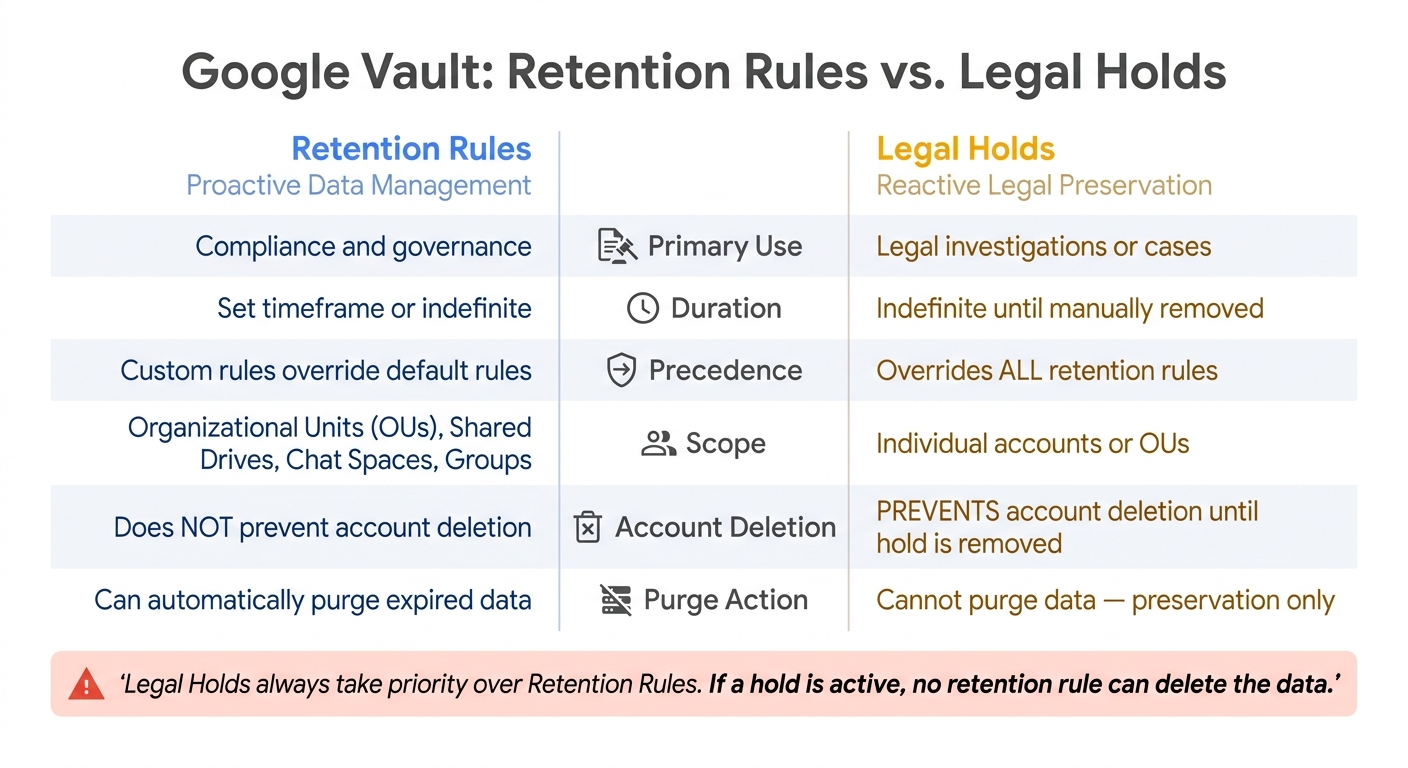
Legal holds always take priority over retention rules. If a legal hold is in place, no retention rule - no matter how short - can delete the data. Here’s a quick comparison of the two:
| Feature | Retention Rules | Legal Holds |
|---|---|---|
| Primary Use | Compliance and governance | Legal investigations or cases |
| Duration | Set timeframe or indefinite | Indefinite until manually removed |
| Precedence | Custom rules override default rules | Overrides all retention rules |
| Scope | Organizational Units (OUs), Shared Drives, Chat Spaces, Groups | Individual accounts or OUs |
| Account Deletion | Doesn’t prevent account deletion | Prevents account deletion until hold is removed |
One critical tip: don’t place legal holds on your top-level organizational unit. Doing so locks all user accounts from deletion, which can balloon eDiscovery costs and increase unnecessary data exposure.
Retention Across Data Types and Services
Retention policies don’t operate uniformly across Google Workspace services. The retention clock - the point when the countdown begins - varies by service. Misunderstanding this can lead to data being kept longer or shorter than planned.
| Service | Retention Clock Starts | Key Data Covered |
|---|---|---|
| Gmail & Groups | When the message is sent or received | Emails, attachments, drafts |
| Google Drive | When files are created, modified, trashed, or labeled | Files, Shared Drive items, Meet recordings |
| Google Chat | When the message is sent | Direct messages, group chats, spaces (if history is ON) |
| Google Calendar | When the event ends | Event details |
| Google Voice | When the call or message occurs | Call logs, voicemails, transcripts, texts |
For Google Chat, retention rules only apply if conversation history is enabled. If it’s turned off, those messages won’t be retained. Similarly, Meet recordings fall under Drive retention rules by default, unless you set up a separate rule specifically for Meet.
Configuring Data Retention Policies
Planning Your Retention Policies
Before diving into the setup, it's critical to consult with your legal and compliance teams. Your retention durations need to align with the regulatory requirements that apply to your industry, whether that's HIPAA, SOX, or state-specific data laws. Once these requirements are clear, assign them to each service, such as Gmail, Drive, or Chat.
Keep in mind that Google Vault powers all retention settings, so ensuring that all Vault administrators have the necessary licenses is essential. Vault is included in Business Plus, Enterprise, and Education editions. If you're using Business Starter or Standard, you'll need to purchase it separately. Additionally, if you currently use the "Email and chat auto-deletion" setting in the Admin console, turn it off before setting up Vault rules. This avoids conflicts when applying new rules.
Creating and Testing Retention Rules
Once you've defined your regulations, it's time to configure and test the rules that will enforce your data retention policies. Google Vault offers two types of rules:
- Default rules: These apply globally to a service when no other rule exists.
- Custom rules: These target specific organizational units (OUs), date ranges, or search terms.
Custom rules override default ones, and if multiple custom rules apply, the rule with the longest retention period takes precedence.
Important: Submitting a new rule immediately purges any data that exceeds the retention period. Since this action cannot be undone, it's wise to test new rules on a smaller OU before rolling them out across your organization. Also, be aware that new or updated rules might take up to 24 hours to fully propagate.
Here are some additional details to consider:
- Gmail: If even one message in a thread is subject to a rule or hold, the entire thread is retained.
- Google Drive: Rules for items "moved to trash" override all other Drive retention rules, even those with a later expiration date.
- Google Chat: Retention rules only apply when conversation history is enabled.
- Drive labels: Retention can be triggered by metadata fields like "Contract Date", not just when a file was created or modified.
Vault can retain data for up to 36,500 days (approximately 100 years), offering flexibility for long-term compliance. Once your rules are thoroughly tested, you can rely on automation to maintain compliance.
Using Automation to Support Retention Compliance
Once you've established and tested your retention rules, Vault's automation takes over to handle data purges and compliance across your services. When a retention period ends, Vault removes the data from user accounts and starts the purge process from Google's systems. However, there's a built-in 30-day buffer (or up to 15 days for Drive files), during which data remains accessible to Vault admins before permanent deletion. Child OUs inherit retention rules from their parent OU, simplifying rule management for larger organizations.
For IT teams managing Google Workspace at scale, tools like AdminRemix can simplify retention compliance by streamlining tasks like user lifecycle management. This ensures user data stays organized and accessible before accounts are deprovisioned. Additionally, Vault's Multi-Party Approval (MPA) feature adds a layer of accountability by requiring a second admin to approve any data export request. These tools and features help ensure your retention policies are both effective and secure.
Retention Strategies for Specific Google Workspace Services
Gmail and Google Groups
Retention in Gmail begins the moment a message is sent or received, applying to emails, attachments, and even drafts. A key detail: if a single message in a thread matches a retention rule or is placed on hold, the entire thread is preserved. Messages marked with ^deleted are retained for at least 30 days before Vault processes them, even if the retention rule has already expired. Admins can fine-tune retention rules based on organizational units (OUs), specific date ranges, or search terms, offering precise control over what data is retained and for how long.
Next, let’s dive into how retention policies apply to Google Drive.
Google Drive and Shared Drives
Retention in Google Drive is triggered by actions like creating, modifying, trashing, or applying specific label dates to a file. This flexibility is especially useful for compliance needs, such as retaining files based on contract signing dates or project closures. However, files moved to the trash follow trash-specific retention rules, which override other policies.
For shared drives, only rules targeting "All shared drives" or specific drives can delete files - OU-specific rules can retain items but cannot delete them. After a retention period ends, files may remain visible to users for up to 15 days, and admins have an additional 25 days to recover deleted files before they are permanently removed.
Now, let’s look at how Google Chat and Google Meet handle retention.
Google Chat and Google Meet
Google Chat retention policies differ from Gmail in a notable way: the retention clock starts when a message is sent and doesn’t reset if the message is edited or deleted later. For 1:1 direct messages with external participants, the retention policy of the conversation creator applies. For internal users, Vault enforces the longer retention policy.
Meet data - like recordings, transcripts, Gemini notes, Q&A logs, and polls - are stored in Google Drive, so Drive retention rules apply by default. However, admins can manage Meet data separately by enabling Meet-specific retention in Vault settings. There’s a crucial sequence to follow: create the retention rules first, then enable the Meet-specific setting. Activating the setting without rules in place can lead to an immediate purge of unprotected data.
One exception exists: if "continuous chat" is used during a Meet session, those messages are treated as Google Chat spaces and follow Chat retention policies instead.
| Meet Data Component | Default Retention Tool | Alternative Management |
|---|---|---|
| Meet Recordings | Google Drive Rules | Meet-specific Rules (if enabled) |
| In-Meet Chat Logs | Google Drive Rules | Meet-specific Rules (if enabled) |
| Continuous Chat | Google Chat Rules | N/A |
| Gemini Meeting Notes | Google Drive Rules | Meet-specific Rules (if enabled) |
| Q&A and Polls | Google Drive Rules | Meet-specific Rules (if enabled) |
Maintaining Compliance and Governance
Legal Holds and eDiscovery
When dealing with litigation or investigations, legal holds ensure that data is preserved indefinitely, overriding any pre-set retention rules.
In Google Vault, legal holds are organized within a "matter" - a container that groups related data, searches, and exports for a specific investigation. Setting up a hold involves specifying the service (like Gmail, Drive, or Chat), defining the scope (individual accounts or organizational units), and applying filters (such as date ranges or keywords). For holds involving Drive, selecting "Include Shared Drives" ensures files in Shared Drives are also preserved.
Vault supports the complete eDiscovery process in three stages:
- Identification: Search by user, date, or keyword.
- Preservation: Place legal holds.
- Collection: Export data for review.
Keep in mind that exported data only remains available for download in Vault for 15 days before it is automatically deleted. To avoid losing access, download and securely store exports promptly.
For environments requiring higher security, enable Multi-Party Approval (MPA) in the Admin console. This feature ensures that export requests require a second administrator’s approval before sensitive data leaves Vault. These tools are part of Google Workspace's broader compliance ecosystem.
| Feature | Legal Holds | Retention Rules |
|---|---|---|
| Primary Use | Litigation or internal investigations | Proactive data lifecycle management |
| Duration | Indefinite (until manually removed) | Specified period or indefinite |
| Purge Action | Cannot purge data | Can automatically purge expired data |
Next, let’s examine how user lifecycle management ties into retention practices.
Retention and User Lifecycle Management
Managing user accounts during off-boarding is a critical part of maintaining data retention policies. Administrators have a 20-day window to recover deleted accounts, but any data marked for deletion during this time is no longer protected by active holds or retention rules and may be purged.
Before deleting a user account, check for any active holds in Vault. If the data needs to be retained, consider assigning the user an "Archived User" license instead of deleting the account. This approach keeps the data accessible in Vault without requiring a fully active license.
Be aware that removing a Vault-supporting license from a user account disables any holds tied to that account, leaving the data vulnerable to deletion. Regular license audits can help ensure compliance and prevent accidental data loss.
Monitoring and Reviewing Retention Policies
Once your retention policies and holds are configured, continuous monitoring becomes essential. Regularly reviewing policies helps ensure compliance as regulations and organizational needs evolve. Actions like creating, editing, or deleting rules, as well as performing searches and exports, are all documented in Vault's uneditable audit log. Reviewing this log establishes a clear chain of custody and can help identify unauthorized or accidental changes.
Additionally, check your Admin console storage settings to avoid conflicts with Vault retention rules. For example, ensure that email and chat messages are set to "Do not delete email and chat messages automatically," as conflicting settings can bypass Vault's protections and lead to unexpected data loss. Also, confirm that "comprehensive message storage" is enabled to ensure emails sent by Google services on behalf of users are properly captured and retained.
Conclusion
Data retention in Google Workspace acts as a crucial safety net, offering protection across legal, operational, and financial areas. By setting up retention rules correctly, you can ensure that data remains secure - even if users delete files, empty their trash, or leave the organization.
A few key points to keep in mind: legal holds always override retention rules, custom rules take priority over default ones, and once data is purged, recovery is impossible.
"Vault doesn't retain data until you set up retention rules. Until you do, users can delete data and services can purge it according to that service's protocol." - Google Support
Starting November 1, 2025, Google Workspace administrators will need a Google Vault license to manage retention settings. These details are essential for building a reliable retention framework.
Take the time to review your setup. Make sure all messages are stored as required, check Vault audit logs regularly, and ensure retention rules align with Gmail's auto-deletion policies. A well-structured retention strategy not only supports compliance but also positions your organization to handle future challenges effectively.
FAQs
Will Vault retain data if I don’t set retention rules?
Without applying retention rules in Google Vault, data remains in user accounts indefinitely - until it’s manually deleted by users or administrators. Vault doesn’t automatically manage or remove data unless retention rules are explicitly set.
What happens if a new retention rule would delete old data?
When you configure a new retention rule to delete old data, that data will be permanently and irreversibly erased from user accounts and Google's systems after the retention period expires. This means the data cannot be recovered, making it essential to thoroughly review and set up retention rules with care before implementing them.
How do I avoid losing data when off-boarding users?
To safeguard data during the off-boarding process in Google Workspace, it's crucial to archive user accounts or implement retention policies. Archiving ensures that the data remains intact and protected under Google Vault rules, allowing licensed users to search and export it as needed.
Google Vault plays a key role here by letting you set retention periods. This ensures that even if files are deleted or accounts are deactivated, the data stays accessible. Additionally, before deactivating any accounts, it's a smart move to export essential data using tools like Google Takeout or specialized migration services. This way, nothing important slips through the cracks.