
Google Workspace Tools for Help Desk Teams
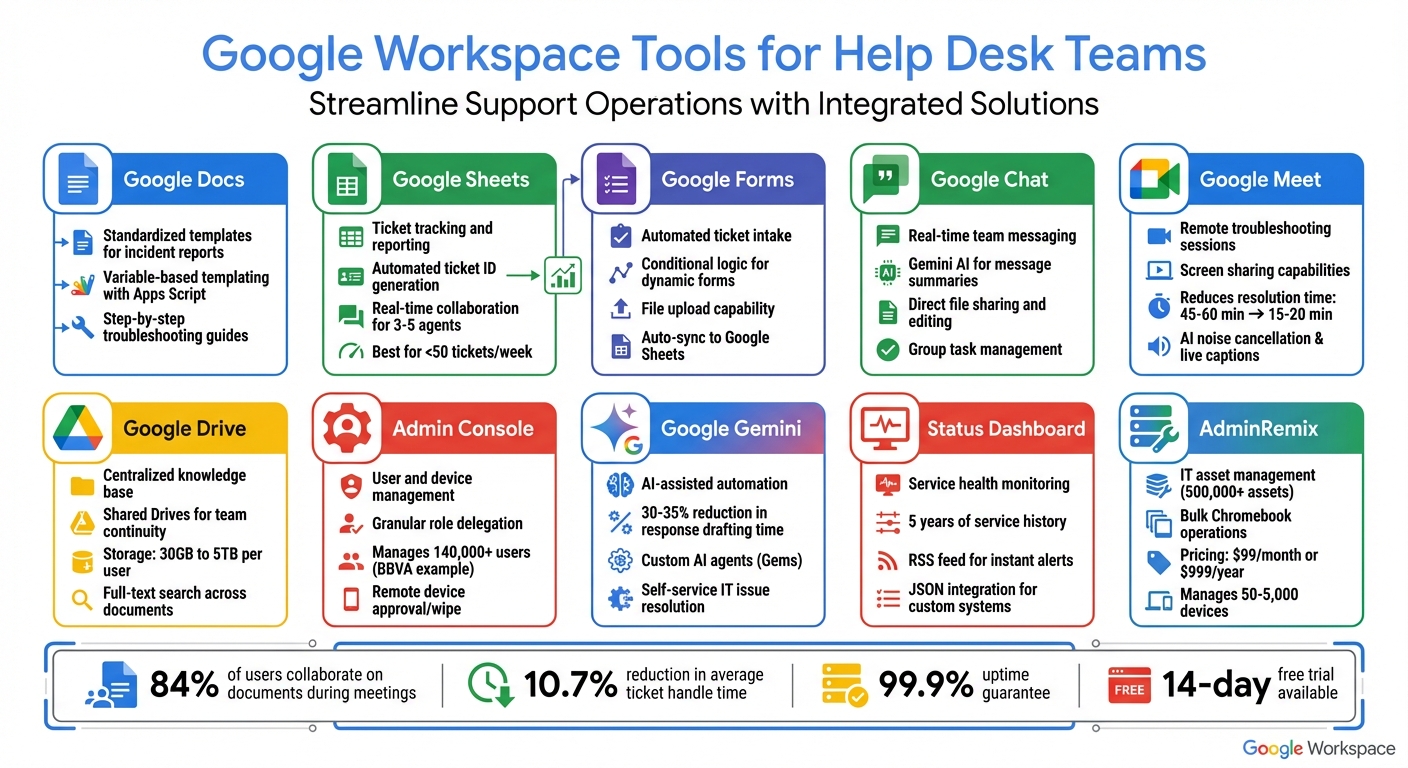
Google Workspace offers a suite of tools designed to help desk teams manage support requests efficiently. From ticket tracking to real-time collaboration, these tools address common challenges like scattered workflows, duplicate efforts, and unclear ownership. Key highlights include:
- Google Docs: Create standardized templates for incident reports and troubleshooting guides.
- Google Sheets: Track tickets, automate updates, and analyze data with integrated tools.
- Google Forms: Streamline ticket intake with conditional logic and file uploads.
- Google Chat: Facilitate quick communication and task assignments within a single interface.
- Google Meet: Enable remote troubleshooting with screen sharing and AI-powered features.
- Google Drive: Centralize knowledge bases with shared drives and advanced search options.
- Admin Console: Manage users, devices, and permissions from one dashboard.
- Google Gemini: Automate repetitive tasks and assist with drafting responses using AI.
- Status Dashboard: Monitor service health and manage user expectations during outages.
- AdminRemix: Simplify IT asset management and bulk operations.
These tools integrate seamlessly, helping teams reduce ticket resolution times, improve collaboration, and maintain organized workflows. Whether you're a small team or a large enterprise, Google Workspace scales to meet your needs.
10 Google Workspace Tools for Help Desk Teams: Features and Use Cases
1. Google Docs for Standardized Help Desk Templates
Using standardized templates ensures that ticket documentation remains consistent and thorough. With Google Docs, help desk teams can design templates for various needs - like incident reports, troubleshooting guides, or post-mortem summaries - ensuring all critical information is included every time.
Features for Help Desk Operations
Google Docs offers tools like variable-based templating, which allows placeholders (e.g., , %%Description%%) to be automatically filled with real-time data using Apps Script. This is particularly useful for generating incident summaries or resolution documents programmatically.
Troubleshooting guides can be created in Docs to provide clear, step-by-step instructions. For example, teams can design tables with columns such as "Basic Checks", "Browser Troubleshooting", and "Account Issues" to help users address common problems before escalating tickets. Consistent text styles and spacing ensure polished PDF exports for professional documentation.
Integration Capabilities with Other Google Workspace Tools
Google Docs integrates effortlessly with other Google Workspace tools, streamlining help desk workflows. For instance, linked charts from Google Sheets can be embedded directly into support reports. These charts automatically update when the underlying ticket data changes, saving time and reducing errors. Apps Script can also automate the creation of post-mortem documents after incidents are resolved. Additionally, Workspace Studio enables administrators to deploy standardized "flow" templates, ensuring consistency across the organization.
Collaboration and Productivity Benefits for Help Desk Teams
Templates stored in Shared Drives help maintain institutional knowledge and ensure smooth team transitions. Features like the automatic outline make navigating lengthy technical manuals easier, while tools like Gemini can summarize long documents or refine grammar, lightening the workload during busy periods. Together, these features enhance efficiency and reduce stress for help desk agents.
Next, we'll explore how Google Sheets complements these operations with ticket tracking and reporting capabilities.
sbb-itb-c68f633
2. Google Sheets for Ticket Tracking and Reporting
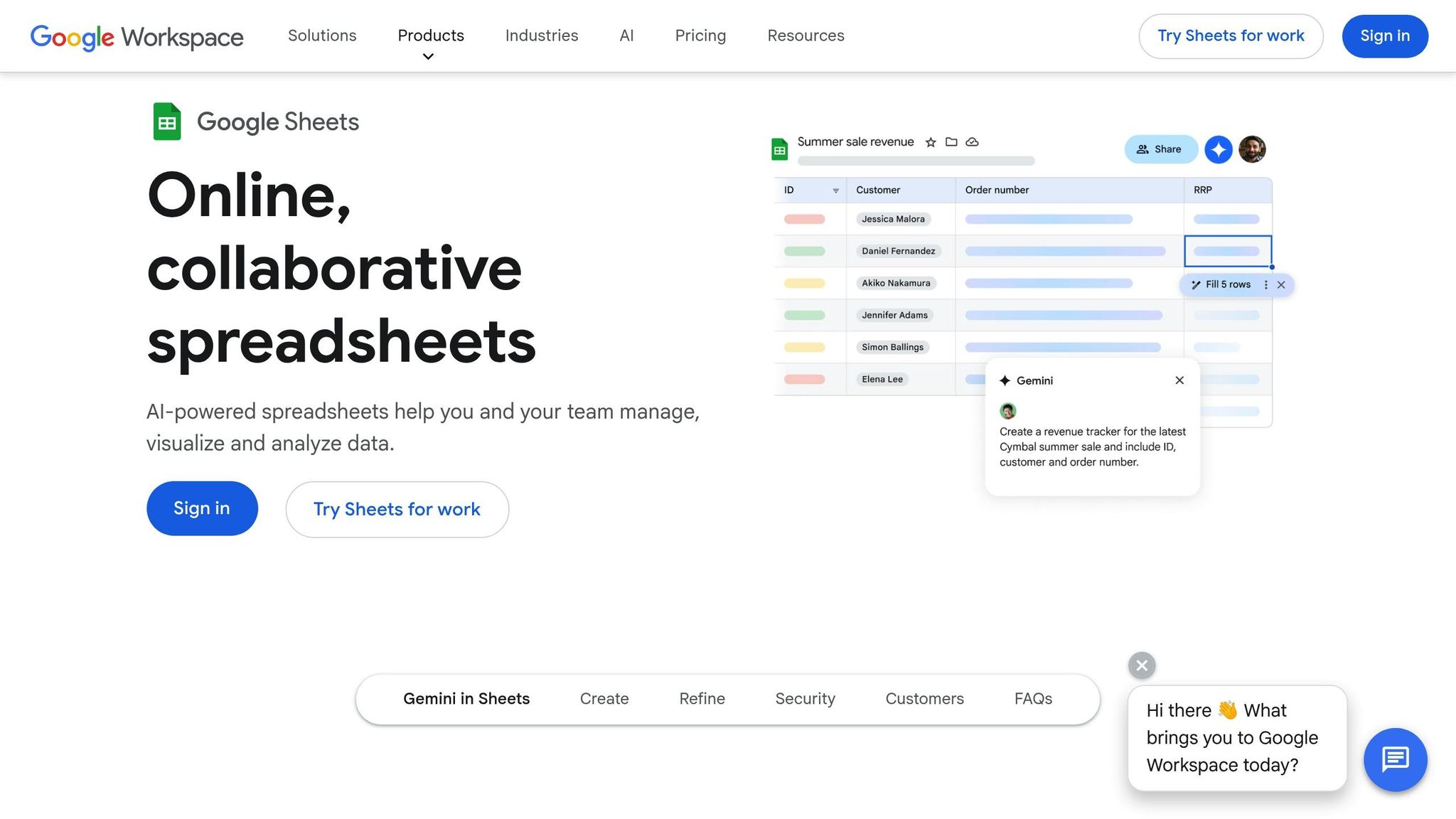
Google Sheets takes support tracking to the next level by turning support requests into organized, trackable rows. For small help desk teams managing fewer than 50 tickets weekly, a customized Google Sheet offers a cost-free alternative to pricey helpdesk software.
Features for Help Desk Operations
A Sheets-based ticketing system starts with structured data collection. When paired with Google Forms, each support request automatically populates as a new row, complete with fields like priority level, issue category, and timestamp. Teams can use the following formula:
=ARRAYFORMULA(IF(ISBLANK(B2:B),, "TID-" & TEXT(SEQUENCE(COUNTA(B2:B)), "0000")))
to create unique ticket IDs (e.g., TID-0001) for every submission.
Columns for status tracking (e.g., New, Open, In Progress, Closed) and an "Assigned To" dropdown ensure clear ownership of each ticket. Adding a "Time to Resolution" column helps identify delays or bottlenecks.
Integration Capabilities with Other Google Workspace Tools
Google Sheets integrates seamlessly with the rest of the Google Workspace. By connecting it to Google Forms, tickets can be automatically logged. Apps Script further automates tasks such as generating unique ticket codes, routing tickets, and sending email alerts for high-priority issues or status updates. For advanced analytics, data can be exported to Looker Studio for visual dashboards or connected to BigQuery through Connected Sheets to handle larger data sets.
"Google Sheets is our preferred spreadsheet application, giving us a real-time solution for collaboration to activate data-driven decisions."
– Chris Montfot, Head of Strategic Operations for Corporate Engineering, Robinhood
Gemini AI enhances this setup by crafting complex formulas, identifying support trends, and summarizing Gmail threads directly within the workspace. Using smart chips (by typing "@"), teams can quickly link technician names, key documents, or deadlines without leaving the spreadsheet.
Collaboration and Productivity Benefits for Help Desk Teams
Real-time co-editing allows multiple agents to update ticket statuses simultaneously, while version history ensures every change is logged - essential for auditing and maintaining continuity. Comments and @mentions enable direct task assignments within cells, and the FILTER function creates live dashboards that display only open or urgent tickets, keeping agents focused on what matters most.
Agents can even join Google Meet calls directly from the spreadsheet, making team discussions quick and convenient without switching apps.
Scalability for Teams of Different Sizes
This system works best for teams of 3–5 handling moderate ticket volumes. Google Sheets and Apps Script are included free with Gmail and Google Workspace accounts, with paid plans starting at $6 per user per month. However, as operations grow beyond five agents or more than 50 tickets weekly, teams might need to explore platforms built for SLA tracking and multi-channel support.
Next, we’ll dive into how Google Forms streamlines ticket intake.
3. Google Forms for Intake and Automated Ticketing
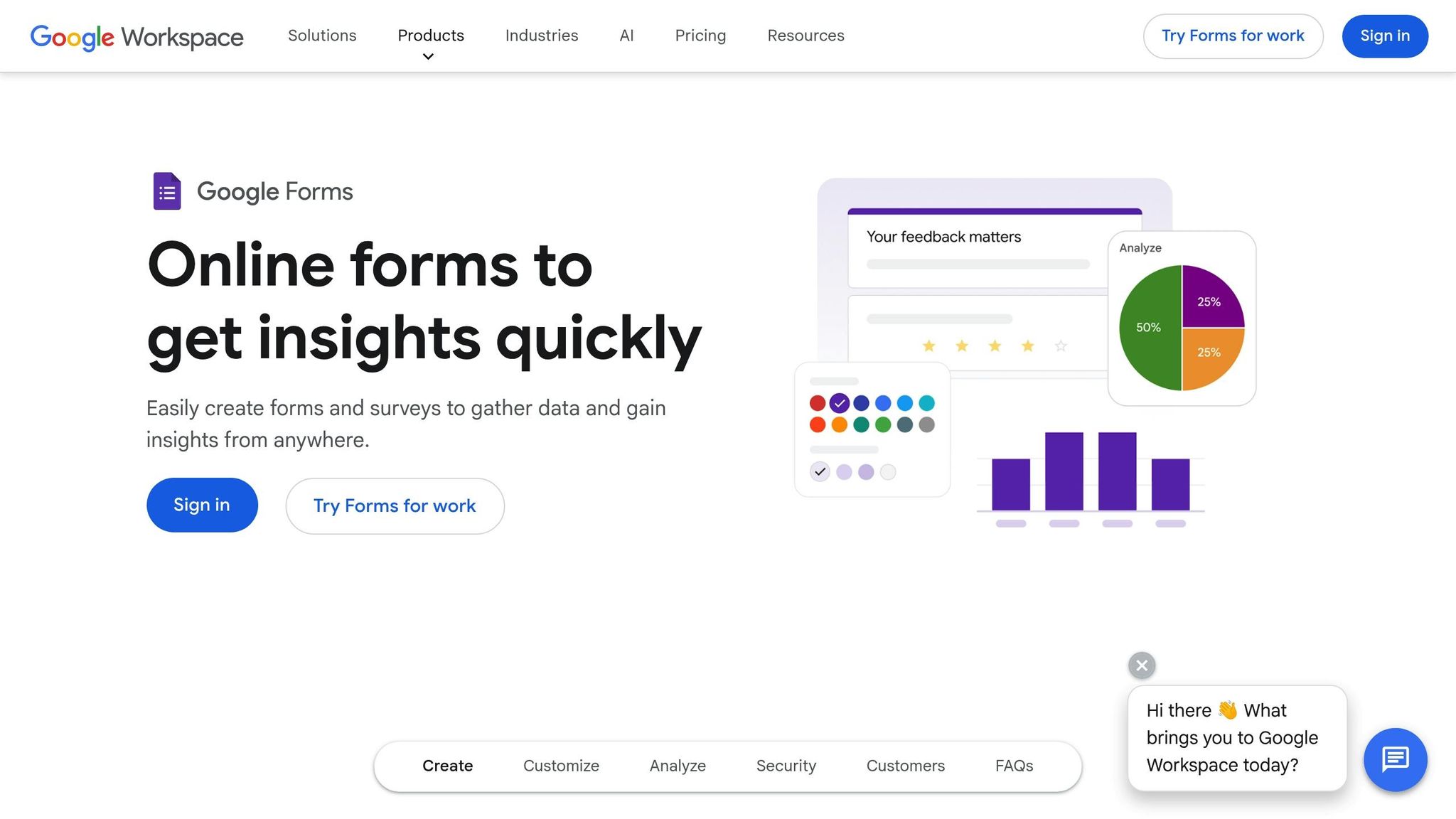
Google Forms turns support requests into actionable tickets by using standardized intake forms that capture key details like issue descriptions, priority levels, and contact information.
Features for Help Desk Operations
One standout feature of Google Forms is its conditional logic. With the "Go to section based on answer" option, you can create dynamic forms that adjust based on user responses. For example, a form might ask, "Are you opening a new ticket or updating an existing one?" and then show relevant follow-up questions. This keeps the form streamlined and boosts completion rates.
The file upload feature lets users attach screenshots or error logs directly to their submissions, speeding up the troubleshooting process. However, this feature requires users to be signed into a Google account, making it ideal for internal teams. To maintain data accuracy, response validation ensures inputs like email addresses or phone numbers follow the correct format. Plus, when users are signed in, Google Forms automatically saves their progress as a draft for up to 30 days, making it easier to handle complex submissions over multiple sessions.
Integration Capabilities with Other Google Workspace Tools
Every form submission is automatically synced to a linked Google Sheet, creating a real-time database of tickets without requiring manual effort. Tools like Apps Script and AppSheet add another layer of automation and mobile-friendly functionality, making ticket management even smoother. You can also embed forms directly into internal Google Sites, creating a central hub for submitting requests.
"We used to use emails, paper forms and PDFs for everything from basic forms to recruitment approvals. Many of these processes have moved to Google Forms. Everything is accessible anytime, anywhere; it's indispensable to how we work."
– Alan Moynihan, Head of IT Customer Solutions, RSPCA
Collaboration and Productivity Benefits
Google Forms comes with built-in automated charts, offering instant visual insights into response data. This helps managers track ticket volumes and identify trends at a glance. Additionally, Google Workspace tools like Gemini can search and summarize form-related emails in Gmail, making it easier to hand off complex tickets. Shared Gmail aliases with delegation features allow support teams to handle requests collaboratively.
Scalability for Teams of Different Sizes
Google Forms is included with a Google Workspace subscription, making it a budget-friendly solution for smaller teams. It works best for groups of three to five people managing fewer than 50 tickets per week. For larger teams or those with more complex needs, a dedicated helpdesk platform with features like SLA tracking and multi-channel support might be a better fit.
"The ability to connect Sheets with third-party data analytics tools and the powerful data aggregation and reporting capabilities of Forms, has enabled us to enhance our productivity and management efficiency."
– Jerry Yang, Senior Director, HwaCom
This streamlined intake process lays the groundwork for real-time collaboration in Google Chat.
4. Google Chat for Real-Time Team Collaboration
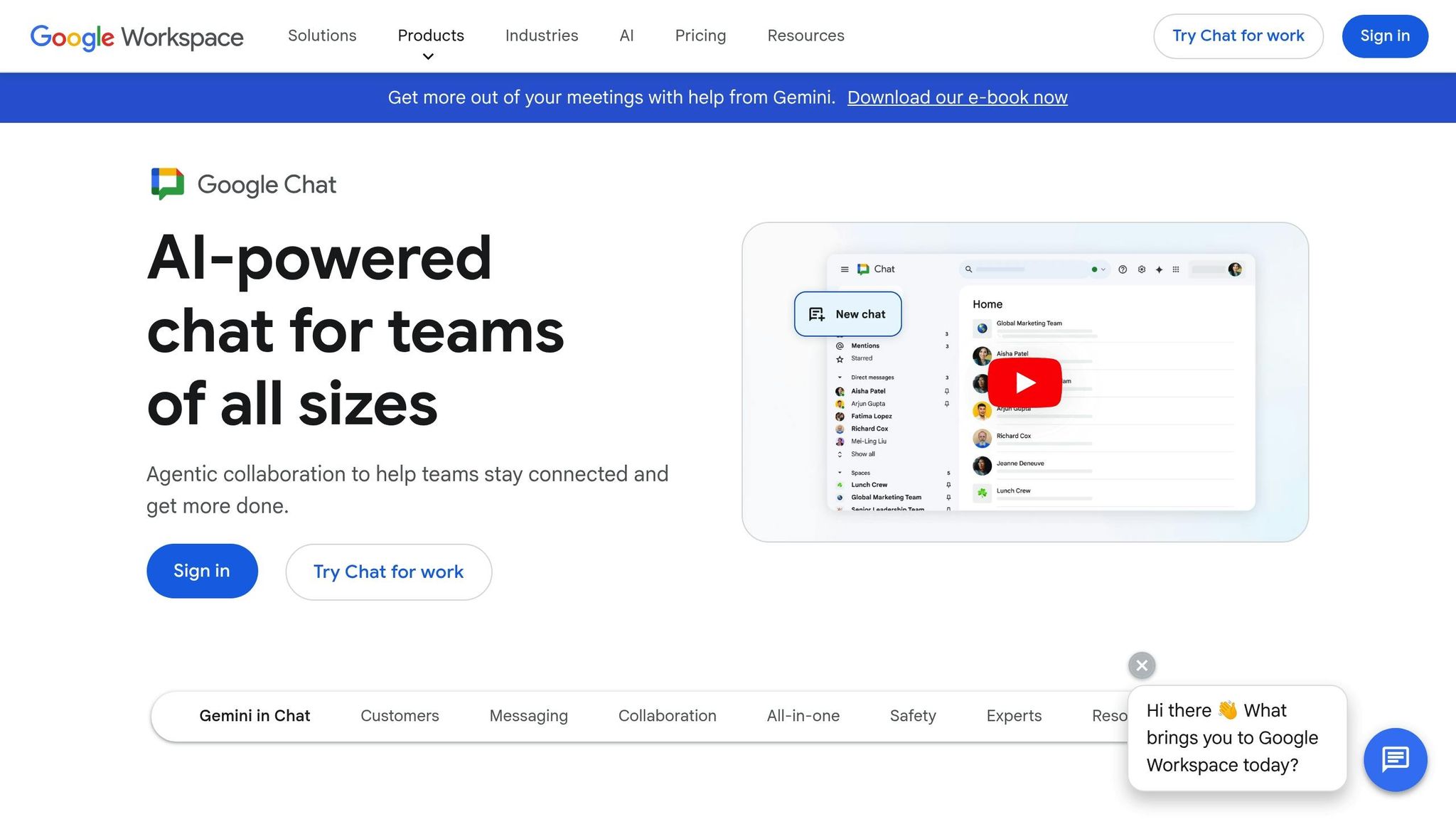
Google Chat streamlines communication by replacing lengthy email exchanges with instant messaging, helping help desk teams stay on the same page. Agents can exchange quick one-on-one messages or set up dedicated spaces for specific incidents, teams, or projects. With direct integration into Gmail, technicians can easily reference support emails while chatting, keeping everything in one place.
Features for Help Desk Operations
Google Chat’s integration with Gmail is just the beginning - it comes loaded with tools designed to make real-time support more efficient. Gemini AI helps agents manage large volumes of information by summarizing unread messages, creating action items from troubleshooting discussions, and searching chat histories for specific details. The search functionality is especially robust, supporting commands like newer_than:365d or is:dm to quickly locate incident details or shared files from previous conversations.
Agents can also open and edit Google Docs or Sheets directly within the chat window, right alongside their conversations. File sharing through Drive is simple, with automatic permission prompts, bulk media uploads, and markdown support for technical snippets. Within any space, teams can assign and track group tasks, which automatically sync with the assignee’s personal Google Tasks list.
Integration Capabilities with Other Google Workspace Tools
Google Chat works seamlessly with the entire Workspace suite, enabling teams to move quickly between tools. For example, they can jump from a text-based chat to a Google Meet video call using the "Calendar invite" option in the reply area. The Google Drive app for Chat provides real-time updates, notifying teams when files like logs or screenshots are added to shared folders. Using Apps Script and the Chat API, teams can even automate the creation of incident response spaces, pre-fill them with responders, and post initial incident details automatically. These integrations ensure that help desk teams can respond quickly and stay organized.
Scalability for Teams of Different Sizes
Google Chat is included with all Google Workspace subscriptions, making it accessible to teams of any size. Organizations can create "discoverable" spaces that anyone can join, or sync Google Groups with spaces to ensure new members automatically gain access. As teams grow, administrators can use the Space Management Tool in the Google Admin console to audit inactive spaces, manage space permissions, and search for spaces based on specific criteria. This flexibility aligns with Google Workspace's goal of unifying tools for smooth collaboration.
"Our reliance on email has dropped exponentially, and that's all thanks to Chat. It brings much more immediacy to our work, which is a big win for everyone at SCL Health."
– Craig Richardville, Chief Information & Digital Officer, SCL Health
5. Google Meet for Remote Troubleshooting Sessions
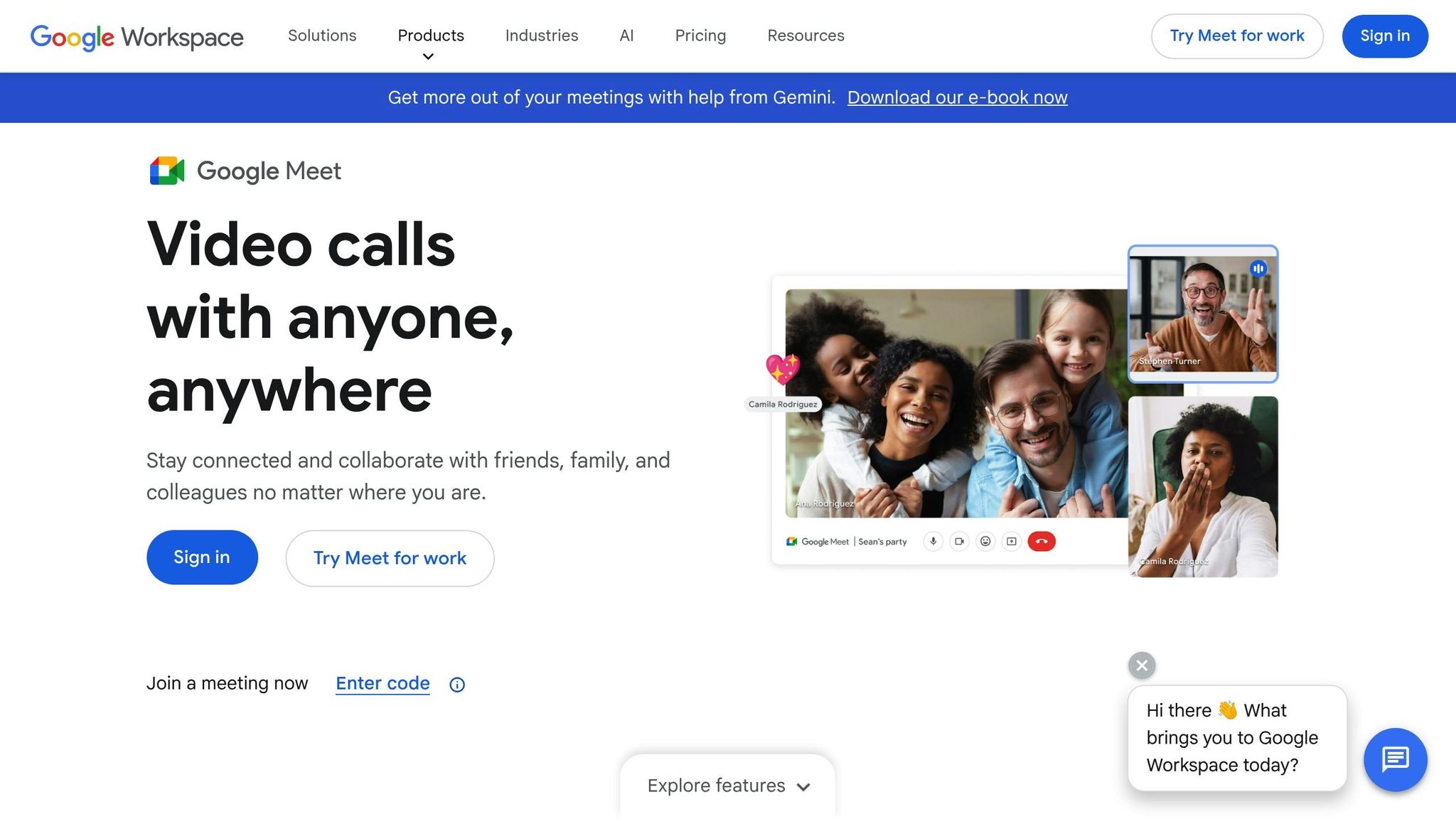
Google Meet simplifies troubleshooting by turning lengthy email exchanges into quick, focused video calls. With screen sharing, agents can resolve complex issues in just 15–20 minutes instead of the usual 45–60 minutes. Even training sessions see a dramatic reduction - from 2–3 hours to just 30–45 minutes.
Features for Help Desk Operations
Screen sharing is a game-changer, allowing agents to view user issues in real time. Additional features like AI-powered noise cancellation help eliminate distracting background sounds during calls. For multilingual teams, live translated captions improve accessibility and collaboration. The "Take Notes for Me" feature automatically captures and organizes meeting notes in Google Docs. Plus, meeting recordings and transcripts are stored in Google Drive, creating a searchable archive of solutions for future reference.
Integration Capabilities with Other Google Workspace Tools
Google Meet works seamlessly with other Google Workspace apps. For example, agents can join calls directly from Google Docs, Sheets, or Slides while reviewing technical documentation alongside users. Google Calendar automatically generates Meet links for scheduled support sessions, making it easy for users to book troubleshooting appointments. The integration of Gemini AI adds even more functionality, offering real-time speech translation and automated note-taking to ensure nothing is missed during discussions. Additionally, Google Meet hardware supports joining third-party meetings - like Zoom, Cisco Webex, and Microsoft Teams - without any extra fees.
Scalability for Teams of Different Sizes
Whether you're part of a small help desk team or an enterprise operation, Google Meet scales effortlessly. It supports up to 100 participants in basic plans and up to 1,000 in Enterprise editions. Admins can use the Meet quality tool in the Google Admin console to address connectivity issues in real time, ensuring uninterrupted support sessions. Host controls also let moderators manage permissions, such as disabling chat or screen sharing, to maintain security during external calls.
For help desk teams managing high ticket volumes, identifying "video-appropriate" tickets - like those involving multi-step configurations - during triage is essential. Escalating these tickets to screen-sharing sessions ensures faster and more effective resolutions.
Google Meet integrates smoothly into your overall support operations, creating a unified workflow. Up next, let’s dive into user and asset management capabilities.
6. Google Drive for Centralized Knowledge Base
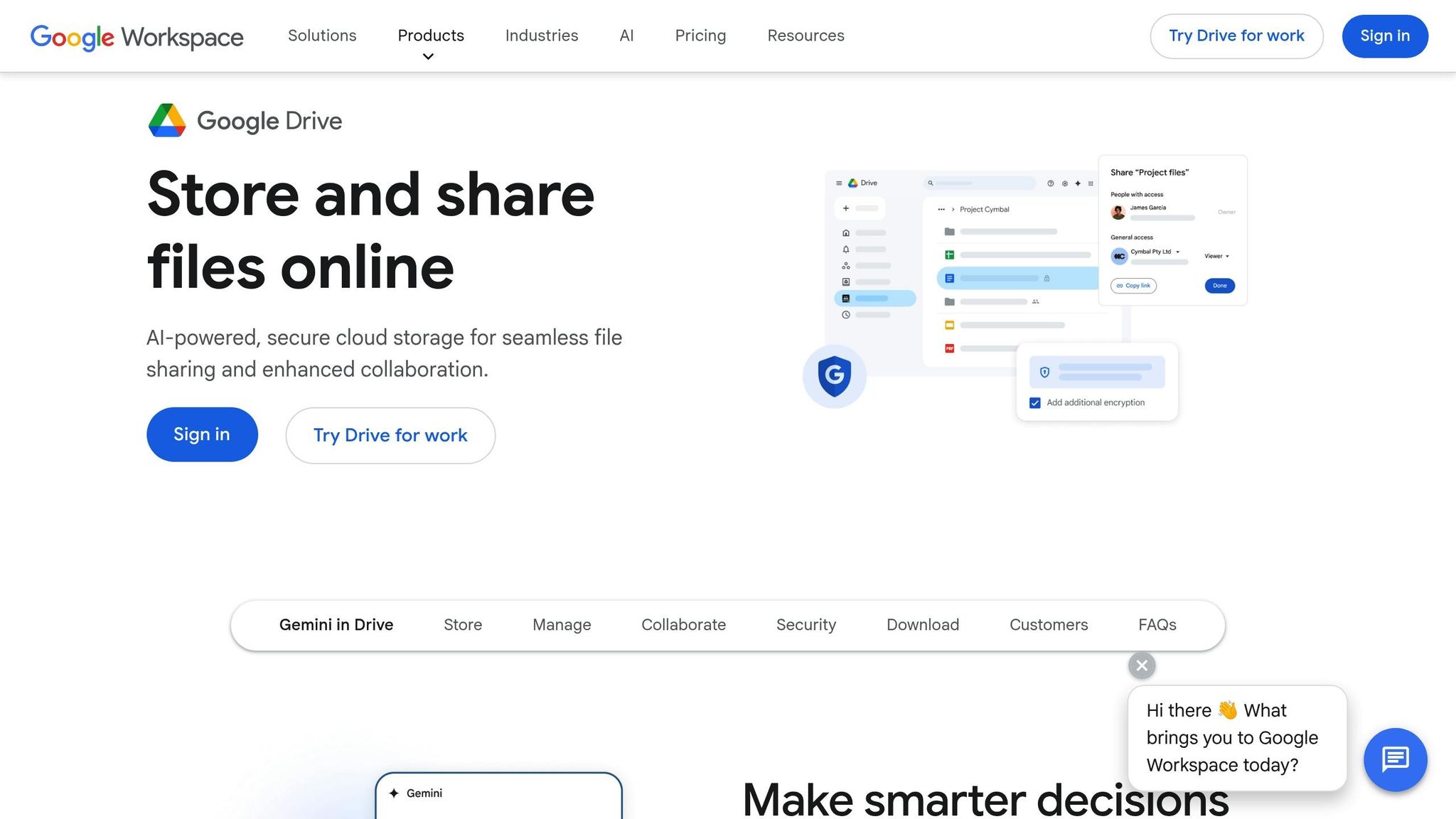
Google Drive simplifies documentation storage and ensures continuity, even during staff turnover. Unlike personal folders, Shared Drives keep troubleshooting guides, FAQs, and training videos accessible to the team, no matter who comes or goes. This setup allows for quick access to critical information and ensures consistent documentation for smooth help desk operations.
Features Tailored for Help Desk Needs
Google Drive offers several tools to make managing and retrieving documents easier. For instance, Gemini in Drive eliminates the need for manual searches by summarizing folder contents, synthesizing information from multiple files, and pulling up key details instantly.
Other helpful features include:
- Classification labels: Organize documents by status, sensitivity, or category.
- Full-text search: Search every word in a file to locate specific troubleshooting steps, even within lengthy manuals.
- Sensitive document controls: Administrators can restrict downloading, printing, or copying to protect critical files.
Seamless Integration with Google Workspace Tools
Google Drive works hand-in-hand with other Google Workspace apps, offering smooth workflows. For example, agents can share documentation directly via Gmail or Chat without switching apps. Smart chips in Google Docs link to related files, team members, or even calendar events for quick reference.
Drive also powers Google Sites, making it easy to create a user-friendly interface for your internal knowledge base. A great example of this is Rentokil Initial, a company operating in over 60 countries. They use Drive and Sites to connect employees across six business lines. Peter Shorney, Global IT Operations Manager, shared:
"Online sharing is helping us to become a more personal, sociable organization, which is important for staff retention and working culture".
This kind of integration fosters collaboration and ensures teams have the resources they need.
Flexible Storage and User Controls for Any Team Size
Google Drive scales effortlessly to meet the needs of teams of all sizes. Storage options range from 30 GB per user in the Business Starter plan to 5 TB per user in Business Plus. Enterprise plans offer even more storage, tailored to teams with five or more users.
Access controls are highly customizable, allowing you to assign roles like:
- Managers: Full editing and deletion rights.
- Contributors: Can add or edit files but not delete them.
- Commenters/Viewers: Read-only access.
For added flexibility, Drive for Desktop syncs cloud files to local devices, so agents can access documents offline during network outages or use specialized software for tasks.
Whether you're running a small five-person help desk or managing thousands of users, Google Drive grows with you. For instance, Randstad uses Drive across 4,500 branches to place over 500,000 people daily. The platform adapts seamlessly without requiring major changes to your systems, making it an ideal solution for teams of any size.
7. Google Admin Console for User and Asset Management
The Google Admin Console offers help desk teams a centralized dashboard to manage users, devices, apps, and data across Workspace, Chrome, and Android platforms. Instead of juggling multiple tools, agents can handle tasks like password resets, device approvals, and security updates all from one place. This reduces the need for constant tool-switching and helps speed up response times.
Features for Help Desk Operations
The Admin Console simplifies collaborative operations by centralizing management tasks. It allows for granular delegation, meaning specific roles can be assigned without granting full super-admin access.
It also includes an audit and investigation tool that tracks activity across Drive, Meet, Chat, and login events, making it easier to diagnose issues quickly. For detailed reporting, teams can download up to 100,000 rows per search.
When it comes to device management, the console enables teams to remotely approve, block, or wipe mobile and desktop endpoints. Searching for devices is efficient, too - agents can use identifiers like serial numbers, asset IDs, or MAC addresses to locate specific devices. Additionally, Gmail's built-in AI defenses automatically block over 99.9% of spam, phishing attempts, and malware.
Scalability for Teams of Different Sizes
The Admin Console is flexible enough to serve teams of any size. For example, BBVA, a global financial institution, has been using it since 2011 to manage over 140,000 users across its international operations. Jose Antonio Salmerón, Global Architect in Technology Experience & Workplace at BBVA, shared:
"Our adoption of Google Workspace began in 2011. Since that initial implementation, we have successfully deployed Workspace to over 140,000 users across our diverse international operations".
With Organizational Units (OUs), admins can apply specific settings and permissions to departments or groups instead of managing each user individually. Directory Sync further streamlines operations by syncing LDAP user and group data with the Google Cloud directory, cutting down on manual tasks. Help desk teams can also automate repetitive processes - like generating login reports or updating user lists in Sheets - using Google Apps Script or REST APIs, such as the Directory API [65,66].
This scalability makes the Admin Console a key resource for improving help desk efficiency.
Integration Capabilities with Other Google Workspace Tools
The Admin Console integrates smoothly with other Google Workspace apps. For instance, teams can set up shared resources - like conference rooms and equipment - that users can book directly through Google Calendar. It also manages settings for editing Microsoft Office files within Workspace, eliminating the need for file conversion.
To make navigation quicker, admins can pin up to five frequently used pages (like Users, Devices, or Reports) to the side menu. The search bar’s filter chips allow agents to quickly access specific management pages without extra hassle.
8. Google Gemini for AI-Assisted Support Automation
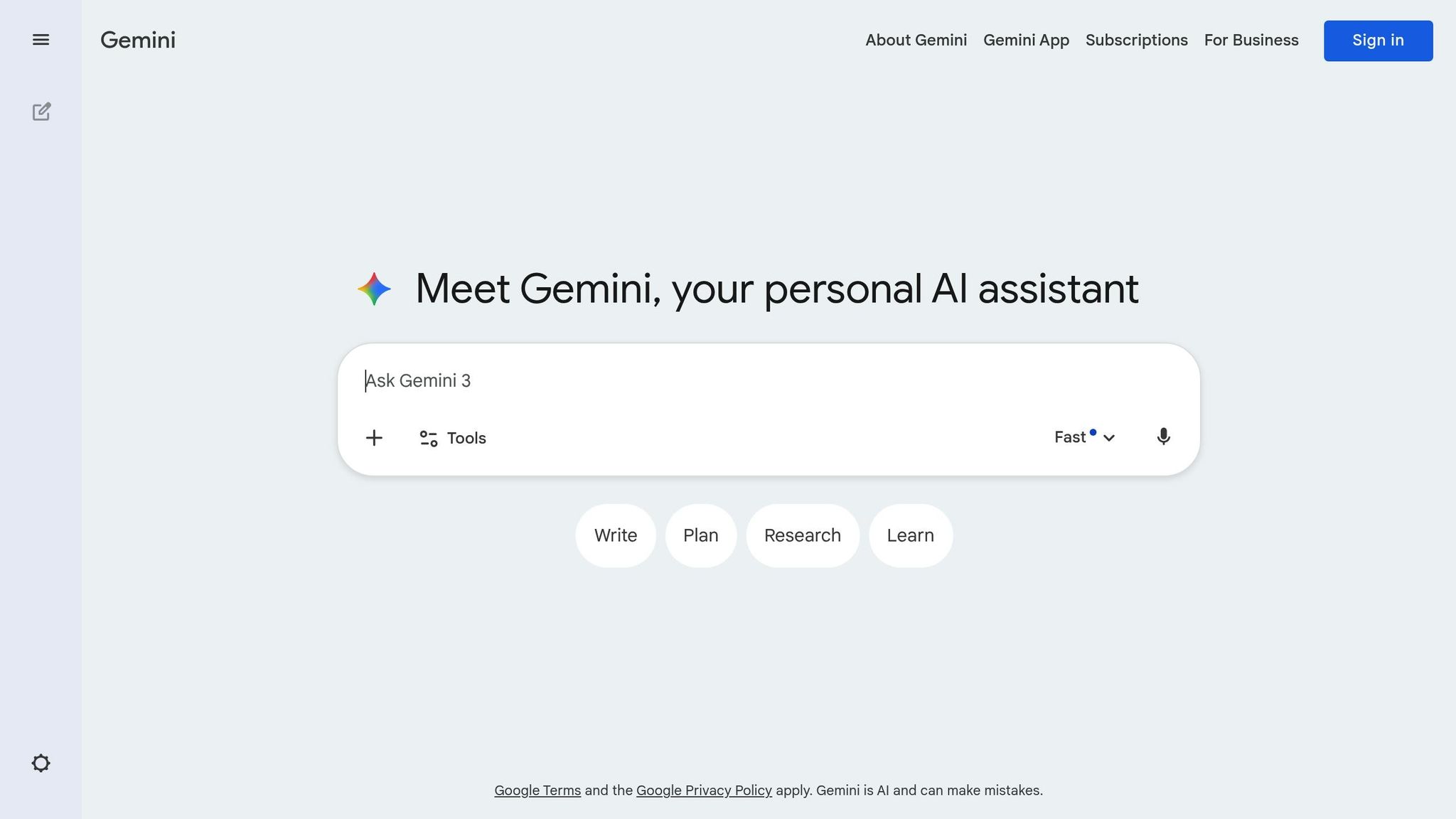
Google Gemini simplifies repetitive help desk tasks, helping to ease the workload on support agents and reduce burnout. As part of the Google Workspace suite, it seamlessly integrates into existing workflows to optimize support operations.
Features for Help Desk Operations
Gemini uses AI-driven automation to handle ticket management through Workspace Flows. Custom AI agents, referred to as "Gems", handle tasks like sorting tickets, pulling solution details from Drive, and drafting responses. It also empowers employees with self-service options, enabling them to resolve frequent IT issues like VPN troubleshooting, password resets, and software license requests using AI-guided workflows.
In Gmail, Gemini can summarize lengthy email threads and leverage the "Help me write" feature to turn rough drafts into polished replies. During Google Meet sessions, the "Take notes for me" tool automatically captures technical details and action items, saving time and ensuring nothing is overlooked.
These features have proven effective in real-world scenarios. For instance, Anthony Biolatto, CIO of Sports Basement, shared:
"Using Gemini with Workspace, the customer service team crafts customer responses nearly instantaneously... This has resulted in a 30-35% reduction in time spent drafting messages".
Integration Capabilities with Other Google Workspace Tools
Gemini works seamlessly across Gmail, Docs, Drive, Sheets, and Chat. In Google Chat, typing "@gemini" provides instant summaries of unread messages, highlights key decisions, and organizes tasks. Meanwhile, in Google Sheets, the "Help me analyze" feature identifies trends in ticket data and creates interactive charts. Teams can also design custom Gems tailored to specific needs, such as a "Policy Expert Gem" that checks service level agreements before agents respond to tickets.
Scalability for Teams of Different Sizes
Gemini adapts to teams of all sizes by automating repetitive tasks that tend to grow along with ticket volume. Many companies have replaced over 100 static response templates with simple AI prompts, allowing for more natural and personalized customer interactions. To address compliance concerns, administrators can control where Gemini processes data - ensuring it stays within regions like the US or EU to meet regulations like GDPR. Additionally, customer data remains private, never being used to train external models or accessed by third parties.
9. Google Workspace Status Dashboard for Service Monitoring
The Google Workspace Status Dashboard provides help desk teams with a centralized way to monitor the health of key Google Workspace tools. This makes it easier to differentiate between widespread outages and issues that are specific to individual users.
Features for Help Desk Operations
Each incident listed on the dashboard includes clear symptoms and workarounds that can be shared directly with users. For instance, during a January 2026 incident involving missing Admin Console metadata, the dashboard outlined symptoms like empty fields in user searches. This allowed teams to resolve problems without needing to escalate them to Google Support.
The dashboard also provides resolution timelines, helping teams manage user expectations and reduce unnecessary follow-up tickets. For example, in October 2025, a 22-day disruption (October 1–23) affected the enrollment of new Windows devices through the native Windows Settings app. The dashboard identified the root cause as a compatibility issue with Google Identity servers and Internet Explorer 11. It also offered a workaround: using the Google Credential Provider for Windows (GCPW) to manage devices during the outage.
Integration Capabilities with Other Google Workspace Tools
The dashboard integrates seamlessly with the Google Admin Console, enabling automated "Apps outage alerts" to appear in the Alert Center or be sent via Gmail. This helps teams quickly identify whether an issue is widespread or isolated. For even faster notifications - especially if Gmail itself is down - teams can subscribe to the dashboard's RSS feed. As Google advises:
"To get the fastest outage alerts, even if your Gmail service is interrupted or alerts are delayed, we recommend subscribing to the Status Dashboard RSS feed".
Additionally, the dashboard offers a JSON History feed, which allows teams to integrate status data into custom monitoring systems. This feature can even automate the creation of internal support tickets when a service disruption is confirmed.
Scalability for Teams of Different Sizes
The dashboard isn't just about real-time alerts - it also offers historical insights that help teams refine their support strategies. With up to five years of service history available, teams can analyze patterns and review past incidents. Larger IT operations can use the JSON feed to automate monitoring workflows, while smaller teams can rely on simple RSS subscriptions for alerts without needing extra infrastructure. By consulting the dashboard before escalating user issues, help desk staff can handle tickets more efficiently, focusing on problems that require direct intervention.
Next, discover how AdminRemix simplifies IT asset management and bulk operations to further improve help desk productivity.
10. AdminRemix for IT Asset Management and Bulk Operations
Key Features
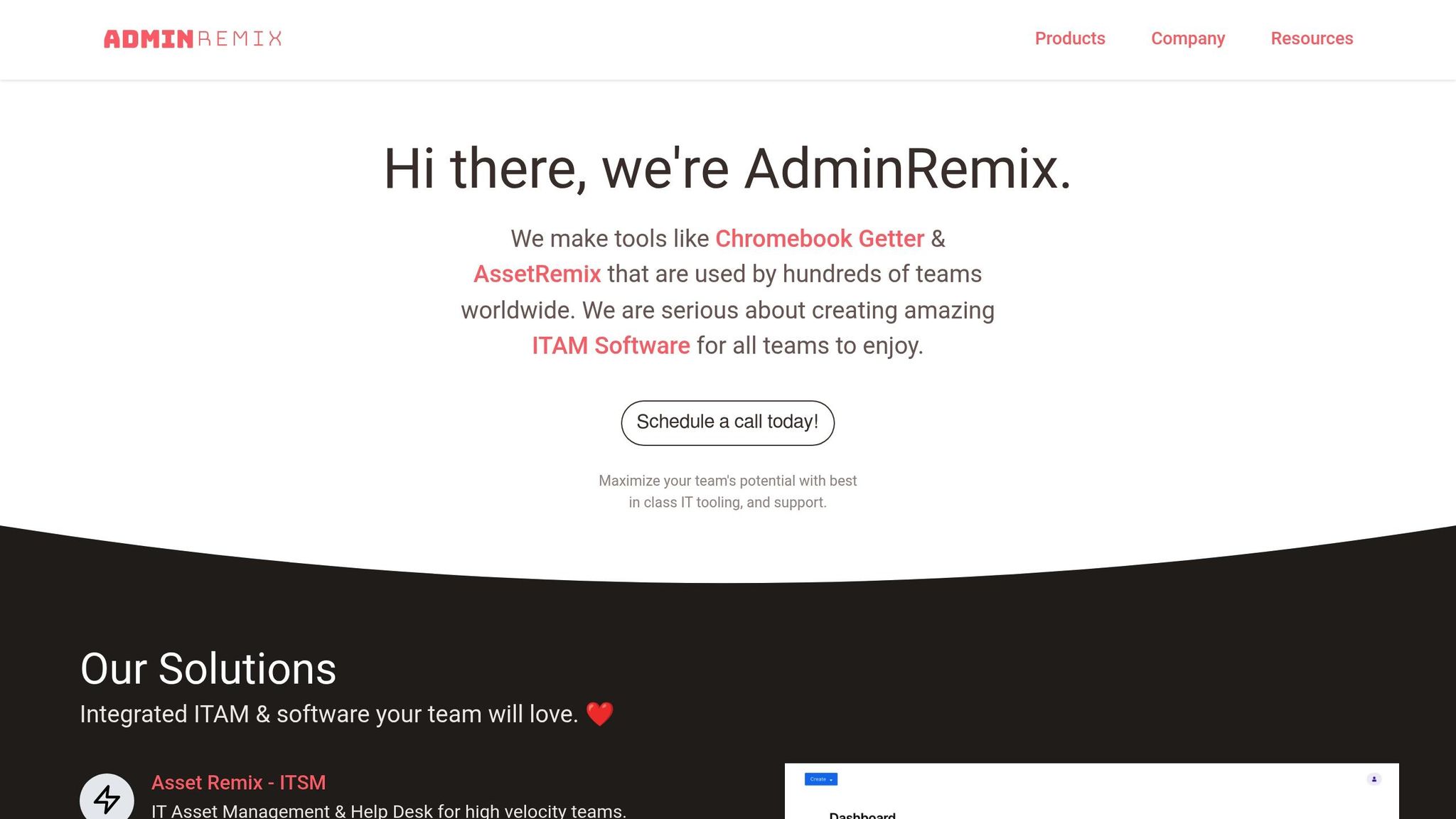
AdminRemix brings a powerful addition to Google Workspace with its AssetRemix tool, which manages more than 500,000 IT assets daily. It even transforms support emails into trackable tickets through barcode-enabled check-ins, streamlining workflows.
For bulk operations, Chromebook Getter and User Getter eliminate the hassle of complex command lines. Chromebook Getter allows teams to handle large-scale tasks like deprovisioning devices, performing power washes, rebooting multiple units, and pulling Auto Update Expiration (AUE) dates directly into spreadsheets to plan for hardware replacements. Meanwhile, User Getter simplifies bulk password resets and reorganizing users across organizational units.
Integration Capabilities with Other Google Workspace Tools
AdminRemix integrates seamlessly with Google Workspace tools, using Google Sheets as a central hub for metadata. As Philip Helmers from SWBOCES LHRIC shared:
"I signed up for Chromebook Getter because it's faster than getting what I need with GAM command lines".
The platform also supports Single Sign-On (SSO) through the Google Admin Console using SAML applications, and its Directory Sync feature ensures user accounts are automatically updated or removed as changes occur in Google Workspace. AssetRemix includes a dedicated Chromebook integration that syncs device metadata with a single click. Additionally, the Meet Enhancement Suite offers over 40 features for Google Meet, such as auto-recording and bulk participant management.
These integrations make AdminRemix a natural fit for Google Workspace, enhancing its collaborative and operational capabilities.
Scalability for Teams of Different Sizes
AdminRemix aligns with Google Workspace’s mission to streamline operations by offering flexible pricing plans for organizations of various sizes. For Google Sheets add-ons, teams can start with a free plan (limited to 500 uploads per month) and scale up to Domain Plans at $36.66 per year, providing unlimited user access. AssetRemix is available at $99 per month or $999 annually, covering unlimited assets, help desk agents, and issues - making it an economical choice for managing anywhere from 50 to 5,000 devices.
Currently used by over 350 premium G-Suite administrators, AdminRemix has earned praise for its efficiency. Arrington Douglas from Malakoff ISD remarked:
"Overall AssetRemix has made my life a lot easier, it has turned our slothful device rollouts into a quick and seamless process".
Conclusion
Google Workspace equips help desk teams with an array of tools designed to streamline workflows and enhance customer support. Features like Gemini's AI-powered drafting and real-time collaboration in Docs and Chat remove common bottlenecks in support operations. The data backs this up - 84% of Google Workspace users collaborate on documents during meetings, and teams using integrated tools report a 10.7% reduction in average ticket handle time.
The familiarity of tools like Gmail, Drive, and Sheets means most team members can hit the ground running with little to no training. Whether it's standardizing responses in Docs, managing tickets in Sheets, or troubleshooting via Meet, these tools integrate effortlessly. Plus, with Google Workspace's 99.9% uptime guarantee, your support channels will be there when customers need them most.
To take advantage of these capabilities, start by setting up a shared inbox with Google Groups, creating intake forms using Google Forms, and organizing a centralized knowledge base in Drive. Enhance your setup with Gemini for AI assistance and AdminRemix for IT asset management and bulk operations. With a 14-day free trial, you can test these tools directly within your workflows.
FAQs
How do I set up a simple ticketing system with Google Forms and Sheets?
To set up a simple ticketing system, start by designing a Google Form with fields like Name, Email, Issue Category, and Description. Connect the form to a Google Sheet to store the responses automatically.
Next, use Google Apps Script to streamline tasks, such as generating unique ticket IDs or sending automated notifications to users. For added functionality, consider enabling email alerts for new submissions or deploying the Google Sheet as a web app to provide real-time updates. This approach keeps the setup straightforward while adding useful automation.
When should a help desk move beyond Sheets to a dedicated workflow?
When a help desk starts seeing an increase in request volumes, it’s time to move beyond Google Sheets and adopt a dedicated workflow system. While Sheets can be a simple solution at the beginning, it quickly falls short as teams grow and processes become more complex. Issues like delays, tracking errors, or missed priorities are common indicators that the current setup is no longer sufficient.
A specialized workflow system can improve efficiency by automating repetitive tasks, streamlining prioritization, and enabling escalation processes. This not only reduces errors but also ensures better response times, ultimately leading to improved customer satisfaction.
How can Gemini and AdminRemix reduce repetitive help desk work?
Gemini and AdminRemix streamline help desk operations by automating repetitive tasks and simplifying data management. Gemini leverages AI to empower employees to troubleshoot problems or request resources on their own, reducing the need for help desk involvement. Meanwhile, AdminRemix provides tools like AssetRemix, which handles bulk IT asset management efficiently. It also includes add-ons such as Chromebook Getter and User Getter, which automate tasks related to metadata and user data. This not only improves accuracy but also frees up staff to focus on more complex challenges.