
Google Workspace Device Audits: Reports API Queries
Google Workspace device audit logs show reported actions - not a device’s complete history. Query the Reports API’s mobile feed within its 180-day lookback to find device activity for all users or one account.
The collection process has five steps:
- Set up access: Enable the Admin SDK API and use the audit read-only OAuth scope with the required administrator privileges.
- Narrow the query: Choose dates, event names, and supported parameter filters. Match unsupported fields locally.
- Collect every page: Follow each
nextPageToken, save progress, and retry temporary errors. - Store the results: Create one row per nested event, remove duplicate activities, and retain raw JSON with restricted access.
- Check and link findings: Verify the export, then match device identifiers to inventory and record confirmed findings in asset records or help-desk tickets.
An empty response means no matching activity was returned, not that no managed devices exist.
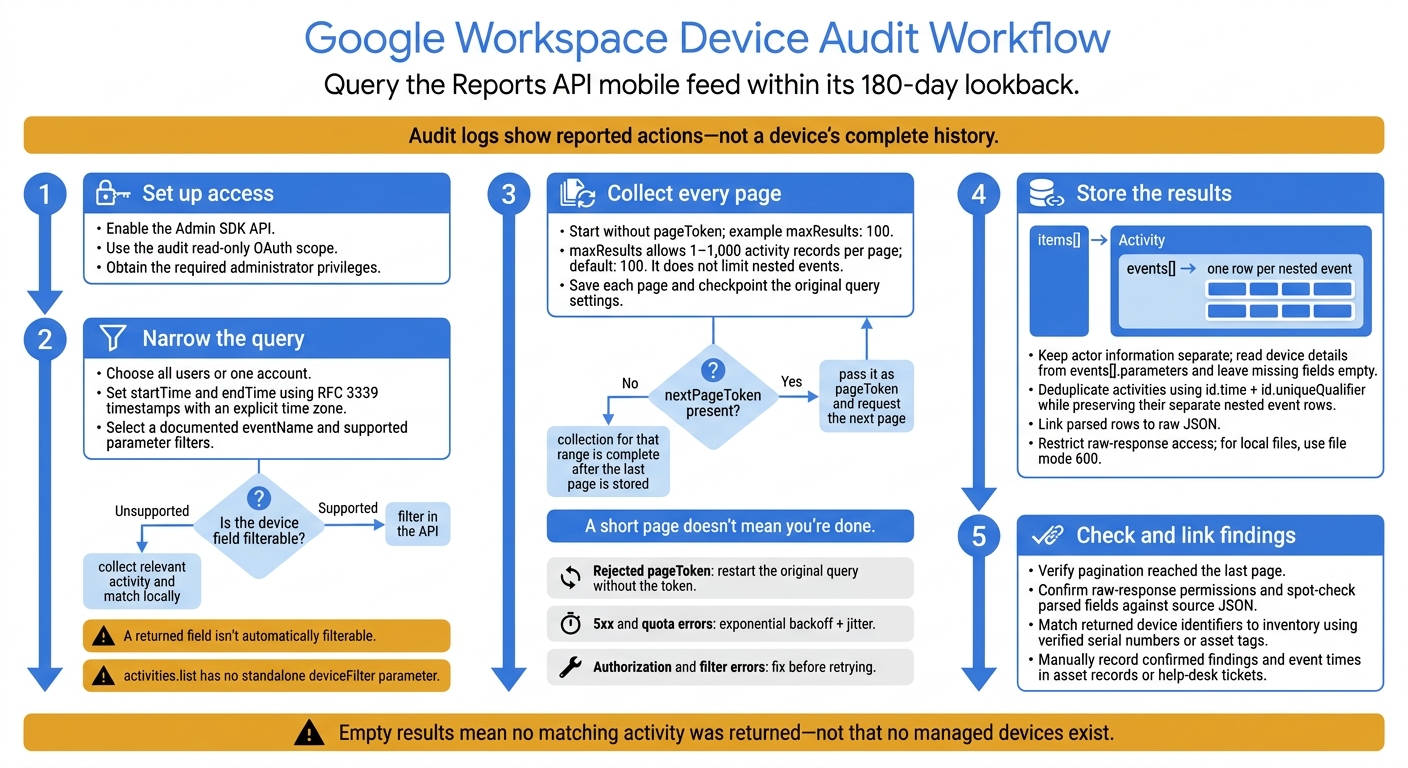
Google Workspace Device Audit Workflow
2. Build Device Audit Queries
Start with a broad request to the device audit feed. Then narrow the results with event and parameter filters before paging through them.
curl --get \
  'https://admin.googleapis.com/admin/reports/v1/activity/users/all/applications/mobile' \
  --header "Authorization: Bearer ${ACCESS_TOKEN}" \
  --header 'Accept: application/json' \
  --data-urlencode 'maxResults=100' \
  --data-urlencode 'startTime=2026-11-01T00:00:00Z' \
  --data-urlencode 'endTime=2026-11-12T00:00:00Z'
Replace ACCESS_TOKEN with your OAuth access token. Use RFC 3339 timestamps in UTC. This example ends at 2026-11-12T00:00:00Z, so it excludes events later on November 12.
Supported Query Parameters
| Parameter | Purpose | Constraints and behavior |
|---|---|---|
startTime |
Sets the start of the collection period. | Use an RFC 3339 timestamp with an explicit time zone. |
endTime |
Sets the end of the collection period. | Use an RFC 3339 timestamp; the example ends at the start of November 12. |
maxResults |
Limits activity records per page. | Integer from 1 to 1,000; defaults to 100. It does not limit nested events. |
pageToken |
Requests the next page. | Use the previous response’s nextPageToken. |
eventName |
Selects an event type. | Must exactly match a documented mobile audit event name. |
filters |
Filters supported event parameters. | Use name operator value; filtering works only for documented parameters. |
customerId |
Selects the customer account. | Defaults to my_customer; use the customer ID when querying a reseller customer. |
Narrow by event type first, then by supported device-related fields.
activities.list has no standalone deviceFilter parameter. Check the Google mobile audit event reference for the selected event’s exact name, parameter spelling, and filtering support.
Filter by Event and Device
To collect activity for one user, change the path to /users/student%40school.edu/applications/mobile.
For parameters documented as filterable, equality uses ==, encoded as %3D%3D. Inequality uses <>, encoded as %3C%3E.
For example, if the selected event documents
DEVICE_IDas filterable,DEVICE_ID==98765becomesfilters=DEVICE_ID%3D%3D98765.
Combine supported conditions with a comma (%2C) for AND logic. With cURL, pass the unencoded expression through --data-urlencode to avoid double encoding.
Confirm the exact eventName value in the reference before using it, then combine it with supported parameter filters. If the event doesn't support filtering by device identifier, retrieve the user’s activity and match the identifier locally. A returned field isn't automatically filterable.
Compare Filtering Methods
| Method | Scope | Best use | Main limitation |
|---|---|---|---|
| Broad query | All event types within the chosen user and date scope | Getting context before narrowing an investigation | More records to download and inspect |
eventName query |
One documented action type | Investigating a known action | Excludes related actions with different event names |
| Event-parameter filter | Supported parameter matches | Narrowing results to a documented device identifier | Only supported parameters and operators work |
| Local filtering | Downloaded activities and nested events | Matching unsupported fields or applying complex logic | Requires collecting the relevant pages first |
sbb-itb-c68f633
3. Retrieve Every Page and Handle Errors
Once you’ve scoped the query, retrieve every page and save enough progress to resume safely.
Request Pages with nextPageToken
Start with a defined maxResults value, such as 100, and no pageToken. If the response includes a nextPageToken, pass it as pageToken in the next request.
A short page doesn’t mean you’re done. Continue until the response has no nextPageToken. Use this same pattern for every filtered audit query.
If a pageToken is rejected, restart the original query without the token.
Split Date Ranges and Retry Temporary Errors
For large exports, divide the time window into fixed ranges. This lets you collect pages, save checkpoints, and resume without gaps.
Save each page as you go. Mark a range complete only after you’ve stored its last page. Include the original query settings in each checkpoint so resumed requests keep the same scope. Deduplicate records by activity ID to remove repeats from overlapping ranges and resumed requests.
Retry 5xx and quota errors with exponential backoff and jitter. Fix authorization and filter errors before retrying.
4. Read and Store Device Events
After retrieving each page, turn the response into one row per event.
Read Activity IDs, Actors, and Parameters
Treat each items[] entry as an Activity record. Expand every nested events[] entry into a separate row, and keep the actor separate so you can identify who performed the action.
Illustrative response excerpt - not a captured audit record. This reduced example shows the nesting only; actor details, activity qualifiers, and event names are intentionally omitted.
{
  "items": [
    {
      "id": {
        "time": "2026-01-31T10:30:00Z"
      },
      "events": [
        {
          "parameters": []
        }
      ]
    }
  ]
}
Read device identifiers, enrollment dates, OS versions, and event details only from events[].parameters. Leave missing fields empty - don't guess their values.
Create Audit Rows and Keep Raw Responses
Store each event row with a link to its source response for later review.
Include both id.time (when the activity occurred) and id.uniqueQualifier in every row. Together, they form the activity’s deduplication key; keep the activity’s nested events as separate rows. Also include any device identifiers the API returns.
Link each parsed row to the original JSON response so investigators can check fields that weren't parsed initially. Keep raw responses in a secure location with restricted access. For local files, use file mode 600.
5. Check Results and Use Audit Findings
Collection Checklist
After parsing the pages, check that the export is complete before analyzing it:
- Verify that pagination reached the last page.
- Confirm that raw responses are saved with
600permissions. - Spot-check event-specific fields against the source JSON.
A missing or empty items array means no matching activity was returned - not that no managed devices exist.
Once these checks pass, link confirmed device events to the relevant assets or tickets.
Link Findings to Asset and Help-Desk Records
Match returned device identifiers to IT asset management records using verified serial numbers or asset tags. Then manually record the finding and event time in the related asset record or help-desk ticket in AssetRemix from AdminRemix.
FAQs
Which admin privileges do I need to access device audit logs?
To access device audit logs through the Reports API, you need both Google Workspace administrator privileges and the required OAuth scope, such as admin.reports.audit.readonly. OAuth scopes do not replace administrator access.
In the Google Admin console, assign custom roles with Audit and investigation privileges. Grant View access for searches, or set more granular permissions as needed. Follow the principle of least privilege: give users only the access they need.
How soon do device events appear in the Reports API?
Device activity logs are usually available within 10 minutes of an action. Reporting isn’t instant: broader usage metrics can take 1 to 3 days to appear.
To avoid missing events due to reporting delays, add a small overlap between reporting windows in automated workflows. If those windows overlap by a large amount, consider adding logic to remove duplicate events.
How can I preserve device audit logs beyond 180 days?
To keep device audit logs beyond the standard 180-day retention limit, first enable “Google Workspace data sharing with Google Cloud” in your Google Admin console.
Next, route your logs to Google Cloud Logging. In your Google Cloud project, configure aggregated sinks to export audit data to Google Cloud Storage, BigQuery, or Pub/Sub. These destinations support custom retention policies from 1 day to 10 years for compliance and historical analysis.