
Google Meet Webinar Q&A and Polls: Host Setup Guide
Before using Google Meet Q&A and polls, confirm that the organizer’s Workspace license and admin settings allow both features. Then check the setup in a test meeting - not just from the host’s view.
The setup has 3 parts:
- Check access: Verify that attendees can submit questions and answer polls.
- Set up the tools: Enable Q&A, prepare polls, and assign co-hosts to handle questions and responses.
- Rehearse the session: Test attendee entry, moderator controls, result visibility, and report access.
Use Q&A for open-ended questions and polls for structured feedback. Before going live, confirm who handles each task and who receives the reports.
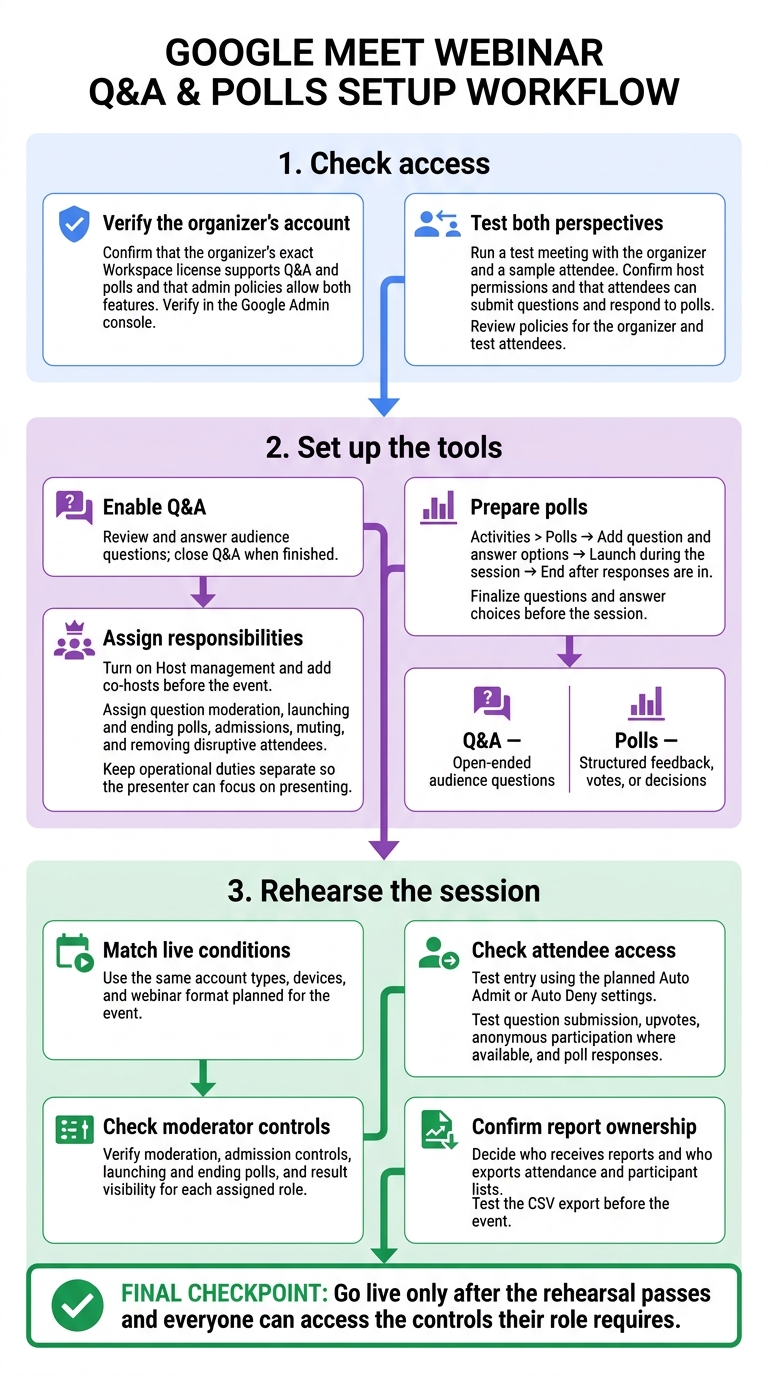
Google Meet Q&A and Polls: Webinar Setup Checklist
Polls and Q&A in Google Meet (Teacher View, Student View, and Post-Meeting Spreadsheet Report)
sbb-itb-c68f633
1. Check Subscription and Admin Requirements
Check the organizer’s account - not just your organization’s plan. Before sending invitations, confirm that the organizer’s Workspace license and admin policy allow Q&A and polls.
| Prerequisite | What to confirm | Where to verify |
|---|---|---|
| Workspace edition and admin policy | The organizer’s license supports Q&A and polls, and policies for the organizer and test attendees allow both features. | Google Admin console |
| Host permissions | The intended host and moderators can access the controls they need. | A test meeting |
Check Q&A and Poll Availability by Subscription
Ask your administrator to verify the organizer’s exact Workspace edition and the admin policy applied to that account before you send invitations.
Review Admin Restrictions and Test Access
Have your administrator review the policies for both the organizer and test attendees. Then run a test meeting with the organizer and a sample attendee. Confirm that attendees can respond to polls and submit questions during the live session.
Once the organizer’s account passes the test, turn on Q&A and polls.
2. Configure Q&A and Polls
Once access is confirmed, open the webinar as the organizer and turn on the controls you’ll use during the session.
Turn On Q&A and Moderate Questions
Enable Q&A in the host controls. The Q&A panel lets you review and answer audience questions without interrupting the presentation. Close Q&A when you’re finished.
Create, Launch, and End Polls
Go to Activities > Polls and add your question and answer options. Launch the poll during the session, then end it once responses are in.
After enabling Q&A and polls, assign moderators and run a live test before the webinar starts.
Choose Between Q&A and Polls
Use Q&A for open-ended questions from the audience in real time. Choose polls for quick, structured feedback, votes, or decisions.
3. Assign Moderators and Test Access
Once Q&A and polls are enabled, assign moderators and rehearse their roles before the webinar.
Turn On Host Management and Add Co-Hosts
Turn on Host management and add co-hosts before the event. Decide who will moderate questions, launch and end polls, and check results. Also assign responsibility for muting participants, removing disruptive attendees, and managing admission.
Keep these duties separate so the presenter can focus on the session.
Test Attendee Access, Controls, and Reports
Run a moderator rehearsal using the same account types, devices, and webinar format planned for the live event. Don’t check only the organizer view. Have moderators test question submission, upvotes, moderation, anonymous participation where available, poll responses, and result visibility.
Confirm that every moderator can access and use the controls they’ll need during the webinar.
Conclusion: Check Your Setup Before Going Live
Go live only after the rehearsal passes and everyone can access the controls their role requires. Use this checklist to catch problems before the webinar starts.
- Attendee access: Test entry using your Auto Admit or Auto Deny settings. Confirm attendees can submit questions and respond to polls.
- Moderator and co-host roles: Assign each person’s tasks. Check that they can admit attendees, moderate questions, launch polls, and view results.
- Poll readiness: Finalize the question and answer choices before the session, then confirm the poll is ready to launch.
- Report ownership: Choose one person to export attendance and participant lists. Test the CSV export before the event.
FAQs
Which Google Workspace editions support Q&A and polls?
Q&A and polls are included in these Google Workspace plans: Business Standard, Business Plus, Enterprise Standard, and Enterprise Plus. They aren’t available in Business Starter.
Can external guests submit questions and answer polls?
Yes. External guests can submit questions and answer polls in Google Meet once the host approves and admits them, as long as those features are enabled for the session. Hosts control these tools to keep the event organized.
AdminRemix offers tools, including the Meet Enhancement Suite, that help IT teams run more efficient, organized Google Meet sessions for collaboration.
Who receives Q&A and poll reports after the meeting?
Once the meeting ends, Google Meet automatically creates Q&A and poll reports and emails them to the meeting organizer. Administrators can also review this data in Google Drive or through the Audit and Investigation tool to meet compliance and retention needs.