Google Meet Privacy Settings for Admins
Most Google Meet privacy risk comes down to 4 settings: who can join, whether the host must be there, who can record, and what data gets saved after the call.
If I were setting a baseline today, I’d start with Quick access off for sensitive meetings, recording limited by OU or group, host controls left on, and stored meeting data reviewed in Drive and Vault. That covers entry, in-meeting behavior, and post-meeting records without making every meeting hard to run.
Here’s the short version:
- Access rules decide who gets in
- Host controls limit chat, screen sharing, mic, and camera use
- Recording rules decide which teams can create meeting files
- Stored artifacts may include recordings, transcripts, and chat tied to recorded meetings
- OU and group policies let you set one rule for legal, another for students, guests, or other teams
- Meeting links and codes can spread fast, so sensitive meetings need tighter join rules
A few facts matter here:
- Google Meet settings are split between the Admin console and in-meeting host controls
- Recordings are saved in the organizer’s Google Drive in Meet Recordings
- Meet does not keep audio or video after a meeting unless someone records it
- If a meeting is recorded, chat may be saved with that recording
- Recording is only available on supported Google Workspace plans
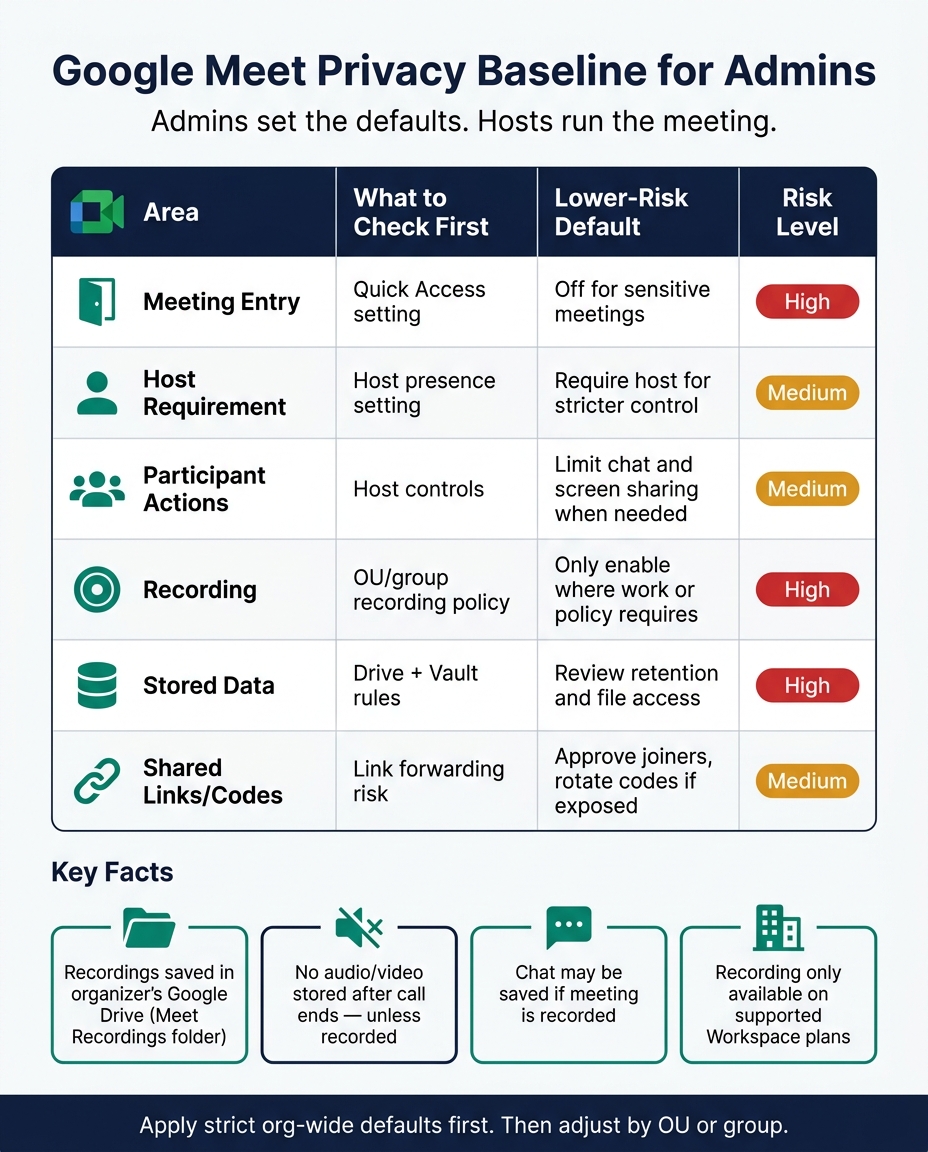
Google Meet Privacy Settings: Admin Baseline Cheat Sheet
Managing Google Meet for your organization for Admins
sbb-itb-c68f633
Quick comparison
| Area | What I’d check first | Lower-risk default |
|---|---|---|
| Meeting entry | Quick access | Off for sensitive meetings |
| Host requirement | Host presence | Require host for stricter control |
| Participant actions | Host controls | Limit chat and screen sharing when needed |
| Recording | OU/group policy | Only enable where work or policy calls for it |
| Stored data | Drive + Vault rules | Review retention and file access |
| Shared links/codes | Link forwarding risk | Approve joiners and rotate codes if exposed |
Put simply: admins set the defaults, hosts run the meeting. That’s the model I’d use to build a clear Google Meet privacy baseline.
Set Default Meeting Access and Participant Rules
Google Meet access settings let you decide who gets in and how tightly each meeting is controlled. For trusted internal meetings, turn on Quick access so people can join with less friction. For meetings that need more control, turn it off so the host has to approve each person before they enter. You can apply these defaults by organizational unit or group in the Admin console.
Once entry rules are in place, the next step is to limit what people can do after they join. Host controls let you mute participants, turn chat off, disable screen sharing, or remove disruptive users.
That gives you room to set stricter defaults for sensitive groups and lighter settings for routine internal meetings.
Restrictive vs. Open Access: A Settings Comparison
| Setting | Strict | Flexible |
|---|---|---|
| Entry control | Quick access off (host approval required) | Quick access on |
| Host presence | Meeting requires host to start | Meeting can open without host |
Manage Recording, Chat History, and Meeting Artifacts
Once access is set, the next step is deciding what the meeting leaves behind. Google Meet can generate recordings and chat logs, and admins control the rules that decide what gets kept.
Turn Recording and Meeting Artifacts On or Off
Recording is only available with a supported Google Workspace plan. In the Admin console, admins can turn recording on or off at the OU or group level. That means one team can have recording access while another team does not.
That said, turning on recording is only part of the picture. Admins also need to know what Meet stores by default.
Recorded meetings are saved in the organizer's Google Drive in a "Meet Recordings" folder. Admins can also manage retention with Google Vault.
What Google Meet Stores by Default, Including Chat History
Google Meet does not keep audio or video after a meeting ends unless someone starts a recording. If a meeting is recorded, chat is saved along with that recording.
Users should know when recording is on. When recording is enabled, spoken content and chat may be kept.
Recording Policy Options: A Side-by-Side Comparison
| Policy | Privacy Exposure | Compliance Support | Storage Impact | Day-to-Day Convenience |
|---|---|---|---|---|
| No recording | Lowest - no permanent record of audio or video | Low - no meeting content stored for later review | None | High - nothing to manage |
| Manual recording | Moderate - a recording exists only when the host starts it | Variable - depends on host behavior | Moderate - only recorded meetings create files | Moderate - requires host action |
| Automatic recording | Higher - meetings are recorded consistently once enabled | High - helps ensure meetings are captured consistently | High - creates files for every recorded session | High - minimal host effort |
For sensitive meetings, no recording is the safest default. If the goal is steady meeting capture, automatic recording cuts the chance that a host forgets to start it.
After controlling what gets stored, lock down how meeting links and codes are shared.
Secure Meeting Codes and Apply Policies by Group
The next step is to narrow these controls by team and cut down on how invite details get passed around.
Reduce Risk from Shared Meeting Links and Codes
Google Meet links and meeting codes can be forwarded beyond the people who were meant to get them. That creates a clear risk: someone with a shared link may try to join when they shouldn’t.
To lower that risk, admins should turn off Quick access for sensitive meetings. That way, even if someone has the link, they still need host approval before they can enter. If a recurring meeting code has already been shared too broadly, admins can also regenerate the code and lock the meeting down again.
After you tighten entry controls, the next move is to set different defaults for sensitive parts of the organization.
Assign Different Privacy Settings to Organizational Units and Groups
Admins can apply different defaults by organizational unit or group right in the Admin console. For example, legal or clinical teams may have recording turned on by default so documentation stays consistent. At the same time, student or guest groups can have external joining restricted to limit how meeting access spreads.
Conclusion: Build a Practical Google Meet Privacy Baseline
With access, recording, and code controls in place, the last step is setting a baseline. Google Meet privacy comes down to choosing the right defaults for how your org actually works. When default access settings, recording controls, participant permissions, and meeting codes are left unset, that’s where risk creeps in.
Start with strict org-wide defaults. Then adjust them by OU or group where needed.
If you want more enforcement, AdminRemix's Meet Enhancement Suite can support the same baseline with controls like Auto Deny, Mute All, and automated attendance exports to CSV.
For most U.S. teams, the baseline is pretty straightforward: tighter entry controls for sensitive meetings, recording limited to OUs where it’s required for day-to-day work, and host controls left enabled.
Document those settings, and review them when your team structure or compliance needs change.
FAQs
How do I choose when to turn Quick access off?
Turn Quick access off when you want every participant to go through manual admission.
This works well for sensitive internal discussions, confidential briefings, or external calls where you need to check each attendee before they join. It helps stop uninvited or unauthorized users from getting in automatically.
Who can record a Google Meet meeting by default?
By default, Google Meet recording depends on your organization’s Google Workspace plan.
In most cases, recording is available on higher-tier plans like Business Standard, Business Plus, and Enterprise editions. It usually is not available on Business Starter.
When recording is turned on for your plan, moderators are generally the people who can start and manage the recording.
What meeting data should admins review after calls?
Admins should check Meet log events on a regular basis. Focus on video meetings, recording activity, call length, and connection quality. That gives you a clear view of how Meet is being used and where problems may be showing up.
It also helps to watch Google Drive data tied to meetings, including recordings, transcripts, Gemini notes, Q&A logs, and polls. That data can support retention needs and compliance work without a lot of guesswork.
For digging into the details, the Audit and Investigation tool makes the job easier. You can filter data by user or by event, which is handy when you're tracking down a single issue or reviewing a pattern across the org.
Meet Enhancement Suite adds another layer by collecting attendance data and exporting it to CSV. That makes deeper analysis much easier, especially if your team wants to sort, compare, or report on meeting activity outside Google Workspace.