Google Drive Folder Structure for IT: Guide
If your IT team stores team files in Shared drives, uses one folder model, standard names, group-based access, and a set review schedule, Drive is far easier to run. That matters because knowledge workers spend about 20%–25% of their week looking for information, and IT teams feel that delay during incidents, changes, and handoffs.
Here’s the short version of what I’d take from this guide:
- Put team-owned files in Shared drives, not personal My Drive
- Split drives by function, sensitivity, and project scope
- Use one top-level folder setup, such as
00_Admin,10_Governance,20_Runbooks,30_Assets_and_Config,40_Projects_and_Changes, and90_Archive - Keep folder paths short, usually three levels or less
- Use shortcuts instead of duplicate files
- Set one naming standard for drives, folders, and files, with dates in
YYYY-MM-DD - Use templates for incidents, changes, projects, and asset records
- Assign access through Google Groups and keep access limited to what each person needs
- Use the same archive pattern everywhere, especially
90_Archive - Review permissions, ownership, and drive layout on a schedule
A few details stand out. The guide pushes a numbered folder system so folders stay in the same order. It also makes a clear point about ownership: if a runbook lives in a person’s account, it can disappear when that account is removed. And it ties structure to daily work by showing where exports, ticket data, asset lists, and meeting files should go.
If I had to sum it up in one line, it would be this: build for ownership, access control, and search from day one.
| Area | Main rule | What it helps stop |
|---|---|---|
| Storage | Use Shared drives for team files | Lost docs during offboarding |
| Structure | Use one folder model with numbered prefixes | Folder drift and “Misc” sprawl |
| Naming | Use one pattern and date-first names where needed | Hard-to-find files |
| Access | Use Google Groups and least-privilege roles | Over-shared sensitive content |
| Cleanup | Run quarterly and annual reviews | Old access, orphaned files, stale drives |
So before you add more folders, I’d start with a simple check: Where should this file live, who should own it, who should access it, and how will people find it six months from now?
Google Drive Structure Models for IT Teams: Which Is Right for You?
How to Organize Google Drive For Business (2026)
sbb-itb-c68f633
1. Build the foundation with Shared drives and a clear IT hierarchy
Start with Shared drives. IT-owned files belong there, not in personal My Drive. That way, the content stays with the team when roles shift or someone leaves. It also cuts the chance of losing a key runbook or network diagram when an account is deprovisioned.
Choose drive boundaries by IT function, sensitivity, and project scope
Set drive boundaries based on function, sensitivity, and audience. Not all IT content should sit side by side. A security investigation, for example, usually needs a much smaller audience than day-to-day support docs. Put both in the same drive, and you often end up with messy permission workarounds.
Google recommends using multiple Shared drives when files cover several teams or projects, instead of cramming everything into one place. A practical starting setup is:
- IT Operations
- IT Security
- Support Desk
- Infrastructure
- IT Projects
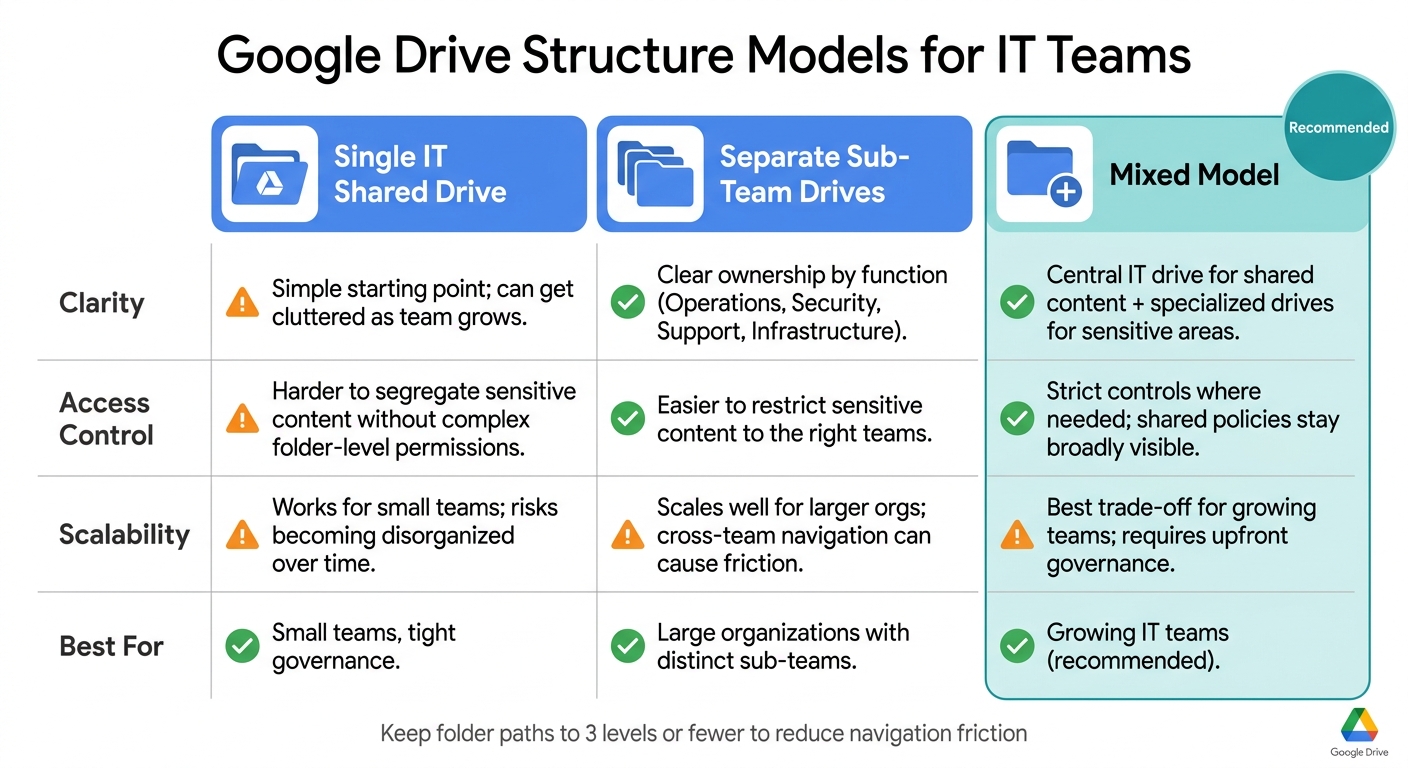
To keep drive sprawl under control, require a short business reason before anyone creates a new Shared drive. Short-term or low-sensitivity work should live in folders, not brand-new drives. And keep most folder paths to three levels or fewer so people don’t have to dig forever.
| Drive Model | Clarity | Access Control | Scalability |
|---|---|---|---|
| Single IT Shared drive | Simple starting point; everything IT is in one place, but it can get cluttered as the team grows | Harder to segregate sensitive content, such as security investigations, without complex folder-level permissions | Works for small teams with tight governance; risks becoming disorganized over time |
| Separate sub-team drives | Clear ownership by function (Operations, Security, Support, Infrastructure) | Easier to restrict sensitive content to the right teams | Scales well for larger organizations, but cross-team navigation and duplicate references can become friction points |
| Mixed model | Central IT drive for shared content plus specialized drives for sensitive or high-change areas | Strict controls where needed; shared policies and runbooks stay broadly visible | Best trade-off for growing teams; requires upfront governance to define where each content type lives |
Once the drives are split cleanly, use one top-level folder model inside each drive.
Use a standard top-level folder model for IT work
A numbered prefix system keeps folders in a steady order and makes the whole drive easier to scan. A strong starting point for an IT Shared drive looks like this:
- 00_Admin – vendor contacts, service account documentation, IT budget summaries
- 10_Governance – policies, standards, audit materials, access review logs, structure change records
- 20_Runbooks – step-by-step procedures for VPN onboarding, account provisioning, incident response
- 30_Assets_and_Config – configuration baselines, asset exports, license inventories, network diagrams
- 40_Projects_and_Changes – project plans, change requests, implementation docs, post-implementation reviews
- 90_Archive – deprecated docs, completed projects, and obsolete configs kept for compliance reference
Keeping top-level folders to 5–7 items matters more than it first appears. With fewer categories, people spend less time guessing where a file belongs. You also avoid the usual drift into duplicate “Misc” folders. On top of that, governance gets cleaner because each top-level area can have a named owner and plain rules.
After the structure is set, use shortcuts to put files where people look for them.
Use shortcuts instead of duplicate files
Google Drive shortcuts fix the duplicate-file problem in a simple way. Keep one canonical file in its source folder, then place shortcuts anywhere else people need to find it.
Here’s a common example: store the master network diagram in IT Infrastructure / 30_Assets_and_Config / Network / Diagrams, then add a shortcut to IT Shared / 20_Runbooks / Incident_Response. That gives on-call staff fast access without leaving behind an old copy that no one updates.
Shortcuts should always point to the canonical source, never to content in personal My Drive. If the source file changes location, gets replaced, or is retired, update or remove the shortcut right away.
Next, standardize naming rules and templates so the structure stays searchable as the volume grows.
2. Standardize folder names, file names, and reusable templates
Naming rules make the structure easy to search. If staff can tell what a file is, when it was made, and which system it belongs to at a glance, the setup is working.
After you set drive boundaries, naming is what makes each drive easy to scan. A simple function-scope-sensitivity pattern works well for drive names, like IT_Operations_Incidents_Changes, IT_Assets_Inventory_Licensing, or SEC_Security_Incidents_Compliance. Skip personal or vague names like Bob's Drive, Old IT, or Shared IT Stuff. Start with drive names, then carry the same standard into folders and files.
Set naming rules for drives, folders, and files
Use one written naming standard across drives, folders, and files. For dated items, put the date first in YYYY-MM-DD format so names sort properly and stay clear, like 2026-08-17_Incident_VPN-Outage. Keep a short approved abbreviation list, such as HR, FIN, SEC, NET, and DB. Use approved uppercase abbreviations only. Pick one separator style - underscores or hyphens - and stick with it. Don’t rely on spaces alone. For versions, use tags like _v01 and _v02. Also, avoid fuzzy labels like final, misc, old, new, temp, and backup unless they include more detail.
The table below shows three naming patterns that work well for IT teams:
| Pattern | Example name | Strengths | Limitations | Recommended IT use cases |
|---|---|---|---|---|
| Date-first | 2026-08-17_Incident_VPN-Outage |
Sorts by time and fits records that change over time | Not as helpful when people search by system first | Incidents, change requests, meeting notes, rollout checkpoints |
| System-first | Chromebook_Inventory_2026-08-17 |
Easy to find by platform or service | Harder to sort across folders with many systems | Asset records, configuration docs, reference materials |
| Department-prefix | HR_2026-08-17_Incident_Identity-Theft |
Makes ownership easy to spot | Longer names; can feel too specific for internal IT work | Cross-functional projects, compliance records, department-specific audits |
Pick one pattern for each drive or folder type, and write it down. Don’t mix patterns inside the same folder. That’s where things start to get messy fast.
Create templates for incidents, changes, projects, and asset records
Reusable templates keep teams from rebuilding the same folder tree every time an incident or project starts. Store one master copy of each template in a dedicated Templates shared drive, then copy it at the start of a new workflow. Give each template one owner. Use the same naming standard inside every template so the folder layout stays easy to follow.
| Template | Standard subfolders | When to use |
|---|---|---|
| Incident Response | 01_Triage, 02_Approvals, 03_Implementation, 04_Validation, 05_Communications, 90_Archive |
Any moderate or major incident that needs multiple changes, stakeholder communication, or a formal post-incident review |
| Change Management | 01_Request-Details, 02_Approvals, 03_Implementation, 04_Validation, 05_Documentation-Updates, 90_Archive |
Changes that go through a Change Advisory Board (CAB) or need a documented risk assessment |
| Rollout Project | 01_Planning, 02_Implementation, 03_Validation, 04_Communications, 90_Archive |
Structured IT rollouts like new device deployments, major SaaS onboarding, or infrastructure upgrades |
| Asset Documentation | 01_Inventory, 02_Configs, 03_Licensing, 04_Validation, 90_Archive |
Ongoing asset management for specific platforms and for periodic audits |
The 90_Archive subfolder appears in every template on purpose. It makes closed work easy to find without cluttering active folders.
Use that same template logic for structured exports and day-to-day records too.
Where AdminRemix data fits in the folder structure
Store AdminRemix exports with the incident, change, or asset record they support. Put AssetRemix asset lists and license exports in Asset Documentation > 01_Inventory and 03_Licensing. Store help desk ticket exports in the matching Incident Response or Change Management folder under 01_Triage or 01_Request-Details.
Place Chromebook Getter exports in Asset Documentation > 01_Inventory or in a dedicated Chromebooks_Inventory folder, using a name like Chromebook-Inventory_Chromebook-Getter_2026-08-17_v01. Store User Getter exports with related user or account-management records. Put Meet Enhancement Suite meeting files in the related project or incident folder.
3. Set up permissions, governance rules, and archive design
Start with permissions. Then set governance rules. Then lock down the archive setup.
Assign access with Google Groups and least-privilege roles
Give access through Google Groups, not individual user accounts. For each drive, assign only the role people need: manager, content manager, commenter, or viewer.
This makes life a lot easier as teams change. If someone joins or leaves, you update their group membership once, and their access changes everywhere that group is used. If you manage permissions one person at a time, the cleanup piles up fast as the team gets bigger.
For sensitive folders, keep access tight. Limit those folders to the smallest relevant Google Group.
Once group-based access is in place, spell out who can approve changes to the folder structure.
Document governance rules for structure changes and ownership
Log every membership change and permission update as part of your IT asset management strategy. Tools like AdminRemix can track those changes, giving IT teams a record of who changed what and when.
Each drive should also include a short governance file. Keep it simple. It should list:
- Owners
- Approval steps
- Change requests
- The structure maintainer
That file should also say who is allowed to create, rename, or move top-level folders.
Use the same control model for closed content too, so archive folders don't turn into a policy gap.
Design archive and retention folders for long-term control
Archive folders should follow the same group-based permission setup and the same logging rules.
Use the same 90_Archive pattern across drives. That way, closed work stays easy to find, review, and control.
4. Keep the structure current with reviews, cleanup, and a rollout checklist
Google Drive structures need regular upkeep as teams shift and people move in and out of roles.
Run quarterly and annual cleanup reviews
Once permissions and archive rules are set, you still need a review rhythm. That’s what keeps the setup from slowly falling apart.
If no one checks it, files stack up, old access stays in place, and folder logic starts to get messy. A simple review cycle helps prevent that. Use quarterly permission audits, Google Group membership checks, and audit-log reviews. Transfer ownership during offboarding, and review the shared-drive hierarchy once a year.
| Review Task | What to Check | Frequency |
|---|---|---|
| Permission audit | Files shared too broadly, like files with open link sharing | Quarterly |
| Access control review | Current Google Group members for sensitive folders | Quarterly |
| Audit-log reviews | Admin audit logs for structure changes and permission updates | Quarterly |
| Ownership cleanup | Transfer files from departed staff | Per offboarding / Annual |
| Drive hierarchy check | Shared drives that no longer match current IT functions or project scopes | Annual |
Use the AdminRemix Workspace Plugin to review permissions, ownership, and drive metadata faster.
When someone leaves the team or shifts into a new role, files can end up orphaned or sitting in the wrong place. It helps to automate offboarding so project documentation moves to a managed Shared drive or to a successor before the account is deprovisioned.
Roll out the structure in phases without disrupting daily work
After the review cadence is in place, roll out changes in small phases that are easy to track and check.
- Pilot one drive first
- Migrate canonical files
- Verify permissions, shortcuts, and ownership
Conclusion: Core rules for a durable IT Google Drive structure
Routine audits, ownership transfers, and yearly hierarchy reviews help keep the structure accurate as the team changes.
FAQs
When should IT create a new Shared drive?
IT should set up a new Shared drive when a team needs its files in one place and access needs to be managed at the group level, not person by person.
That often fits a department or function. It also works well for operational assets like incident response templates and procedures, especially when editing needs to stay limited to a small set of people.
Using separate drives keeps collaboration centralized and makes retention and access control easier for sensitive information.
How do shortcuts work without causing confusion?
Shortcuts in Google Drive let a single file or folder show up in more than one place without making extra copies. The shortcut simply points to the original item, which means any changes appear everywhere people open it.
That matters for a simple reason: it helps teams avoid messy version mix-ups. Instead of juggling duplicate files, everyone works from one source while still getting flexible access across folders or Shared Drives.
What should IT review each quarter in Google Drive?
Each quarter, IT should review access and governance in Google Drive to stop permission creep and keep systems in line.
That review should cover role changes, unused access, license use, and whether organizational unit-to-ITAM mappings are still correct. A lot can drift in a few months, especially when people change teams or leave the company.
It also helps to check:
- Storage use
- Internal vs. external sharing
- OAuth token activity
- Third-party app permissions
- API controls
Short staff micro-trainings can also reinforce updated standards. They don't need to be long. A few focused reminders often do the job better than a long policy doc that nobody reads.