Google Calendar Setup for IT On-Call Rotations
I use one shared Google Calendar to show who’s on call - not to page responders. My setup starts with a named primary, backup, calendar owner, and a fixed handoff time, such as 9:00 AM Eastern, with 15–30 minutes for handoff.
Here’s what I check before the schedule goes live:
- Shifts: Create recurring assignments with clear labels, end dates, and handoff notes. Recurring events don’t rotate engineers automatically.
- Reminders: Have each engineer set and test alerts 1 day before coverage and 30 minutes before handoff.
- Changes: Confirm replacements for PTO and swaps, update the affected shifts, and notify the team.
- Access: Let staff read shift details; limit editing and sharing rights to designated maintainers.
- Testing: Check coverage gaps, time zones, daylight saving changes, notes, and device alerts.
I review the next 2–4 weeks every Monday and keep incident paging and escalation separate. <u>Calendar reminders are not incident alerts.</u>
Google Calendar On-Call Rotation Setup
How to Use Google Calendar: A Step-by-Step Guide for Beginners (2026)
sbb-itb-c68f633
Build a Shared On-Call Calendar
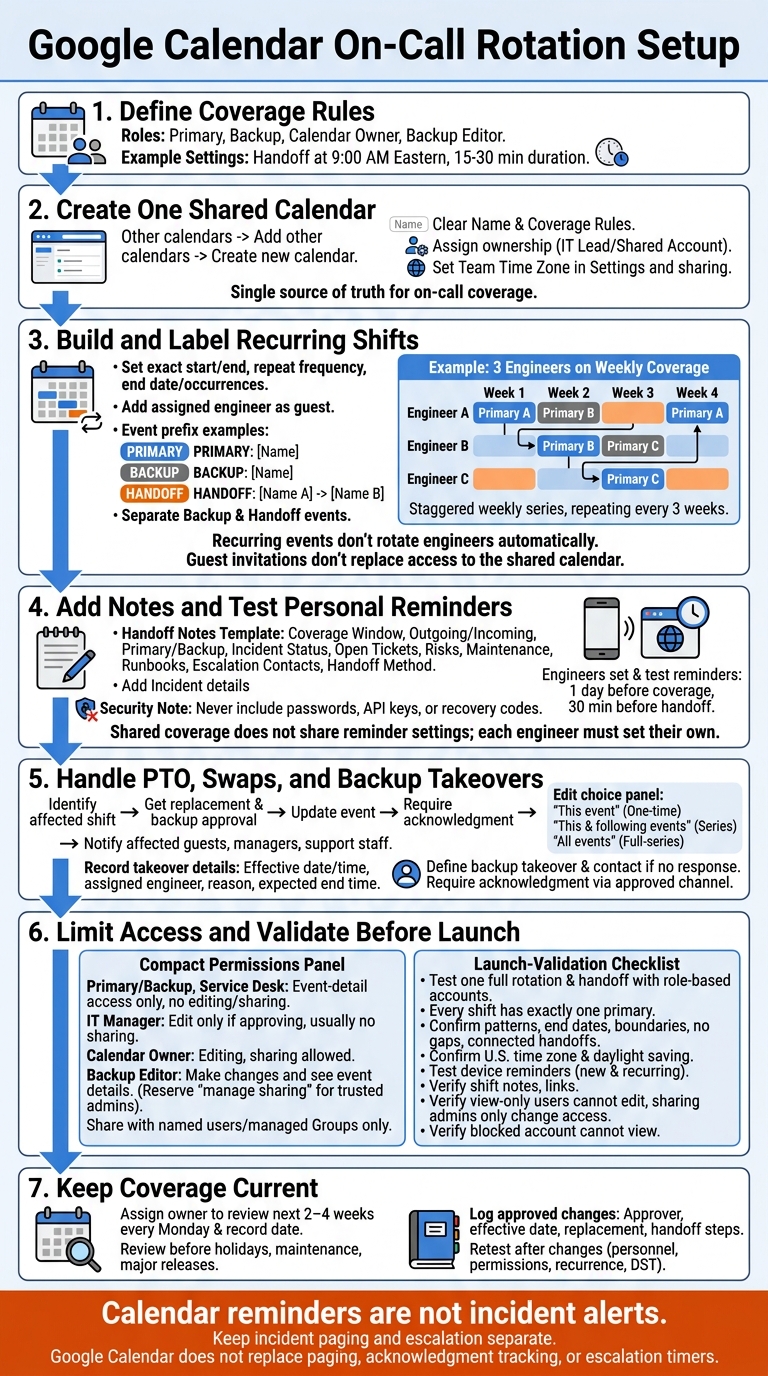
Once roles and handoff times are defined, create one shared calendar as the single source of truth for on-call coverage for engineers, managers, and support staff. In Google Calendar on the web, go to Other calendars → Add other calendars → Create new calendar. Give it a clear name and describe the coverage rules.
Assign ownership to an IT operations lead or shared administrative account. The owner must set the calendar’s primary time zone to the chosen team time zone in Settings and sharing. Give the backup editor Make changes and see event details access. Reserve Make changes and manage sharing for trusted administrators.
Set Up Recurring Shifts for Each Engineer
Add each shift to the shared calendar as an event with exact start and end dates and times. To send invitations or updates, add the assigned engineer as a guest. Set the repeat frequency, then choose an end date or number of occurrences for the planning period. Guest invitations don’t replace access to the shared calendar.
Recurring events repeat the same assignment; they don’t rotate engineers automatically.
For three engineers on weekly coverage, create three staggered series that repeat every three weeks and end with the planning period.
Label Primary, Backup, and Handoff Events
With recurring shifts in place, start each event title with PRIMARY, BACKUP, or HANDOFF, followed by the engineer’s name. For handoffs, include both engineers’ names. This makes coverage easy to scan.
Create separate backup events when coverage windows or responsibilities differ, and separate handoff events for scheduled briefings. Put contact details and escalation instructions in the description. Review upcoming events in week and month views to check for gaps, overlaps, and daylight saving time shifts.
Add Shift Notes and Manage Schedule Changes
Use a Handoff Notes Template
After naming each shift, keep the description focused on what engineers need to continue coverage. Use the same template for every shift: coverage window, outgoing and incoming engineers, primary and backup roles, incident status, open tickets, risks, maintenance, runbooks, escalation contacts, and handoff method.
Add incident and maintenance details to the individual occurrence. Never include passwords, API keys, or recovery codes.
Check Each Engineer’s Personal Reminders
With the shift details in place, check that alerts reach both the primary and backup engineer. Set reminders for each engineer 1 day before coverage and 30 minutes before handoff so they’re ready to take over. Guest reminders are separate. Both engineers should confirm that reminders fire on web and mobile.
Update PTO, Swaps, and Backup Coverage
When coverage changes, edit the existing series while keeping the calendar’s ownership and naming rules intact. Identify the affected shift, get approval for the replacement and backup, then update the occurrence or series as needed.
Choose this event for a one-time change, this and following events for a series change, or all events for a full-series correction.
Define when the backup takes over and whom to contact if neither engineer responds. For each takeover, record the effective date and time, assigned engineer, reason, and expected end time in the occurrence. Require acknowledgment through the approved team channel.
Send updates to affected guests, and notify managers and support staff so everyone sees the same current coverage status.
Control Access and Test the Schedule
Once the rotation is built, set who can view, edit, and validate it. Access controls keep the shared on-call calendar the single source of truth.
Set Calendar Permissions by Role
Give staff access to event details without granting ownership or editing rights. Every role listed below needs event-detail access.
| Role | Event editing | Sharing management |
|---|---|---|
| Primary engineer | No routine editing; request changes through the schedule maintainer | No |
| Backup engineer | No routine editing; request changes through the schedule maintainer | No |
| Service desk | No | No |
| IT manager | Edit only if responsible for approving or maintaining coverage | Usually no |
| Calendar owner or delegated administrator | Yes, for schedule maintenance | Yes |
Calendar-wide editing lets someone change more than their own shift. It can affect other assignments, recurring events, and handoff details. Keep editing rights with designated maintainers.
Share the calendar only with named users or managed Google Groups. Before granting access, check group membership and Google Workspace policy. Your organization’s rules may limit external sharing.
Verify Coverage, Notifications, and Staff Access
Test one full rotation and the next handoff with role-based test accounts - not just the owner’s account. Use the same roles that will access the calendar in production, and check that each can see the appropriate shift notes and alerts.
Before the rotation goes live, check the following:
- [ ] Every shift has exactly one primary engineer and a named backup or documented backup policy.
- [ ] Recurrence patterns, end dates, and rotation boundaries are correct. Shift boundaries leave no coverage gaps, and handoffs connect outgoing and incoming shifts.
- [ ] The calendar uses the intended U.S. time zone.
- [ ] Each participant’s reminders work on their actual devices for both a new event and a recurring event.
- [ ] Shift and handoff notes are visible, and runbook and escalation links open.
- [ ] View-only users cannot edit events, and only designated sharing administrators can change access. Test editing on a temporary event, not a production shift.
- [ ] A blocked account cannot view the calendar through direct sharing, Google Groups, or organization-wide access.
Retest after personnel changes, permission updates, and major recurrence edits, as well as before and after daylight saving time transitions. Compare the displayed times with the intended local shift times and verify the next handoff.
Conclusion: Keep On-Call Coverage Current
Once the rotation is live, use one shared Google Calendar as the source of truth for recurring shifts, named backups, and consistent handoff notes. Verify personal reminders and use least-privilege access. Shared coverage does not share reminder settings; each engineer must set their own. Keep the calendar up to date with a weekly review.
Assign one owner to check the next 2–4 weeks every Monday, plus before holidays, planned maintenance, and major releases. Record each review date in team documentation. Promptly log approved PTO, swaps, and backup changes, including the approver, effective date, replacement primary and backup, and any handoff steps.
Keep the calendar focused on shift coverage, and link to the separate incident-alerting and escalation process. Calendar reminders do not replace paging, acknowledgment tracking, or escalation timers.
FAQs
How do I schedule on-call shifts across time zones?
Label each shift with its time zone, such as 8:00 p.m.–8:00 a.m. ET. Check your Google Calendar time zone settings against the intended shift times so events don’t appear on the wrong dates. Use a consistent date format, such as MM/DD/YYYY, to keep dates clear across U.S.-based teams.
Why aren't my on-call reminders firing?
Check whether primary and backup contact details are current, escalation timers are clearly set, and backup coverage is confirmed. Make sure your incident management or ITSM platform automatically escalates unacknowledged alerts to a secondary contact or team lead.
If users report issues before alerts trigger, use the Google Workspace Audit and Investigation tool to investigate monitoring gaps. Tune or remove alerts that fire without action more than twice in 30 days.
How do I handle an unexpected on-call absence?
Use established escalation paths to send alerts to a secondary on-call engineer or team lead. Route alerts to roles, not individuals, so coverage stays in place when staffing changes. If the primary responder doesn’t acknowledge an alert, the system should automatically notify the backup.
Keep a written call tree or personal contact list for critical incidents in case automated paging fails. AdminRemix tools can help keep things organized during these transitions.