Chromebook Usage Analytics for Google Admin
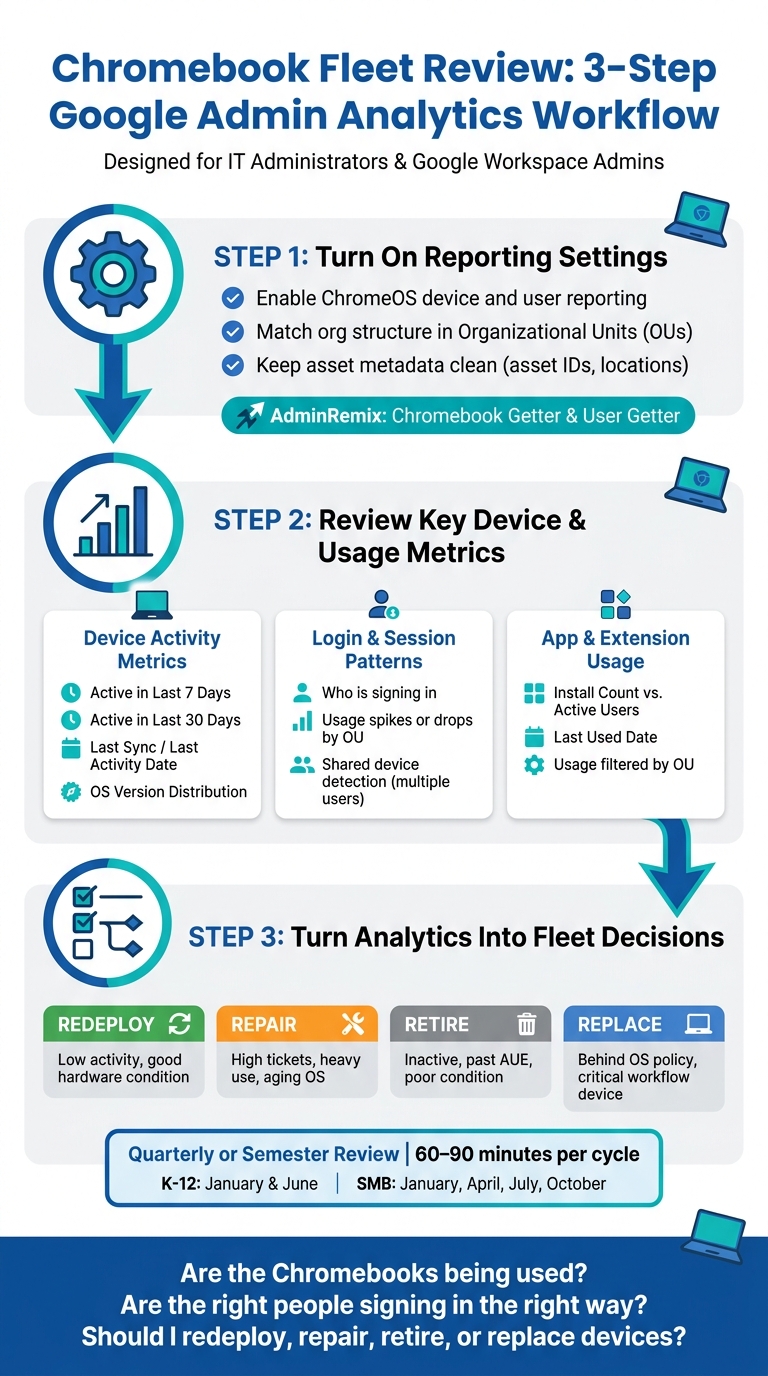
If you only check one thing in Google Admin, check activity first. I’d look at 7-day and 30-day active devices, last sync, ChromeOS version, login patterns, and app use by OU before making any device, budget, or refresh call.
Here’s the short version:
- Active devices tell me what’s in use
- Last sync helps me spot idle, lost, or broken Chromebooks
- OS version shows update and security gaps
- Login data shows shared use, spikes, and drop-offs
- App and extension use shows what people open vs. what is just installed
- A fixed review cycle - quarterly or by semester - turns raw data into device decisions
I’d use this data to answer three plain questions:
- Are the Chromebooks being used?
- Are the right people signing in the right way?
- Should I redeploy, repair, retire, or replace devices?
A few numbers matter most: 7-day activity, 30-day activity, last activity date, OS version spread, and install count vs. active users. For many teams, a 60- to 90-minute review each quarter is enough to catch idle inventory, underused apps, and aging devices before the next budget window.
You don’t get all of this in one screen. I’d check the ChromeOS device list for per-device status, Apps & extensions usage for software patterns, and Chrome log events for event-level details. Then I’d line that up with asset data, ticket history, and AUE timing to make cleaner fleet calls.
In short: turn reporting on, keep OU and asset data clean, review the same metrics on a set schedule, and act on what the numbers show.
Chromebook Fleet Review Process: 3-Step Google Admin Analytics Workflow
Your Google Admin Reports Are Failing You how to fix it
sbb-itb-c68f633
Step 1: Turn on the reporting settings that make Chromebook analytics work
Before Chromebook usage data becomes useful, you need to turn on the reporting and access settings that collect it.
Enable user and device reporting for ChromeOS
Use a Google Workspace admin account that has device-reporting access. Then turn on ChromeOS reporting so Google Admin can collect OS version, AUE, and activity data. Once reporting is on, device check-ins, logins, and app activity can be reviewed.
It also helps to match your actual org structure in OUs. That way, device and user reports stay accurate and easier to sort by team, school, site, or department.
Understand system log timing and retention
After reporting is enabled, the next job is to look at the data Google Admin makes available. Use user activity reports, login reports, and admin audit logs to review what’s happening. Google Admin does not show every fleet-wide view in one place, so you’ll often need to check more than one report.
Use AdminRemix tools after reporting is configured
Once reporting is live, AdminRemix can help with bulk cleanup and metadata updates in Google Sheets. Chromebook Getter and User Getter from AdminRemix let teams update Chromebook and user metadata in bulk, including custom fields like asset IDs and user locations.
If your team handles Chromebook lifecycle work, AssetRemix adds IT asset management and help desk support.
With reporting turned on and metadata kept up to date, the next step is reading what Google Admin shows about active devices, login patterns, and app usage across the fleet.
Step 2: Review device activity, logins, and app usage in Google Admin
In Google Admin, focus on three signals: device activity, login patterns, and app use. Start with device activity. Then look at logins and app use.
Check active devices, last activity, and OS version
The device list in Google Admin shows enrolled Chromebooks. But enrolled doesn't always mean active.
That’s where Last Sync helps. It lets you separate devices that connect on a regular basis from devices that haven’t synced in a while. And that can point to hardware that’s lost, stolen, broken, or just sitting on a shelf.
OS version matters too. Devices on older ChromeOS versions can miss security patches or run into issues with updated apps. When you review OS version across your OUs, you can spot which devices are behind and see whether the problem is isolated to one group or spread across the fleet.
| Device Metric | Admin Decision Supported |
|---|---|
| Active in Last 7 Days | Spot enrolled devices that aren't being used; reclaim or reallocate hardware |
| Last Sync / Last Activity | Identify potentially lost, stolen, or broken devices |
| OS Version | Flag devices needing manual updates or failing to sync security patches |
Analyze user logins and Chrome session patterns
Next, check who is actually signing in.
Login reports show who is signing in and help you spot unusual spikes or drops in usage across specific OUs. Chrome audit logs add more detail around sign-ins and sessions.
One thing to watch for: if a single Chromebook shows multiple users in a short time, treat that as shared use, not as one person’s behavior. That small distinction can save you from drawing the wrong conclusion.
Measure app and extension usage by OU
After logins, compare what’s installed with what people use.
Installed apps and extensions don’t tell the whole story. Actual use matters more. A better comparison is install count versus active users. If an app is installed across a large group but only a small set of users opens it, that’s a sign it may be underused and worth a second look for removal or targeted training.
Filtering by OU makes this easier to act on. An extension that gets heavy use in one OU but barely any in another may point to a training gap, not a problem with the tool itself. The Last Used date adds another layer. It helps you tell whether low usage is a recent dip or part of a longer pattern.
| App & Extension Metric | Likely Admin Action |
|---|---|
| Install Count | Audit licenses; identify over-provisioned or unused paid tools |
| Active Users | Determine if an app is "shelfware" and justify removal or targeted training |
| Last Used | Remove tools no longer in use by a specific OU |
Step 3: Turn Chromebook analytics into fleet review decisions
Once you’ve read the signals, the next step is simple: turn them into action. Use the data to decide which devices to redeploy, repair, retire, or refresh.
Use quarterly or semester reviews to spot idle and heavily used devices
Run each review on a fixed 30-, 60-, or 90-day window, and stick to a set schedule like every quarter or semester. That way, each review lines up with the last one and gives you a clean before-and-after view.
Start by comparing active devices with total enrolled inventory by OU. Then break the data down by role and location. This makes it much easier to spot where devices are sitting unused and where they’re doing heavy daily work.
Devices with little or no recent activity can usually fall into one of four groups: redeploy, keep, repair, or retire. Write down each decision as you go. That record gives the next review a clear baseline instead of forcing you to start from scratch.
Link usage data to repair and replacement planning
Usage data gets a lot more useful when you pair it with device age, warranty status, AUE dates, and ticket history. On its own, low usage might just look like low usage. Put it next to hardware condition and support records, and the picture gets a lot clearer.
Low-use devices that still have solid hardware are often good candidates for redeployment. On the other hand, devices with heavy daily use, repeat tickets, or old OS versions may be better fits for repair or replacement.
| Indicator | What It Suggests | Typical Asset Action |
|---|---|---|
| Active days per week are low | Device may be idle or overassigned | Redeploy, pool, or reclaim |
| Active days per week are high | Device is in sustained use | Keep; prioritize for maintenance |
| App usage density is low | Limited operational dependency | Reassign or reduce refresh priority |
| App usage density is high | Device is critical to workflow | Protect, monitor, or replace sooner |
| Ticket volume per device is high | Higher support burden or hardware wear | Repair, replace, or retire |
| OS version is behind policy | Security or compatibility risk | Update, remediate, or replace |
Use these usage trends to plan replacements and accessory needs for the next budget cycle. Once your action rules are set, automate the same review steps each cycle so the process stays consistent over time.
Build a simple reporting workflow with AdminRemix
A simple workflow can save a lot of manual checking. Export Google Admin reports on a set schedule, then use Chromebook Getter and User Getter to organize Chromebook and user data in Google Sheets for filtering, dashboards, and review checklists.
From there, AssetRemix can keep asset records, support history, and lifecycle status lined up with usage trends. Reusing the same filters each cycle makes trend comparisons much easier and keeps your reviews steady from one period to the next.
Conclusion: The core Chromebook metrics Google Admin teams should review regularly
On a set schedule, review 7-day and 30-day active device counts, last activity dates, ChromeOS version distribution, login and session patterns, and app and extension usage by OU. Those numbers help answer three simple questions: Are we using what we bought? Are users getting value? Is the fleet healthy and secure?
That said, the numbers only mean something if reporting is complete. If device, user, and app/extension reporting aren’t fully turned on in the right OUs - and left on for at least one full review cycle - the data can mislead you. An idle device may look inactive when, in fact, it just stopped reporting.
Once the data is flowing, stick to a fixed review cadence. A 60- to 90-minute check each quarter or semester is usually enough. For U.S. K–12 teams, January and June tend to line up well. For SMB teams, January, April, July, and October often match normal planning cycles.
From there, the review should lead to direct redeploy, repair, and refresh calls. Done on a steady rhythm, these reviews cut guesswork. You can redeploy inactive devices, adjust buying plans, and avoid hardware orders you didn’t need in the first place.
AdminRemix tools can help make that workflow repeatable by refreshing Chromebook and user metadata in Google Sheets and tying usage trends to asset records before each review. That way, the same process runs every cycle, and your fleet decisions get sharper over time.
FAQs
How long does it take for reporting data to become useful?
It depends on the report type and the metric you're looking at.
Activity logs are usually available within 10 minutes. Broader usage reports, on the other hand, often take 1 to 3 days to show up.
Some device metrics update on their own schedule. For example, the OS version policy compliance field refreshes every 3 hours.
Because reporting isn't always real-time, it's smart to account for these delays in your analysis or automated workflows.
What should I do if a Chromebook shows low activity but still looks assigned?
Start by checking the Chromebook’s current status. A quick physical check or device ping can tell you if it’s missing, offline, or damaged. You can also use Chromebook Getter in Google Sheets to compare the device’s last activity against your assignment records.
Next, run a scheduled spot check to figure out what’s going on. In some cases, the user may have left the organization. In others, the Chromebook may just be sitting unused. If the device no longer needs to stay assigned, deprovision the asset so your inventory stays accurate.
Which Google Admin reports should I check first each review cycle?
Start with the Devices audit log to spot account and security compliance issues. Then move to the Devices list in Chrome management to review OS version updates and each device’s compliance status.
You should also check the Security Health page for encryption and password policy status. If you're reviewing the whole fleet, pull reports for AUE dates and current OS versions.
Need the data in bulk? AdminRemix’s Chromebook Getter can export those reports into Google Sheets.