
Best Practices for ITAM-Google Workspace Integration
Integrating IT asset management (ITAM) with Google Workspace can help organizations save money, improve security, and simplify operations. By combining ITAM's lifecycle tracking with Google Workspace's user, device, and license management, businesses can eliminate manual processes, reduce unused licenses, and enhance data accuracy.
Key takeaways:
- Save on licenses: Avoid wasting 30-40% of SaaS licenses by identifying unused ones. For example, Google Workspace Business Standard costs $12/user/month - managing licenses effectively can lead to 15–25% savings.
- Improve security: Automate offboarding to revoke access, flag devices for return, and reduce data risks.
- Streamline workflows: Automate onboarding/offboarding and sync devices, users, and licenses between systems for better visibility.
Steps to get started:
- Audit your Google Workspace setup for accuracy (licenses, devices, user data).
- Map data fields (e.g., Serial Numbers to asset tags).
- Use tools like AdminRemix's AssetRemix for seamless integration and automation.
- Set up secure authentication with service accounts and API scopes.
- Automate workflows for onboarding, offboarding, and license tracking.
This integration boosts efficiency while cutting costs and improving security. Implementing it requires planning, secure authentication, and regular governance practices to maintain accuracy over time.
Google Workspace Administration Automation
sbb-itb-c68f633
Planning Your ITAM and Google Workspace Integration
Good planning is the backbone of a smooth integration process. Before diving into APIs or configuration screens, your team needs a clear understanding of your goals, the data involved, and how that data will move between systems.
Defining Goals and Use Cases
Every successful integration starts with specific, well-defined objectives. Bring together key stakeholders - like IT, security, finance, and HR - early in the planning process. Each group will have its own priorities: finance might focus on reducing license costs, security may prioritize MFA compliance and offboarding protocols, and HR will likely need accurate personnel records tied to hardware assignments.
To keep things organized, break your goals into categories:
| Goal Category | Specific Use Case | Data Points Required |
|---|---|---|
| Security | MFA compliance tracking | MFA enrollment status |
| Security | Offboarding verification | Account status, suspension reason |
| Cost Management | SaaS license optimization | Last login time, app usage data |
| Governance | Access reviews | Admin status, group memberships |
| Operations | Identify shadow IT | OAuth app name, client ID, permission scopes |
| Inventory | Personnel mapping | Email, job title, department, custom attributes |
One critical use case that often gets overlooked is shadow IT discovery. By integrating with Google Workspace, you can automatically identify third-party OAuth apps that users have authorized - no need for manual vendor inventories.
It’s also worth deciding early whether to monitor your entire domain or use group-based scoping to exclude specific populations, like contractors or service accounts, that don't require tracking. This choice directly impacts data volume, sync speed, and the accuracy of your reports.
Once your goals are clear, take a close look at your current Google Workspace setup to ensure the data is accurate and ready for integration.
Auditing Your Google Workspace Environment
Start by reviewing your Workspace edition (e.g., Business Starter, Business Standard, Enterprise), Organizational Unit (OU) structure, active licenses, and enrolled devices. This will give you a full picture of what data will be pulled into your ITAM system.
Pay special attention to device identifiers. Google Admin Directory relies on Device ID or Serial Number to track hardware assets. If your ITAM system uses asset tags, make sure there’s a reliable mapping between those tags and Google’s identifiers before syncing. Missing or inconsistent identifiers are a common cause of duplicate or orphaned records after integration.
User data accuracy is just as important. The primary attributes for directory syncing and SSO are First Name, Last Name, and Email. Any outdated or incorrect entries - like misspellings or inactive accounts marked as active - will carry over into your ITAM records if not cleaned up beforehand.
Building a Data Management Framework
Once you’ve audited your environment and defined your goals, it’s time to establish data flow rules. Your audit results will guide how you map and sync data. This framework should outline three key elements: what gets synced, how it’s identified, and who is responsible for it.
For device data, always map your ITAM asset tag to Google’s Serial Number or Device ID. These fields are essential and remain consistent in the Google ecosystem. For user data, decide which Google Workspace attributes will map to ITAM fields. If your organization tracks unique data - like office locations or start dates - use custom field mapping to include those attributes.
On the filtering side, set clear inclusion and exclusion rules for Groups and OUs. For example, syncing your entire domain when you only need data for full-time employees in specific departments adds unnecessary clutter. Proper scoping from the beginning keeps your ITAM database clean and your reports more actionable.
Lastly, assign a dedicated service account or super admin to oversee the integration long-term. This ensures continuity, prevents access issues when staff changes, and keeps someone accountable for maintaining the connection.
Technical Steps for ITAM-Google Workspace Integration
Now it’s time to dive into the technical setup. This phase builds on your earlier groundwork in goal-setting and data management. The choices you make here will directly impact the reliability and long-term maintainability of your integration.
Integration Methods and Data Flow Design
The Google Workspace Admin SDK is the cornerstone of this integration. It includes two critical APIs: the Directory API, which handles user and device management, and the Reports API, designed for retrieving audit logs and usage data. Together, these tools provide most of what’s needed for an ITAM platform to stay in sync with Google Workspace.
When setting up your data flow, you’ll need to decide between one-way and two-way synchronization. One-way sync is ideal for pulling data from Google Workspace into your ITAM platform - perfect for inventory tracking and reporting. Two-way sync, on the other hand, allows updates to flow back into Google Workspace, such as changes to asset IDs, locations, or organizational unit paths. While two-way sync is powerful, it demands stricter controls to prevent accidental overwrites of critical data.
To maintain consistency, ensure that every user and device has a unique identifier. For users, this could be their primary email or user ID. For devices, use identifiers like serial numbers for Chrome OS or the device ID, IMEI, or WiFi MAC address for mobile devices. Without unique identifiers, you risk creating duplicate or orphaned records.
Keep in mind that real-time synchronization isn’t typically possible with standard API connectors. Most integrations rely on scheduled syncs or manual triggers. For larger environments, consider using Delta Sync with a syncToken. This method lets you pull only the changes since the last sync, saving time and resources compared to fetching the entire dataset every time.
Once your data flow is mapped out, the next step is to secure your authentication setup.
Authentication and Security Best Practices
Authentication is a foundational step. As Google’s developer documentation explains:
"Authentication is a prerequisite for authorization. You can't determine what resources to access without first establishing the identity of the requester."
For automated ITAM workflows, Service Accounts are the best option. They don’t require human interaction and can run continuously in the background. If your use case involves a user explicitly granting access, OAuth 2.0 Client IDs are more appropriate, though this is less common in ITAM setups.
To enable a Service Account for domain-wide use, you’ll need to configure Domain-Wide Delegation (DWD). This involves adding the Service Account’s Client ID to the Google Admin Console under Security > API Controls and authorizing the specific OAuth scopes your ITAM platform requires. Be precise with the scope list - any discrepancies can lead to authorization errors.
Security should always follow the least-privilege principle. Only grant the permissions your integration truly needs. For example, if you’re syncing user and device data, read-only scopes like admin.directory.user.readonly and admin.directory.device.chromeos.readonly are sufficient. Additionally, avoid storing service account JSON key files in application code or shared directories. Instead, keep them in a secure, access-controlled location.
Mapping Roles and Permissions
After authentication, mapping roles and permissions ensures secure and efficient data handling. Avoid using a Super Admin account for the integration - it provides far more access than necessary. Instead, create a custom admin role in the Google Admin Console, tailored to the integration’s needs. For example, permissions like "View Users" and "View Chrome OS Devices" should be sufficient.
For managing access to the integration, assign roles to Google Groups rather than individual users. This simplifies management when team members change roles or leave the organization. As Google Cloud security expert Chris Martin points out:
"Using Google Groups for managing SecOps authorization is a recommended best practice as it's simpler to maintain and less prone to errors than assigning permissions to individual users."
Before deploying the integration in your production environment, thoroughly test it in a controlled setup. Verify that the service account can access only the necessary data and ensure that all scope and role assignments function as intended. This step is crucial to avoid surprises once the integration goes live.
Managing Assets and Licenses in an Integrated Environment
Once your integration is secure, the next step is managing asset and license data effectively. This involves standardizing device records, aligning organizational structures, and keeping track of license usage to avoid unnecessary costs.
Standardizing Device and Asset Data
Google Workspace data can sometimes be inconsistent, so it's essential to standardize device records using a unique identifier. For Chrome OS devices, this could be the Serial Number or Google Device ID, which acts as the primary key in your ITAM system. This approach helps eliminate duplicate records and ensures every asset is accounted for.
To keep your inventory clean and actionable, apply status filters during synchronization. Syncing only active devices prevents decommissioned hardware from cluttering your environment. This makes it easier to identify gaps, flag issues, and maintain an accurate inventory. Here's a quick look at recommended field mappings:
| Google Workspace Field | Recommended ITAM Mapping | Why It Matters |
|---|---|---|
| Device ID / Serial Number | Asset Tag | Ensures unique identification and avoids duplicates |
| User Email | Checked Out User | Tracks device responsibility |
| Status | Asset Status | Excludes inactive or retired devices |
| Custom Fields | Organization-Specific Data | Captures details like department codes or purchase dates |
Once your data is standardized, the next step is to organize it by aligning it with your departmental structure.
Aligning Organizational Units and Groups with ITAM
Google Workspace's Organizational Units (OUs) are a natural fit for structuring ITAM records. Since each user or device belongs to only one OU at a time, this hierarchy is simple to mirror in your ITAM system.
With your data standardized, you can use OUs to group users and devices for better policy control and tracking. For software entitlements and permissions, Google Groups are particularly useful. Unlike OUs, users can belong to multiple groups, making them ideal for license assignments when department-level OUs are too broad.
To keep your ITAM system focused, use inclusion and exclusion filters during directory sync. This ensures only relevant OUs and groups are imported, reducing unnecessary data and streamlining asset management.
Tracking License Usage and SaaS Subscriptions
License sprawl can drain resources, especially if you're paying for unused seats. Without a clear link between your ITAM platform and Google Workspace license data, inactive licenses can go unnoticed.
Automated directory synchronization is key here. Regular syncs between your ITAM system and Google Workspace ensure offboarded users are promptly removed as license holders. Map fields like user email, name, and OU to clarify who holds each license. For device-based subscriptions, such as Chrome Enterprise, syncing metadata like Serial Numbers, Device IDs, and status allows you to match hardware with its corresponding license. Using status-based syncs to pull active devices only can help catch waste early.
Automating IT Workflows with ITAM and Google Workspace
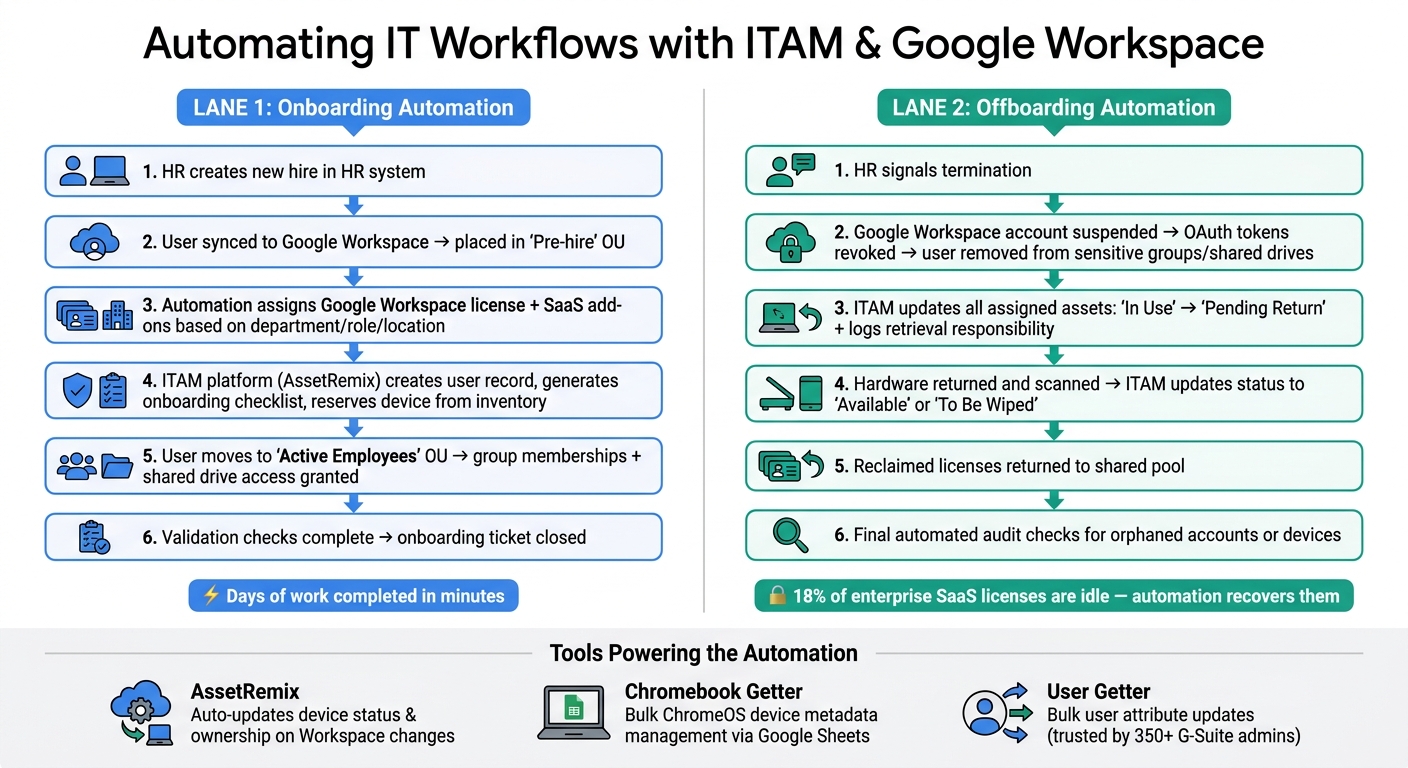
ITAM & Google Workspace Integration: Onboarding & Offboarding Automation Workflow
Once your assets are standardized and license data is aligned, the next logical step is automating routine IT tasks across user and device lifecycles. By connecting your ITAM platform to Google Workspace, you can transform repetitive IT tasks into consistent, automated workflows - whether you're onboarding a single new hire or managing a large batch. Below, we’ll explore how automating onboarding and offboarding can simplify IT operations.
Automating the Onboarding Process
Automation in onboarding starts when a new user is added or moved into an active Organizational Unit (OU) within Google Workspace. A well-planned workflow can handle tasks like assigning licenses, managing group memberships, controlling shared drive access, and creating ITAM records - all without manual intervention.
Here’s an example of how it works: HR creates a new hire in the HR system, which syncs with Google Workspace and places the user in a "Pre-hire" OU. From there, automation applies rules based on factors like department, role, and location to assign the right Google Workspace license and any necessary SaaS add-ons. Simultaneously, the workflow triggers your ITAM platform - such as AssetRemix - to create a user record, generate an onboarding checklist, and reserve a device from inventory. Once the user transitions to the "Active Employees" OU, group memberships and shared drive access are granted. After final validation checks, the onboarding ticket is closed.
The result? Onboarding that once took days can now be completed in minutes.
Automating Offboarding and Asset Reclamation
Offboarding is where automation delivers the greatest impact, especially in terms of security and cost savings. According to Zylo's 2024 SaaS Management Index, 18% of enterprise SaaS licenses are idle at any given time, with much of this waste stemming from slow or incomplete offboarding processes.
When HR signals a termination, automation kicks in to suspend the employee’s Google Workspace account, revoke OAuth tokens, and remove the user from sensitive groups and shared drives. Simultaneously, the ITAM platform updates the status of all assigned assets from "In Use" to "Pending Return" and logs who is responsible for retrieving the devices. Once the hardware is returned and scanned, ITAM updates its status to "Available" or "To Be Wiped", and reclaimed licenses are returned to the shared pool. A final automated audit ensures no orphaned accounts or devices remain linked to the former user - closing any gaps the primary workflow might have missed.
For contractors or shared devices, automation can be tailored to the employment type or OU to prevent shared devices from being accidentally wiped during routine offboarding.
Using AdminRemix Tools for Automation
AdminRemix tools integrate seamlessly into these automated workflows, making them especially useful for teams managing large Google Workspace environments. AssetRemix automatically updates device status and ownership whenever Google Workspace attributes change - like OU reassignments or new Chromebook enrollments. Meanwhile, Chromebook Getter and User Getter simplify bulk updates using Google Sheets. Chromebook Getter pulls ChromeOS device metadata into Sheets for easy editing and pushes updates back to Google Admin, while User Getter does the same for user attributes like department, manager, or custom schema fields that influence license assignment.
User Getter is currently trusted by over 350 premium G-Suite administrators.
For teams looking to extend these workflows, AssetRemix’s Zapier integration allows Google Workspace events to trigger real-time actions across other platforms. This could include importing or exporting data, updating statuses, or initiating compliance checks - all automatically. These tools ensure continuous compliance and governance, which we’ll discuss further in later sections.
Governance and Continuous Improvement
Effective governance and regular oversight are crucial to keeping automation and data accurate. Without these, ITAM–Google Workspace integrations can fall behind as policies, data, and security measures become outdated.
Policy Baselines and Compliance Monitoring
A policy baseline establishes specific, measurable security and inventory configurations. For Google Workspace, this could include settings like enforcing 2-Step Verification for admins, implementing SSO for specific organizational units (OUs), and setting a minimum ChromeOS version. On the ITAM side, you’ll want to document key asset fields and acceptable license variances.
To prevent drift, schedule monthly spot checks using Google Workspace's Security Center alongside ITAM reports. Automated alerts for critical events - like new super admin assignments or failed sync jobs - can help you address issues quickly. Gartner reports that organizations with strong software asset management practices reduce software and cloud costs by as much as 30% in the first year, largely by improving license governance and reconciliation. These practices naturally lead to routine audits that maintain data integrity over time.
Auditing and Reconciliation
A structured audit schedule ensures your systems stay aligned:
| Cadence | Focus Areas |
|---|---|
| Monthly | Orphaned accounts, unassigned devices, and failed automation workflows |
| Quarterly | License usage, accuracy of OU-to-ITAM mappings, and policy baseline reviews |
| Annually | API scopes, OAuth configurations, admin role reviews, and full process checks |
For each audit, export user and device data from Google Workspace. Tools like Chromebook Getter and User Getter from AdminRemix make this process simple via Google Sheets. Highlight discrepancies and assign a resolution owner - aim to resolve orphaned accounts within 3 business days. These reconciliation efforts drive continuous improvement across every stage of integration.
Training and Change Management
Ongoing training is essential to maintaining governance and adapting to changes. Google Workspace evolves regularly, with updates to Admin SDK features, API deprecations, and security settings that can unexpectedly impact integrations. Assign an integration owner to review release notes and assess how updates might affect ITAM workflows before rolling out any changes. Always test updates in a sandbox environment before deploying them to production.
Training should be tailored to specific roles and conducted regularly. Super admins and ITAM administrators need to stay informed on security practices and data analysis, while help desk staff should be proficient in approved onboarding and offboarding workflows to uphold governance standards. Quarterly micro-trainings and a concise "release notes digest" after major updates are practical ways to keep everyone informed without overwhelming the team.
Conclusion and Key Takeaways
Bringing ITAM and Google Workspace together is a game-changer for organizations looking to streamline operations, improve data accuracy, and boost security. By cutting out manual processes and centralizing user and device data, this integration leads to cleaner information, faster workflows, and better protection.
To make the integration successful, several key practices stand out. First, accurate identity matching is critical - using email for users and Serial Numbers or Device IDs for hardware ensures precision. Second, granular sync control helps you focus only on relevant data, while scheduled automation keeps everything up-to-date. Two-way synchronization is another must-have, as it ensures that changes in your ITAM platform, like asset IDs or location updates, are instantly reflected in the Google Admin console, maintaining a reliable single source of truth.
Lifecycle management is another major advantage. Automating tasks like onboarding, offboarding, and device actions (such as remote wipes or deprovisioning) eliminates delays that could put security at risk. On top of that, governance practices - like setting policy baselines, scheduling audits, and providing role-specific training - maintain long-term accuracy and protection.
Tools like AdminRemix's Chromebook Getter and User Getter make managing large Chromebook fleets or complex Google Workspace directories much easier. They take the headache out of bulk data management, all without needing custom development.
FAQs
Which Google Workspace data should ITAM sync first?
Syncing key asset details such as device type, serial number, and device ID is a crucial first step. These elements form the backbone of an accurate inventory, enabling smooth IT asset management throughout the integration process.
What identifiers prevent duplicate user/device records?
To avoid creating duplicate records for users or devices, make sure to use unique identifiers such as serial numbers or device IDs. These identifiers should be correctly linked and synchronized with Google Workspace to maintain accurate and dependable asset tracking.
How do I secure a service account with least privilege?
To keep a service account secure while adhering to the principle of least privilege, make sure it only has the permissions needed to complete its specific tasks - nothing more. Avoid granting overly broad access, as this can lead to unnecessary risks.
Handle service account keys with care. Rotate them frequently, restrict their usage, and store them in a secure location to prevent unauthorized access. If domain-wide delegation is necessary, use it sparingly and ensure that delegated accounts are assigned the smallest set of permissions required for their role.
Lastly, stick to Google's best practices for authentication and key management. This helps reduce the chances of misuse or privilege escalation.