
Best Practices for Chromebook Inventory Management
Managing Chromebook fleets can be challenging, especially for schools with large device inventories. Without proper tracking, losses can lead to significant financial and operational issues. For example, Chicago Public Schools reported a $23 million loss in the 2023–2024 school year due to poor device management. Fortunately, a well-organized inventory system can save time, reduce costs, and improve device availability for students and staff.
Key Takeaways:
- Centralized System: Use tools like Google Admin Console to track devices, enforce policies, and manage updates.
- Standardized Tags: Assign unique asset tags linked to serial numbers for easy tracking.
- Check-In/Out Processes: Log user assignments and device conditions in real-time to avoid losses.
- Regular Audits: Conduct inspections to identify missing devices, outdated hardware, or repair needs.
- Preventive Maintenance: Clean devices, monitor battery health, and perform software updates to extend lifespan.
- Security Measures: Enable features like forced re-enrollment and disable guest mode to prevent theft or misuse.
By combining automation tools, consistent tagging, and regular audits, schools can streamline Chromebook management, reduce losses, and plan replacements effectively.
Webinar : Chromebook 1:1 challenges and How to overcome them
sbb-itb-c68f633
Setting Up a Central Inventory System
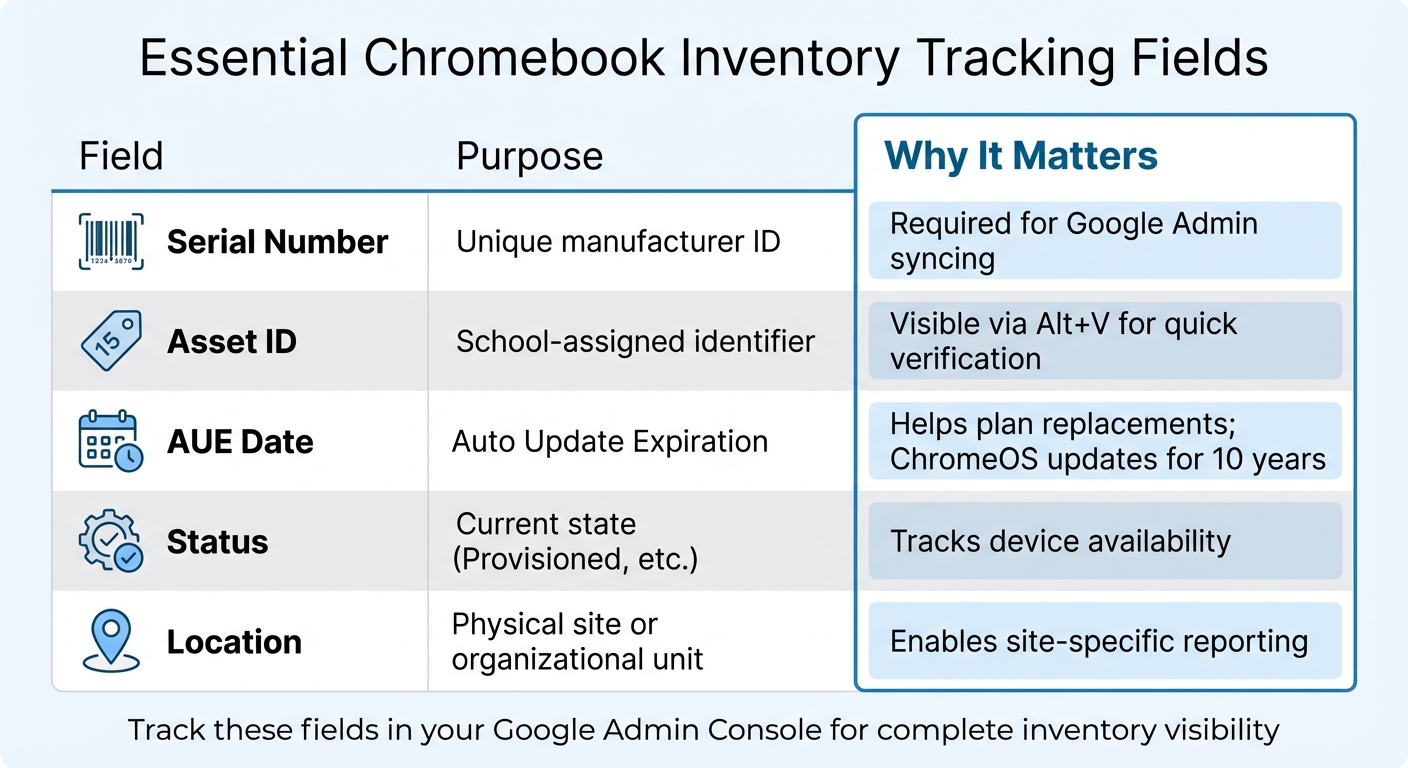
Essential Chromebook Inventory Tracking Fields and Their Purpose
Start by establishing a centralized inventory system that integrates seamlessly with your Google Admin Console. This system becomes the foundation for smoother audits, streamlined repairs, and effective security management. It eliminates the chaos of scattered spreadsheets, offering a single, dependable source for all your device data.
Selecting an Inventory Management Tool
When choosing an inventory management tool, it’s essential to find one that works well with Google’s infrastructure and syncs directly with your Google domain. For instance, the Google Admin Console allows you to export up to 100,000 devices into a CSV file. To handle this data effectively, you’ll need a tool that supports bulk actions like deprovisioning, power washing, and managing Auto Update Expiration (AUE) updates.
AdminRemix's AssetRemix is a strong option, offering IT asset management with unlimited asset tracking, help desk integration, and direct synchronization with Google Admin. If you prefer working within spreadsheets, Chromebook Getter provides a Google Sheets–based interface. It allows you to download, modify, and re-upload fleet data back to the Admin Console. The free version supports up to 500 uploads a month, while premium plans start at $109.00 annually for single-user access.
"I signed up for Chromebook Getter because it's faster than getting what I need with GAM command lines." - Philip Helmers, SWBOCES LHRIC
Before finalizing your tool, ensure you enable essential reporting policies in the Google Admin Console. Navigate to Devices > Chrome > Settings and activate these options:
- "Report device OS information"
- "Report device hardware information"
- "Report device telemetry"
These settings are not enabled by default but are crucial for unlocking full dashboard visibility.
Once your tool is selected, focus on standardizing asset tags to ensure every device has a unique identifier.
Creating Asset Tags and Naming Conventions
Standardized asset tags are key to tracking thousands of identical devices. Use the Serial Number as your primary identifier - it’s a required field in Google’s directory and remains consistent throughout a device’s lifecycle, making it perfect for syncing with Google Admin. To maintain uniformity, map your asset tags to the Serial Number or Device ID. Utilize the "Annotated Asset ID" field in the Google Admin Console to store school-specific tags. These can be updated during enrollment or modified in bulk later.
For quick physical audits, students and staff can view the assigned Asset ID on any Chromebook by pressing Alt+V, simplifying check-ins and reducing confusion.
Here are the key fields you should track:
| Field | Purpose | Why It Matters |
|---|---|---|
| Serial Number | Unique manufacturer ID | Required for Google Admin syncing |
| Asset ID | School-assigned identifier | Visible via Alt+V for quick verification |
| AUE Date | Auto Update Expiration | Helps plan replacements; ChromeOS updates for 10 years |
| Status | Current state (Provisioned, etc.) | Tracks device availability |
| Location | Physical site or organizational unit | Enables site-specific reporting |
To make audits and troubleshooting even easier, Google Admin Console now includes Natural Language Processing (NLP) capabilities. This feature lets you search for devices using plain English queries - for example, “which devices were enrolled last month” - instead of relying on complex filters. Combined with properly tagged inventory data, this tool can save administrators significant time and effort.
Managing Check-In and Check-Out Workflows
Streamlining check-in and check-out procedures is crucial for keeping track of devices and avoiding losses. Poor documentation can lead to accountability gaps, misplaced devices, and operational hiccups. To prevent this, every device should be tied to a specific user, with real-time updates that reduce manual errors. By integrating these workflows into a centralized inventory system, you can monitor each device from the moment it’s issued to when it’s returned.
Recording User Assignments
When handing out devices, it’s essential to immediately log key details - like the serial number, asset tag, user name, and check-out date - into your Google Admin Console. To create a clear record, have students, parents, or staff sign agreements that include both the serial number and asset tag.
For added efficiency, integrate your inventory system with tools like your Student Information System (SIS) or Google Workspace. This automation links devices to users by their serial numbers and updates critical fields like assignee details, check-out dates, and device condition in real time. This approach can reduce manual entry errors by as much as 90%. You can also set up cloud alerts to track upcoming returns or expired assignments, ensuring your records stay accurate.
To maintain accountability, enforce a policy requiring all previously checked-out devices to be returned before issuing new ones. At the end of the school year, conduct physical collections using barcode scans or device pings to confirm returns. For example, Montgomery County Public Schools (MCPS) identified missing Chromebooks during an inventory review, highlighting the importance of regular reconciliations. They now recommend periodic audits, with a goal of completing them by October 2025. These checks help identify and resolve discrepancies before they affect your budget.
Accurate records like these also pave the way for smooth, automated bulk management during device check-ins.
Using Automation for Bulk Management
Once individual device records are established, automation can simplify bulk check-in processes. Tools like AdminRemix's Chromebook Getter make it easy to manage large volumes of devices. This tool allows you to download, edit, and upload device metadata directly through Google Sheets, making it simple to update user assignments and device locations in bulk.
During device check-ins, you can use bulk commands to perform tasks like power washing devices (to remove user data) and reassigning them. Other features include moving devices between Organizational Units (OUs), deprovisioning retired units, and tracking Auto Update Expiration (AUE) dates to plan for replacements. AdminRemix offers different plans to suit your needs: the free plan supports up to 500 uploads per month, while the Core Plan ($109.00 annually) offers unlimited uploads for single-user access. For larger teams, the Domain Plan ($440.00 annually) provides unlimited user access and advanced reporting capabilities.
"I work in the technology department. A huge part of my job is Chromebooks & google. We are so happy we found Getter! This is the best tool to help you manage Chromebooks all in one place." - Lorene Cowan, Technology Office Manager
To maintain a unified record, ensure that Asset Tags remain linked to Device IDs throughout the process. This consistency is key to keeping your inventory management system reliable and efficient.
Running Regular Audits and Inspections
Once your daily operations are running smoothly, regular audits become essential for maintaining data accuracy and avoiding unexpected costs. These checks help prevent financial losses, security vulnerabilities, and operational hiccups. Skipping routine audits can lead to issues like "ghost assets" - devices listed in your system but missing in classrooms - resulting in inaccurate data and unnecessary licensing expenses.
Ensure that reporting tools for OS, hardware, telemetry, and user tracking are active to maintain the accuracy of your audits.
Instead of burdening your IT team with a large-scale annual audit, try cycle counting. This approach involves inspecting smaller portions of your inventory daily or weekly. For a full inventory count, schedule it during school breaks when devices aren’t actively being checked in or out.
Planning and Executing Inventory Audits
The Google Admin console offers a natural language processing (NLP) search feature - simply type queries like "devices enrolled last month" to quickly create audit lists.
During audits, prioritize key metrics that highlight device health and potential security risks. For instance, the "Last Policy Sync" field can help identify devices that haven’t connected to Google servers recently. These devices might be lost, stolen, or damaged. Similarly, reviewing Auto Update Expiration (AUE) dates ensures you can plan ahead for devices that will soon stop receiving security updates, giving you time to budget for replacements.
Assign a condition score (on a scale of 1–10) to each device based on factors like age, physical damage, and service history. During inspections, evaluate battery health by comparing the full charge capacity to the design capacity. Check battery cycle counts to identify those nearing the end of their lifecycle.
Audit metrics not only enhance your central inventory records but also provide insights into overall device health and security trends.
| Audit Metric | Description | Utility for Decision-Making |
|---|---|---|
| Last Policy Sync | Date/time device last connected to Google servers. | Flags "ghost" devices that may be lost or stolen. |
| Auto-Update Expiration | Date when updates stop for the device. | Helps plan long-term hardware replacement budgets. |
| Battery Health % | Ratio of full charge capacity to design capacity. | Predicts maintenance needs and potential failures. |
| OS Version Compliance | Checks if the device meets required OS standards. | Identifies security risks and devices needing updates. |
For missing or unauthorized devices, use the Admin console to remotely disable, deprovision, or power wash them.
Analyzing Reports for Decision-Making
Detailed audit reports are powerful tools for proactive planning. They allow you to replace and maintain devices strategically. For example, analyzing AUE dates across your fleet helps you organize multi-year replacement cycles, avoiding the need for last-minute funding when updates suddenly stop. While many schools follow a five- to seven-year replacement plan, audit data enables you to assess devices based on their actual condition rather than just their age.
The Google Admin console’s Dashboards tab provides a snapshot of fleet health, including device models, provisioning status, and OS version distribution. Use reports like "OS crashes by major version" (available for 7-day or 28-day periods) to pinpoint models or OS versions causing system instability.
Tracking battery health and cycle counts helps you identify trends and schedule replacements in advance. Additionally, you can set automated alerts in the Admin console for recurring issues, such as repeated re-enrollments or non-compliant OS versions, so problems are flagged immediately rather than during your next audit.
Export device data to Google Sheets using tools like AdminRemix’s Chromebook Getter for custom filtering. This makes it easy to spot devices nearing AUE dates, units with poor battery health, or those that haven’t synced in over 30 days. Connect audit findings to your help desk ticketing system to ensure that hardware issues identified during inspections are promptly addressed. Incorporating these insights into your central inventory system strengthens your IT management approach.
Maintaining Devices and Extending Lifespan
A thorough check-in process is just the beginning - consistent maintenance is key to keeping devices running smoothly and extending their lifespan. While Google now offers 10 years of automatic update support for all Chromebook platforms, physical wear and software clutter can still take a toll. Regular upkeep helps delay costly replacements.
Performing Preventive Maintenance
Start with the basics: physical care. Protective cases are a must, and students should be taught to handle Chromebooks with care. For example, always carry the device by its center to avoid screen damage. Before closing the lid, check that no items - like pens, notebooks, or USB drives - are left on the keyboard. Also, unplug cables and USB devices before moving the Chromebook to prevent damage to ports.
Keep devices away from extreme temperatures, direct sunlight, and liquids to avoid internal damage. For batteries, avoid leaving the device plugged in at 100% for extended periods. Instead, unplug it once fully charged and reconnect when the battery drops below 50%. You can also reduce battery strain by keeping screen brightness around 50% and closing high-drain apps, such as YouTube or Netflix, when not in use.
Digital maintenance matters, too. Regularly clear out downloads, remove unused extensions, and clear the browser cache. Use the Google Admin Console to enforce essential extensions and schedule an annual reimaging of devices. At the end of the school year, performing a factory reset (Powerwash) ensures devices are ready for new users.
| Maintenance Type | Task | Frequency |
|---|---|---|
| Physical | Clean screens with a microfiber cloth and use compressed air for vents | Weekly/Monthly |
| Software | Update ChromeOS and clear browser cache/cookies | Monthly |
| Storage | Delete files from the "Downloads" folder or move them to Google Drive | Monthly |
| System | Perform a factory reset (Powerwash) or reimage the device | Annually |
| Battery | Charge fully overnight; avoid deep discharges during the day | Daily |
Tracking Repairs and Planning Replacements
Documenting repairs is essential for managing device lifecycles and avoiding inventory issues. When sending devices for repair or Return Materials Authorization (RMA), always deprovision them in the Google Admin Console. This step is crucial because, as Google Help explains:
"A device that hasn't been deprovisioned can't be fully tested and repaired".
Choose the appropriate deprovisioning reason, such as "Same model replacement" for RMAs or "Retiring from fleet" for permanent removals. This keeps records accurate and ready for future audits.
Keeping track of repair history alongside Auto Update Expiration (AUE) dates helps identify when a device is nearing the end of its useful life. Tools like AdminRemix’s Chromebook Getter can export AUE dates into Google Sheets, making it easier to analyze which devices need replacing. You can also set up automated alerts in the Google Admin Console to flag devices nearing repair or replacement thresholds.
For devices that can’t be repaired, consider salvaging universal components like LCD screens, keyboards, and batteries. These parts can be used to maintain other devices without incurring the cost of new replacements. Additionally, configuring the Google Admin Console to display a custom message with a return address and contact number on disabled or lost devices can help recover hardware. Once repairs are complete, manually re-enroll devices to assign them to new users, provided an upgrade license is available.
Securing Devices and Preventing Loss
Keeping devices secure is more than just a good practice - it’s essential for avoiding costly losses and maintaining smooth operations. Even a small loss, like 1% of a Chromebook fleet, can add up to tens of thousands of dollars in replacement costs . Fortunately, with the right strategies in place, most losses can be avoided.
Creating Security Policies
A strong security framework starts with customized policies. For example, disabling Guest and Incognito Modes in the Google Admin Console ensures that all browsing is logged and filtered. As Kendal Shomura, Senior Education Consultant at CDW Amplified for Education, points out:
"If you don't have your Admin Console set up correctly, if you have gaps in security, kids will find it. They absolutely find it."
Other key policies include enabling Forced Re-enrollment and restricting sign-ins to school domains (e.g., *@school.org). This keeps devices under institutional control, even after a factory reset . To manage apps and extensions, use an allowlist approach - block everything by default, then approve only what’s necessary for education. Blocking Developer Tools and Task Manager prevents students from tampering with security settings. For YouTube, setting Restricted Mode to "Strict" or "Moderate" and fine-tuning cookie settings ensures proper authentication.
| Policy Type | Recommended Configuration | Security Benefit |
|---|---|---|
| Guest Mode | Disabled | Prevents anonymous, unfiltered browsing |
| Incognito Mode | Disallowed | Ensures all browsing history is logged and filtered |
| Forced Re-enrollment | Enabled | Stops devices from being repurposed after a factory reset |
| Developer Tools | Never allowed | Blocks tampering with security extensions and scripts |
| Sign-in Restriction | School Domain Only | Prevents access via unmanaged personal accounts |
| Task Manager | Block user from ending processes | Stops students from disabling security processes |
Physical measures also play a big role. Laser engraving school information on Chromebook cases discourages resale, while visible signs about password protection and tracking can deter theft. Loaner agreements that outline financial consequences for lost or damaged devices add an extra layer of accountability.
Locating Lost or Stolen Devices
Even with robust security, devices can still go missing. The Google Admin Console offers basic tracking features like "last policy sync", "most recent user", and "WAN/LAN IP addresses." While helpful, these tools only provide the last known connection and retain limited logs.
To improve tracking, enable reporting policies such as "Report device location", "Report device telemetry", and "Report device user tracking". For more advanced tracking, consider third-party tools with geofencing capabilities. These tools can send alerts if a device leaves a designated area, like your school campus. Since Chromebooks don’t have GPS, they rely on Wi-Fi triangulation to estimate location.
If a device is confirmed lost or stolen, you can remotely disable it through the Admin Console. This action not only locks the device but also displays a custom message with return instructions and contact details. For devices running ChromeOS version 132 or later, admins can even access the device remotely in "Private sessions" when no user is signed in - provided it’s on a managed network.
Sometimes, the issue isn’t theft but simple misplacement. Fletcher, Chicago Public Schools Inspector General, highlighted this common scenario:
"When we followed up with the schools, we would talk to people who had an asset or a laptop or a Chromebook that was issued to them that was marked as lost or stolen - that in fact wasn't."
Regular physical audits, like weekly or monthly checks of lockers, desks, and storage areas, can help recover misplaced devices before they’re written off. For students leaving the district, holding transcripts or grades until Chromebooks are returned can be effective. Some schools also offer optional insurance through providers like Worth Ave. Group, which may include $0 deductible coverage for theft or loss.
Conclusion
Managing a Chromebook fleet can be done effectively with the right approach. This guide has covered essential steps, from setup to security, emphasizing the importance of integrating each element into a well-organized inventory strategy. A centralized system that tracks every device - from purchase to retirement - combined with regular audits and clear check-in/check-out workflows, ensures smooth and predictable operations. Such a system helps avoid costly errors and keeps your inventory on track.
Switching from manual spreadsheets to automated, cloud-based tools can transform your workflow. Tools that integrate with the Google Admin Console reduce data entry mistakes and provide real-time updates on device status, user assignments, and Auto Update Expiration (AUE) dates. Automation also allows you to perform bulk actions, like deprovisioning or power washing hundreds of devices, in just minutes - saving both time and effort.
However, automation is only part of the solution. Proper device care is equally important to extend the lifespan of your Chromebooks. Preventive maintenance, strong security policies, and regular tracking of AUE dates are crucial. Planning timely replacements and conducting annual physical audits can help protect your investment and prevent unnecessary losses.
Start small - implement consistent asset tagging, automate bulk updates, or schedule quarterly audits. Each improvement strengthens your system, making your inventory more reliable and your operations more efficient. Schools that succeed in managing their Chromebook fleets treat inventory management as an ongoing effort, not a one-time task.
FAQs
What’s the fastest way to get started with Chromebook inventory tracking?
If you need a fast way to manage Chromebook inventory, a tool like Chromebook Getter can make the process much easier. It allows you to bulk download and upload data through Google Sheets, streamlining tasks like deprovisioning devices, performing power washes, or creating detailed reports. All you need to do is integrate it with the Google Admin Console, map the data fields to your needs, and sync regularly to keep your inventory organized and up-to-date.
Which fields should every school track for each Chromebook?
Schools need to keep tabs on specific details for each Chromebook to manage their inventory efficiently. Key information to track includes:
- Serial number or device ID: These unique identifiers are crucial for distinguishing devices.
- Asset tags: These should be linked to the serial numbers for easy reference.
- User assignment: Record who is using the device, such as a student or staff member.
- Location: Note where the device is typically stored or used, like a specific classroom.
- Device status: Keep the current condition updated, such as whether it's active or undergoing repairs.
- AUE dates: Knowing the Auto Update Expiration (AUE) date helps with planning device lifecycles.
- Maintenance notes: Document any repairs or issues for a clear service history.
Keeping these details organized ensures accurate records and smooth day-to-day operations.
How often should we audit Chromebooks to catch missing devices early?
To keep tabs on missing devices and ensure your inventory stays accurate, it's a good idea to audit Chromebooks on a regular basis. Setting up a monthly or quarterly schedule can help you stay on top of device tracking and management.